

To connect your ADSS Server with your Utimaco HSM, you need to open the ADSS Server Console. To access the ADSS Server Console, type the following URL in your browser: https://<Machine_Name>:8774/adss/console.
Machine_Name could be: localhost (ADSS Server is on the local system where it is deployed), a local network system name or an IP address or a URL.
In the console, go to Key Manager and click on Crypto Source. Press the New button and fill in the form as shown here:
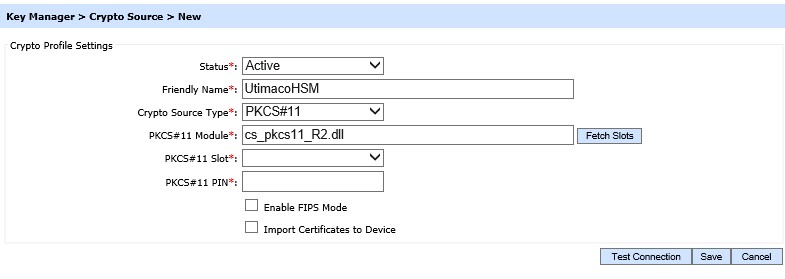
adss1
Press Fetch slots and choose the slot you want to choose from the list. The list should show you all the slots which are visible with your current configuration. Type in the PIN of the cryptographic user. Verify the connection by clicking Verify Connection.
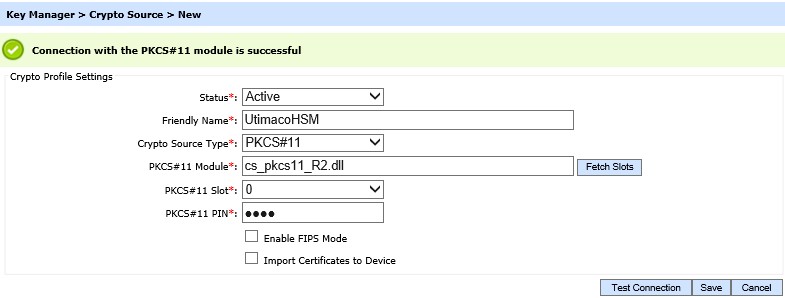
adss2
|
Item |
Description |
||
|---|---|---|---|
|
Status |
Set the status of the crypto profile to either Active or Inactive. The latter means the crypto device cannot be used to perform cryptographic operations on the keys. |
||
|
Friendly Name |
A unique identifier within the ADSS Server environment. Using a meaningful name for easy reference, such as UtimacoHSM, is recommended. |
||
|
Crypto Source Type |
Choose PKCS#11 as a crypto source. |
||
|
PKCS#11 Module |
Enter the cs_pkcs11_R2.dll library here. You can either use the absolute path to the file or just use its name. Please note that there is a 32-bit and a 64-bit version of this file, so use the correct one. |
||
|
Fetch Slots |
Click this button to see the available slots of your crypto device. |
||
|
PKCS#11 Slot |
The drop down will show you all the available slots. Select the slot you want to use. |
||
|
PKCS#11 PIN |
Enter the PIN number or password for the chosen slot. |
||
|
Test Connection |
Test communication with the configured hardware device. |
||
|
Enable FIPS Mode |
FIPS mode is supported by Utimaco HSMs. However, FIPS mode is not recommended when using smart cards or USB tokens. |
||
|
Import Certificates to Device |
If you want to store the certificates (based on the keys on the PKCS#11 module) on the token - as opposed to storing them on the ADSS Server - this option allows you to do so. Should be checked if you are using smart cards. |
After the configuration, you need to restart the ADSS Server to update the running system. You can restart the system in the ADSS Server Console by clicking on ServerManager and then pressing Restart System.