

Follow the steps below to configure the Utimaco u.trust GP HSM as a Crypto Source within the Ascertia ADSS Server.
-
Access the ADSS Server Unity Console as an operator with permission to manage crypto sources.
-
Navigate to Key Manager > Crypto Sources, and click + to add a new Crypto Source.
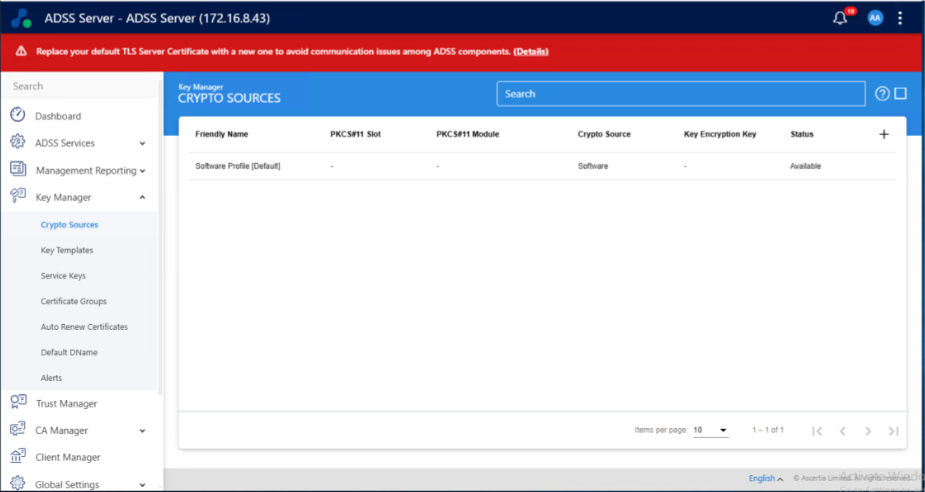
Crypto Sources
-
The Add Crypto Profile – Profile Identification page will display; enter a friendly name for the new crypto profile. Click > to proceed to the next step.
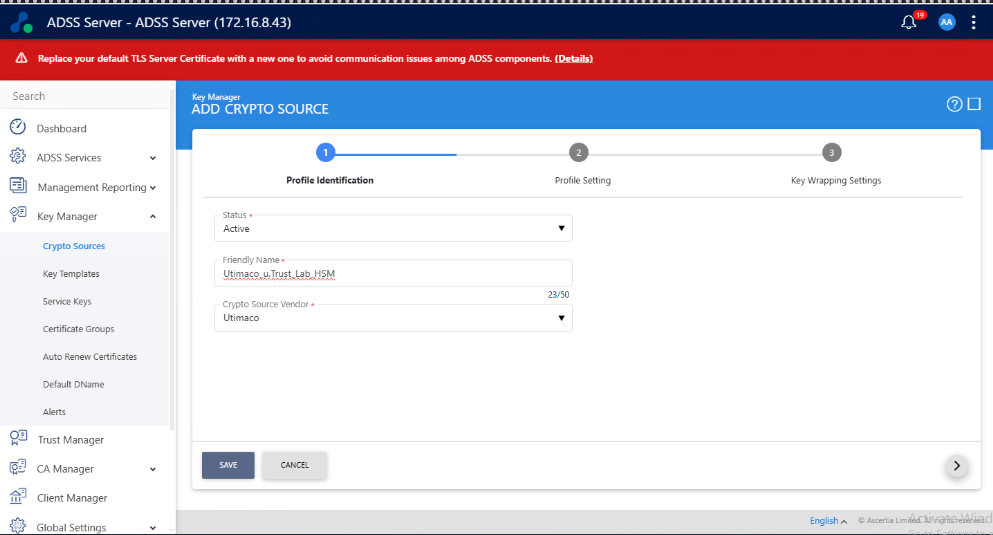
Add crypto profile – profile identification
-
The Add Crypto Profile – Profile Setting page will display. In the PKCS#11 Module field, enter the path to the PKCS#11 dll supplied with the Utimaco HSM; by default this is:
-
Windows :
C:\Program Files\Utimaco\SecurityServer\Lib\cs_pkcs11_R3.dll -
Linux:
Software/Linux/Crypto_APIs/PKCS11_R3/lib/libcs_pkcs11_R3.soin u.trust GP HSM bundle.
-
-
Click Fetch Slots.
-
Set the PKCS#11 slot that was initialized earlier.
-
Enter the PKCS#11 PIN created when the normal Crypto User was created.
-
Click the Test Connection button.
-
Click the > button to proceed to the next step.
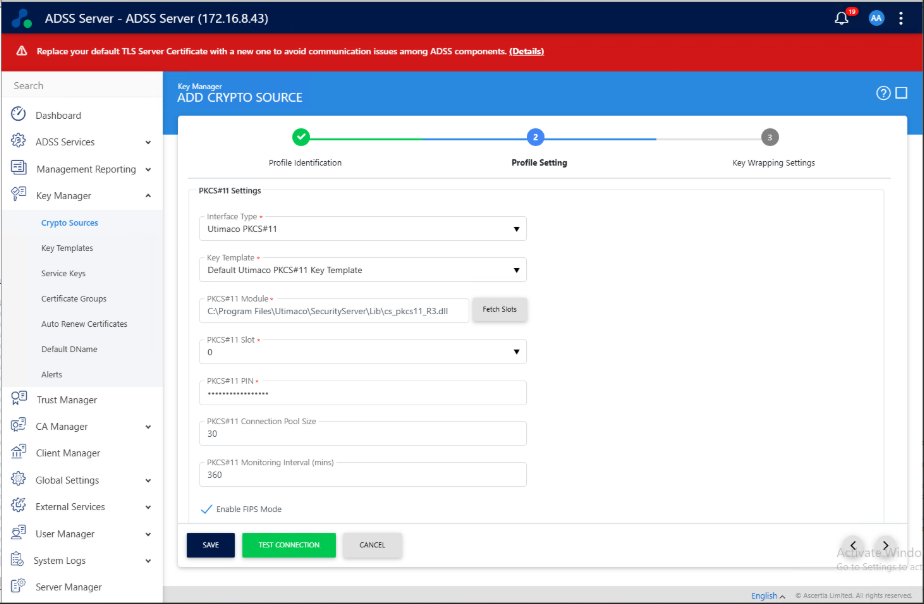
Add crypto profile – profile setting
-
The Add Crypto Profile – Key Wrapping Settings page will display. Accept the default of No key Wrapping. Click Save.
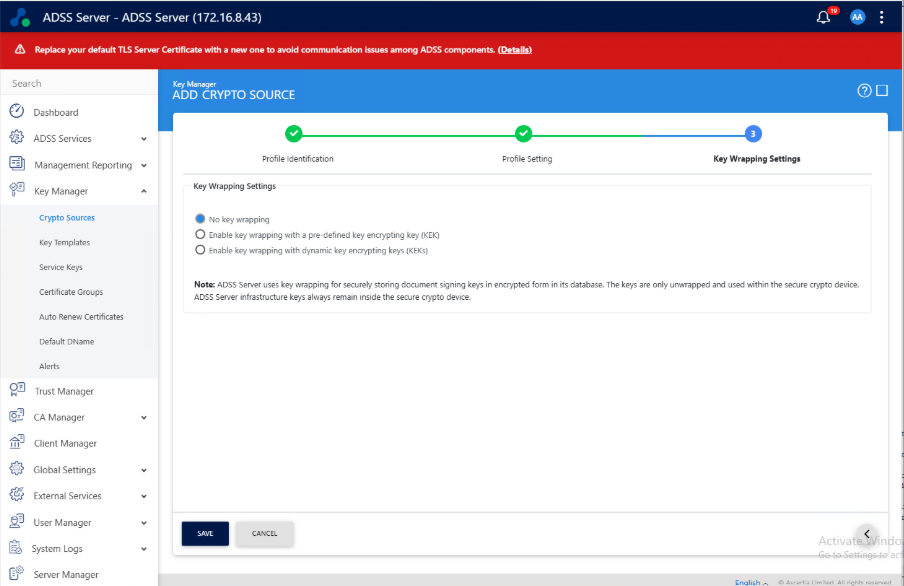
Add crypto profile – key wrapping settings
-
You will be returned to the Crypto Sources page. Click the link to use the Server Manager to restart the ADSS Server instances.
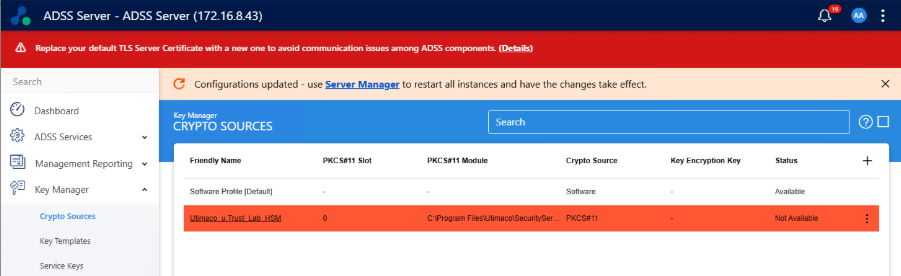
Crypto sources
-
The Server Manager page will display. Click the Restart All Instances button.
-
Once the ADSS Server services have restarted, return to Key Manager > Crypto Sources. You will see that the new Utimaco HSM is now an available Crypto Source.
-
Refer to the ADSS Server Product Documentation to configure the services you wish to use with this new HSM.