-
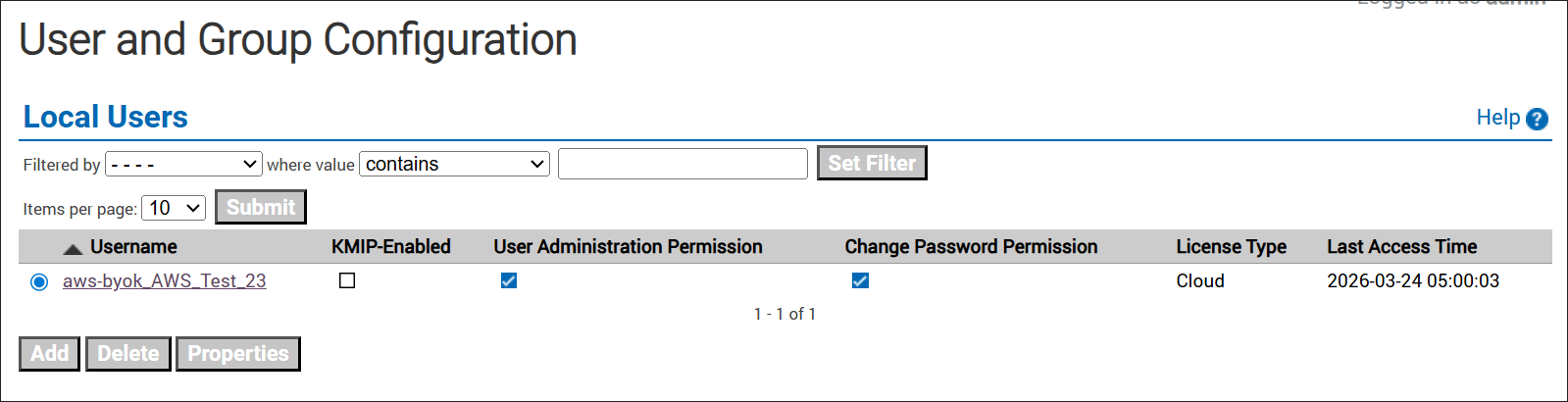
In the ESKM Management Console > Security > Users & Groups > Local Groups. Confirm that Username is created.
-
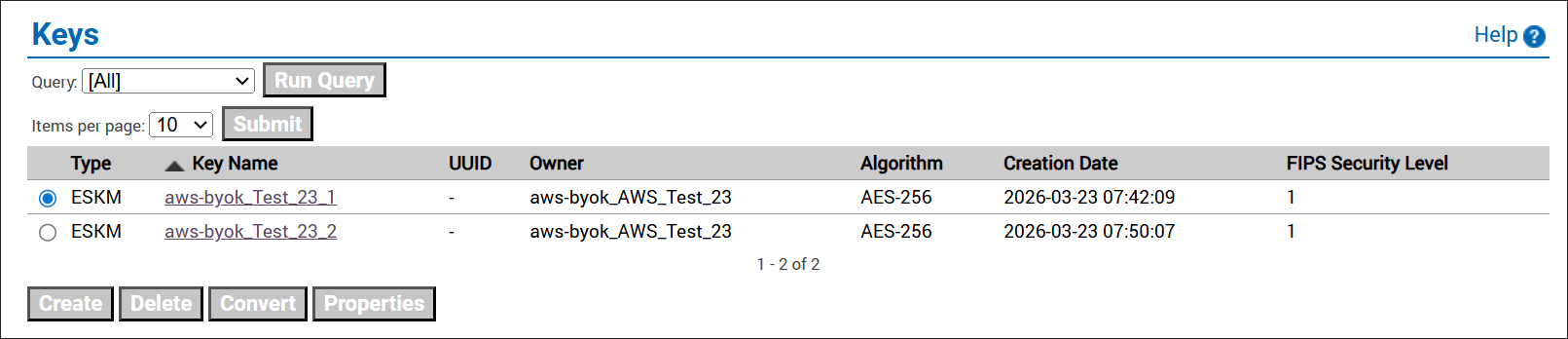
In the ESKM Management Console > Security > Keys. Confirm that the created keys are listed.
-
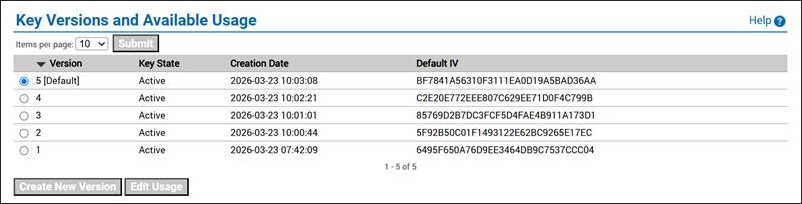
In the ESKM Management Console, go to Security > Keys, select the required key, and then open Key Versions to verify that key rotation has been created.
-
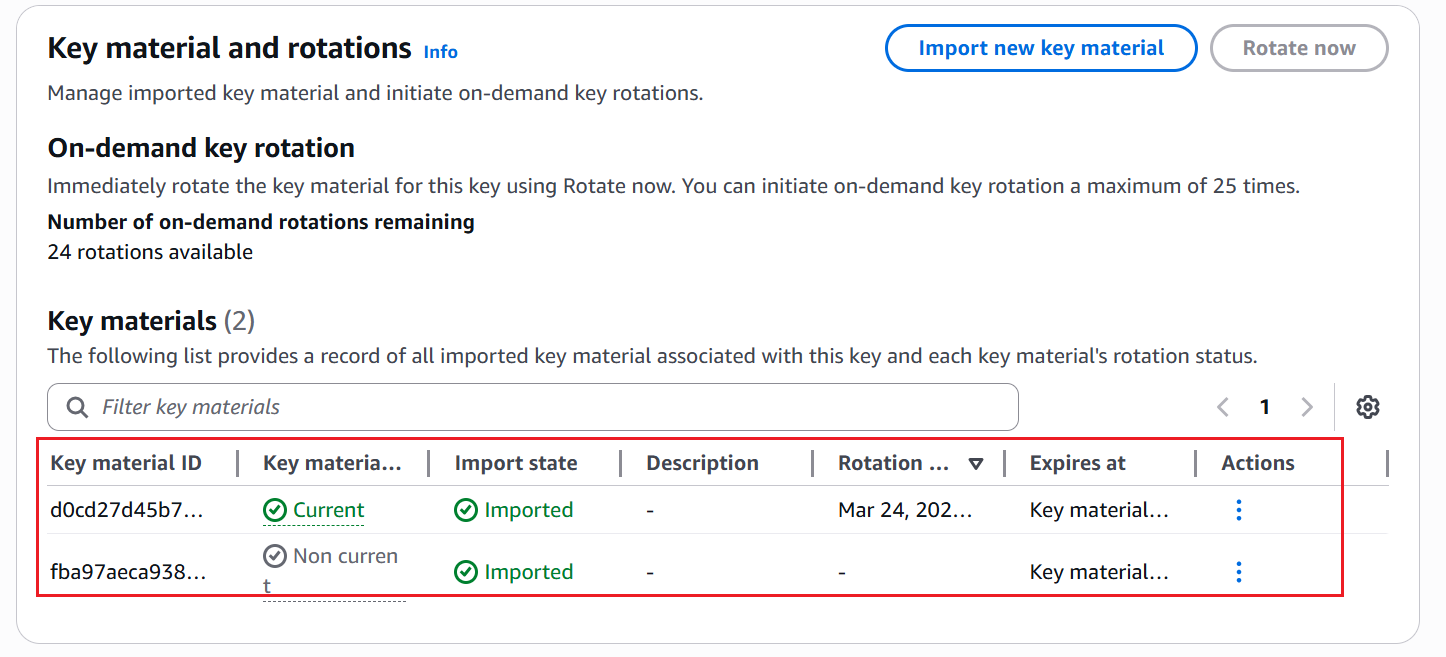
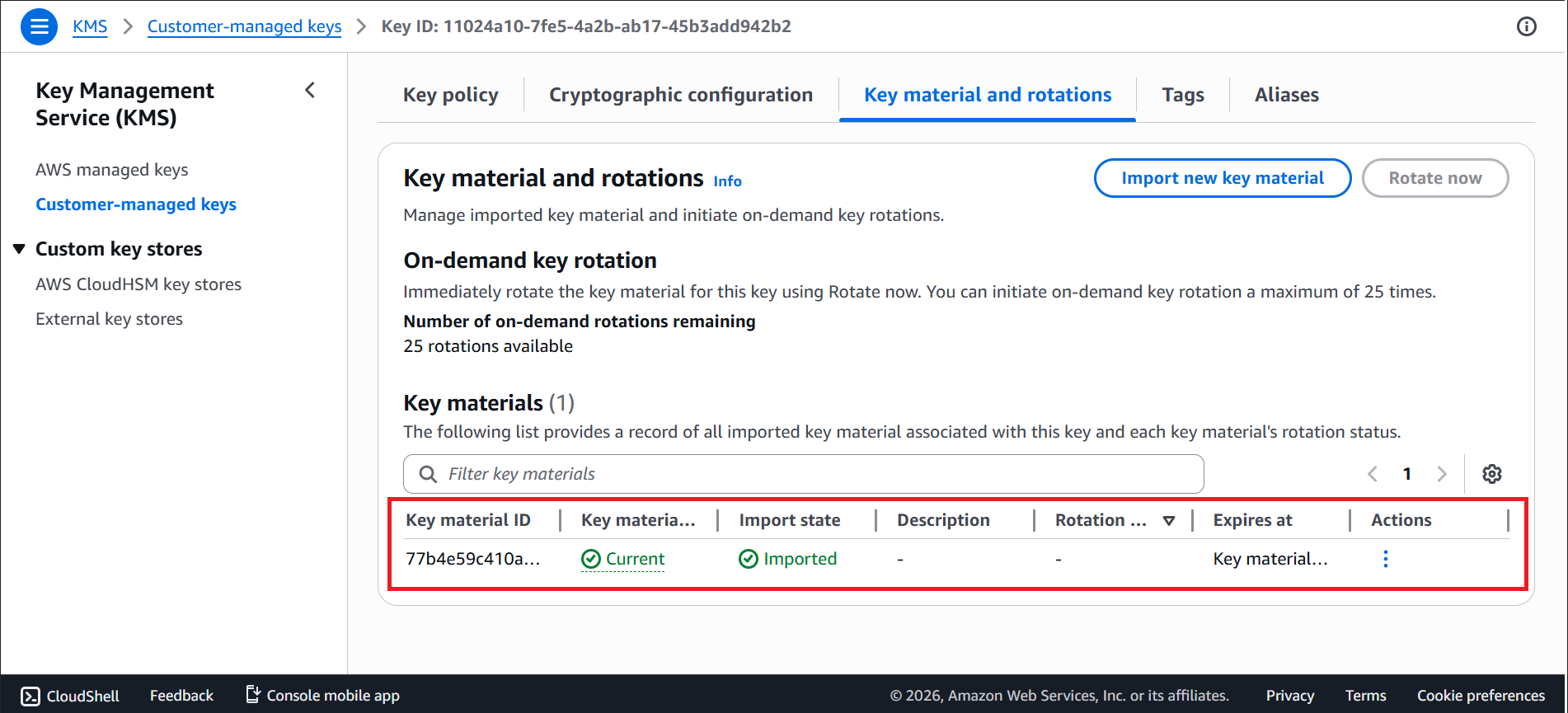
After creating and uploading a key in ESKM, log in to AWS page > Services > Key Management Service (KMS) > Customer-managed keys > Search for the uploaded key > Click on Key material and rotations. Verify that the key is uploaded in the AWS-BYOK console.
-
After creating new version of a key in ESKM, log in to AWS page > Services > Key Management Service (KMS) > Customer-managed keys > Search for the uploaded key > Click on Key material and rotations. Verify that the key rotation is created in AWS BYOK console.