

Logs and Validation Steps
-
In the ESKM Management Console > Security > Users & Groups > Local Groups. Confirm that Username is created.
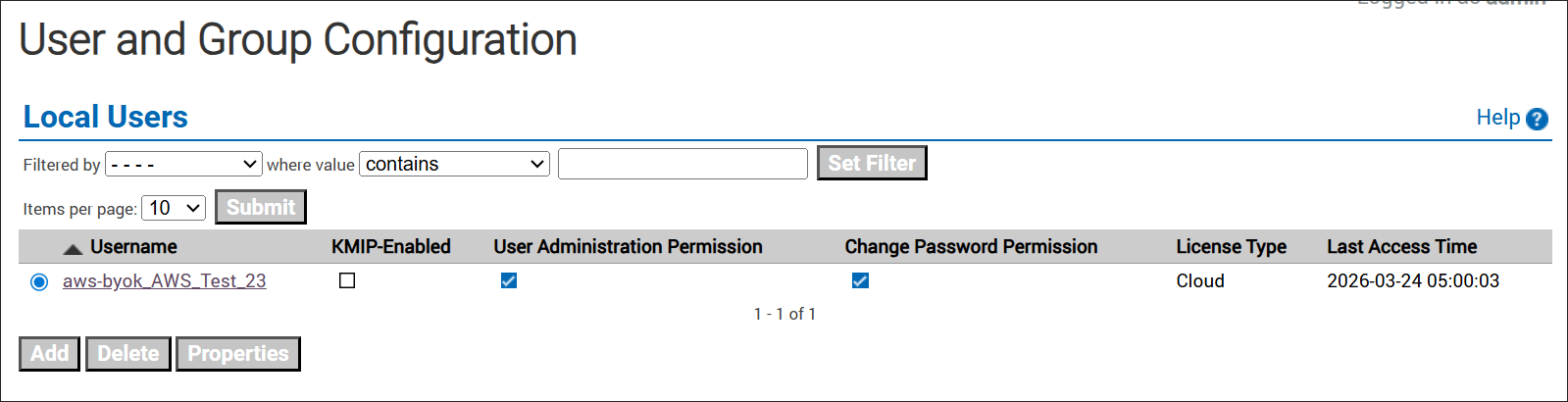
Local Users
-
In the ESKM Management Console > Security > Keys. Confirm that the created keys are listed.
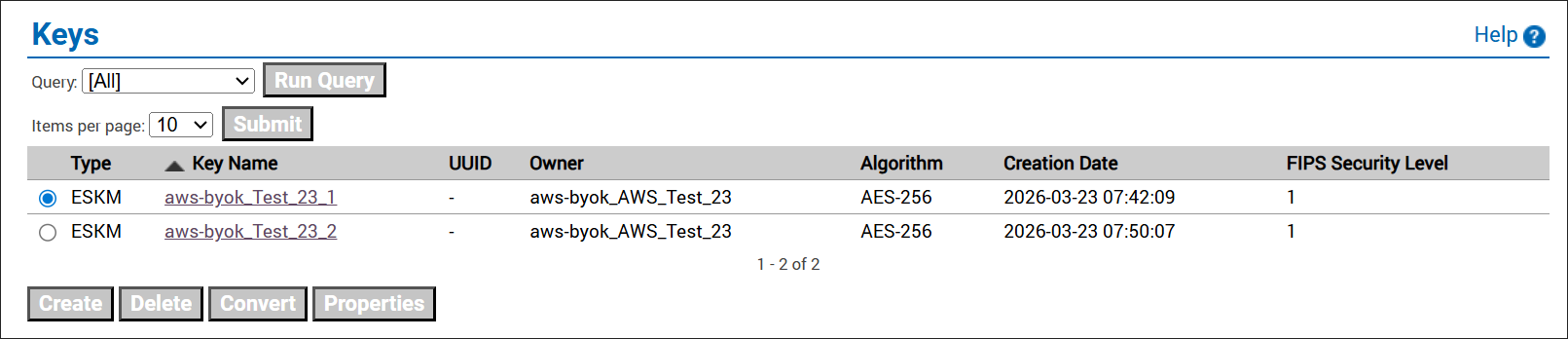
Keys
-
In the ESKM Management Console, go to Security > Keys, select the required key, and then open Key Versions to verify that key rotation has been created.
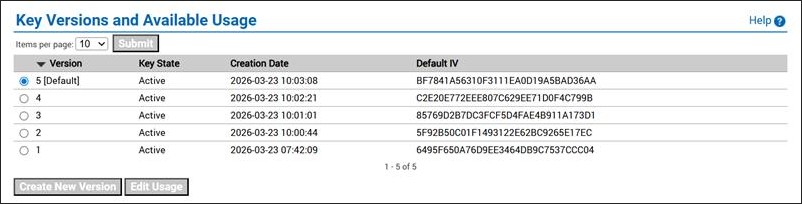
Key Versions and Available Usage
-
After creating and uploading a key in ESKM, log in to AWS page > Services > Key Management Service (KMS) > Customer-managed keys > search for the uploaded key > click on Key material and rotations. Verify that the key is uploaded in the AWS-BYOK console.
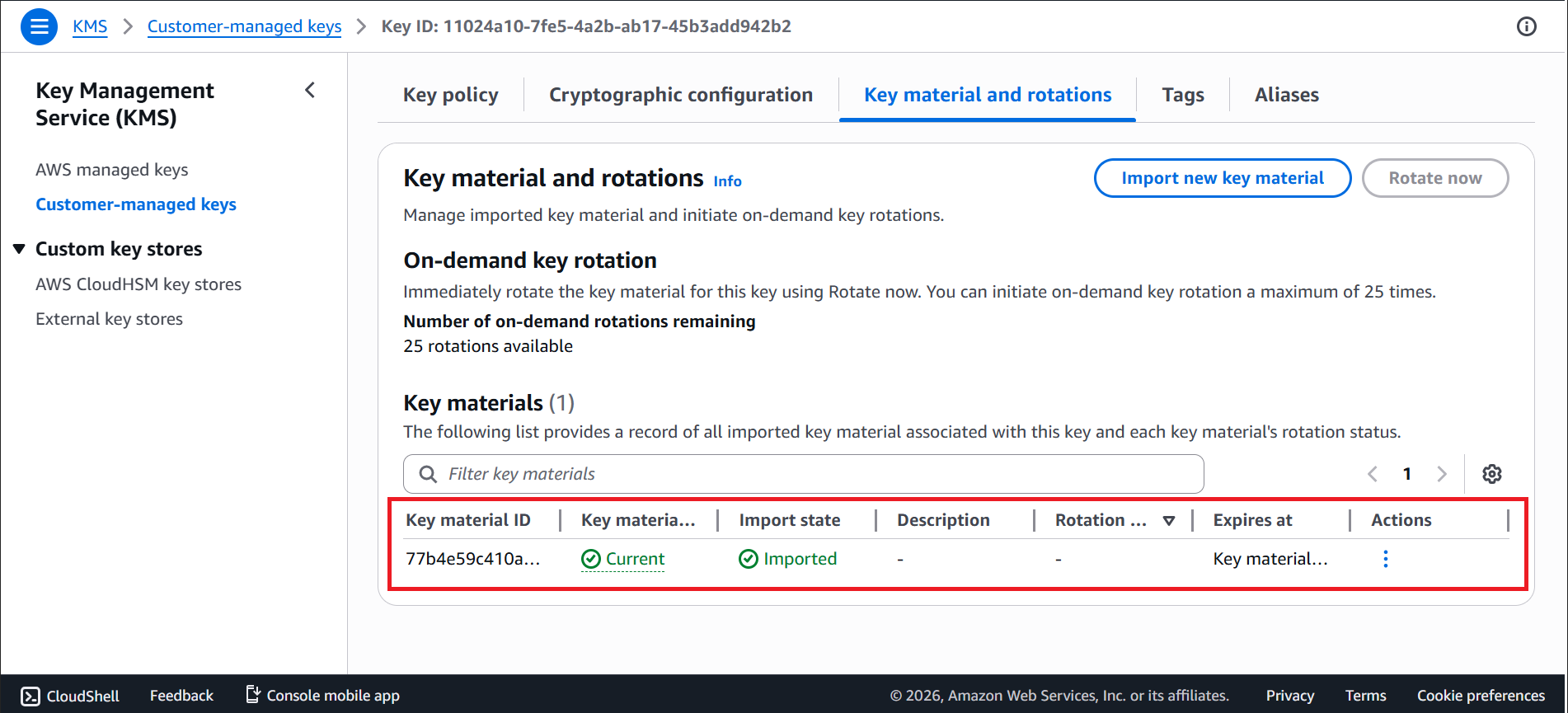
Key created in AWS-BYOK
-
After creating new version of a key in ESKM, log in to AWS page > Services > Key Management Service (KMS) > Customer-managed keys > search for the uploaded key > click on Key material and rotations. Verify that the key rotation is created in AWS BYOK console.
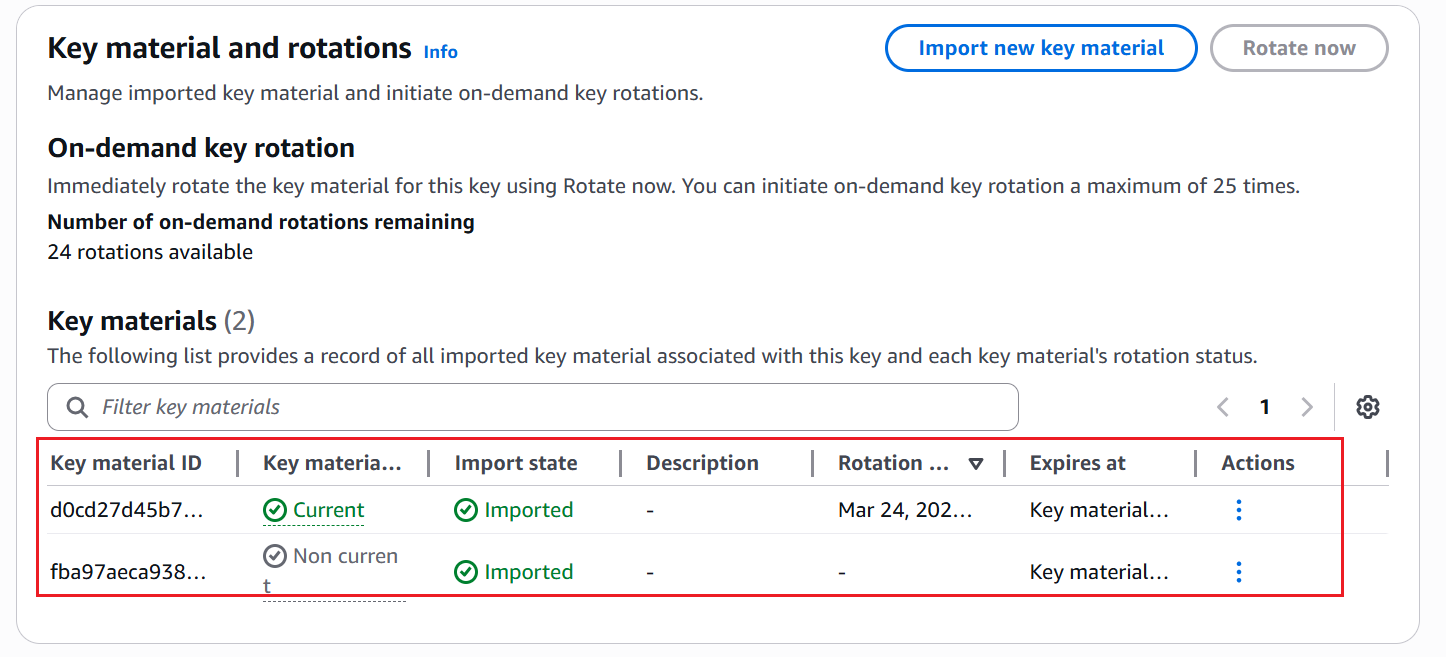
Key Rotation created in AWS-BYOK