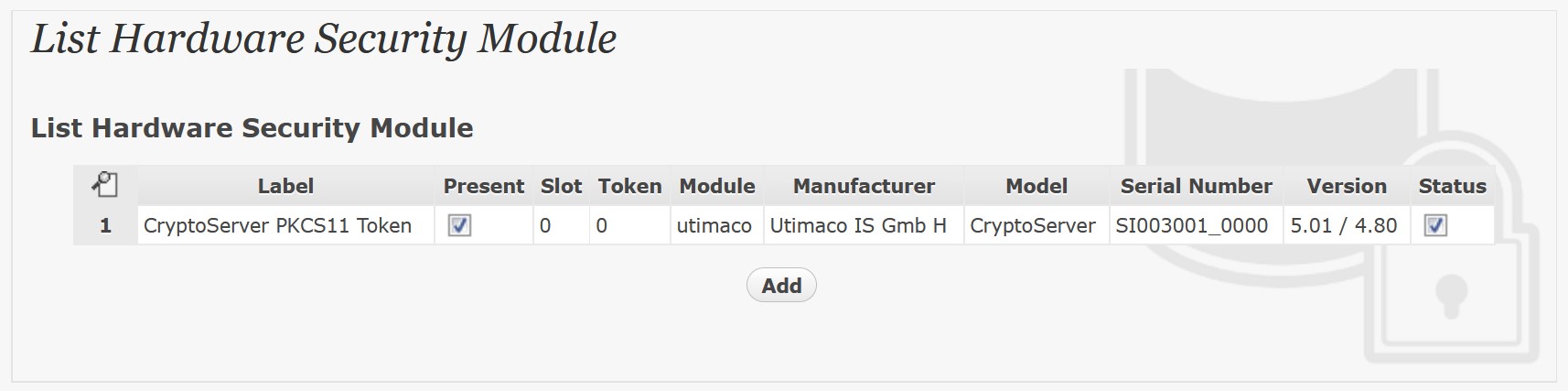
The Utimaco provided PKCS#11 libraries and tools need to be installed on the Bloombase Operating System (BloombaseOS). To modify files on the Bloombase StoreSafe OS filesystem, the administrator can access the TTY2 console (ALT+F2) and login as root or another user.

The following files need to be installed in their specific paths:
/opt/utimaco/bin/p11tool2
/opt/utimaco/conf/cs_pkcs11_R3.cfg
/opt/utimaco/lib/libcs_pkcs11_R3.so
Additionally: the following two environment variables need to be declared at the set environment parameter script of Bloombase StoreSafe:
/spitfire/spitfire-storesafe/bin/setenv.sh
### Utimaco HSM

export CS_PKCS11_R3_CFG=/opt/utimaco/conf/cs_pkcs11_R3.cfg

export LD_LIBRARY_PATH=$LD_LIBRARY_PATH:/opt/utimaco/lib
Ensure the
cs_pkcs11_R3.cfg
file is correctly configured to Utimaco instructions. The device ID or network IP needs to be specified in the file as such:
|
[CryptoServer] # Device specifier (here: internal PCI device : cHSM on local u.trust Anchor device - last number represents cHSM slot (1)) Device = /dev/cs2.0.1 # Device specifier (here: cluster of remote devices - first with IP address, others using format <port>@<ip>) Device = { 192.168.23.235 288@192.168.23.236 4001@192.168.23.237 } |
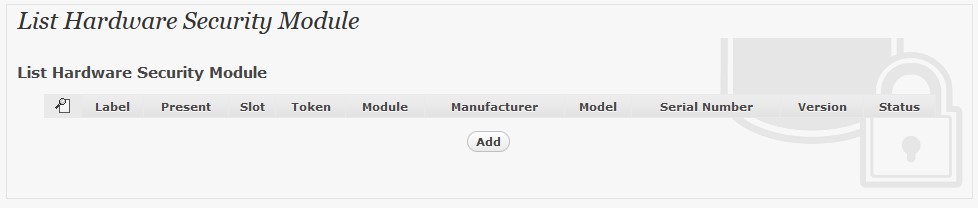
To enable the built-in Bloombase KeyCastle to utilize keys managed in the u.trust GP HSM, the hardware security module service configuration at Bloombase web management console has to be set up. This is done by clicking “Hardware Security Module” under “Key Management”.
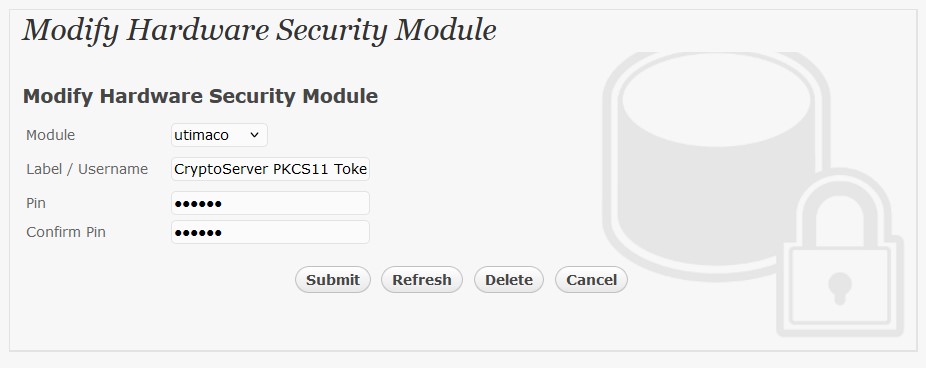
Input a name for the configuration, and select Model as
Utimaco
Input the token label of the u.trust GP HSM, and the token user pin.
Click ‘Submit’ to commit the configuration. If the token is properly initialized and connected the “Present” and “Status” boxes will be checked.