

ESKM server certificates are used by the client to authenticate the ESKM server during the TLS/SSL handshake. ESKM supports two types of clients.
-
Clients that use the ESKM protocol are referred to as ESKM clients.
-
Clients that use the KMIP protocol are referred to as KMIP-enabled clients.
The ESKM clients communicate with the KMS server and KMIP-enabled clients communicate with the KMIP server.
During the execution of the Setup utility a default KMIP Server Certificate is automatically created. This certificate should only be used for testing purposes, as it is a self-signed certificate. If your ESKM system will be communicating with KMIP-enabled clients, Utimaco highly recommends that you create a new KMIP server certificate. The name you assign to these server certificates should clearly indicate their purpose. For example: ESKM KMS Server and ESKM KMIP Server.
KMIP requires mutual authentication. After configuring the KMIP server, enable KMIP client certificate authentication. The KMIP client certificate authentication status is disabled by default.
By default, REST Server uses the system-generated server certificate. Utimaco highly recommends replacing the default certificate.
If you will be using a third-party CA, and wish to use an existing server certificate, see Import a third-party server certificate.
To create an ESKM server certificate, perform the following steps:
-
Click the Security tab.
-
In Certificates and CAs, select Certificates.
-
Enter information required by the Create Certificate section of the window to create the ESKM server certificate.
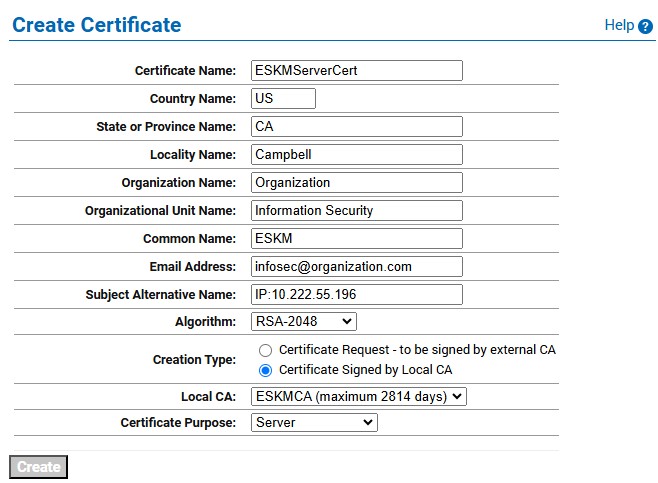
Create Certificate
-
Enter a Certificate Name and Common Name. (For example, ESKM Cert).
-
Enter your Organizational information.
-
Enter/select the Subject Alternative Name, Algorithm, Creation Type as Certificate Signed by Local CA, Local CA (CA name you created in Setting up local CA, for example ESKM Local CA) and Certificate Purpose.
-
Click Create.
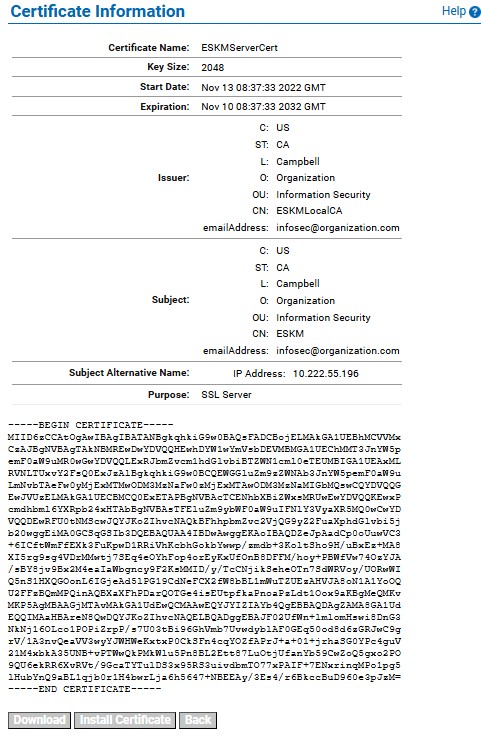
Certificate Information
Key Size refers to the size of the key or elliptic curve associated with this certificate.
Repeat all of the steps above for the KMIP server certificate. You must perform these steps on each ESKM server after joining the cluster.
The "Certificate Name" must remain same on all ESKM servers across the cluster.
Import a third-party server certificate
An externally generated public/private key pair can be imported into the ESKM system for use as a server certificate. The encrypted private key data and the public key certificate must be present in the third-party server certificate file. For example:
-----BEGIN ENCRYPTED PRIVATE KEY-----

MIIFDjBAB..........vvbKI=

-----END ENCRYPTED PRIVATE KEY-----

-----BEGIN CERTIFICATE-----

MIIDhjCCA..........MKH9Fk

-----END CERTIFICATE-----
In addition, the password for the private key file must be known.
To import a third-party server certificate, perform the following steps:
-
In Certificates & CAs, click Certificates to display the Import Certificate section.
-
Provide the source location of the certificate file.
-
Specify the method for importing the certificate to the Enterprise Secure Key Manager.
-
If you are uploading the certificate through the browser, select Upload from browser, then click Browse and locate the file on the local drive or network.
-
If you are using SCP to copy the file to the Enterprise Secure Key Manager, select the appropriate option and enter the following information:
-
Host: the source host. IPv4 addresses are supported. IPv6 addresses are also supported if IPv6 is enabled.
-
Filename: the name of the file on the source host.
-
Username: the username of the account on the source host.
-
Password: the password for the user account on the source host.
-
-
-
Enter the Certificate Name and Private Key Password.
-
Click Import Certificate.
The Enterprise Secure Key Manager can import certificates in PEM-encoded PKCS #7, PEM-encoded PKCS #12, and PEM-encoded X509, as long as the private key is included with the certificate.