

Viewing Metrics and Telemetry in Grafana
This section covers example screenshots from the KeyMirror Grafana plugin app, along with an example Grafana dashboard.
Overview
The overview section displays information regarding all PKCS#11 sessions estate-wide including their number and activity related to each session. Various indicators such as a heatmap of session activity and display of sessions by activity are displayed. Idle and abandoned sessions are also shown, along with alerts relating to failed token logins estate-wide.
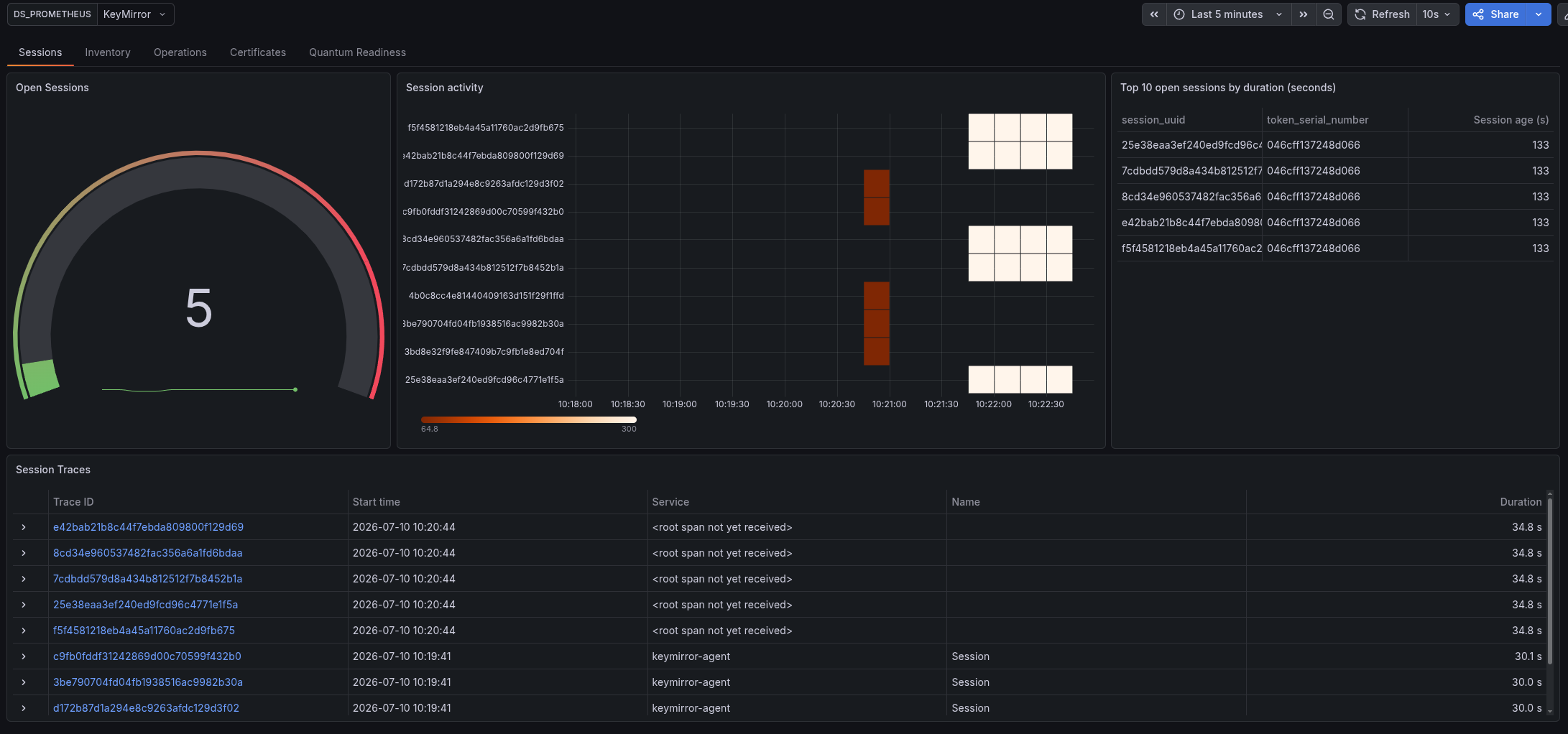
Dashboard - Sessions
Topology
The topology section of the Grafana example dashboard displays an estate-wide graph capturing the relationships, metrics volume and error rates relating to KeyMirror client agents and HSM tokens.
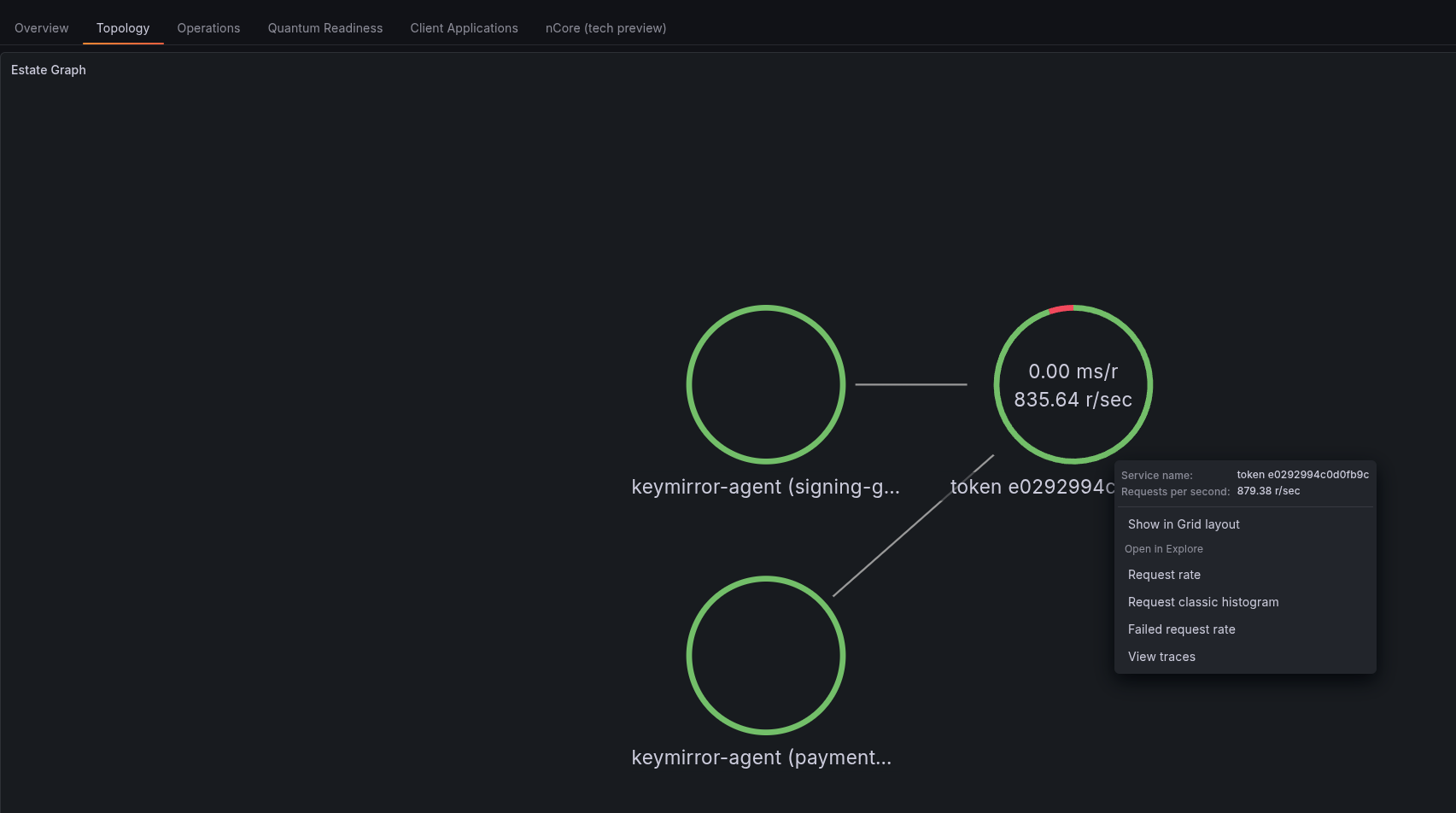
Dashboard - Topology
Application Errors
The application errors section of the Grafana app presents listing of all application errors which have occurred estate-wide. It categorizes these by session and application, displaying the IP address and binary name, along with the number and type of errors. Clicking the “trace” button for a session will navigate to a trace of the session, allowing the user to view the sequence of events which led to the error(s).
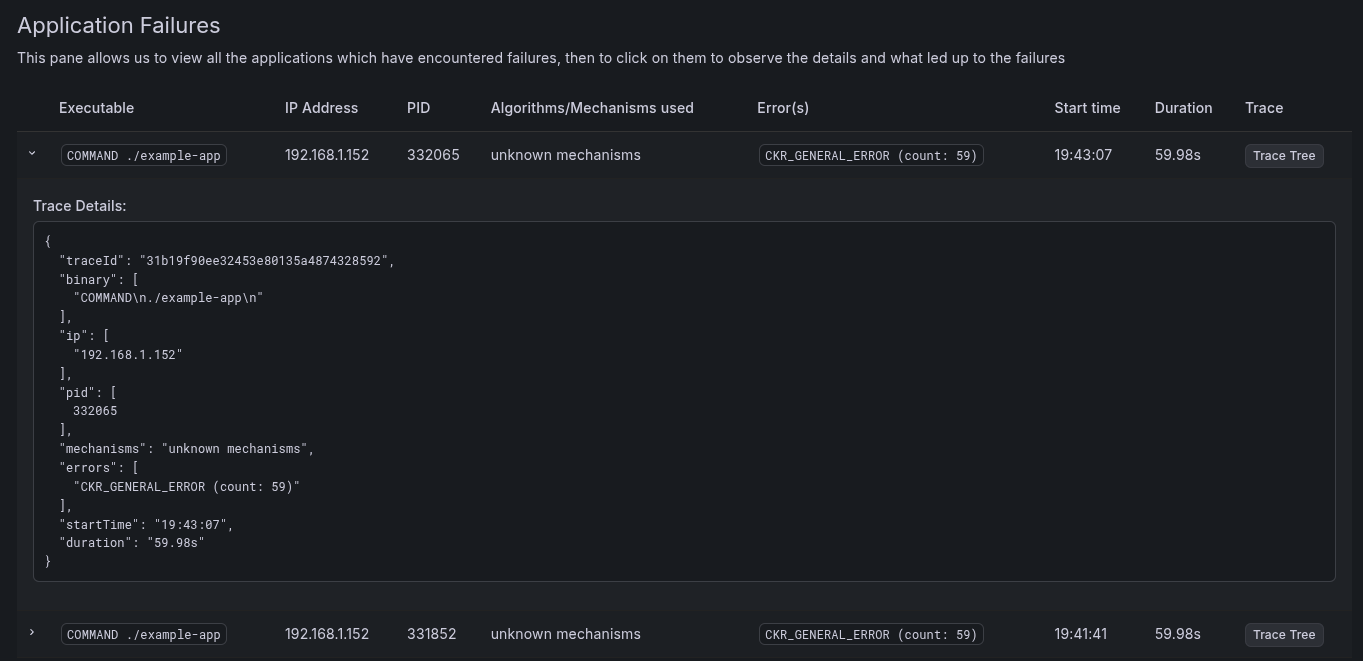
Dashboard - Session Failures
Key Usages
The key usages section of the Grafana app presents listings of all keys used estate-wide in a given timeframe, allowing ranking by usage frequency, latency and algorithm. It allows easy determination of the top-X keys used estate-wide, with the details button providing breakdowns of all applications and client machines accessing a given key, along with providing tracing links to the relevant sessions.
Client Applications
The client applications of the Grafana plugin app and example dashboard allows examination of real-time memory and CPU usage by PKCS#11 applications on client machines, allowing early detection of potential issues and attribution in the event of client failures.
Session Traces
To examine a particular session, click the relevant link in the Session Traces pane. This will display session details and a detailed session trace from the bundled Grafana Tempo service. By expanding the root session trace, information such as the client binary path, client IP address, process ID and operating system can be displayed.
Individual cryptographic operations can also be examined, including their latency and outcome. For example, the following screenshot displays a session trace featuring a number of failed AES-GCM decryption operations.
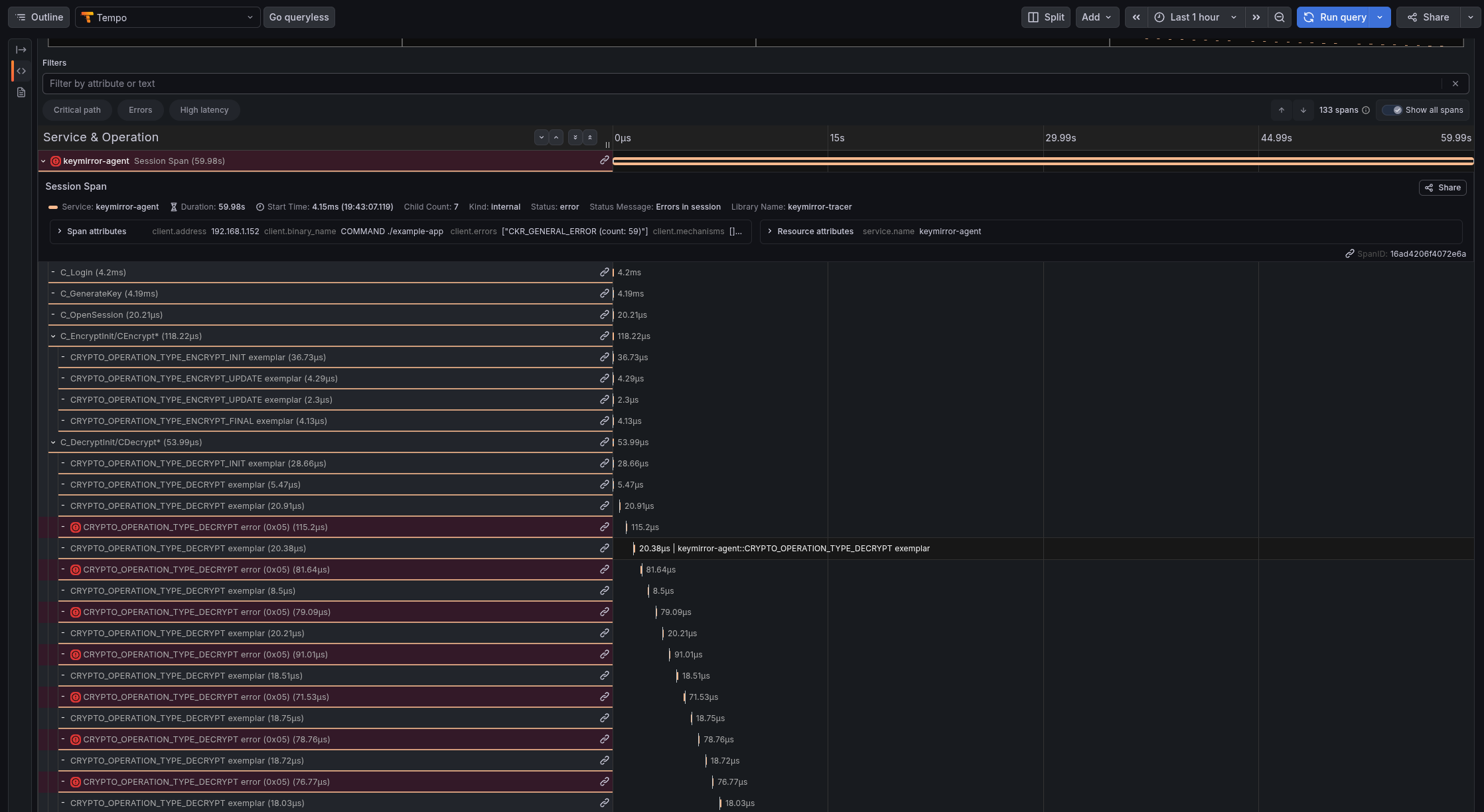
Grafana dashboard - example session trace
Operations
The Operations tab contains details about the operations, including algorithms in use, keys in use, instantaneous operations rates per second (success and failure), total operations in the time range, a heatmap of key usage by type and a latency histogram.
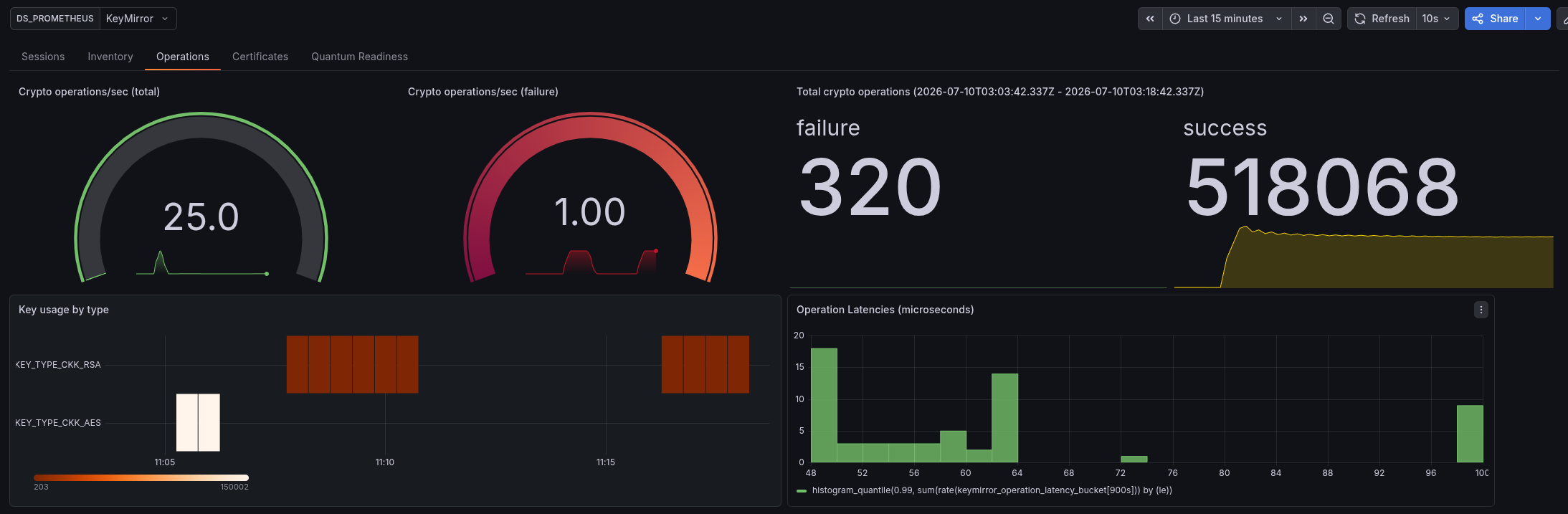
Dashboard - Operations
Quantum Readiness
The Quantum Readiness tab contains basic details regarding the number of quantum-vulnerable keys generated and used in the time range, allowing basic tracking of quantum posture over time.
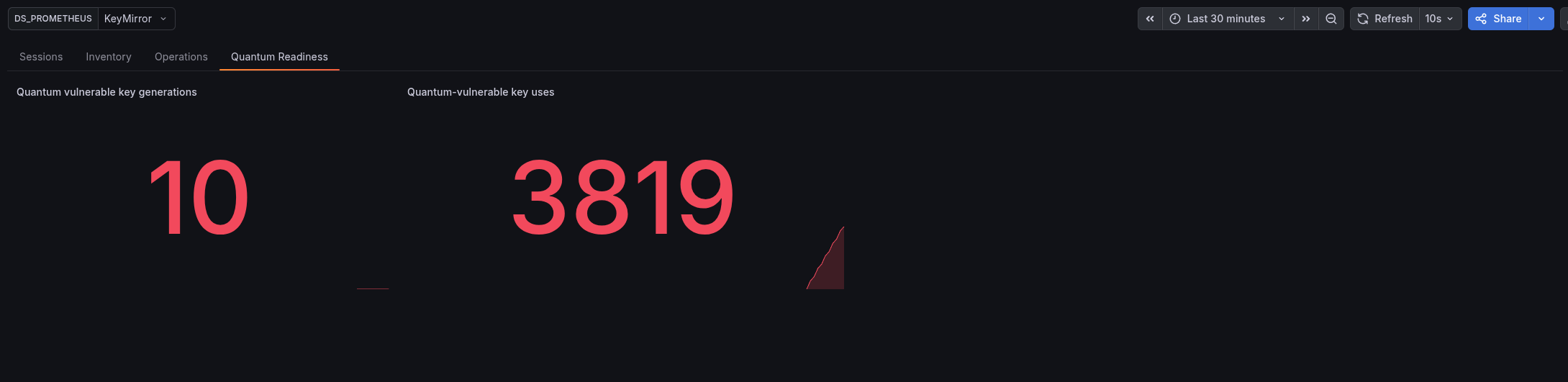
Dashboard - Quantum Readiness
Client Applications
The Client Applications tab contains basic details regarding the applications using the PKCS#11 libraries, including monitoring the memory consumption of each process. The underlying metrics allow detection of memory leaks and alarms to be raised.
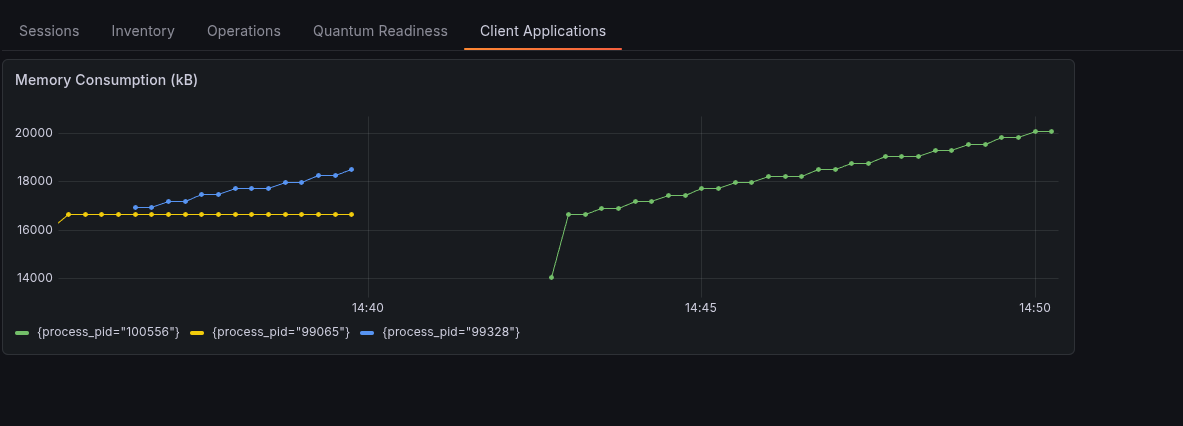
Dashboard - Client Applications (memory leak detection)