

-
Generate an EC keypair on Utimaco HSM.
|
›_ Console |
|---|
|
Provide information when prompted Here:
-
EC is the key algorithm
-
NONE is the keystore for HSM
-
PKCS11IMPLKS is the storetype
-
IBMPKCS11Impl-CryptoServer is the provider name
-
ibmec is the key name that will be generated on Utimaco HSM
Provide the keystore password when prompted
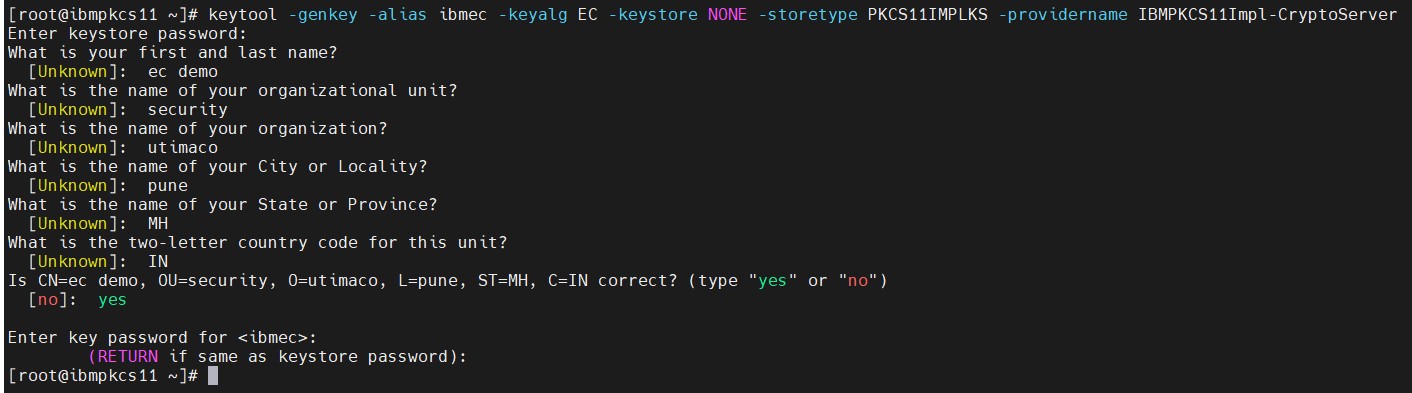
Key generation using keytool command
-
Verify the entry with same alias name is generated using keytool command.
|
›_ Console |
|---|
|
Here:
-
NONE is the keystore for HSM
-
PKCS11IMPLKS is the storetype
-
IBMPKCS11Impl-CryptoServer is the provider name
Provide the keystore password when prompted
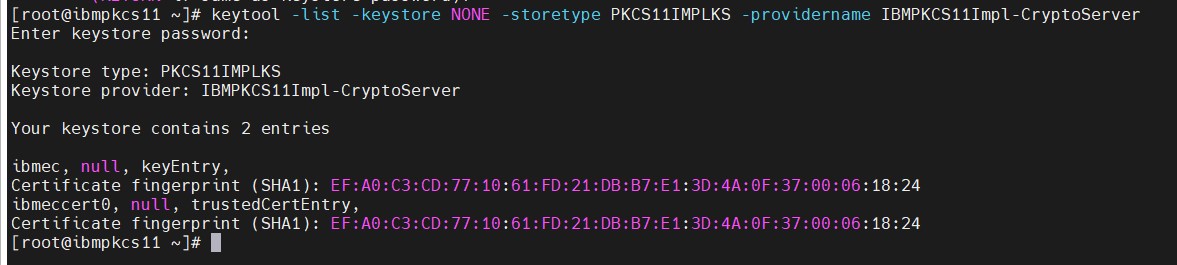
Listkeys output
-
List the objects using p11tool2.
|
›_ Console |
|---|
|
# p11tool2 Slot=0 LoginUser=ask ListObjects |
Enter user PIN when prompted
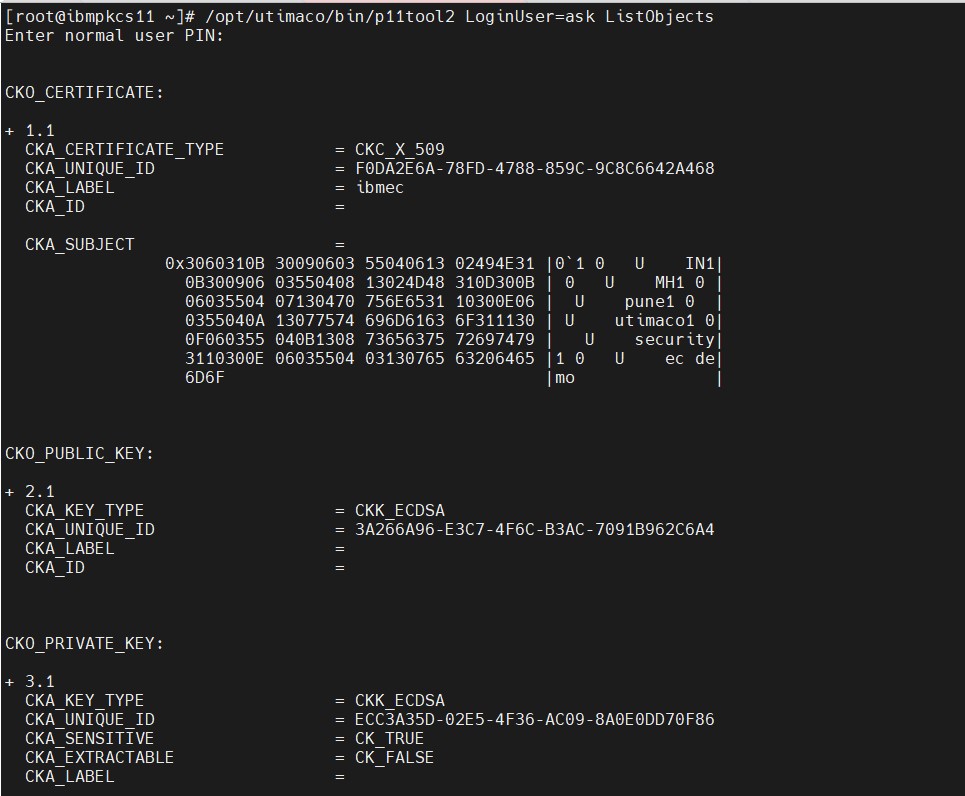
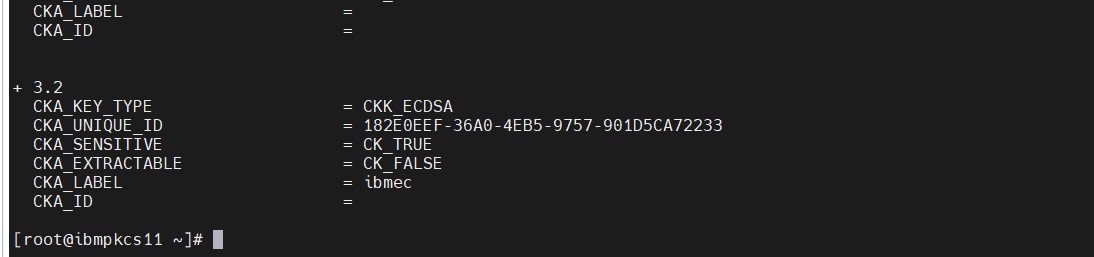
List keys output using p11tool2
-
Generate a CSR using Keytool command.
|
›_ Console |
|---|
|
Here:
-
NONE is the keystore for HSM
-
PKCS11IMPLKS is the storetype
-
Provide the keystore password when prompted
-
IBMPKCS11Impl-CryptoServer is the provider name
-
ibmec is the key name
-
ec.csr is the CSR file name that will be generated
Provide the keystore password when prompted
-
Get this CSR signed by CA.
-
Copy the signed certificate and root CA certificate on the IBMPKCS11 server.
-
Import Root CA certificate into HSM keystore.
|
›_ Console |
|---|
|
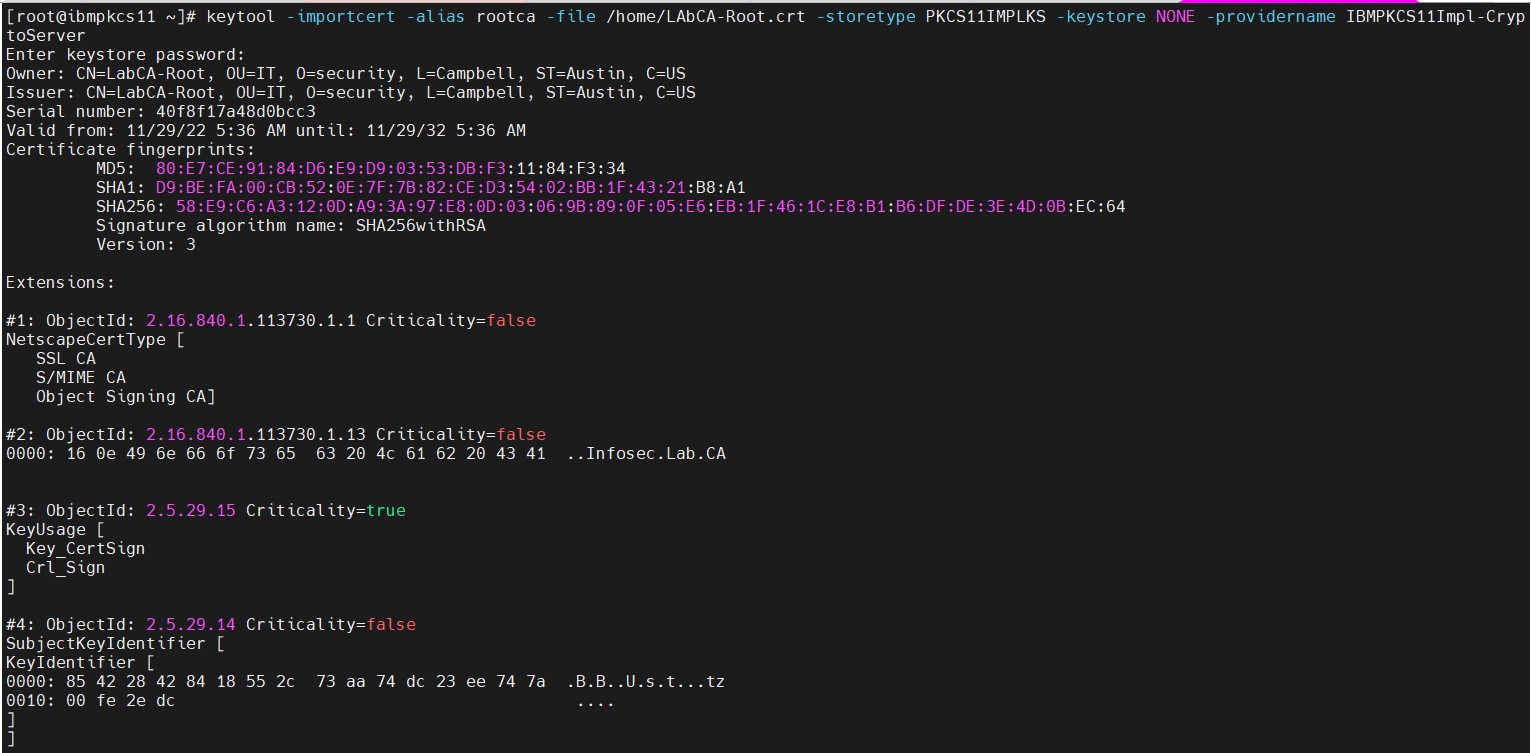

Importing root certificate into keystore
-
Import the signed certificate reply using the command below.
|
›_ Console |
|---|
|

Import User Certificate into Keystore
-
Verify that the keytool command shows the signed certificate as well as root CA certificate.
|
›_ Console |
|---|
|
Here:
-
NONE is the keystore for HSM
-
PKCS11IMPLKS is the storetype
-
IBMPKCS11Impl-CryptoServer is the provider’s name
Provide the keystore password when prompted
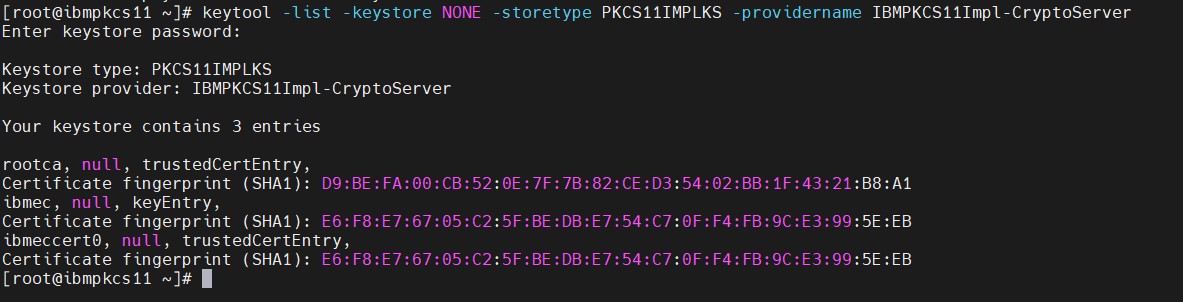
Listkeys output showing signed certificate as well as root CA 10. Sign any sample jar file using jarsigner tool
-
Sign any sample jar file using jarsigner tool.
|
›_ Console |
|---|
|
Here:
-
http://timestamp.digicert.com is URL of timestamp server
-
NONE is the keystore for HSM
-
PKCS11IMPLKS is the storetype
-
IBMPKCS11Impl-CryptoServer is the provider’s name
-
sample_output.jar is the new output signed jar file that will be generated
-
samples.jar is the Jar file to be signed
-
ibmec is the key name that will be used for signing
Provide the keystore password when prompted
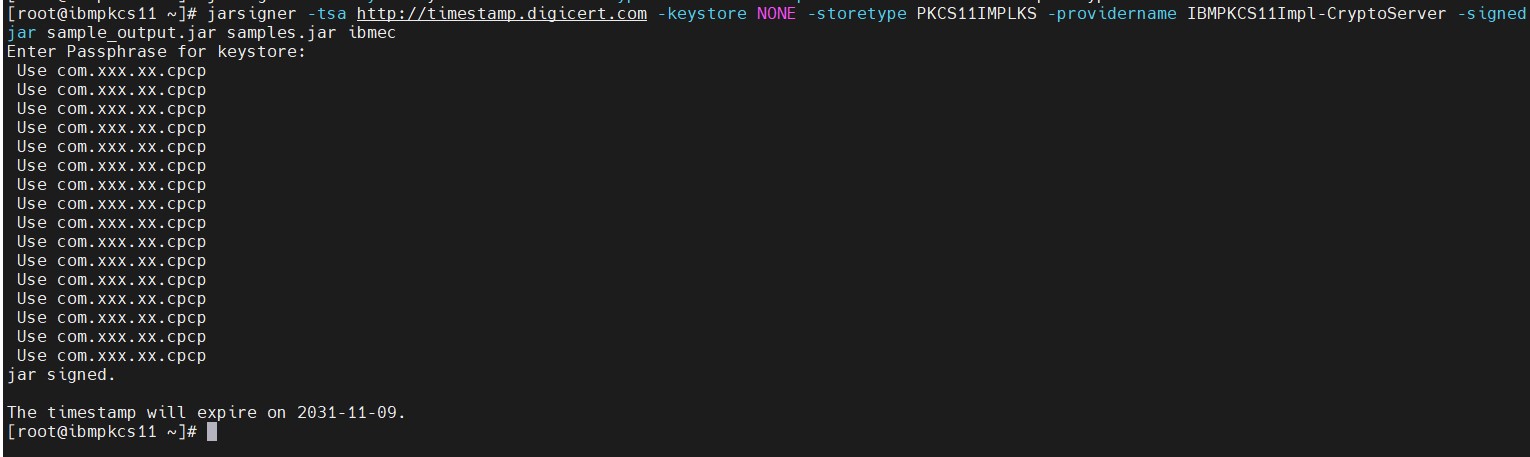
Signing the jar using jarsigner command
-
Verify the signed jar.
|
›_ Console |
|---|
|
Here sample_output.jar is the newly generated signed jar file
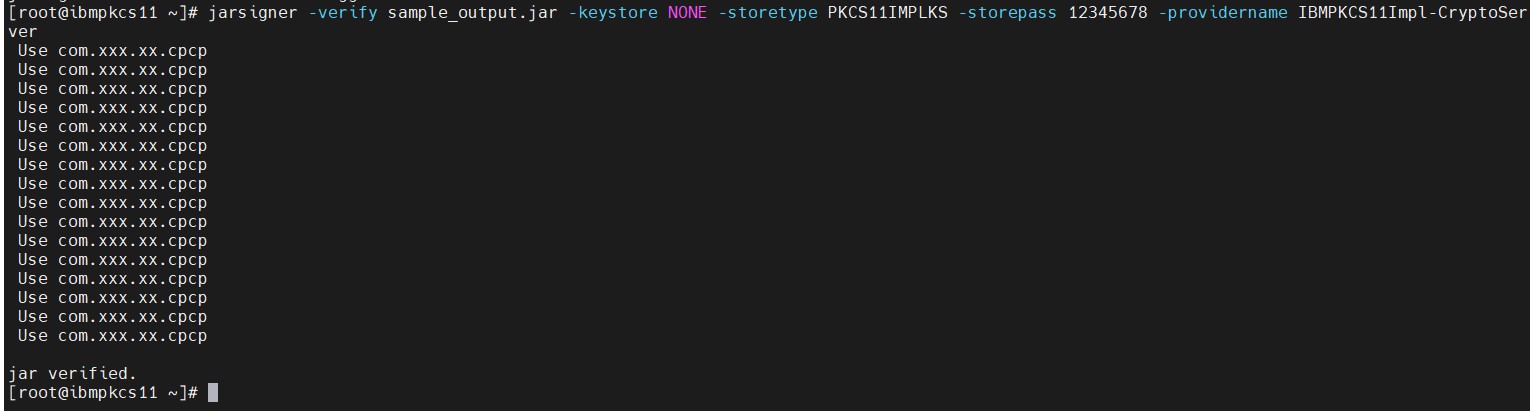
Verifying signed jar