

To create an AD-integrated CA – that is, an Enterprise CA – an account with Enterprise Administrator level privileges is required for the role configuration.
-
Join a machine to the Domain and log in as a user with Administrative privileges.
-
Select Start, then select Server Manager to open Server Manager.
-
Select Manage, then select Add Roles & Features. The Before you begin window opens. Click Next.
-
On the Select installation type window, make sure the default Role or Feature Based Installation is selected. Click Next.
-
On Server selection, select a server from the server pool. Click Next.
-
On the Select server roles window, select the Active Directory Certificate Services role.
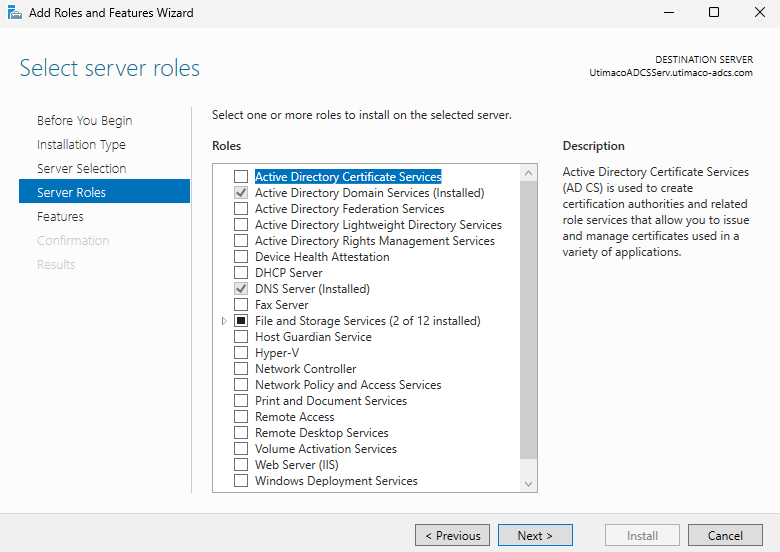
"Select server roles" Window
-
When prompted to install Remote Server Administration Tools, select Add Features. Click Next.
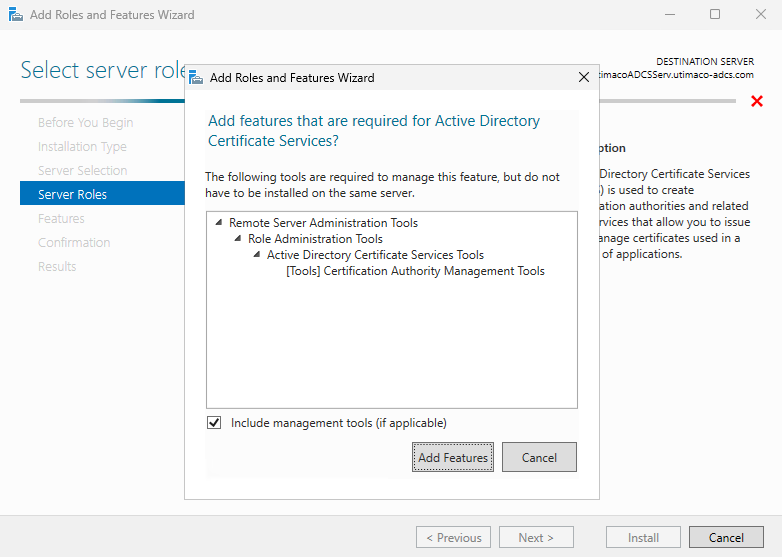
"Add Roles and Features" Window
-
On the Select features window, click Next.
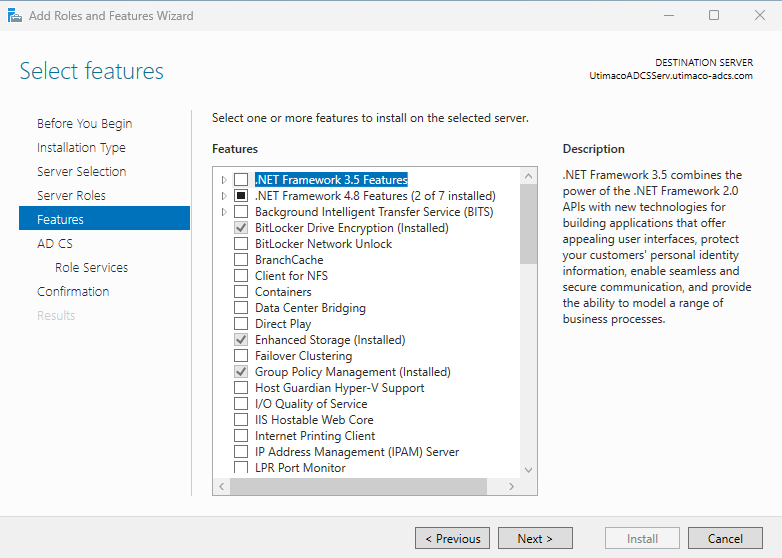
"Select features" Window
-
On the Active Directory Certificate Services window, click Next.
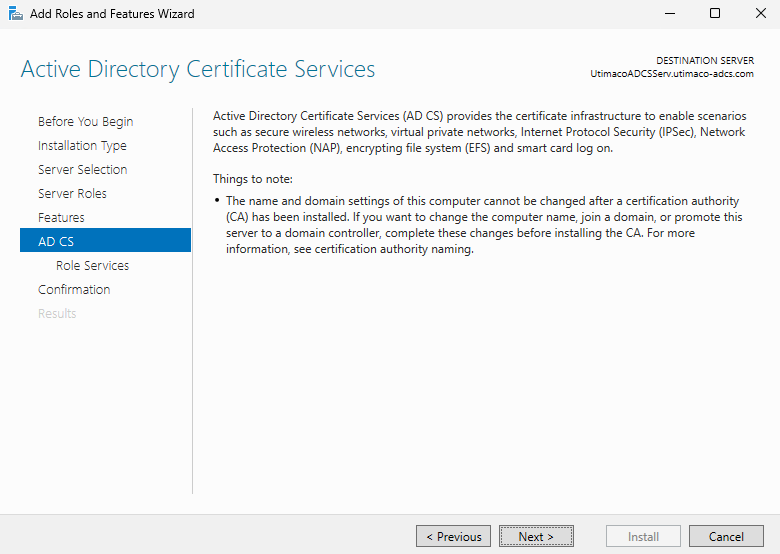
"Active Directory Certificate Services" window
-
On the Select role services window, the Certification Authority role is selected by default. Click Next.
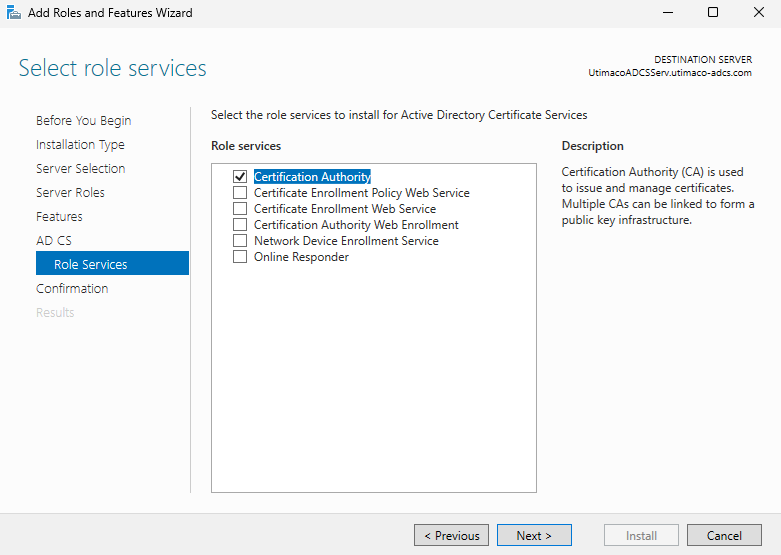
"Select role services" Window
-
On the Confirm installation selections window, check and verify the information, then click Install.
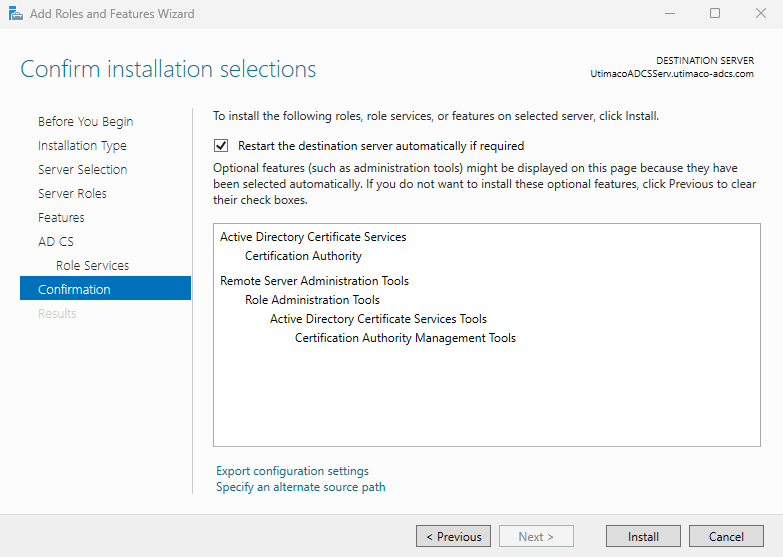
"Confirm installation selections" Window
-
When the installation is finished, click the Close button.
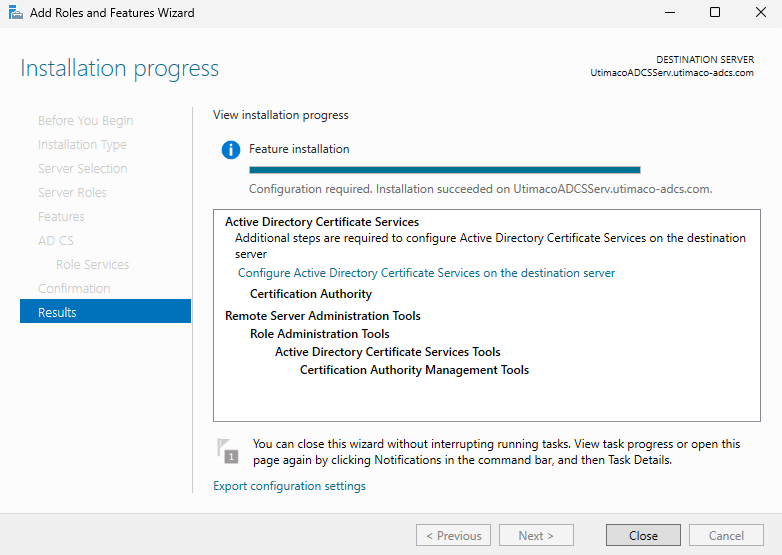
"Installation progress" Window
Before going to the Configure Active Directory Certificate Services on the destination server menu, the CNG provider must be properly configured. Please refer to the CNG provider configuration section.