

-
Join a machine to the Domain and log in as a user with Administrative privileges.
-
Select Start and select Server Manager to open Server Manager. Select Manage, then select Add Roles & Features.
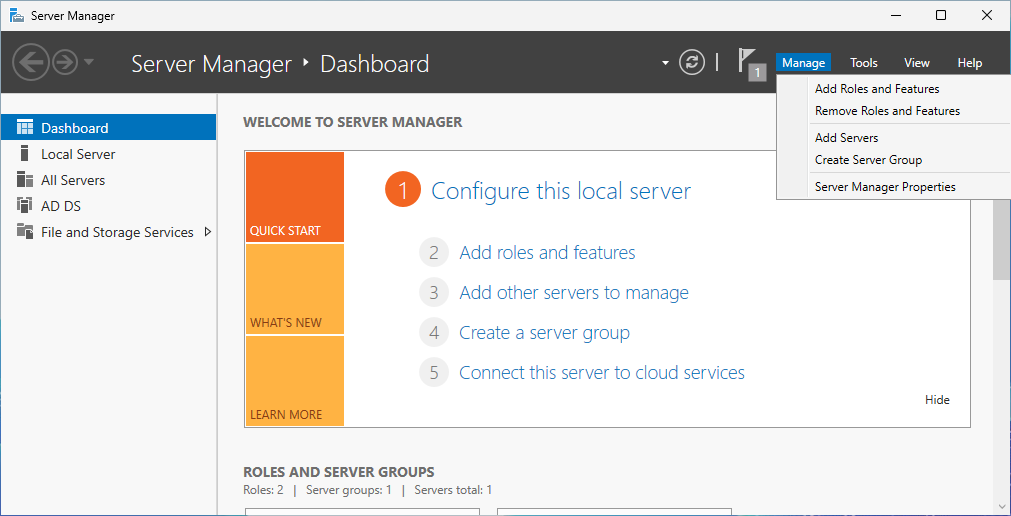
"Server Manager" Window
-
The Before you begin window opens. Select Next.
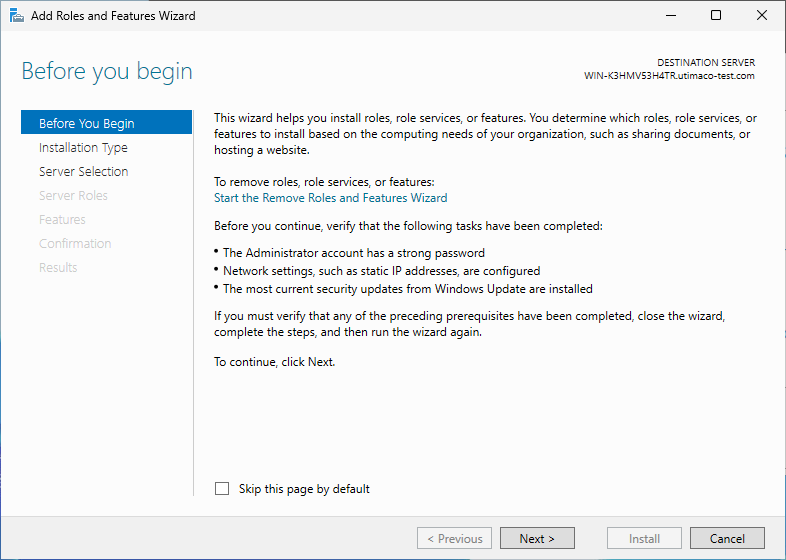
"Before You Begin" Window
-
On the Select installation type window, make sure the default Role or Feature Based Installation is selected. Click Next.
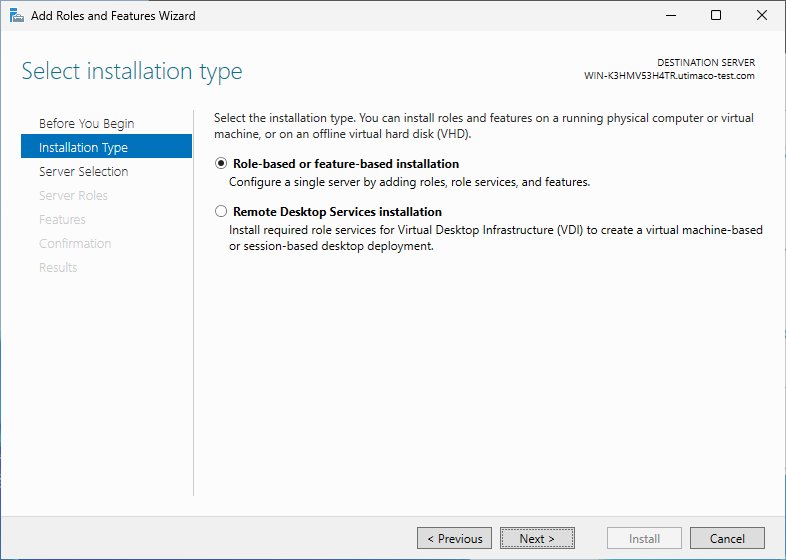
"Select Installation Type" Window
-
On Server selection, select a server from the server pool. Click Next.
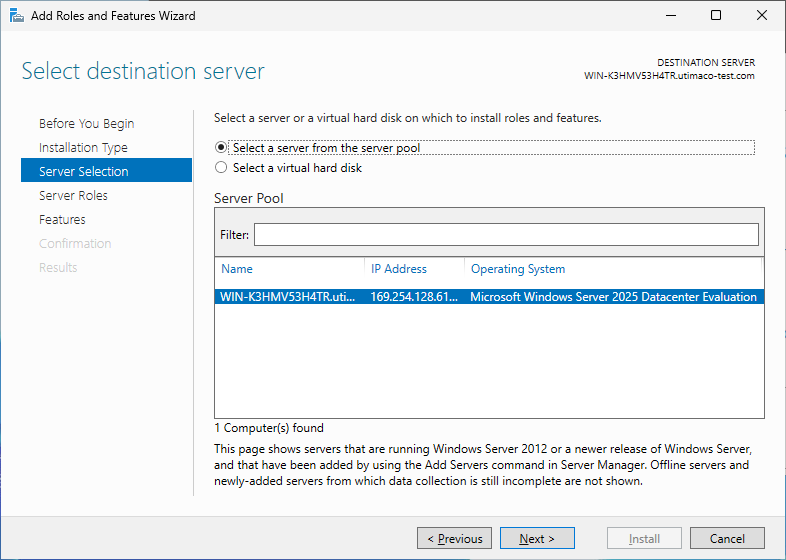
"Select Destination Server" Window
-
On the Select server roles window, select the Active Directory Certificate Services role.
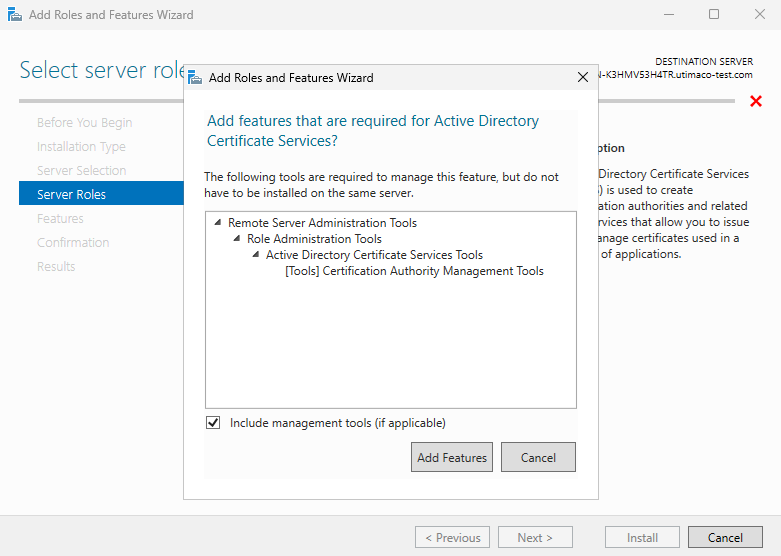
"Select Server Roles" Window
-
When prompted to install Remote Server Administration Tools, select Add Features. Click Next.
-
On the Select features window, click Next.
-
On the Active Directory Certificate Services window, click Next.
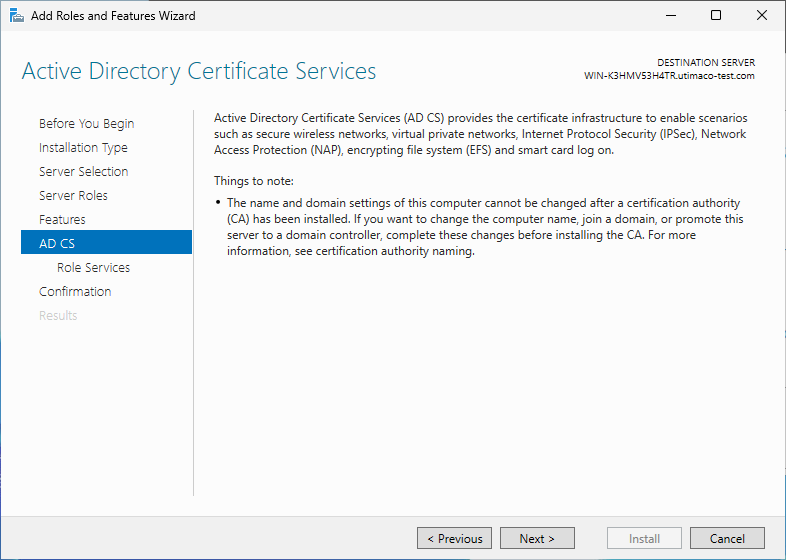
"Active Directory Certificate Services" Window
-
On the Select role services window, the Certification Authority role is selected by default. Click Next.
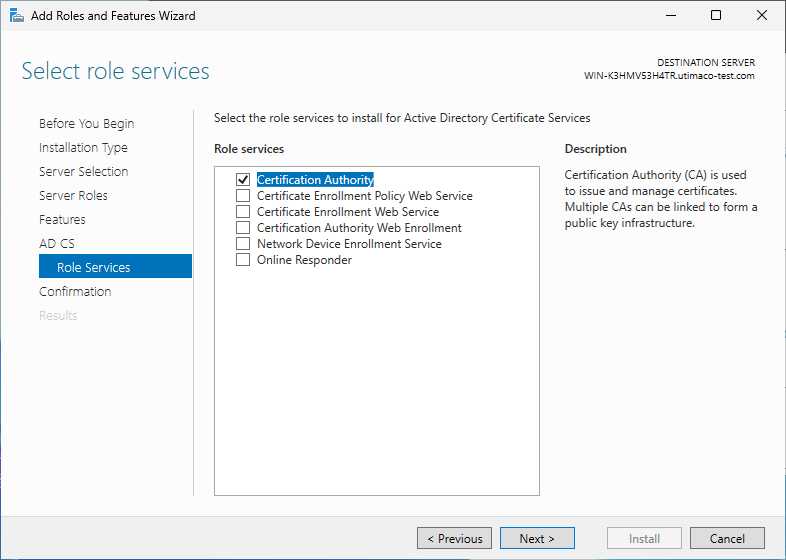
"Select Role Services" Window
-
On the Confirm installation selections window, verify the information, then click Install.
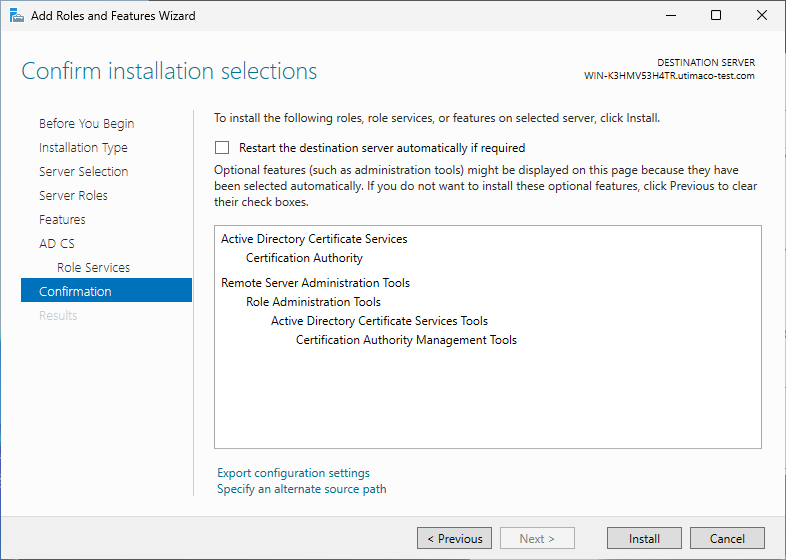
"Confirm Installation Selections" Window
-
When the installation is complete, select the Configure Active Directory Certificate Services on the destination server link.
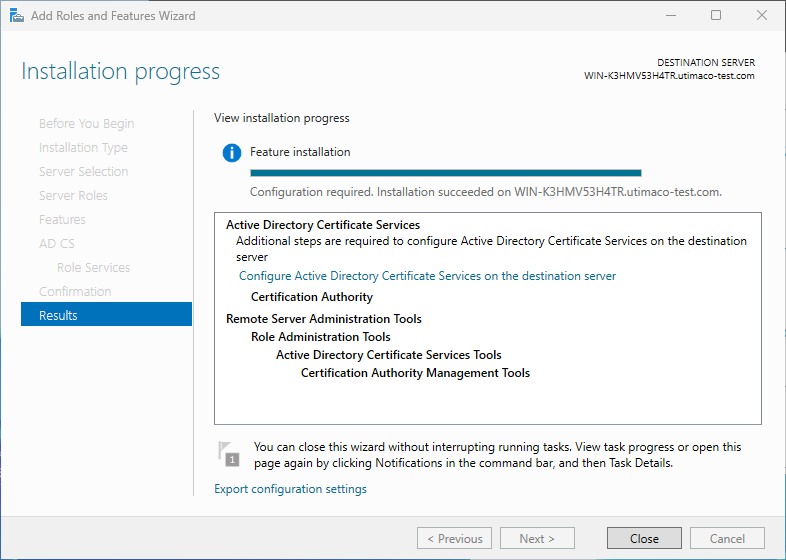
"Installation Progress" Window
-
On the Credentials window, make sure that the Administrator’s credentials are displayed in the Credentials box. If not, select Change and specify the appropriate credentials. Click Next.
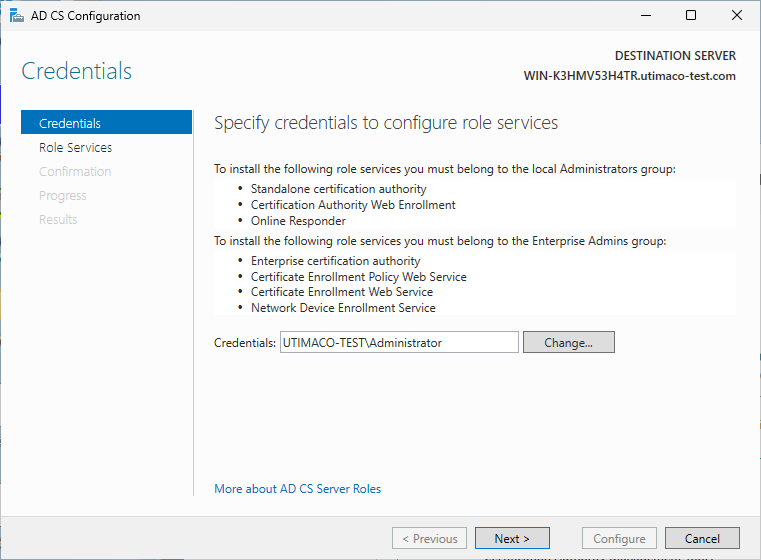
"Credentials" Window
-
On the Role Services window, select Certification Authority. This is the only available selection when the certification authority role is installed on the server. Click Next.
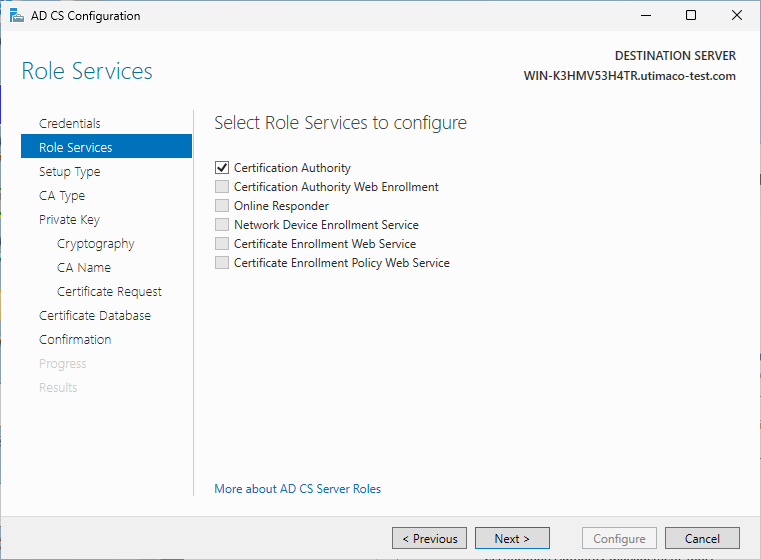
"Select Roles to configure" Window
-
On the Setup Type window, select the appropriate CA setup type for your requirements. Click Next.
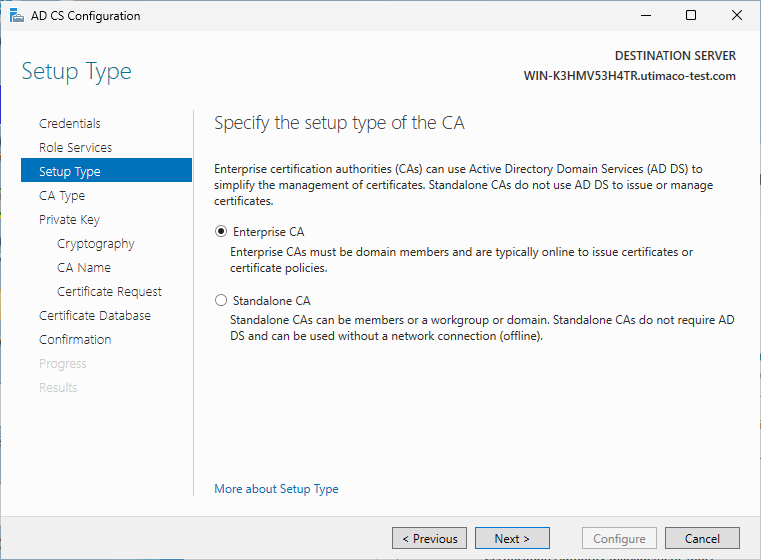
"Setup Type" Window
-
On the CA Type window, Root CA is selected by default. Click Next.
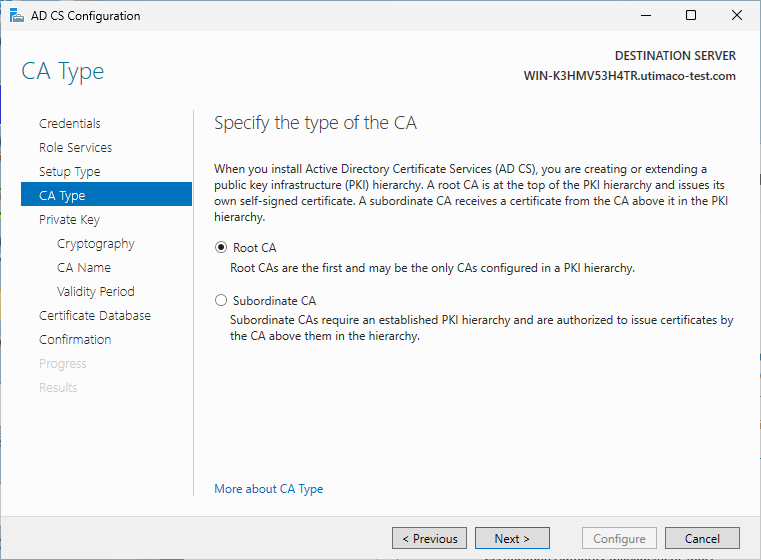
"CA Type" Window
-
On the Private Key window, leave the default selection to Create a new private key selected. Click Next.
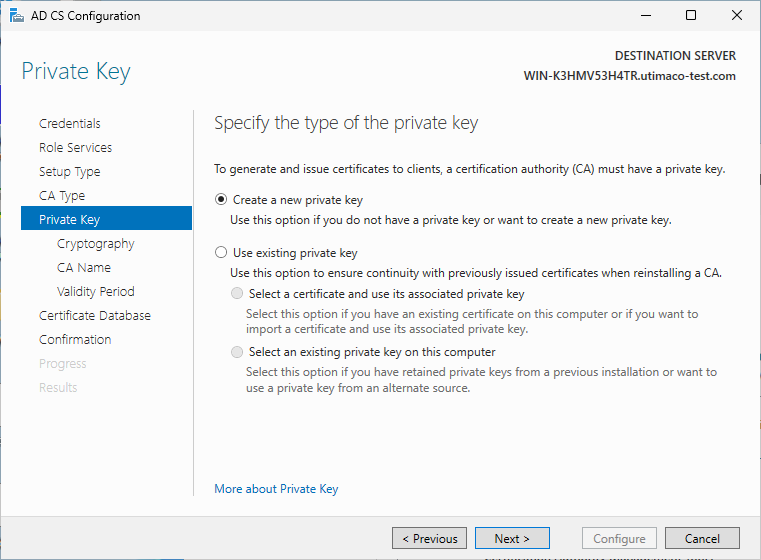
"Private Key" Window
-
On the Cryptography for CA window, select the appropriate Microsoft cryptographic provider along with the key type, key length, and suitable hash algorithm. Click Next.
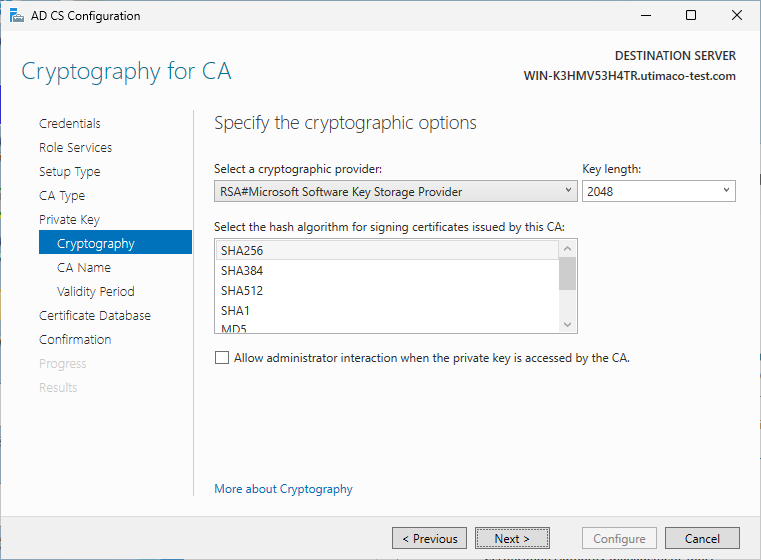
"Cryptography for CA" Window
-
On the CA Name window, give the appropriate CA name. Click Next.
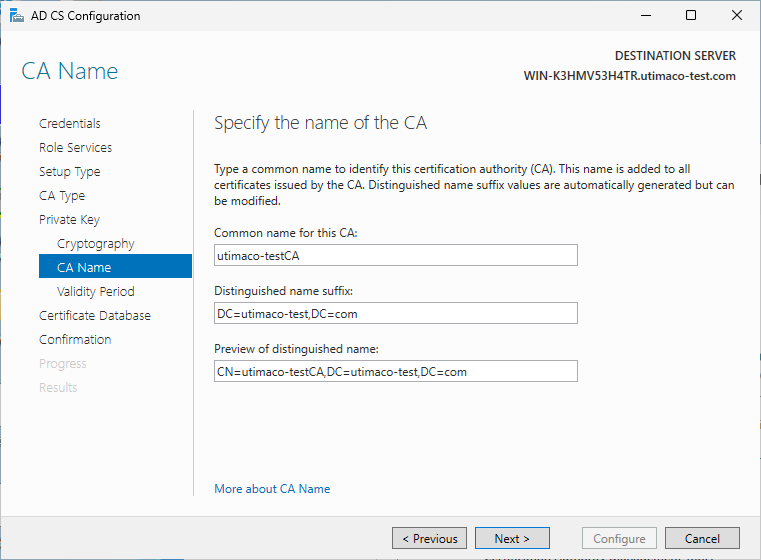
"CA Name" Window
-
On the Validity Period window, enter the number of years for the certificate to be valid. Click Next.
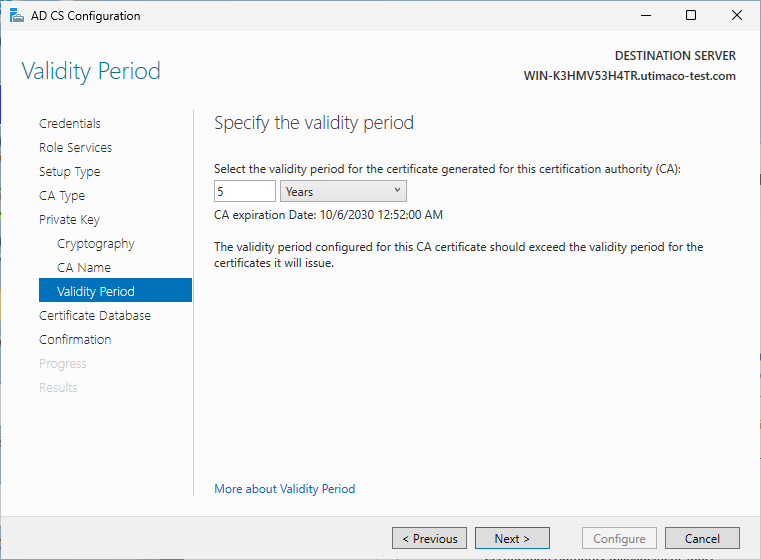
"Validity Period" Window
-
On the CA Database window, leave the default locations for the database and database log files. Click Next.
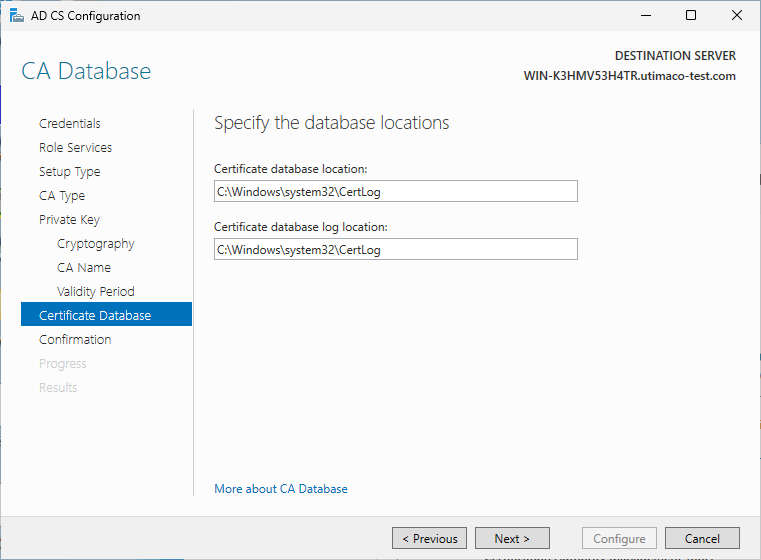
"CA Database" Window
-
On the Confirmation window, click Configure.
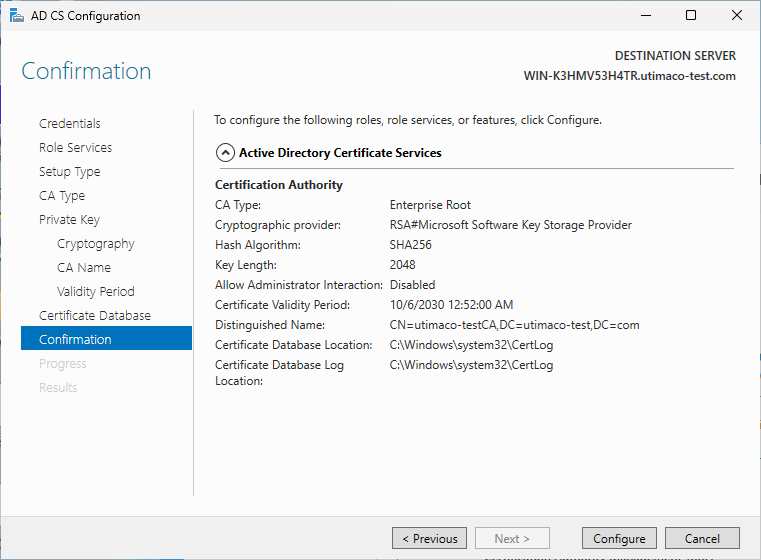
"Confirmation" Window
-
Click Close to exit the AD CS Configuration wizard after viewing the installation results. A private key for the CA will be generated and stored on the HSM.
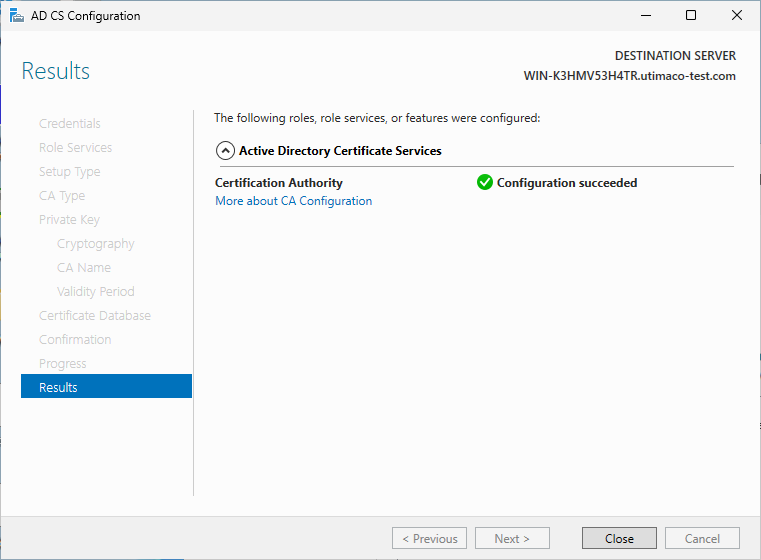
"Results" Window
24. Open a command prompt and run the following command to verify that the service is running:
|
›_ Console |
|---|
|
-
Open a command prompt and run the following command to verify the CA key:
|
›_ Console |
|
If you are using smartcard authentication, the prompt will appear on the PIN Pad device to insert the smartcard and enter the PIN. Then, press the OK button on the PIN Pad.