

-
In the ESKM Management Console > Security > Users & Groups > Local Groups. Confirm that User Name is created.
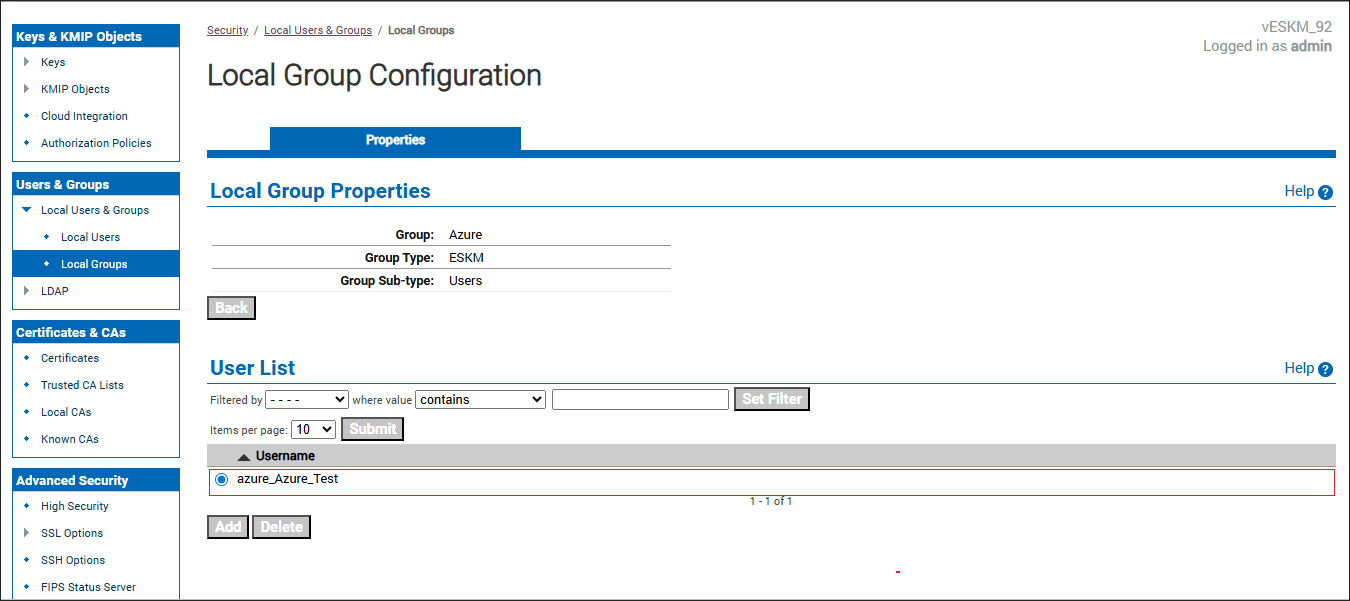
User List
-
In the ESKM Management Console > Security > Users & Groups > Local Users. Confirm that User Name is created.
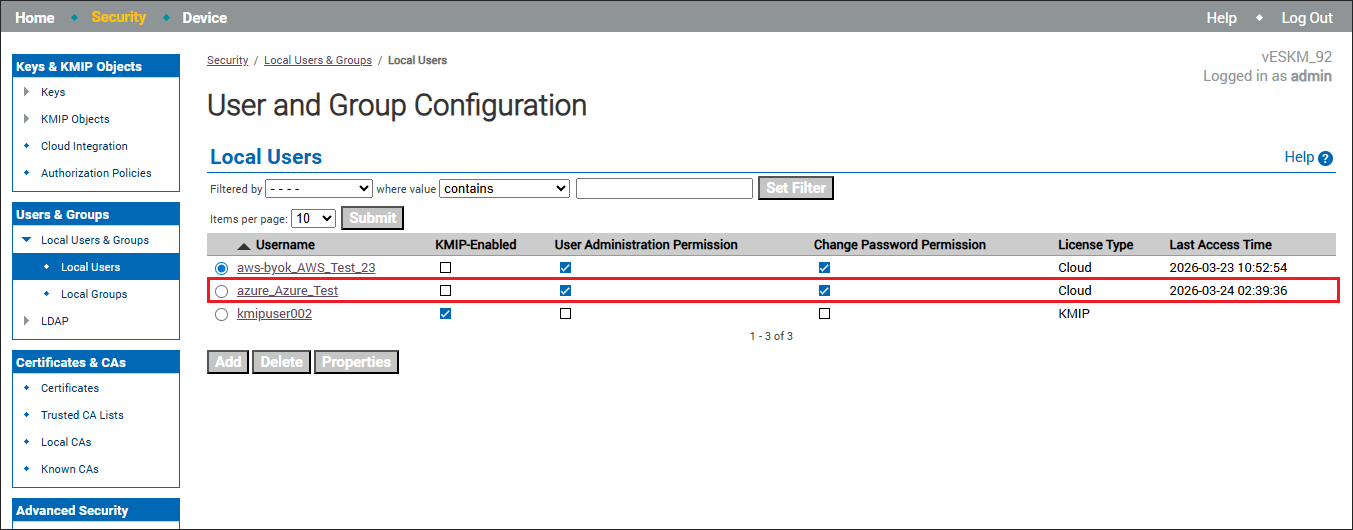
Local Users
-
In the ESKM Management Console > Security > Keys. Confirm that the created keys are listed.

Keys
-
In the ESKM Management Console, go to Security > Keys, select the required key, and then open Key Versions to verify that key rotation has been created.
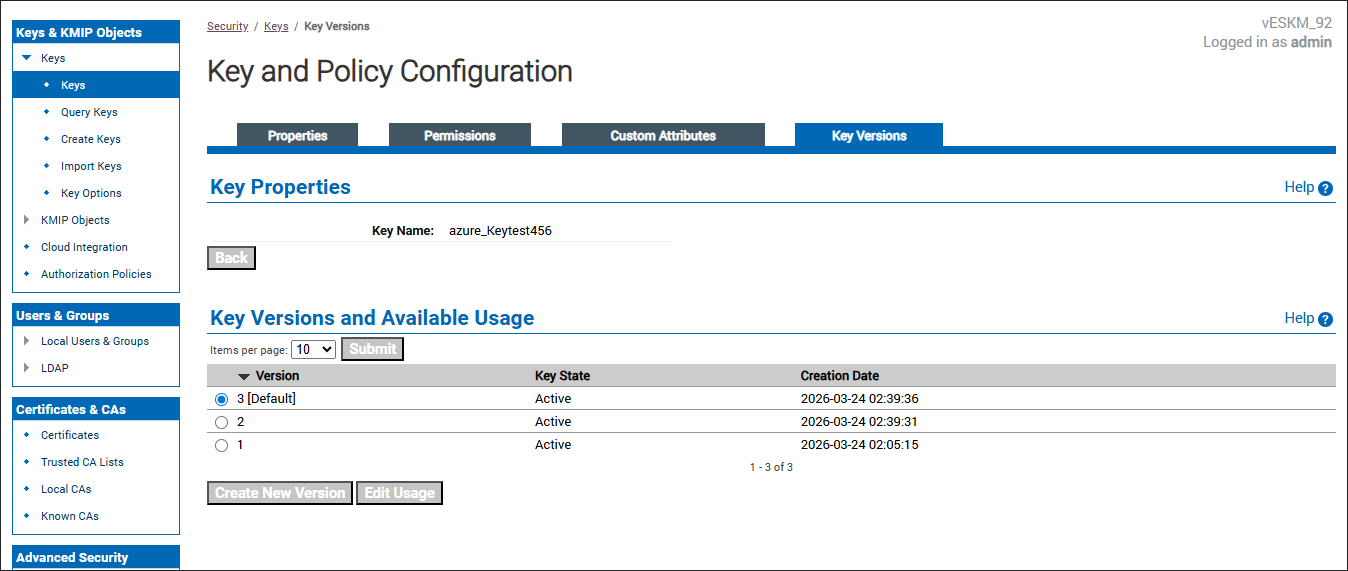
ESKM Key Rotation
-
In the Azure Portal > go to Key Vaults > Select the required Key Vault > Select Keys from the left navigation pane. verify that the key is created.
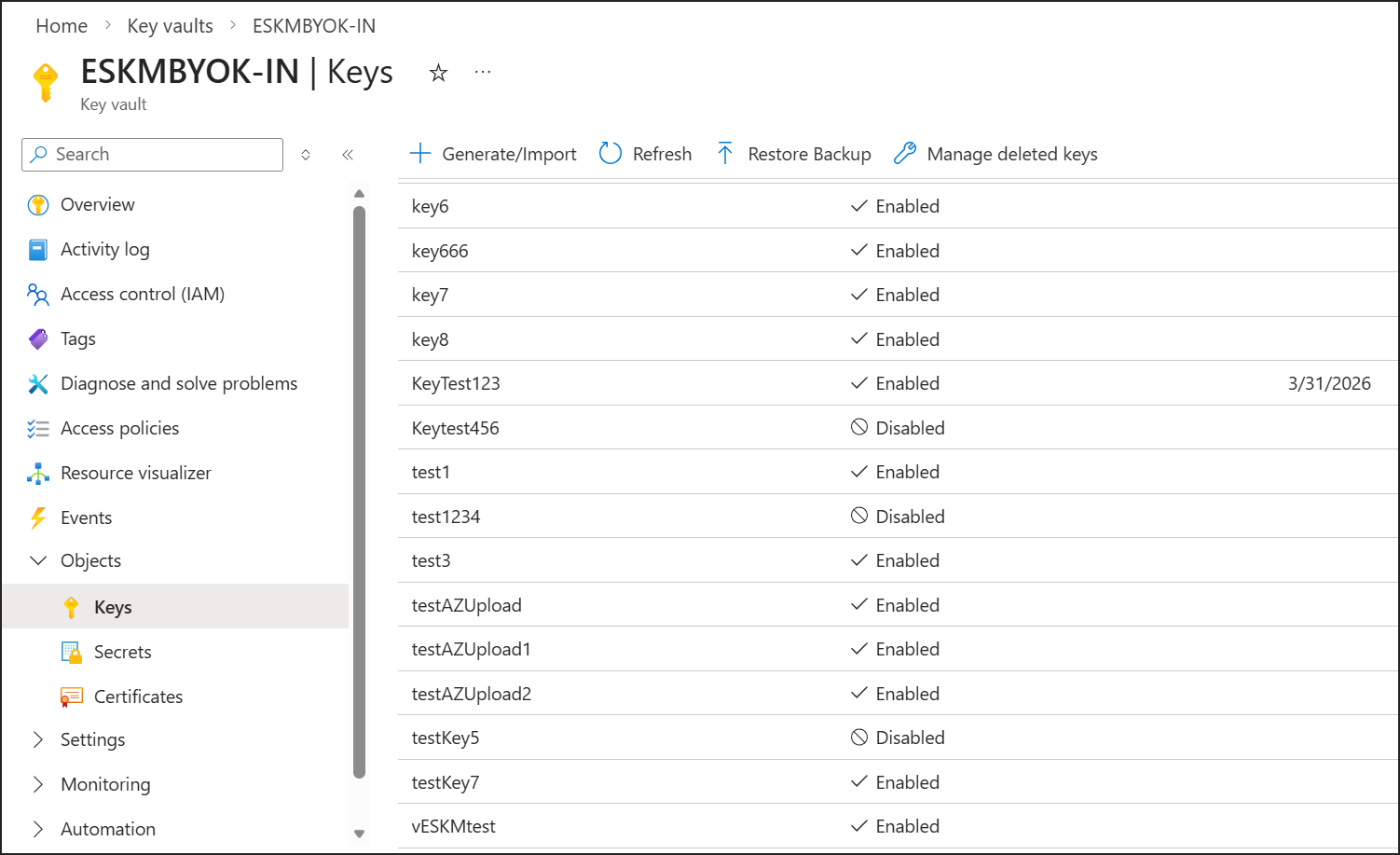
Keys Uploaded in Azure Console
-
Login to the Azure Portal > navigate to Key vaults > select the required Key Vault > select Keys > select the required Key. Verify that the key rotation is created after uploading in ESKM Console.
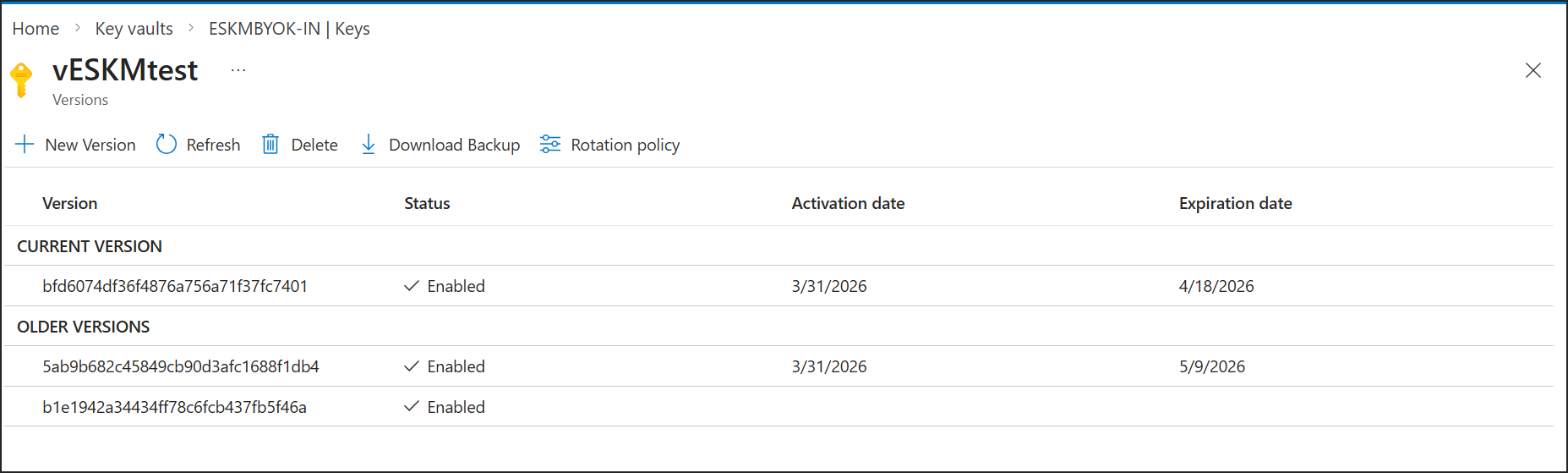
Key Rotation in Azure Console