

Logs and Validation Steps
-
In the ESKM Management Console > Security > Users & Groups > Local Groups. Confirm that Username is created.
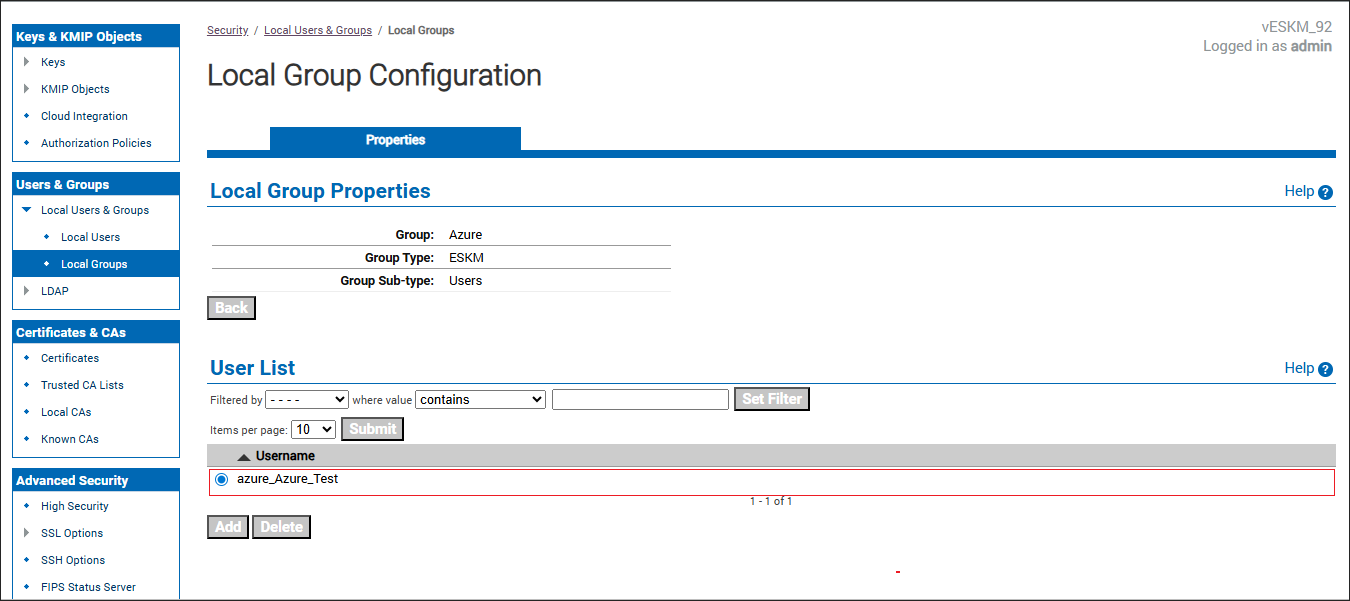
User list
-
In the ESKM Management Console > Security > Users & Groups > Local Users. Confirm that Username is created.
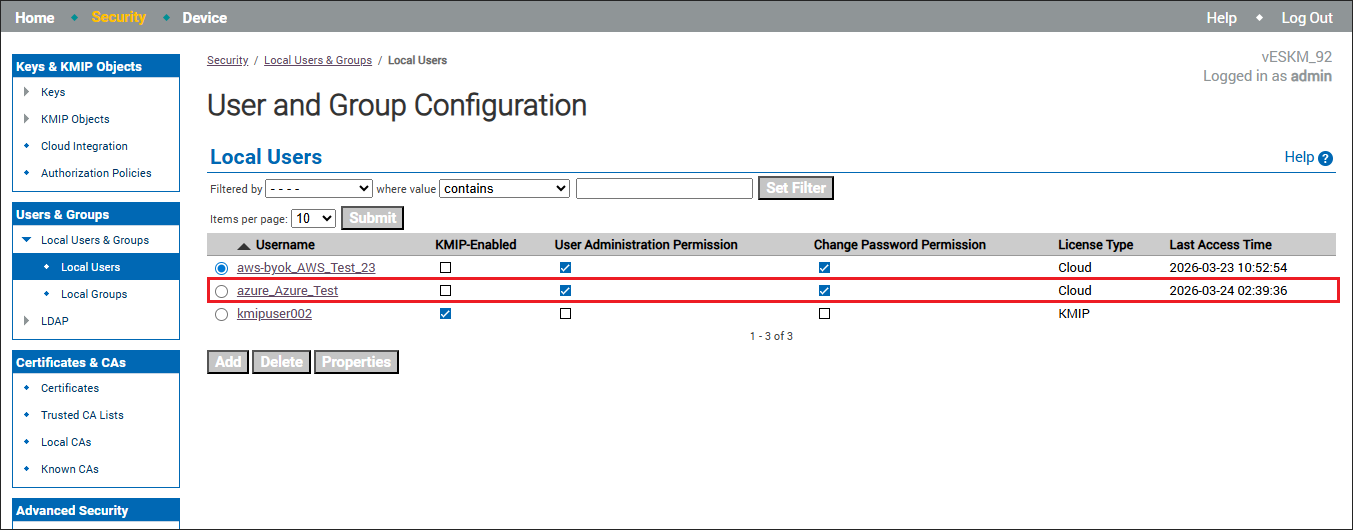
Local users
-
In the ESKM Management Console > Security > Keys. Confirm that the created keys are listed.

Keys
-
In the ESKM Management Console, go to Security > Keys, select the required key, and then open Key Versions to verify that key rotation has been created.
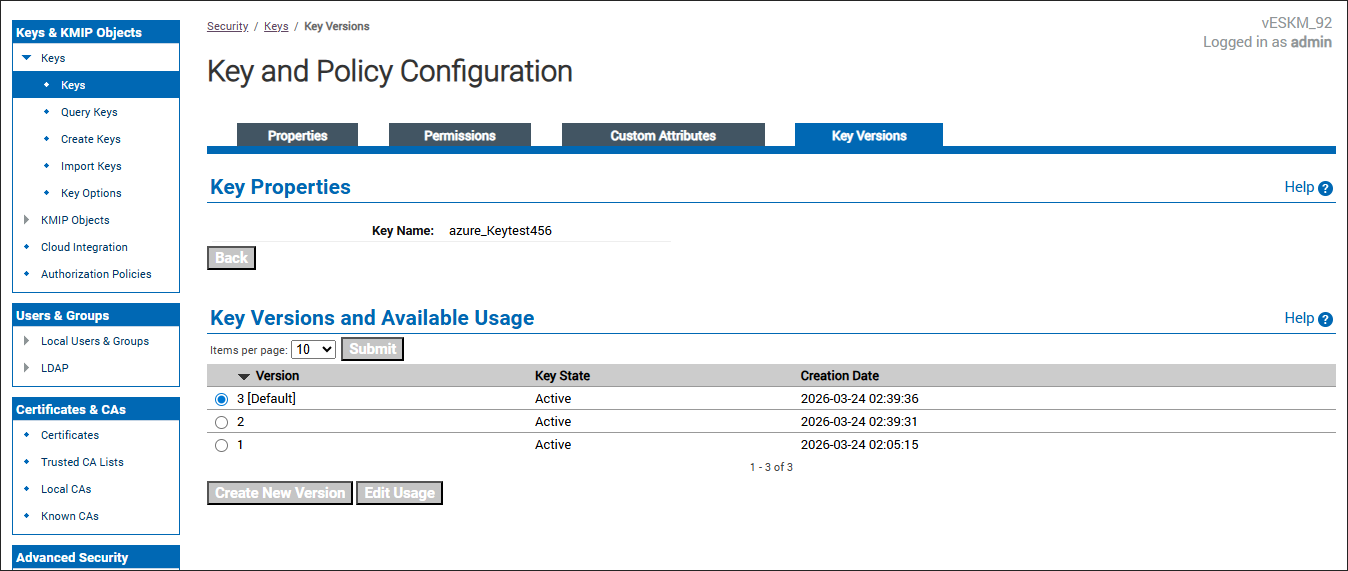
ESKM key rotation
-
In the Azure Portal, go to Key Vaults, select the required Key Vault, and select Keys from the left navigation pane. Verify that the key is created.
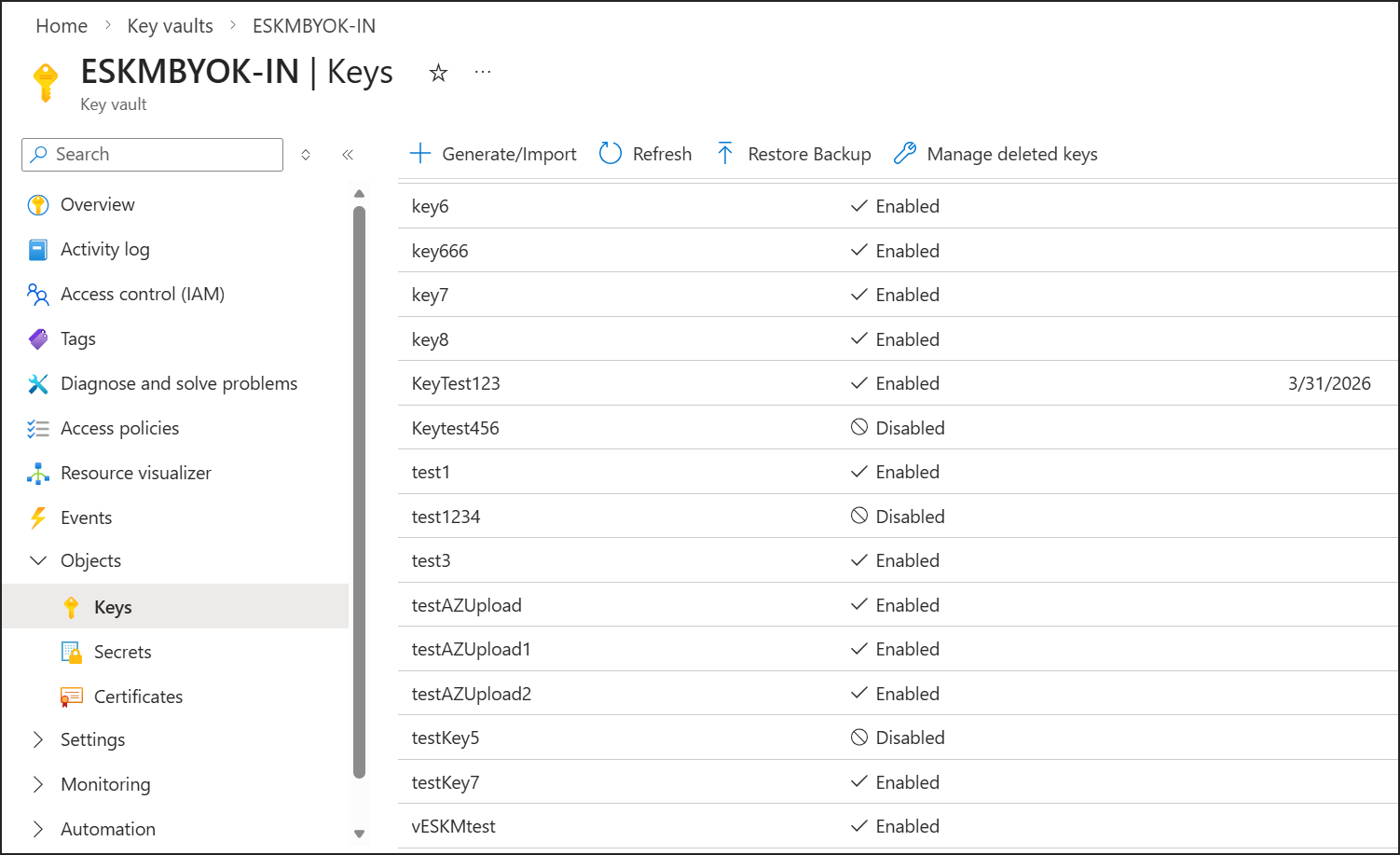
Keys uploaded in Azure console
-
Log in to the Azure Portal, navigate to Key vaults and select the required Key Vault. Select Keys and select the required Key. Verify that the key rotation is created after uploading in ESKM Console.
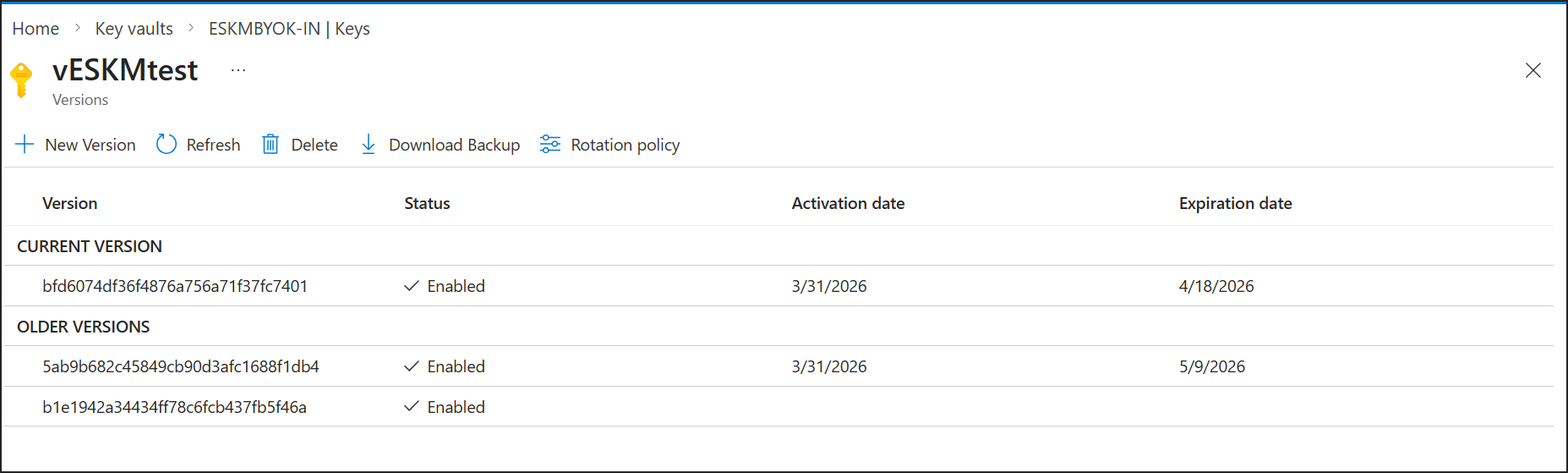
Key rotation in Azure console