

To create a key within your recently created Key vault, click on the name of your Azure Key vault and follow the next steps.
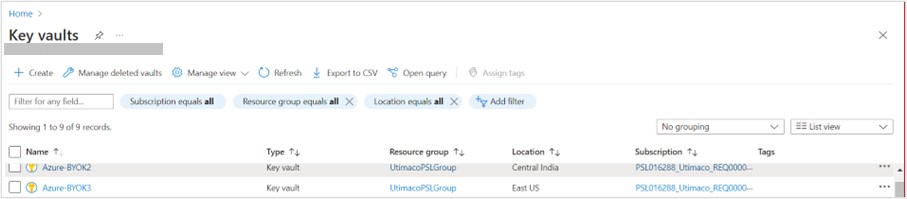
Key vaults home page
-
Under the Settings menu select the Keys setting.
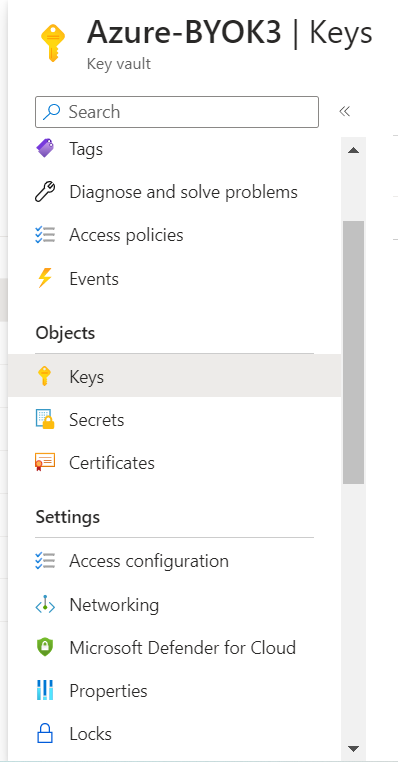
Key vault menu
-
Click on Generate/Import.
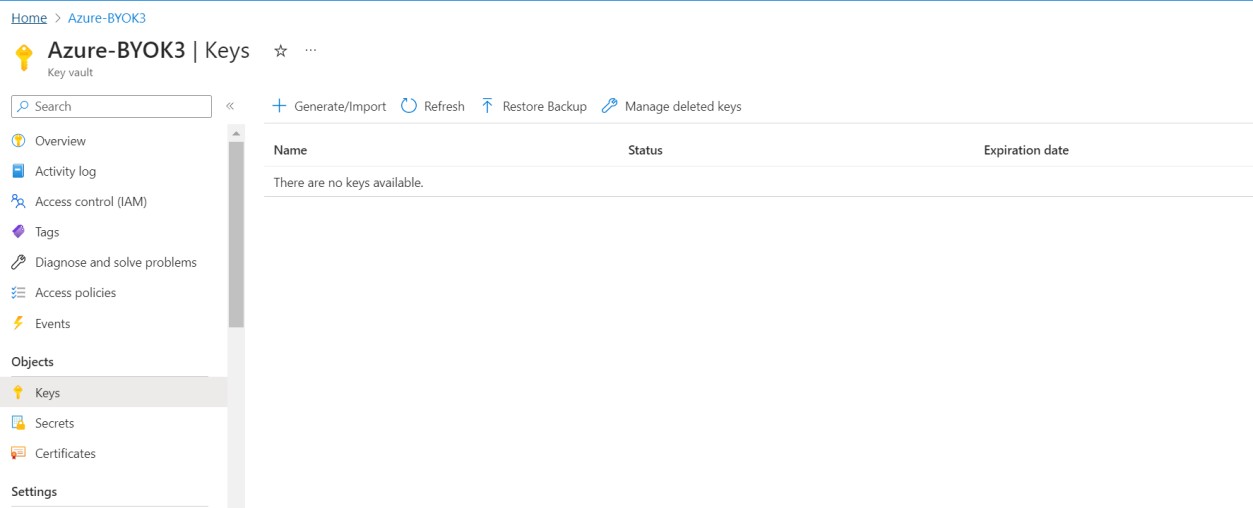
Default key vault keys setting page
-
In the Options drop-down menu select Generate Key Encryption Key for importing HSM-protected Keys, add a name to the key and select the RSA key size. If needed, set the activation and expiration date for the key.
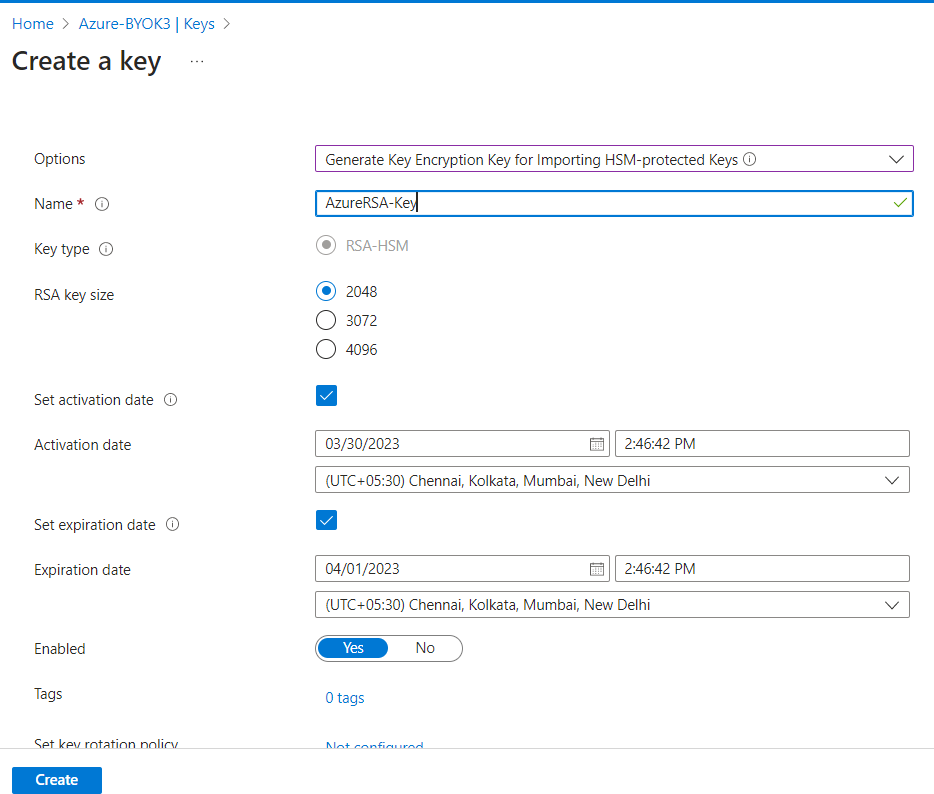
Example of create a key page
-
After the key is created it will be display under the key vault created and being used, navigate to the following path to see the newly generated key.
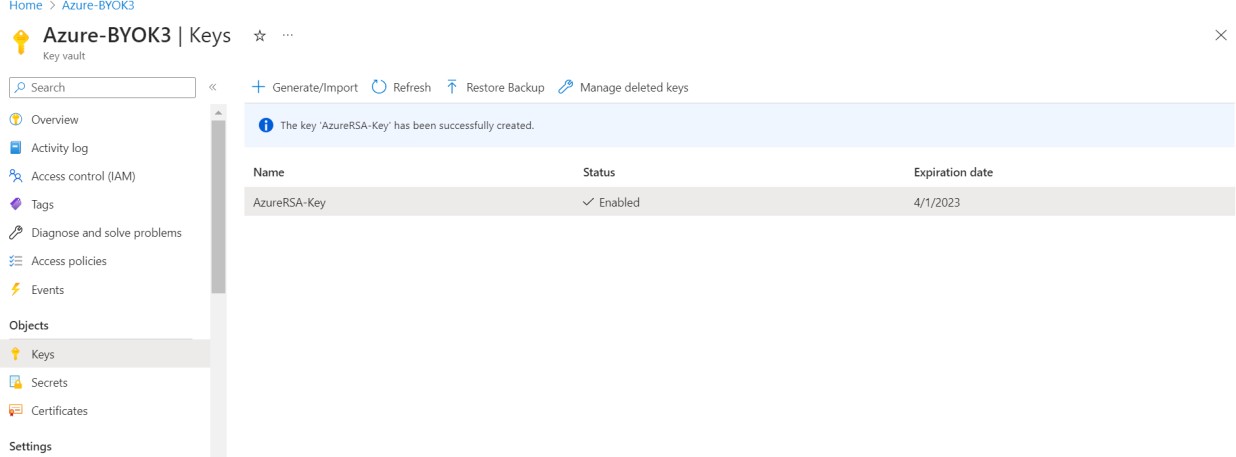
Generated keys
-
The key we just created has an identifier which will be needed in the next steps. To find this Key Identifier, click on the newly created key in your Key Vault to display its properties. The Key Identifier will be needed in the steps for Generating and preparing your tenant key.
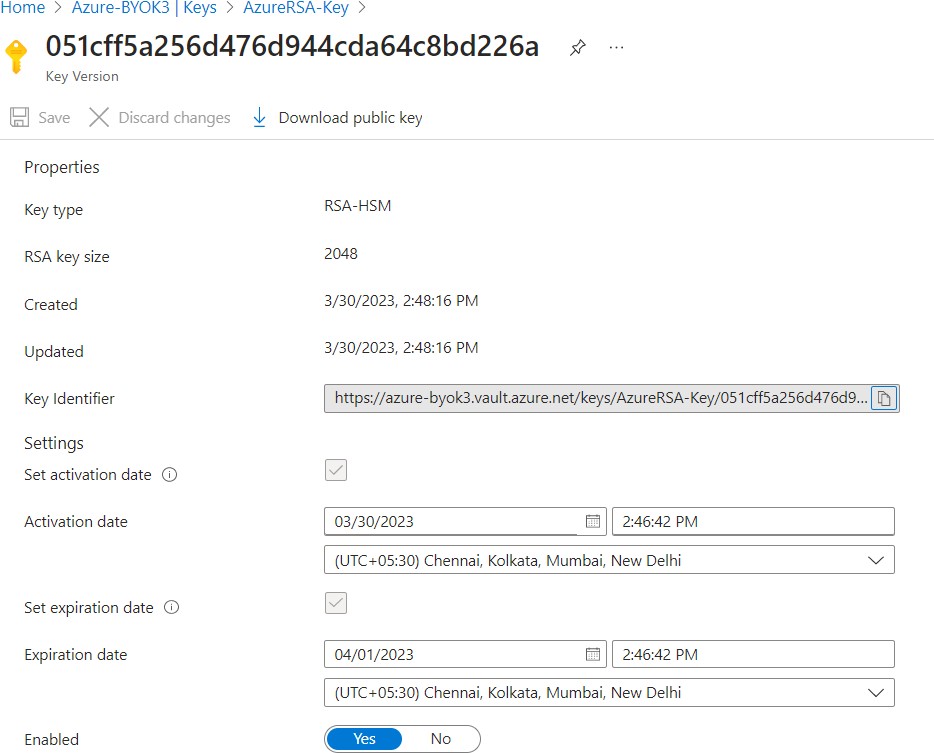
Key properties