

Use the Azure CLI to import the wrapped key to your Azure key vault, generated in the previous steps.
-
Execute the following command to import an RSA tenant key:
|
|
|---|
|
|
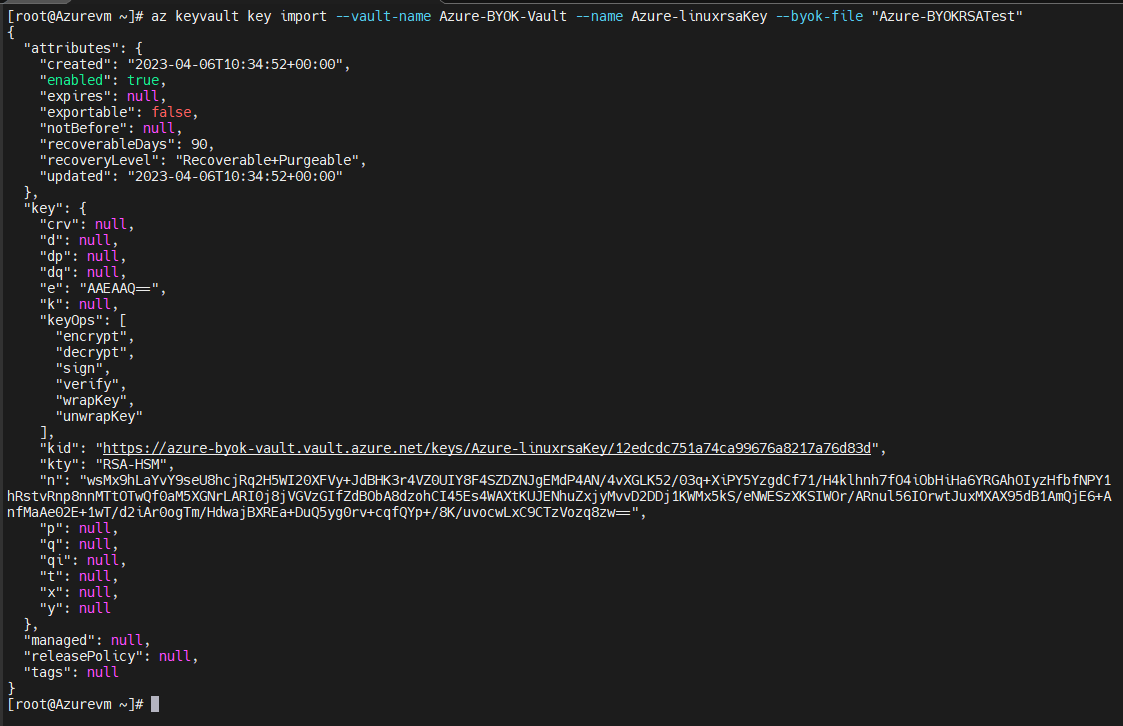
Importing tenant key
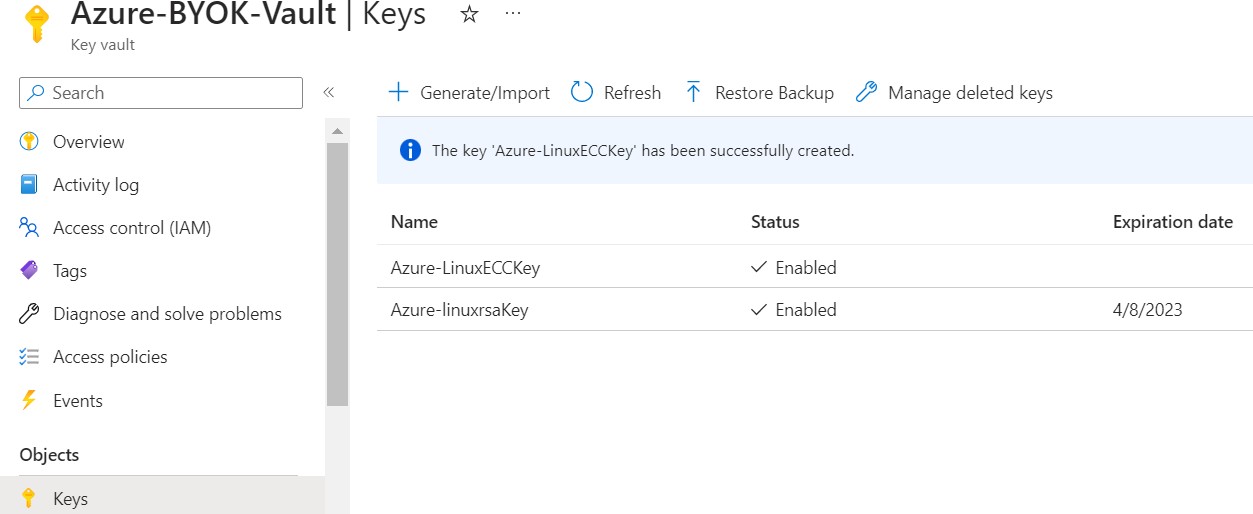
List importing tenant key
Execute the following command to import an EC tenant key:
|
|
|---|
|
|
For <curvename> Azure supports P-256, P-384 and P-521. The curve name must match the actual key.
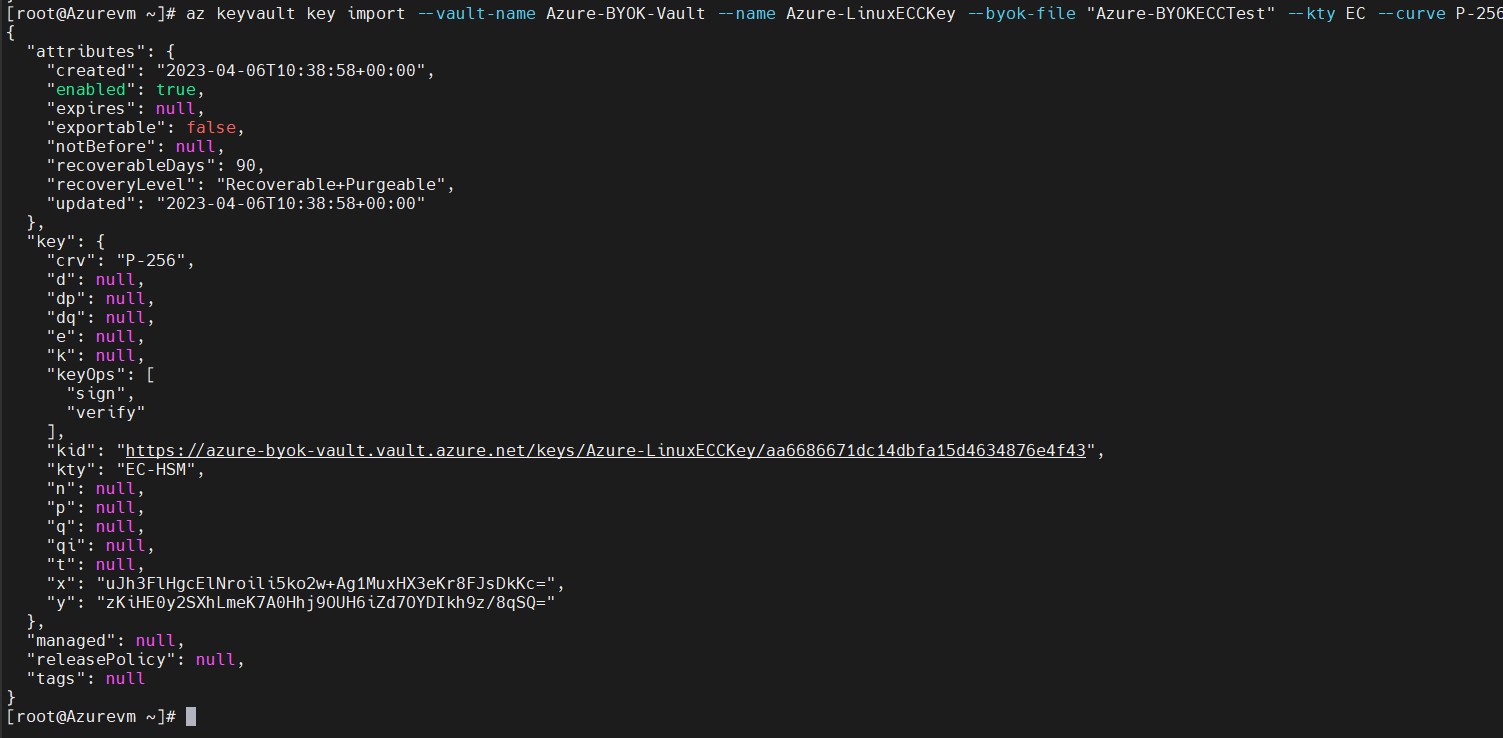
List importing tenant key
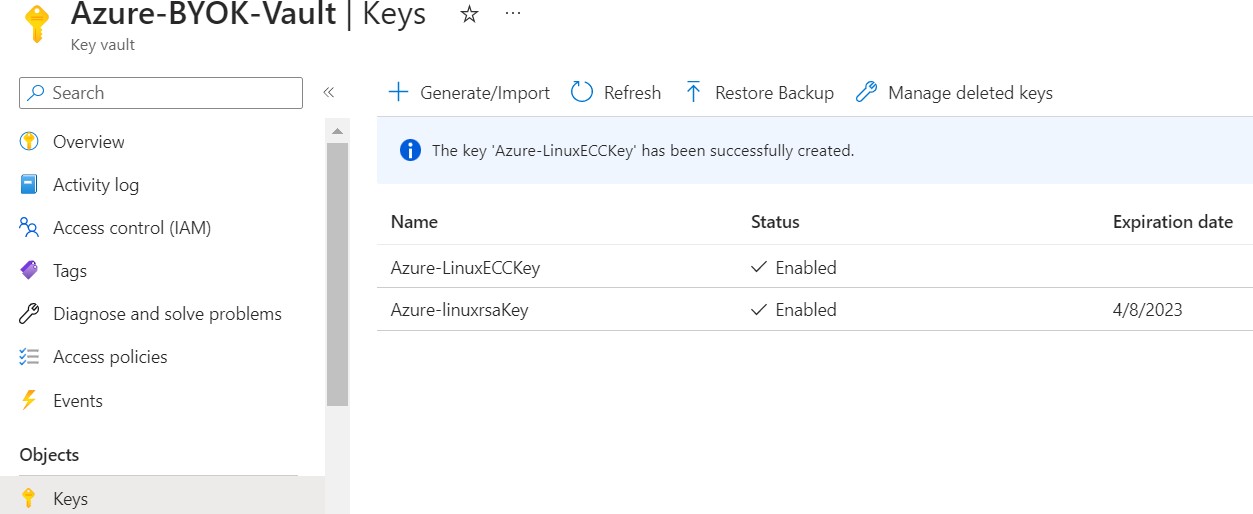
List importing tenant key
-
Use the following command to check, if the key has been successfully imported to the Azure Key vault:
|
|
|---|
|
|
You can also check if the key is visible on your Azure portal.
For RSA Key
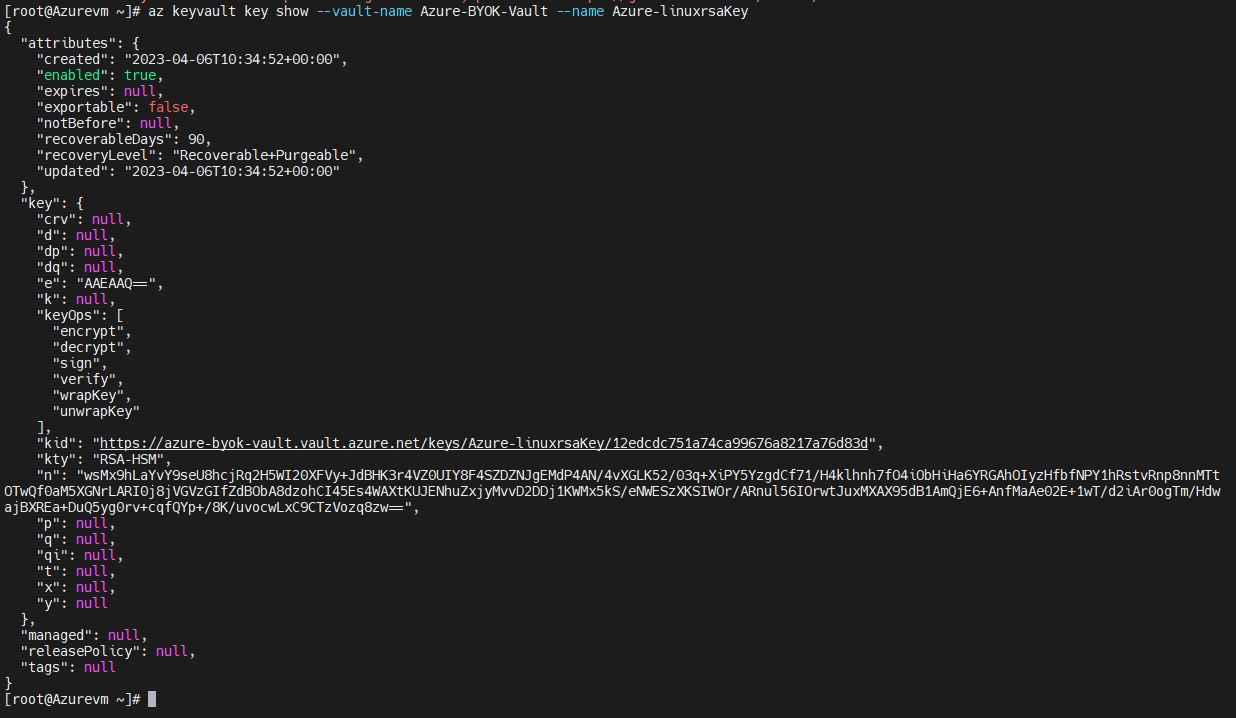
List RSA key
For ECC Key
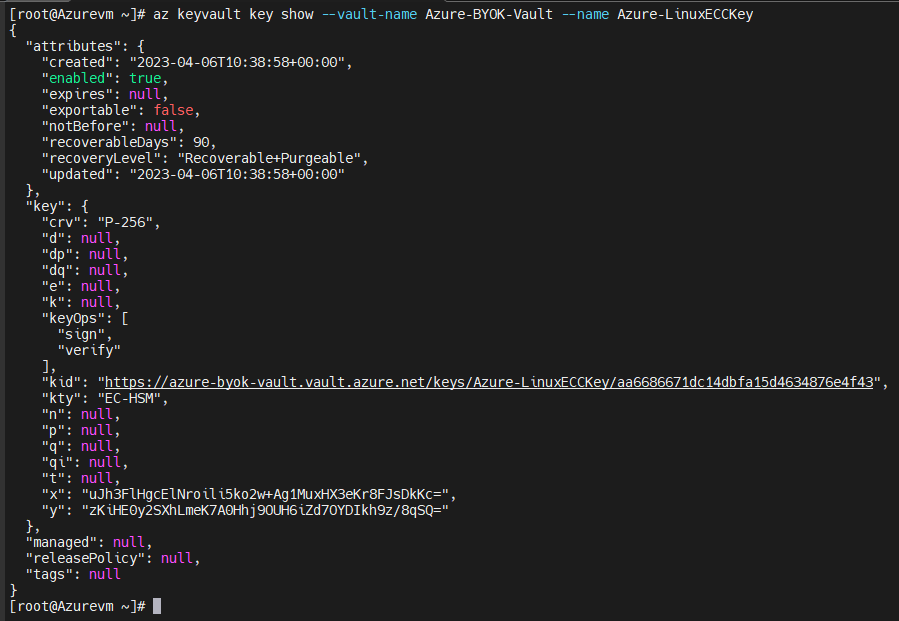
List ECC key