Install OpenStack Barbican

Use the steps below to install OpenStack Dalmatian via Packstack.

  1. Disable SeLinux using the command below:

›_ Console

# setenforce 0

Alternatively, open the /etc/selinux/config file and change permissive to disabled as shown below. Then reboot your machine.
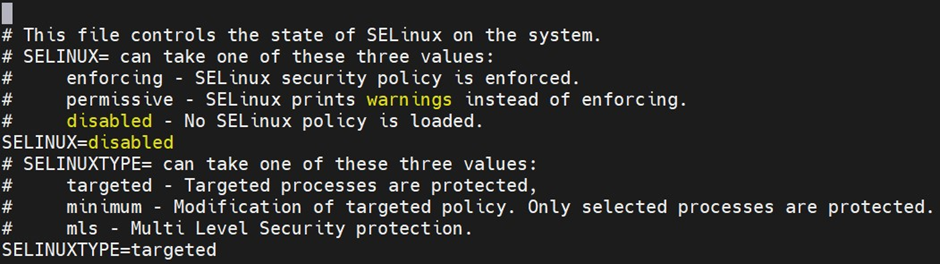
image-20250612-072811.png
SELINUX Config File

This is for demonstration purposes only. Add the OpenStack Barbican files and directories in the SELinux context in a production environment.

  1. Change the hostname to controller by using the below command and reboot.

›_ Console

# hostnamectl set-hostname controller

# reboot

  1. Map barbican and controller to IP in /etc/hosts file.

›_ Console

# vi /etc/hosts

<Host_IP>    barbican        barbican.localdomain

<Host_IP>    controller       controller.localdomain


image-20250612-073134.png
Hosts File
  1. Stop the firewall and NetworkManager using the below command.

This is for demonstration purpose only. In production environment allow openstack barbican services through firewall.

›_ Console

# systemctl stop firewalld NetworkManager

# systemctl disable firewalld NetworkManager

  1. Set up the timezone.

›_ Console

# timedatectl set-timezone <timezone name>

  1. Enable the required repositories.

›_ Console

# subscription-manager repos --enable=rhel-9-for-x86_64-baseos-rpms --enable=rhel-9-for-x86_64-appstream-rpms --enable=rhel-9-for-x86_64-supplementary-rpms --enable=codeready-builder-for-rhel-9-x86_64-rpms

  1. Install OpenStack Packstack by using the following commands.

›_ Console

# dnf install https://trunk.rdoproject.org/rdo_release/rdo-release.el9s.rpm

# dnf upgrade

# dnf install -y openstack-packstack

  1. Install the OpenStack instance.

›_ Console

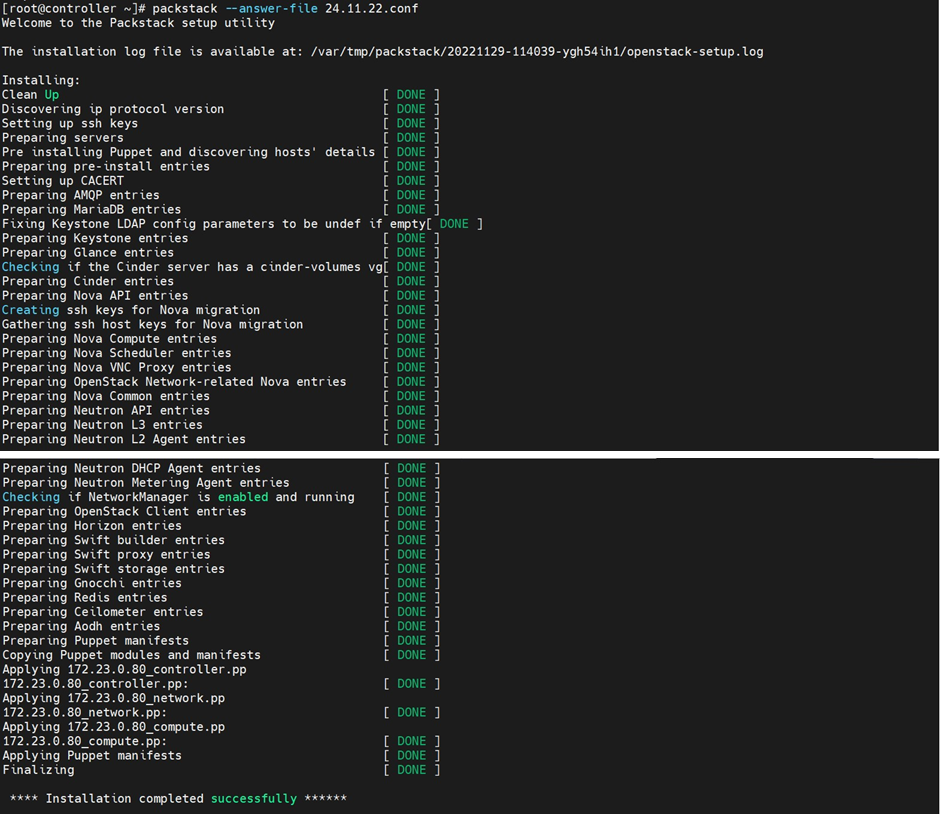
# packstack --allinone


image-20250612-073627.png
PackStack Configuration

An answer file will be generated in /root/. This file contains the passwords automatically generated by Packsack and used by MariaDB and other services.

  1. Open mysql as root.

›_ Console

# mysql -u root -p

  1. Create a database Barbican and allow full permission to the Barbican user.

›_ Console

> CREATE DATABASE barbican;

> GRANT ALL PRIVILEGES ON barbican.* TO 'barbican'@'localhost' IDENTIFIED BY '123456';

>GRANT ALL PRIVILEGES ON barbican.* TO 'barbican'@'%' IDENTIFIED BY

'123456';

> exit;

image-20250612-073956.png
 Mysql command output
  1. Restart the http daemon.

›_ Console

 # systemctl restart httpd

  1. Set the environment variable for OpenStack.

›_ Console

# source /root/keystonerc_admin

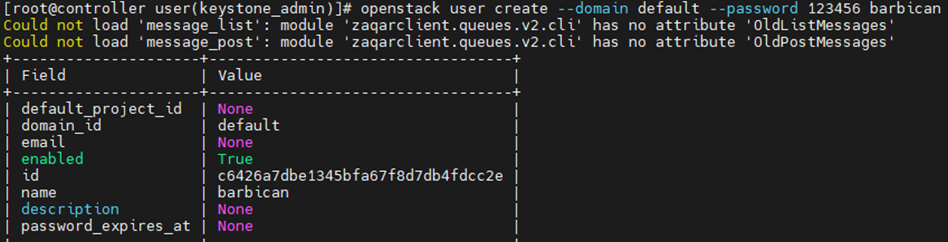
  1. Create a user barbican in OpenStack.

›_ Console openstack

# openstack user create --domain default --password 123456 barbican 

image-20250612-074401.png
  1. Add the admin role to the user barbican in project services.

›_ Console

# openstack role add --project services --user barbican admin

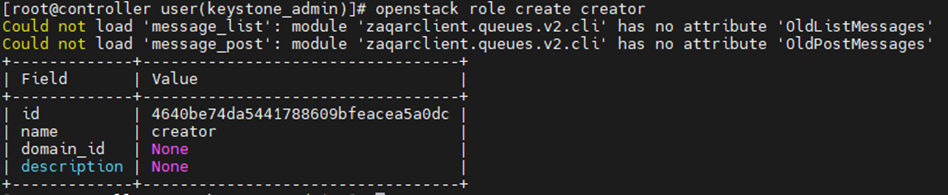
  1. Add the creator role.

›_ Console

# openstack role create creator

image-20250612-074523.png
OpenStack Role Creation
  1. Add the creator role to the barbican user.

›_ Console

# openstack role add --project services --user barbican creator

image-20250612-074628.png
Add Creator Role
  1. Create the barbican service entities.

›_ Console

# openstack service create --name barbican --description "key manager" key-manager

image-20250612-074733.png
OpenStack Service Creation
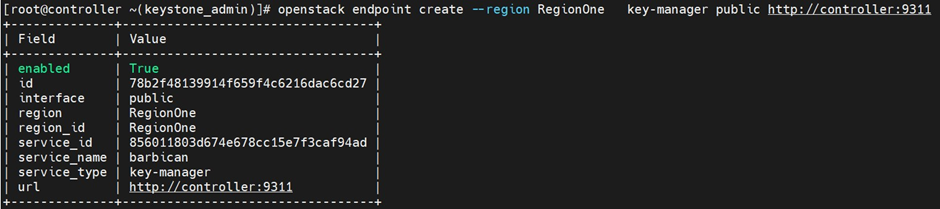
  1. Create the Key Manager service API public endpoint.

›_ Console

# openstack endpoint create --region RegionOne key-manager public http://172.28.14.25:9311

image-20250612-074822.png
OpenStack Public Endpoint Creation
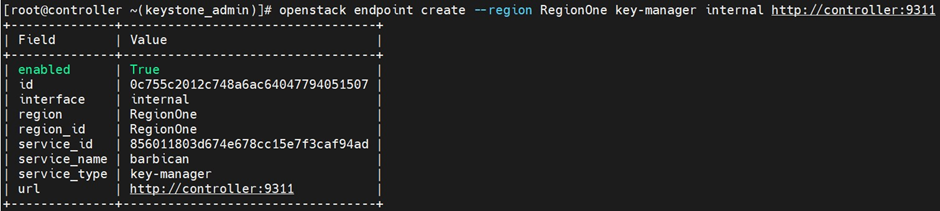
  1. Create the Key Manager service API Internal endpoint.

›_ Console

# openstack endpoint create --region RegionOne key-manager internal http://172.28.14.25:9311

image-20250612-074918.png
OpenStack Internal Endpoint Creation
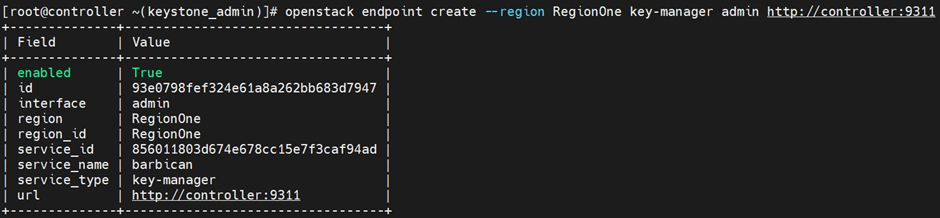
  1. Create the Key Manager service API Admin endpoint.

›_ Console

# openstack endpoint create --region RegionOne key-manager admin http://172.28.14.25:9311

image-20250612-075022.png
OpenStack Admin Endpoint Creation
  1. List the Key Manager service API endpoints created.

›_ Console

# openstack endpoint list --service barbican

image-20250612-075122.png
Endpoint List
  1. Install OpenStack Barbican:

›_ Console

# dnf install -y openstack-barbican

  1. Add the below information to the /etc/barbican/barbican.conf file. You can replace the username and password with the ones you set earlier during installation.

›_ Console

# vi /etc/barbican/barbican.conf

[DEFAULT]

host_href = http://barbican:9311

debug = true

transport_url = rabbit://guest:guest@controller

log_file = /tmp/logfile

[keystone_authtoken]

www_authenticate_uri = http://controller:5000

auth_url = http://controller:5000/v3

auth_version = v3

insecure = true

region_name = RegionOne

memcached_servers = localhost:11211

auth_type = password

project_name = services

user_domain_id = default

project_domain_id = default

username = barbican

password = 123456

[database]

connection = mysql+pymysql://barbican:123456@localhost/barbican

  1. Populate the Key Manager service database.

›_ Console

# su -s /bin/sh -c "barbican-manage db upgrade" barbican

image-20250612-075459.png
Database Upgrade
  1. Restart Barbican API service.

›_ Console

# systemctl restart openstack-barbican-api.service

  1. Restart and enable the httpd service.

›_ Console

# systemctl restart httpd

# systemctl enable httpd