

Now that you have the Utimaco HSM PKCS#11 stack configured, you need to connect OKV to the provider.
You will start with initial steps in the OKV web GUI. Then proceed to login via the ssh shell and complete some command line operations.
-
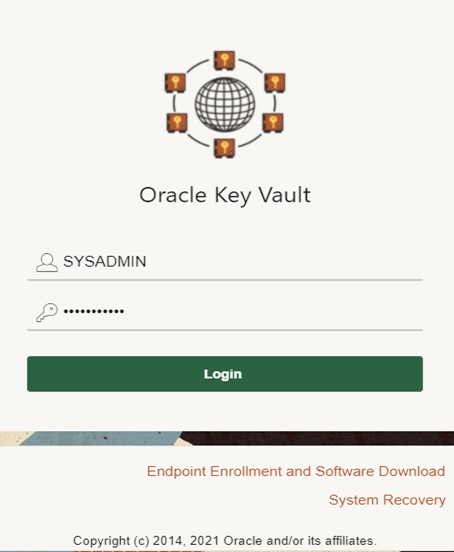
Login as the SYSADMIN user that we defined earlier in the OKV setup.
-
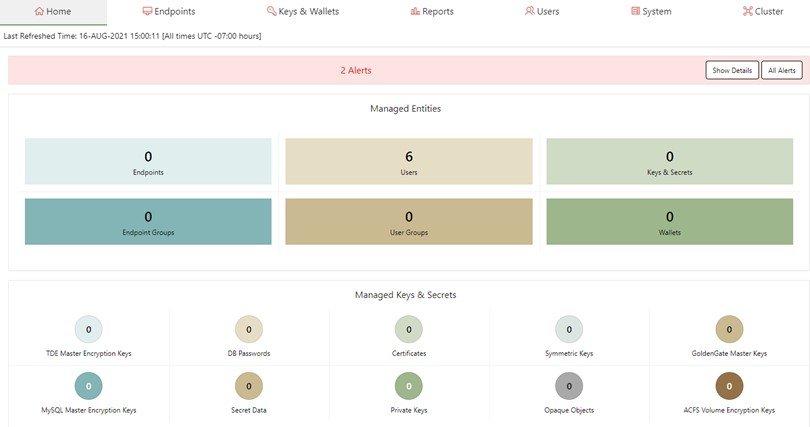
You are now in the Oracle OKV Console. You will need to select the System tab at the top right of your browser.
-
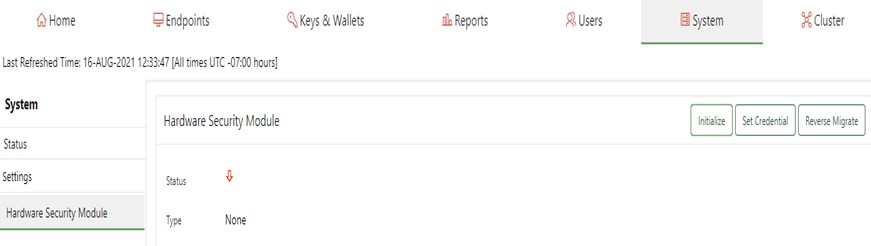
Now we will Initialize and Set Credential for the HSM
Ensure that you have the PIN value that were set earlier when you configured the PKCS#11 user. In my case I used the PIN “123456".
Confirm that the Utimaco PKCS#11 provider library has been installed in the directory that OKV expects. This is specific to the HSM vendor. In our case/opt/utimaco/lib.
-
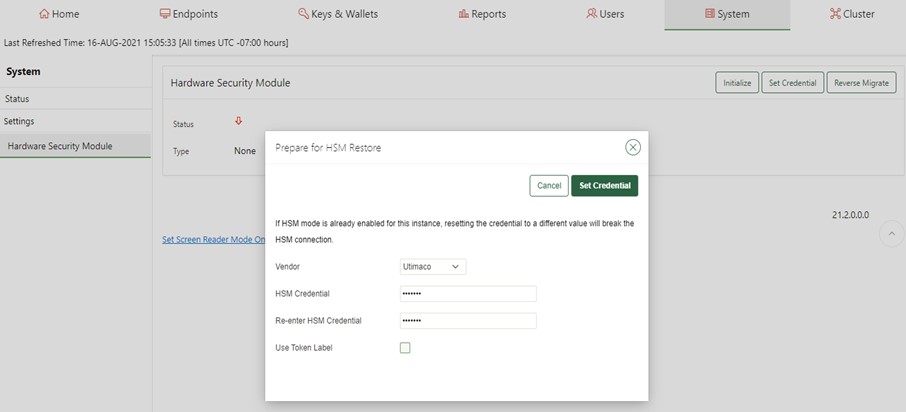
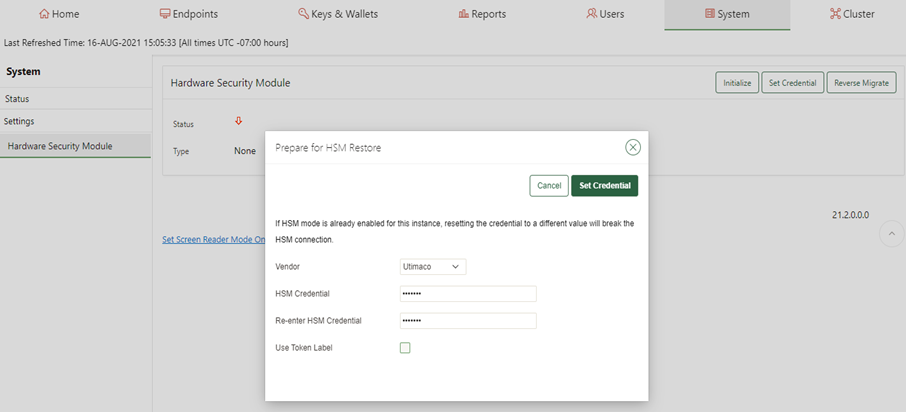
Set the HSM vendor to Utimaco. Then set the PIN value for the PKCS#11 token and then confirm that value in the next field. Ensure that the PIN values match.
-
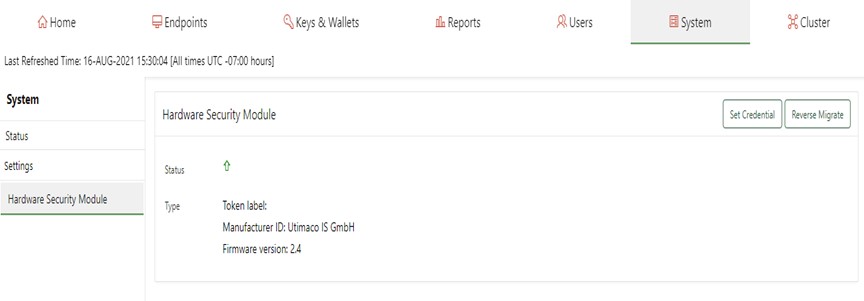
A successful initialization will show the following msg.
Token label:
Manufacturer ID: Utimaco
IS GmbH and the Firmware version: 2.4
You are now ready to set the credentials next.
-
Select the HSM Vendor option and set Utimaco. Then enter the PIN you defined for the Slot 0000 token. Enter it twice.Then select Set Credential button.
-
Now you will need to login via ssh to the OKV server and run the following command. Use the ssh RSA key you created when you initialize the OKV instance credentials.
# ssh -i ./ssh-key-date.key support@<OKV server IP>

# su -

# /opt/utimaco/bin/p11tool2 GetSlotInfo

CK_SLOT_INFO (slot ID: 0x00000000):

  slotDescription     33303031 4031302e  302e302e 31363420 |10.0.0.164      |
                      2d20534c 4f545f30  30303020 20202020 |- SLOT_0000     |
                      20202020 20202020  20202020 20202020 |                |
                      20202020 20202020  20202020 20202020 |                |

  manufacturerID      5574696d 61636f20  49532047 6d624820 |Utimaco IS GmbH |
                      20202020 20202020  20202020 20202020 |
-
Using the p11tool2 run the following command. It should show the OKV HSM RoT AES key has been set.
# /opt/utimaco/p11tool2 LoginUser=utimaco ListObjects CKO_DATA: + 1.1 CKA_LABEL = OKV 21.2 HSM Key Number CKO_SECRET_KEY: + 2.1 CKA_KEY_TYPE = CKK_AES CKA_SENSITIVE = CK_TRUE CKA_EXTRACTABLE = CK_FALSE CKA_LABEL = OKV 21.2 HSM Root Key CKA_ID = 0x00000001 () -
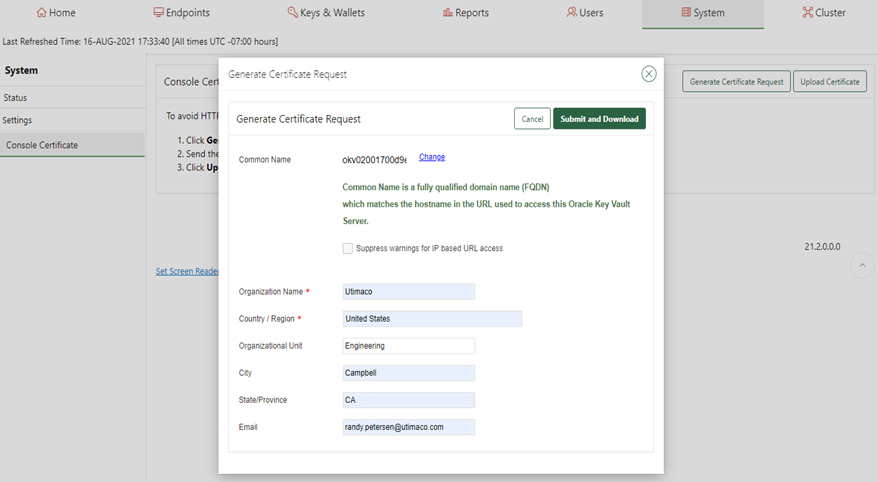
Check out a crypto operation to see that OKV is working. Generate a Certificate Signing Request.
-
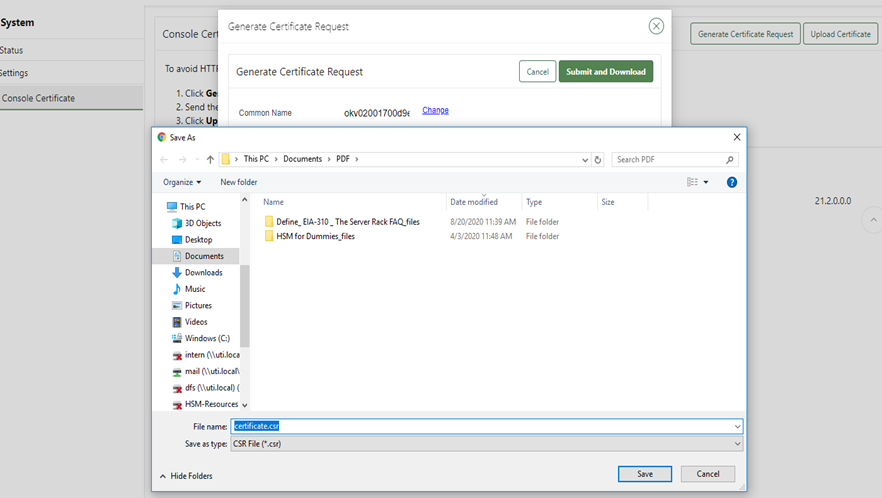
Download the certificate request to your laptop.
-
Display the CSR as generated by OKV.
-----BEGIN CERTIFICATE REQUEST-----
MIIDHjCCAgYCAQAwgZoxGDAWBgNVBAMMD29rdjAyMDAxNzAwZDllMzEQMA4GA1UE
CgwHVXRpbWFjbzEUMBIGA1UECwwLRW5naW5lZXJpbmcxETAPBgNVBAcMCENhbXBi
ZWxsMQswCQYDVQQIDAJDQTEpMCcGCSqGSIb3DQEJARYacmFuZHkucGV0ZXJzZW5A
dXRpbWFjby5jb20xCzAJBgNVBAYTAlVTMIIBIjANBgkqhkiG9w0BAQEFAAOCAQ8A
MIIBCgKCAQEAmzHixXBPlZN9+vRXvGhP0GdfzcBV6XvTTRqU2DSS0/3FVp8xZIZJ
j9H1bBmFqbEW7RxlMOIh9/uXk5UEj7P3Aiez+nSmz+Ca2tTbTvf3vzFDUk/OsKvv
VlGdpponKLqVlFExpS+bjnBuGlgo9hmQgLruc1GDC57DEyURvnASAmKL+wGqJsdE
V1kn70IDlDZZ6A4p4sOLLOgJItsWVzApk2AANc0bLB/+BSiFUKFDxBSyAqpl7NHn
QzAgLbThuEJdkoZ9vFt4/VU1+HeA83xp5F207ain1jDtXfvRvNWMHRdFbLJDn6MX
zpOLJXUfICE7sxfqFBMwiBcP96okTzNzdwIDAQABoD4wPAYJKoZIhvcNAQkOMS8w
LTAJBgNVHRMEAjAAMAsGA1UdDwQEAwIF4DATBgNVHSUEDDAKBggrBgEFBQcDATAN
BgkqhkiG9w0BAQsFAAOCAQEALojYxYGsfSw1RjzwXcxGfveyhH4/5aqhVfwqiA7h
S8s+W7w1Zwu6Qg2V9NISuS9Y3Ek/BXCMyaylEAm1rYp85anAg+RdalgmH+uza9a1
H5PJjDbNjUwjNS6FCuKNWDqf8sT11Q4CY6ka3oU3VTSq0S4eel7b2Fx1hMh01fXK
baS0EfJm7+6f4pLMiuIcrZWSymzBLTP9j//WK3mNynWE0NAXBGfepdhzey3CC31M
A5R3bHvVk2heEK0VnzzWtymDkcK5lGV5/KdEcU+Tpn+7xCePrmYmH6pW20GBpVn4
zT/LU4mpmWvG38BBRJuD/58K7iLGXFg1DCchffyJfwd69w==
-----END CERTIFICATE REQUEST-----:
-
Use openssl to verify the created CSR and output the PEM format.
# openssl req -text -noout -verify –in cert.csr >cert.pem
verify OK

Certificate Request:
    Data:
        Version: 0 (0x0)
        Subject: CN=okv02001700d9e3, O=Utimaco, OU=Engineering, L=Campbell, ST=CA/
        emailAddress=ruser@utimaco.com, C=US
        Subject Public Key Info:
            Public Key Algorithm: rsaEncryption
                Public-Key: (2048 bit)
                Modulus:
                    00:9b:31:e2:c5:70:4f:95:93:7d:fa:f4:57:bc:68:
                    4f:d0:67:5f:cd:c0:55:e9:7b:d3:4d:1a:94:d8:34:
                    92:d3:fd:c5:56:9f:31:64:86:49:8f:d1:f5:6c:19:
                    85:a9:b1:16:ed:1c:65:30:e2:21:f7:fb:97:93:95:
                    04:8f:b3:f7:02:27:b3:fa:74:a6:cf:e0:9a:da:d4:
                    db:4e:f7:f7:bf:31:43:52:4f:ce:b0:ab:ef:56:51:
                    9d:a6:9a:27:28:ba:95:94:51:31:a5:2f:9b:8e:70:
                    6e:1a:58:28:f6:19:90:80:ba:ee:73:51:83:0b:9e:
                    c3:13:25:11:be:70:12:02:62:8b:fb:01:aa:26:c7:
                    44:57:59:27:ef:42:03:94:36:59:e8:0e:29:e2:c3:
                    8b:2c:e8:09:22:db:16:57:30:29:93:60:00:35:cd:
                    1b:2c:1f:fe:05:28:85:50:a1:43:c4:14:b2:02:aa:
                    65:ec:d1:e7:43:30:20:2d:b4:e1:b8:42:5d:92:86:
                    7d:bc:5b:78:fd:55:35:f8:77:80:f3:7c:69:e4:5d:
                    b4:ed:a8:a7:d6:30:ed:5d:fb:d1:bc:d5:8c:1d:17:
                    45:6c:b2:43:9f:a3:17:ce:93:8b:25:75:1f:20:21:
                    3b:b3:17:ea:14:13:30:88:17:0f:f7:aa:24:4f:33:
                    73:77

 Exponent: 65537 (0x10001)
  Attributes:
        Requested Extensions:
            X509v3 Basic Constraints:
                CA:FALSE
            X509v3 Key Usage:
                Digital Signature, Non Repudiation, Key Encipherment
            X509v3 Extended Key Usage:
                TLS Web Server Authentication
    Signature Algorithm: sha256WithRSAEncryption
         2e:88:d8:c5:81:ac:7d:2c:35:46:3c:f0:5d:cc:46:7e:f7:b2:
         84:7e:3f:e5:aa:a1:55:fc:2a:88:0e:e1:4b:cb:3e:5b:bc:35:
         67:0b:ba:42:0d:95:f4:d2:12:b9:2f:58:dc:49:3f:05:70:8c:
         c9:ac:a5:10:09:b5:ad:8a:7c:e5:a9:c0:83:e4:5d:6a:58:26:
         1f:eb:b3:6b:d6:b5:1f:93:c9:8c:36:cd:8d:4c:23:35:2e:85:
         0a:e2:8d:58:3a:9f:f2:c4:f5:d5:0e:02:63:a9:1a:de:85:37:
         55:34:aa:d1:2e:1e:7a:5e:db:d8:5c:75:84:c8:74:d5:f5:ca:
         6d:a4:b4:11:f2:66:ef:ee:9f:e2:92:cc:8a:e2:1c:ad:95:92:
         ca:6c:c1:2d:33:fd:8f:ff:d6:2b:79:8d:ca:75:84:d0:d0:17:
         04:67:de:a5:d8:73:7b:2d:c2:0b:7d:4c:03:94:77:6c:7b:d5:
         93:68:5e:10:ad:15:9f:3c:d6:b7:29:83:91:c2:b9:94:65:79:
         fc:a7:44:71:4f:93:a6:7f:bb:c4:27:8f:ae:66:26:1f:aa:56:
         db:41:81:a5:59:f8:cd:3f:cb:53:89:a9:99:6b:c6:df:c0:41:
         44:9b:83:ff:9f:0a:ee:22:c6:5c:58:35:0c:27:21:7d:fc:89:
         7f:07:7a:f7
OKV has connected to the provider successfully.