

To install Oracle WebLogic server:
-
(Optional) It is recommended to update the system with latest security patch.
|
›_ Console |
|---|
|
-
Install/Open Oracle JDK.
Refer to the Oracle WebLogic support matrix for the version of java compatible with WebLogic 12c and 14c.
For java 8:
|
›_ Console |
|---|
|
For java 11:
|
›_ Console |
|---|
|
-
Download the Generic Installer for Oracle WebLogic server from the Oracle official site https://www.oracle.com/middleware/technologies/weblogic-server-installers-downloads.html.
-
Pre-installation tasks:
|
›_ Console |
|---|
|
-
Create a directory to install the WebLogic software and set the necessary permissions.
|
›_ Console |
|---|
|
-
Log in to Oracle user.
-
Edit .bash_profile of Oracle user in vim text editor and add following environment variables in this file.
|
›_ Console |
|---|
|
Change the values according to your system configuration.
-
Source/Execute the .bash_profile script to set environment variables for the current Linux shell.
|
›_ Console |
|---|
|
-
Execute the unzip command to extract the WebLogic Generic Installer.
|
›_ Console |
|---|
|

Unzipping the Installer
-
Execute the Generic Installer JAR file by using the following java command with Oracle user.
|
›_ Console |
|---|
|
-
A window will appear asking for installation related information. Follow the prompt and finish the installation.
-
Open http://<oracle_weblogic_-server-ip>:7001 in any web browser and verify if the Oracle WebLogic page is visible. Log in with the Administrative user which was created in the installation and configuration steps.
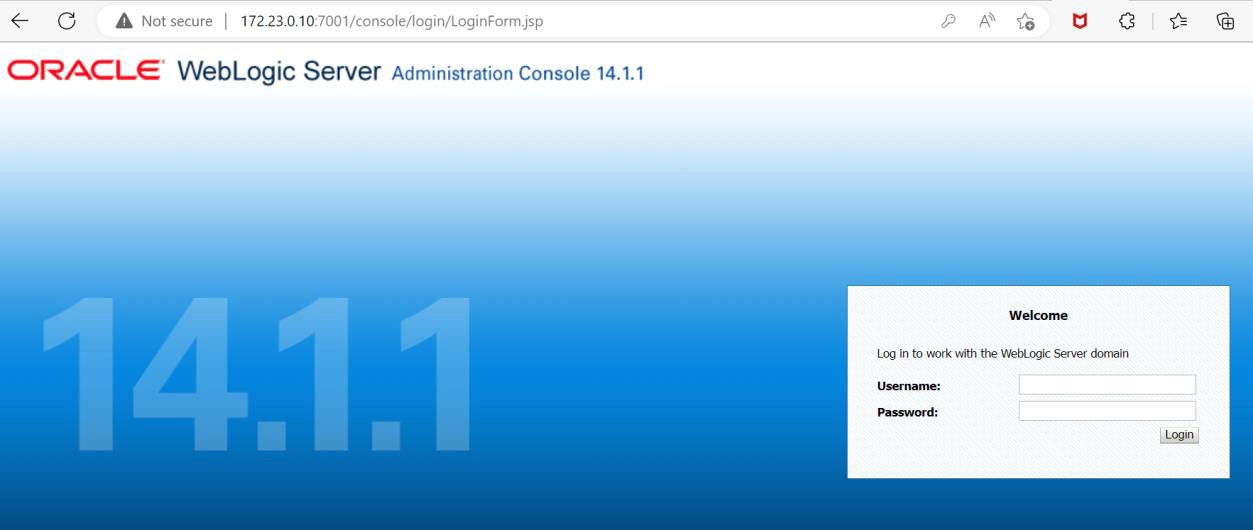
Browser output over page 7001