

-
Verifying ESKM Logs on the Linux syslog-ng Server
-
After configuring
eskm.conf, verify logs are received by checking:#tail -f /var/log/eskm/eskm.log -
Ensure syslog-ng is listening on port 514 (TCP/UDP):
#ss -tulpn | grep 514
-
Verifying Ports and Connectivity from Splunk Enterprise
-
Ensure Splunk Enterprise is listening on port 9997 on your Windows machine:
#netstat -ano | findstr 9997 -
Check that the receiving port is enabled in Splunk Enterprise at Settings → Forwarding & Receiving → Receive Data → Port 9997.
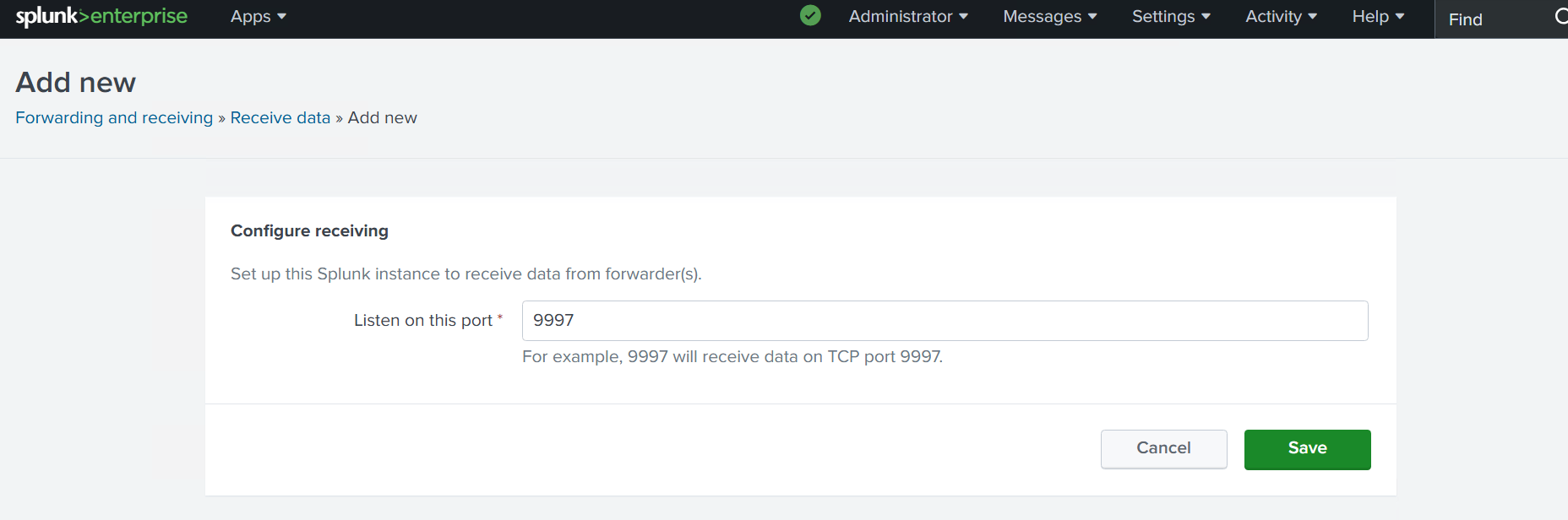
Verify receiving port
-
Verifying Universal Forwarder Connectivity
-
Confirm the UF service is running:
#/opt/splunkforwarder/bin/splunk status -
Verify the UF is monitoring the correct log file:
#/opt/splunkforwarder/bin/splunk list monitor -
Test connectivity from UF to Splunk Enterprise:
#nc -vz <SPLUNK_ENTERPRISE_IP> 9997
-
Verifying Logs Arrive in Splunk Enterprise
-
Confirm the index exists under Settings → Indexes → eskm_index
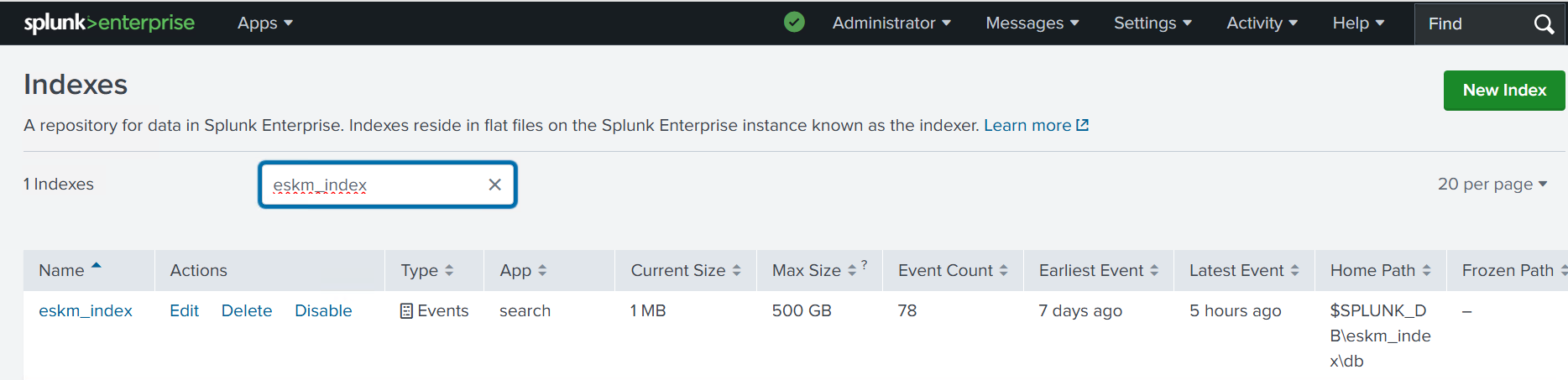
Verify index
-
Check if the UF has connected to Splunk by searching "index=_internal sourcetype=splunkd component=Metrics group=tcpin_connections".
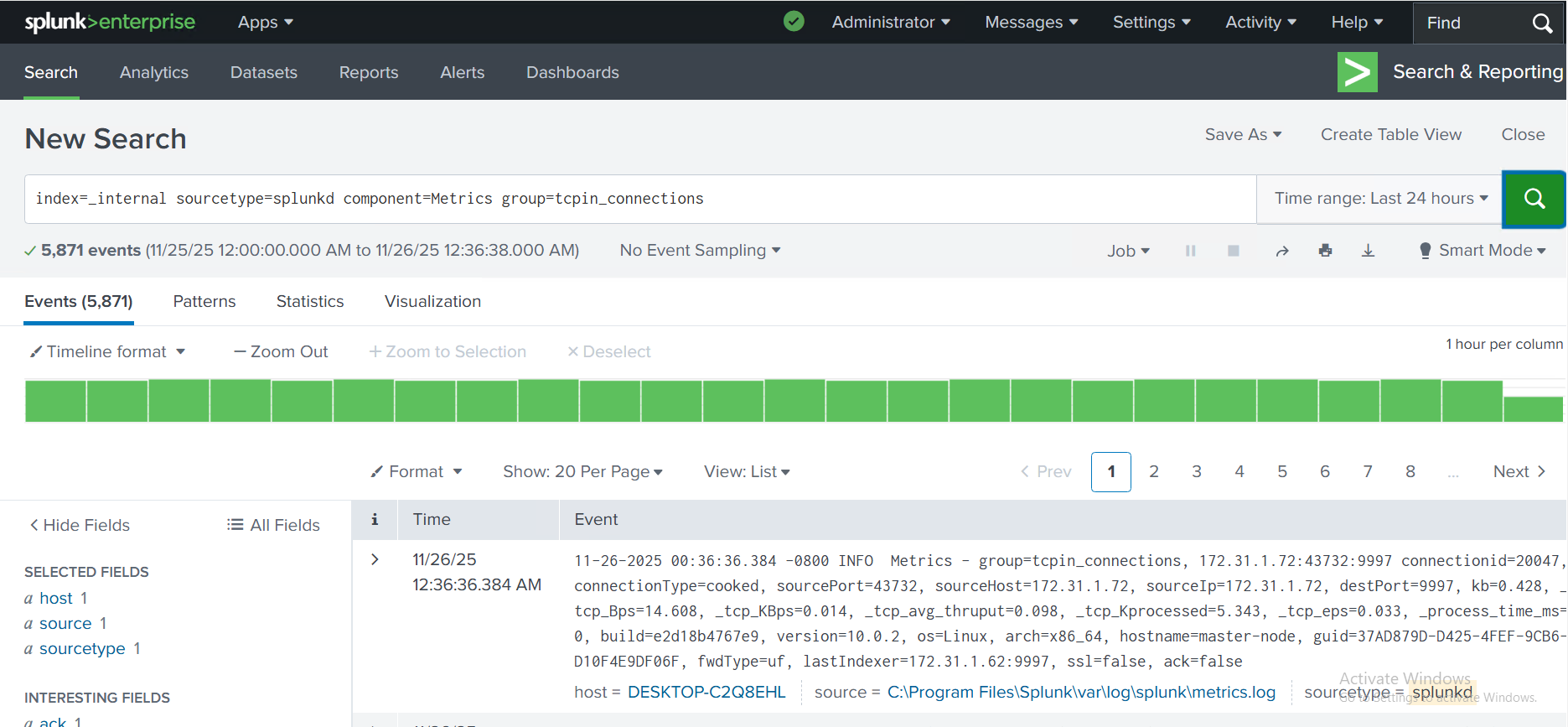
Verify UF connection
-
Verifying Log Flow End-to-End
-
Trigger an event on ESKM (login/logout, config change).
-
Confirm the event appears in:
-
Linux syslog file (
/var/log/eskm/eskm.log) -
Splunk UF monitored file list
-
Splunk Enterprise search (
index=eskm_index)
-