

Adding the Utimaco PKCS#11 library
Please see the Utimaco documentation for use and deployment of the PKCS#11 R2 Configuration file, pointed to by the environment variable CS_PKCS11_R2_CFG.
The SSH UKM appliance will attach to a single PKCS#11 implementation at a time, whether this is one or more physical HSMs will depend on the CS_PKCS11_R2_CFG file.
Log in to the Universal SSH Key Manager appliance, at the web address https://<ipaddress>/appliance/#/login . The Username and Password are the default account username and password (that you would use if you were using ssh to log in to the appliance).
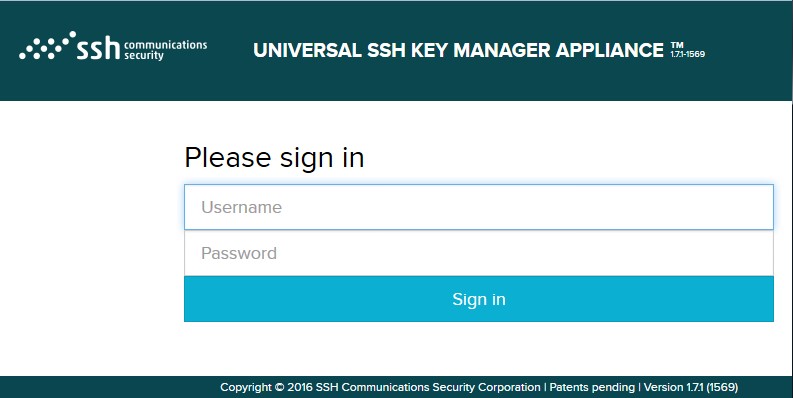
Figure 1: appl sign in
Use the "Frontend" link to log into the Key Manager. The default user is called 'superuser', and will use the password you set up for it during the appliance installation.
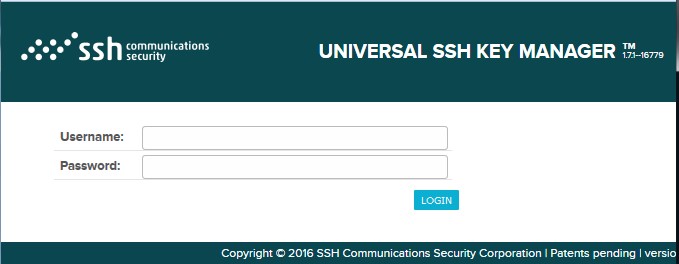
Figure 2: keym sign in
Click on any javascript-generated panels to dismiss them. Click on the SETTINGS tab, and then the GENERAL sub-tab.

Figure 3: setts genrl
Click on HSM to get to the PKCS#11 Dialog.
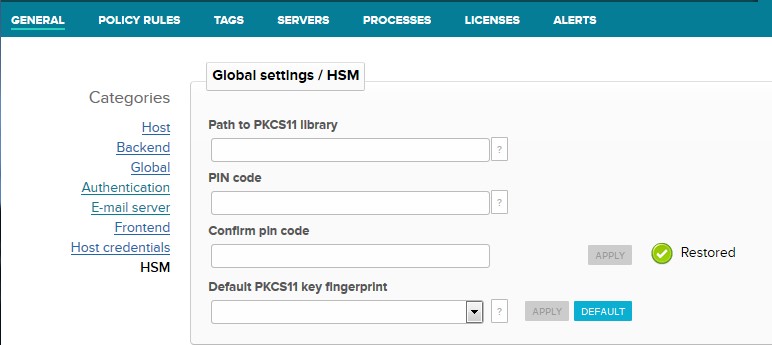
Figure 4: pkcs11 setup
Enter the filename of the Utimaco PKCS#11 R2 implementation in the "Path to" entry, and enter the PIN value for Slot 0 (twice).
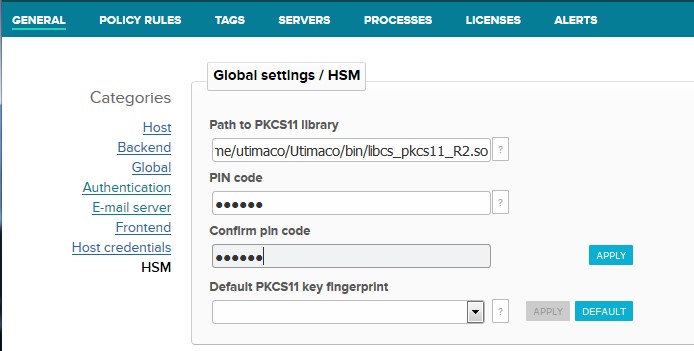
Figure 5: pkcs11 setup2
When 'Apply' is clicked, the PIN values will collapse, and the "Default PKCS11 key fingerprint" drop-down will auto-populate with any visible Private keys found on Slot 0 of the Utimaco CryptoServer cluster. Select the correct key to click 'APPLY' to set it as the Default key.