

To back up virtual machines (VMs), you need to set up a backup job. This involves choosing how, where, and when the VM data will be backed up. Each job can include one or more VMs. Users can run these jobs manually or schedule them to run automatically at set times.
Follow the steps below:
-
Launch the Veeam Backup & Replication application.
-
In the Veeam Backup & Replication Console, select the Backup Jobs option from the navigation menu and select the required backup job option, such as Windows Computer.
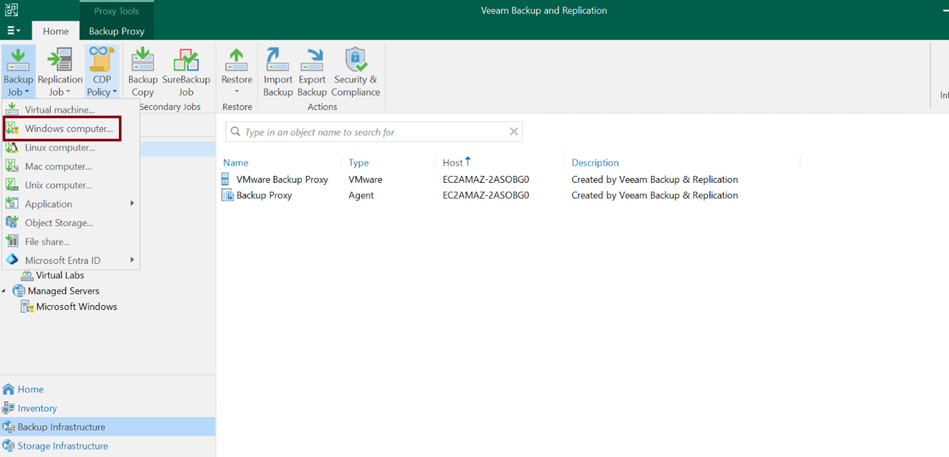
Backup Job Option is Windows Computer
On the New Agent Backup Job page, perform the following actions:
-
In the Job Mode section, select the Type as Server and Mode as Managed by backup server.
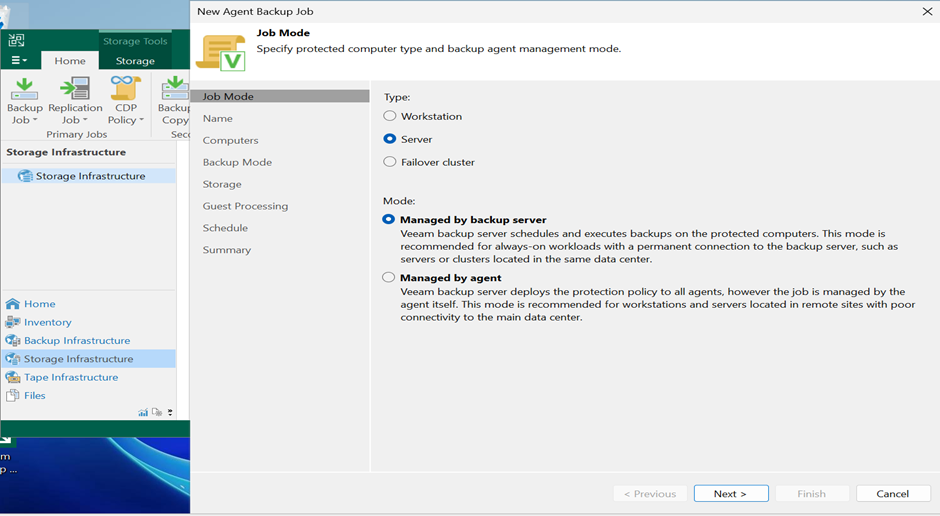
Choose the Type and Mode
-
In the Name section, enter the required name and description of the job. Click Next to proceed.
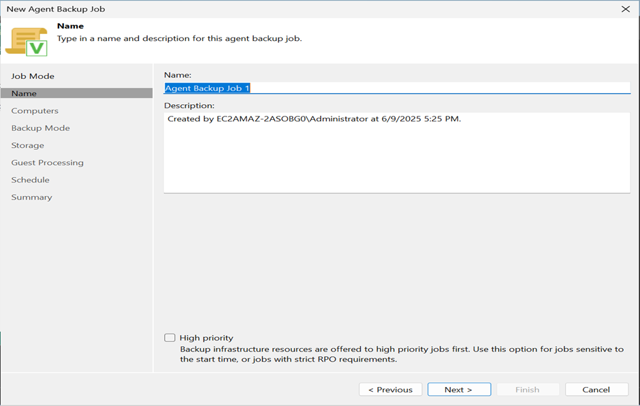
Add Details
-
In the Computers section, click the Add → Protection group. Select the required protection group from the list. Click Next to proceed.
-
Click OK.
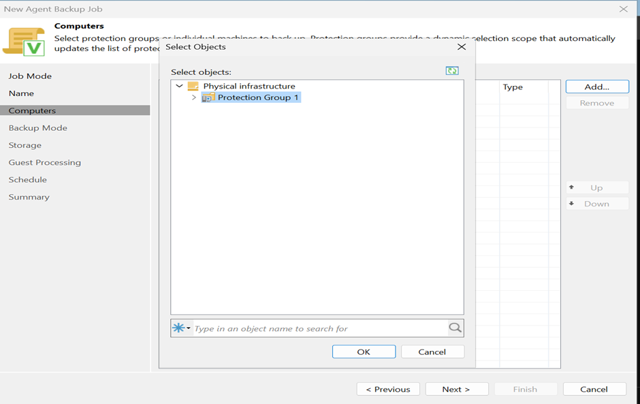
Choose the Protection Group
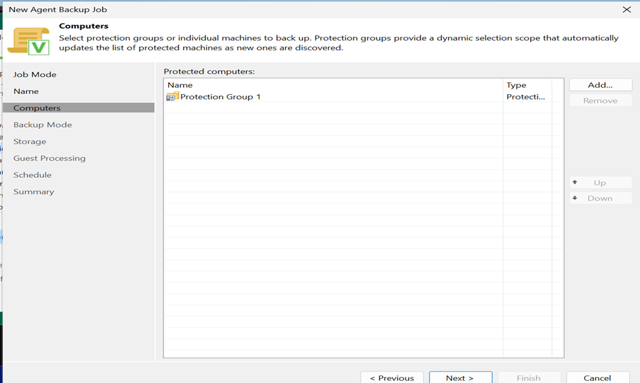
Protection Group Added
-
In the Backup Mode section, select the Entire computer radio button to back up the computer image. Click Next to proceed.
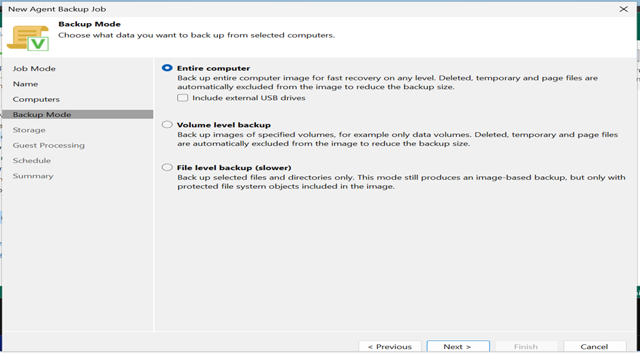
Select Backup Mode
-
In the Storage section, enter the required information in the available field, and then click Advanced to encrypt the Backup using Utimaco ESKM. Click Next to proceed.
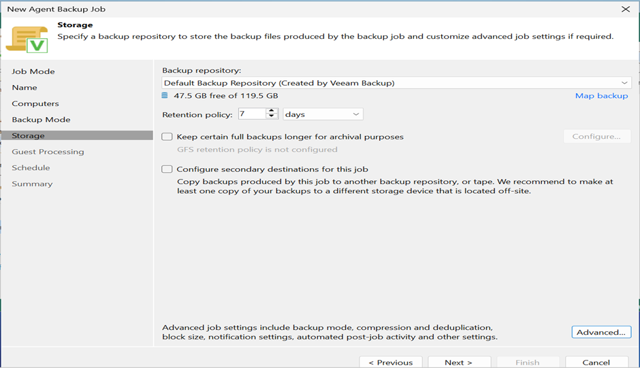
Configure Storage
-
Click OK to proceed.
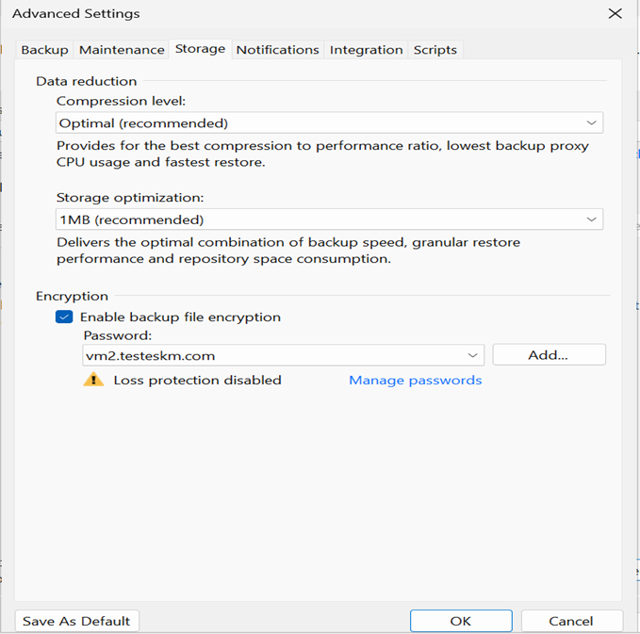
Storage Configured
-
In the Guest Processing section, keep the configuration as the default. Click Next.
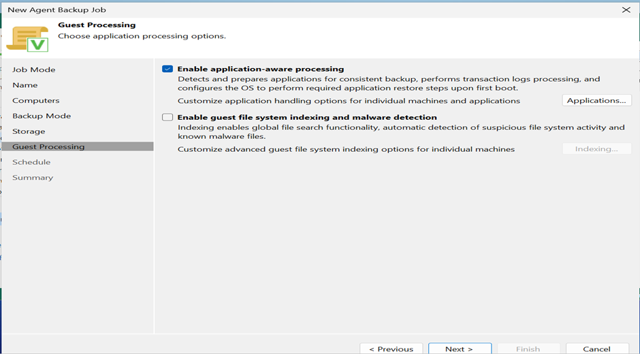
Configure Guest Processing
-
In the Schedule section, select the required option as per your requirements. Click Apply to proceed.
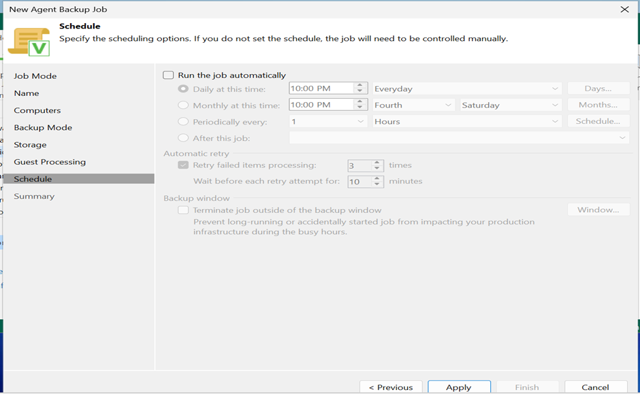
Schedule
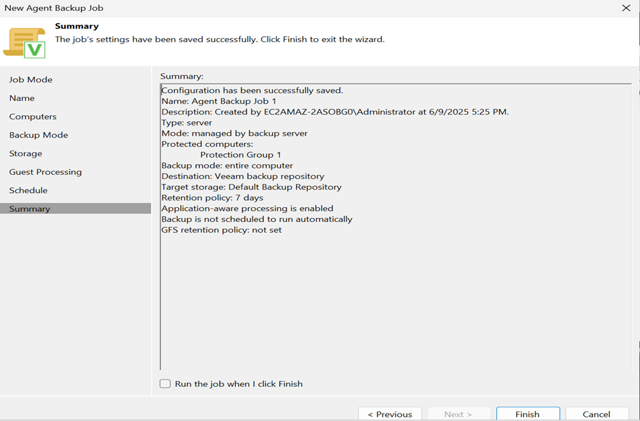
Summary
-
In the Summary section, review the configured settings to verify they align with your requirements, then proceed to confirm the creation of the backup job.
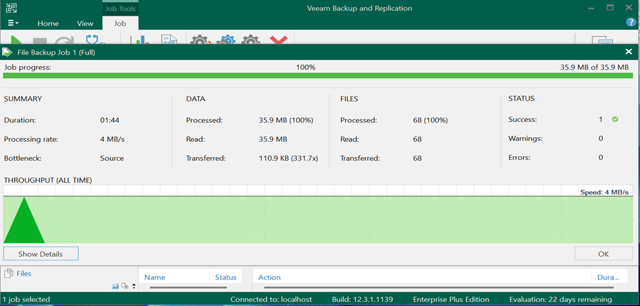
Graphical Representation of Veeam Backup Job