

-
Open a PDF document in Adobe Acrobat Pro.
-
Go to Menu > Preferences.
-
Select Signatures from the Categories list on the left.
-
Under Identities & Trusted Certificates, click on More and find the PKCS#11 Modules and Tokens section.
-
Click to expand CryptoServer PKCS#11 Library R3.
-
Select the Token and click on the Login.
-
Enter the Password and click OK.
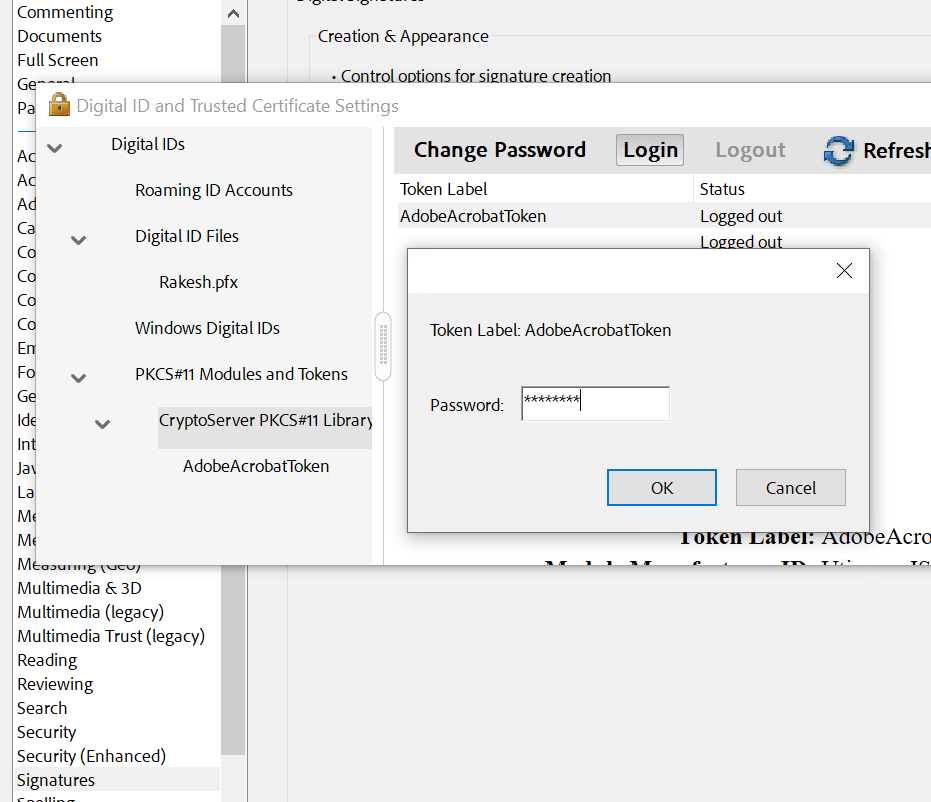
Login
-
Click the Add Digital ID button.
-
Enter the slot User PIN to log into the Token.
-
Select Add a new self-signed digital ID radio button.
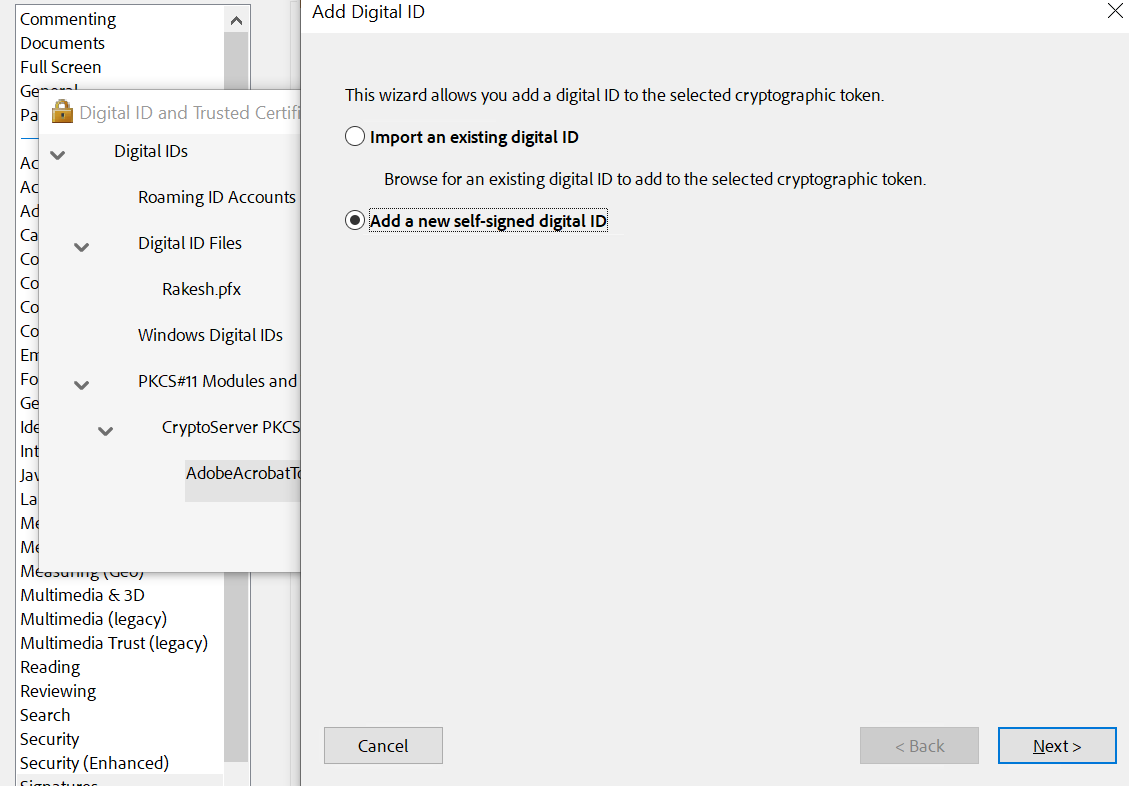
Add New Digital ID
-
Fill out the Add Digital ID form with all information, select 2048-bit RSA from Key Algorithm, and select Digital Signatures and Data Encryption from Use digital ID for: then click Finish.
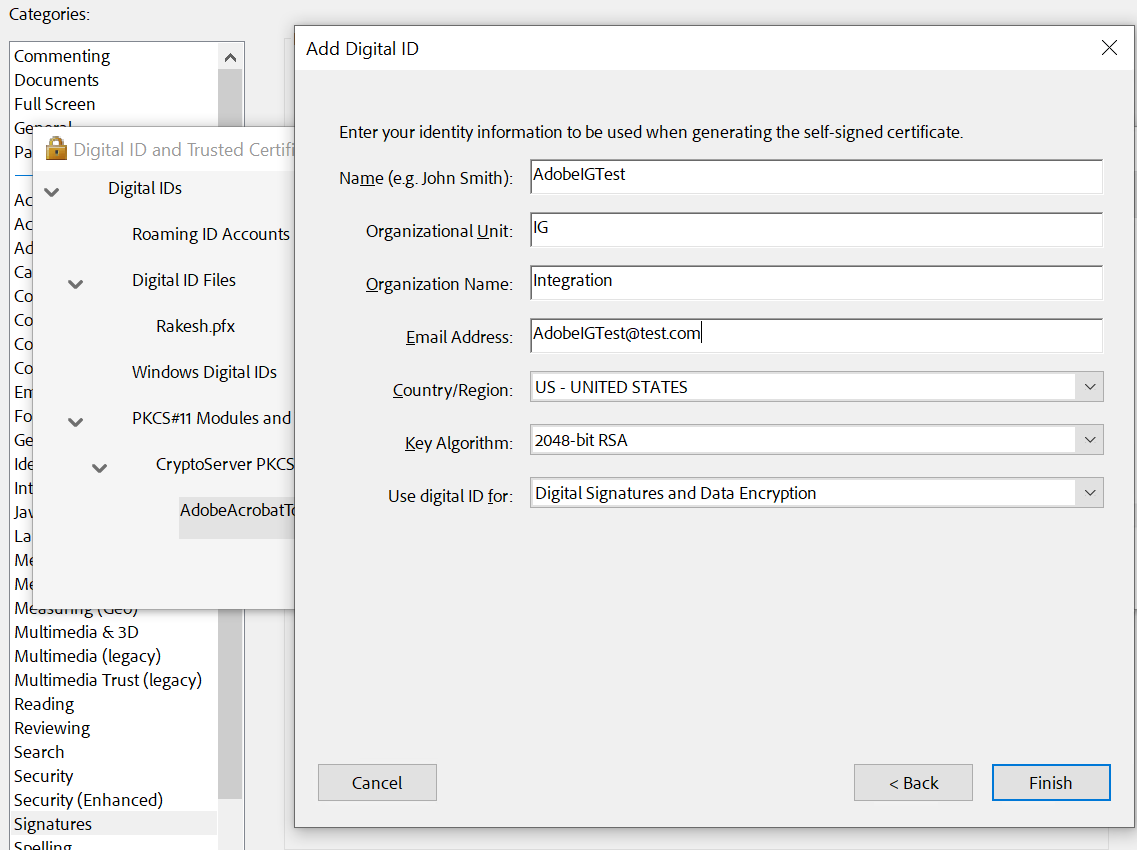
Add Digital ID
-
Click on the token name and verify created digital ID is now available and stored securely in the token.
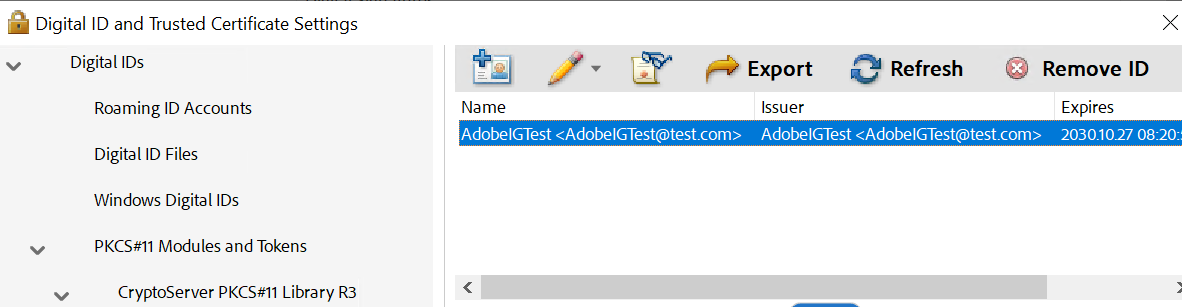
Digital ID Details
-
Click on Digital IDs and check the newly created digital ID in the right section.
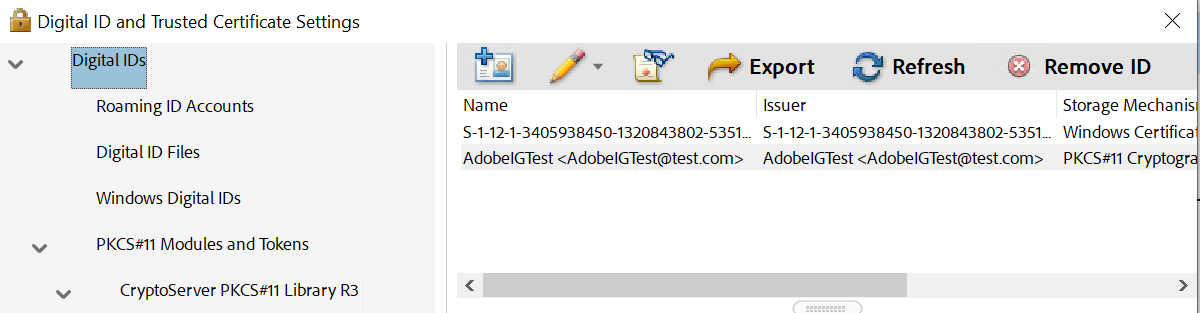
Newly created digital ID updated in Digital ID's section
-
Close out to return to the Adobe Menu.
-
Log in as a Crypto user to the PKCS11 CryptoServer Administrator Tool.
-
Click the Object Management icon.
-
Corresponding Keys and Certificate displayed in the PKCS11 CryptoServer Administrator Tool.
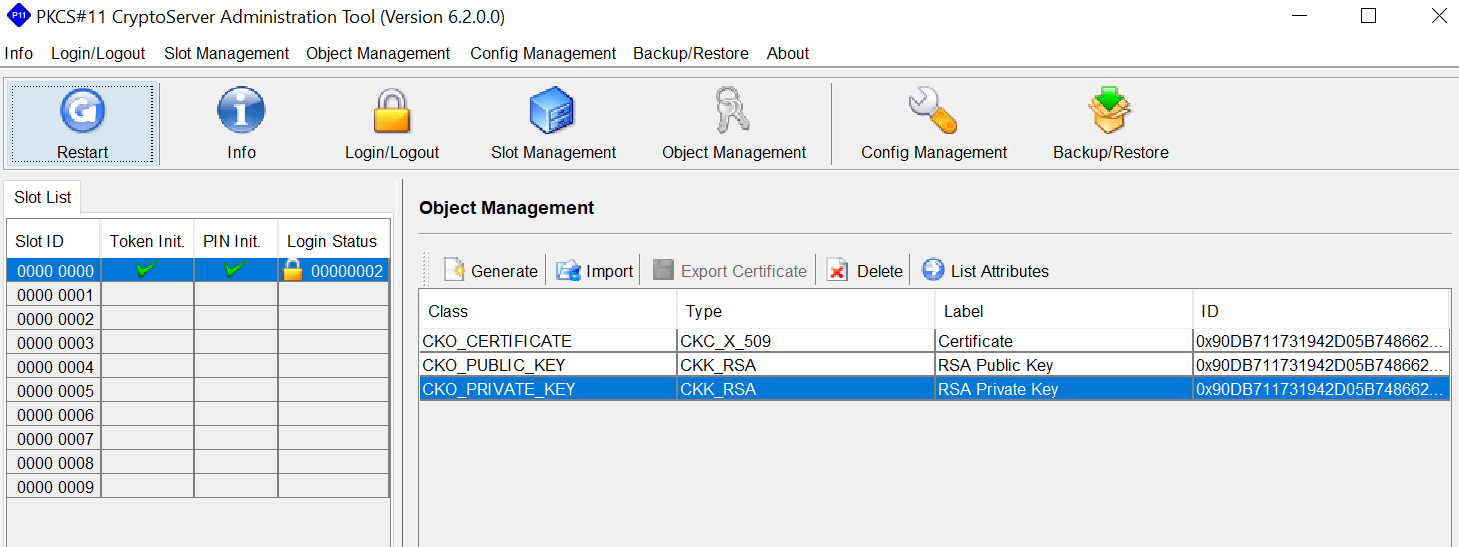
Key and Certificate Details In PKCS11 Tool