

-
Launch the BeyondInsight Configuration application: Start > Apps > BeyondInsight Configuration
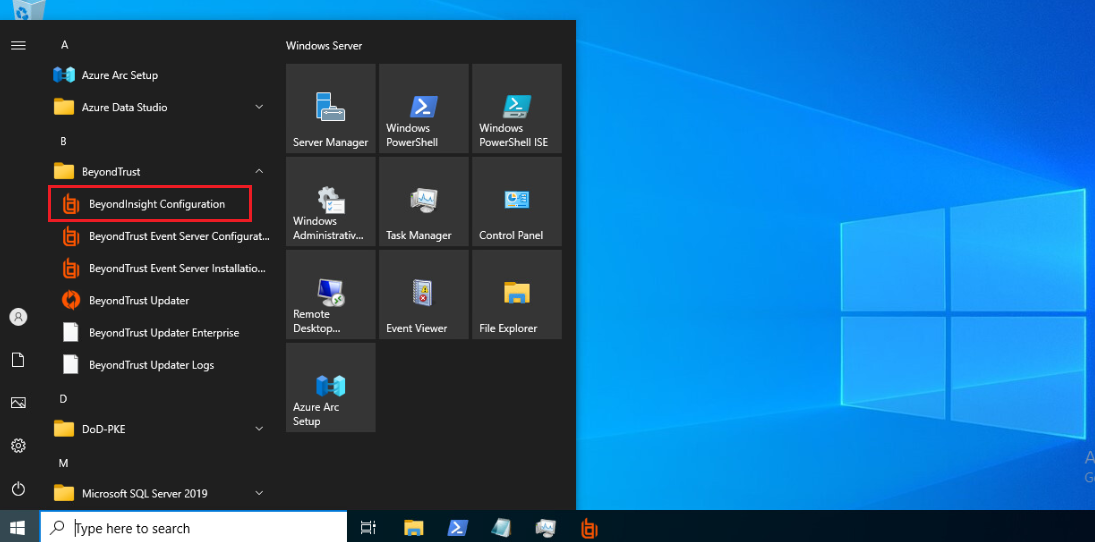
Launch BeyondInsight Configuration Application
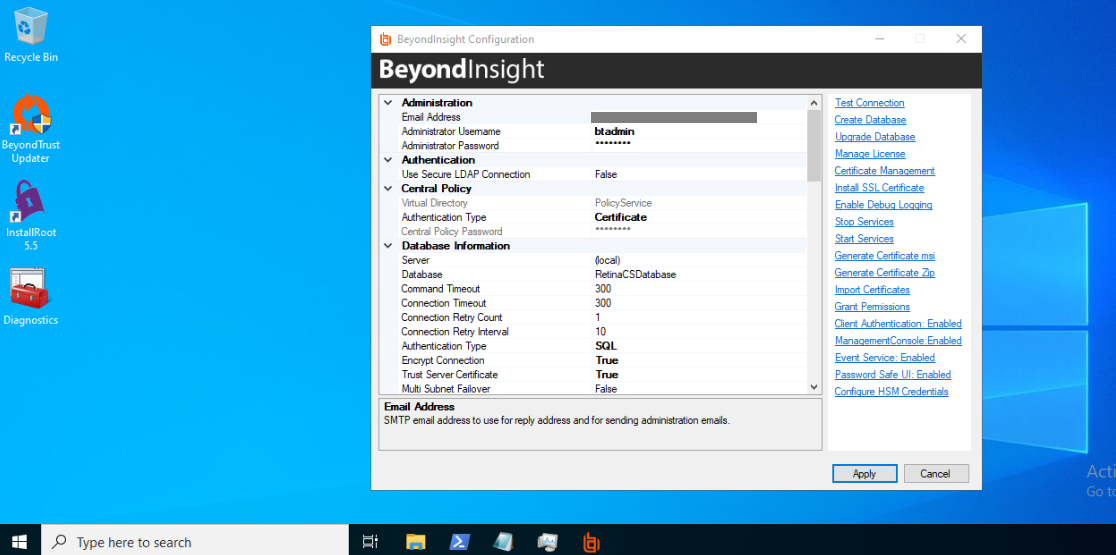
BeyondInsight Application
-
Click Configure HSM Credentials on the right navigation pane.
The Configure HSM Credentials dialog box is displayed.
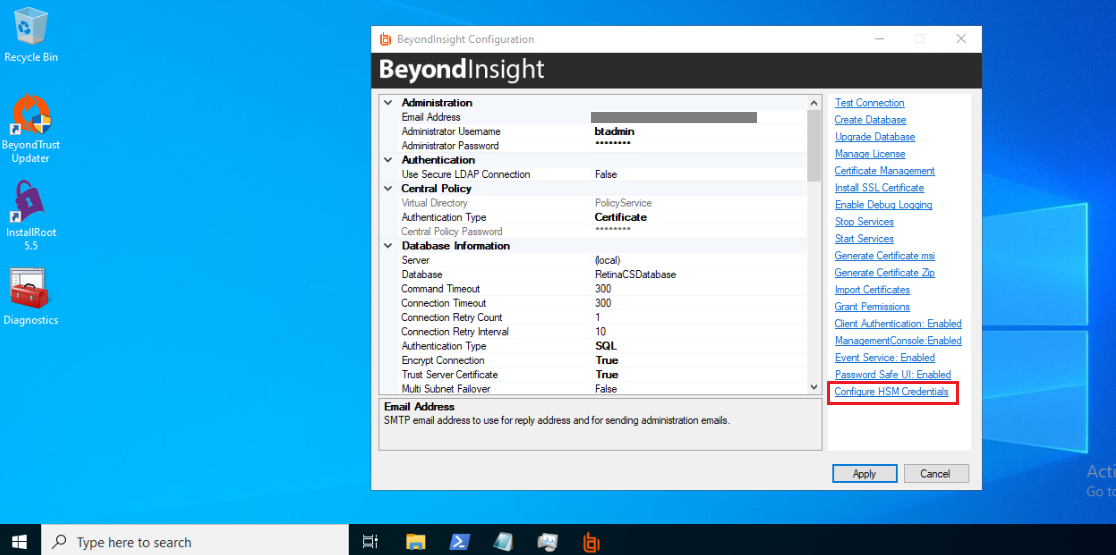
Configure HSM Credentials Menu Item
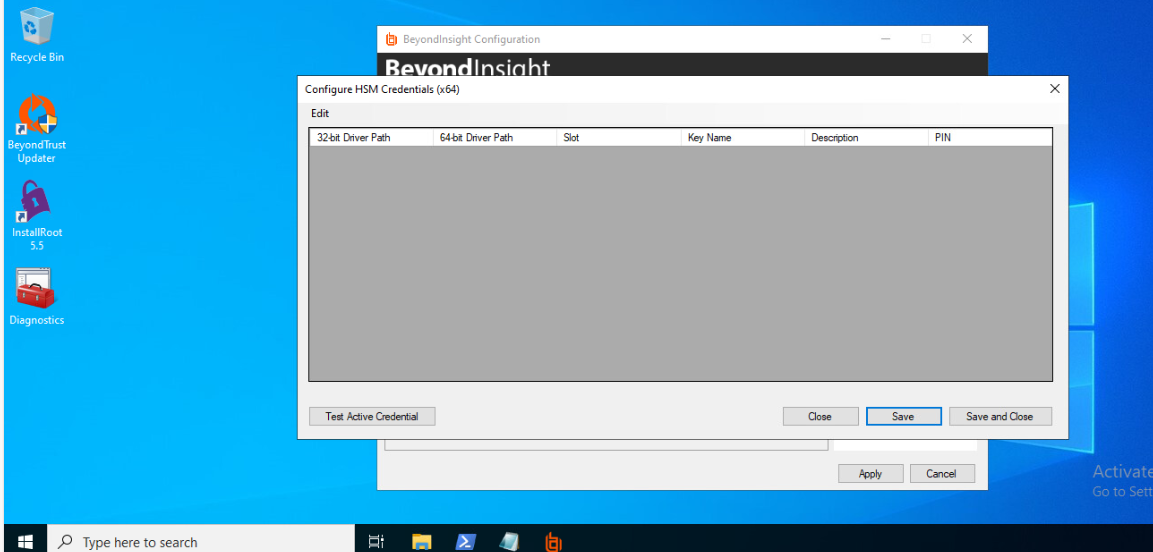
Configure HSM Credentials Dialog Box
-
From the menu bar, select Edit → Add New HSM Credential.
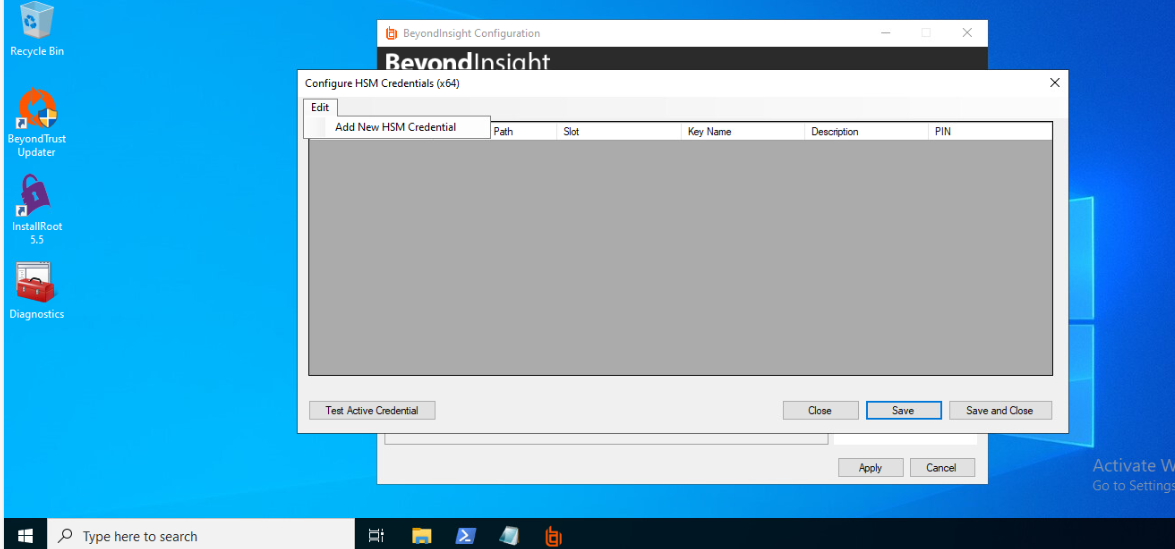
Add New HSM Credential
-
In the Add HSM Credential dialog box, provide the following information:
4.1. 32‑bit Driver Path: Browse to and select the 64‑bit PKCS#11 provider driver.
4.2. 64‑bit Driver Path: Browse to and select the 64‑bit PKCS#11 provider driver.
4.3. Slot: Select the initialized HSM slot from the drop‑down list. This is the list of
tokens presented by the driver.
4.4. Key Name: Enter the label that uniquely identifies the HSM‑protected key.
4.5. Description: Enter a descriptive name or comment for the HSM key (For display purposes only).
4.6. PIN: Enter the Crypto User PIN required to access the HSM token.
4.7. Select Save and Close to store the HSM credential configuration.
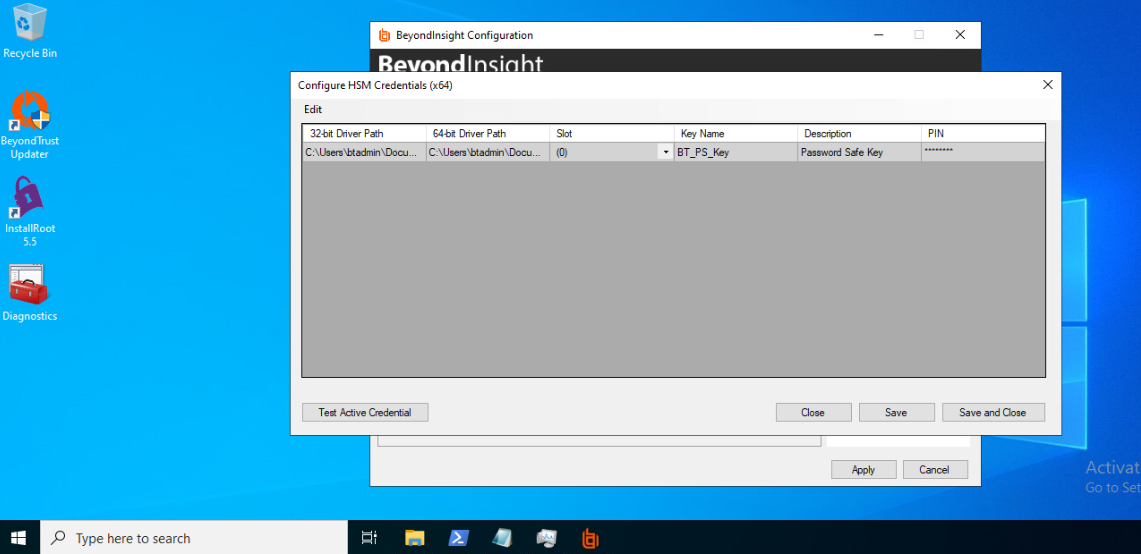
HSM Credential Added
Utimaco Security Server provides only 64‑bit PKCS#11 driver. Therefore, specify the same 64‑bit PKCS#11 driver path in both 32‑bit Driver Path and 64‑bit Driver Path fields.
-
Reopen Configure HSM Credentials dialog box. Click on Test Active Credential button. A successful test will display a dialog confirming a successful connection with “HSM Connection Successful” message.
A HSM key will be generated once the HSM connection is successful and generated HSM key will have the same key label as key name specified in Key Name field.
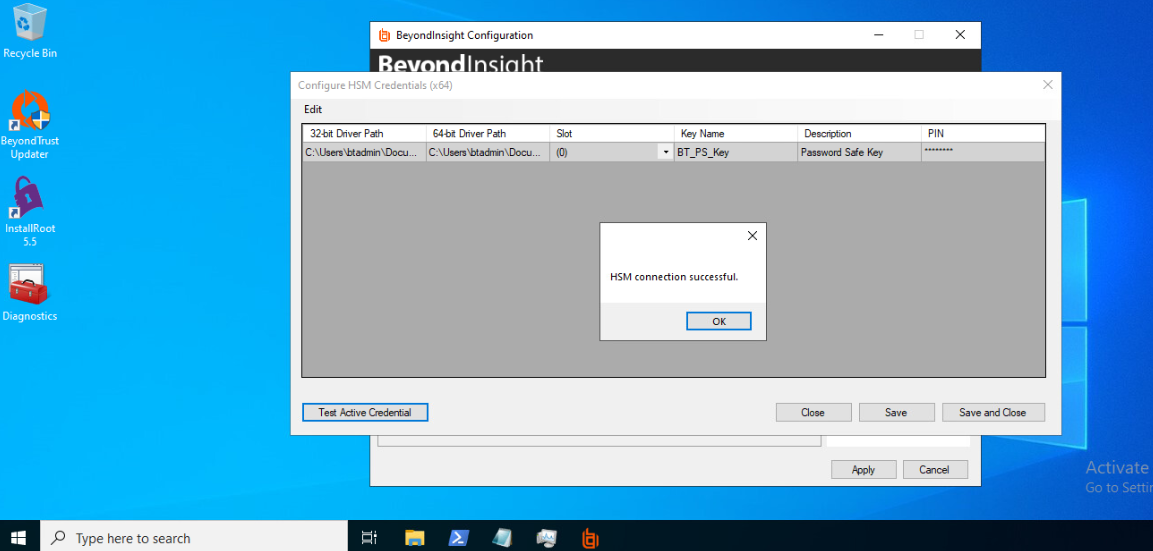
HSM Connection Success
-
Close the Add HSM Credential dialog and Click Apply button in BeyondInsight Configuration application
7. Verify the HSM key in HSM and confirm HSM key has the same key label as key name specified in Key Name field.
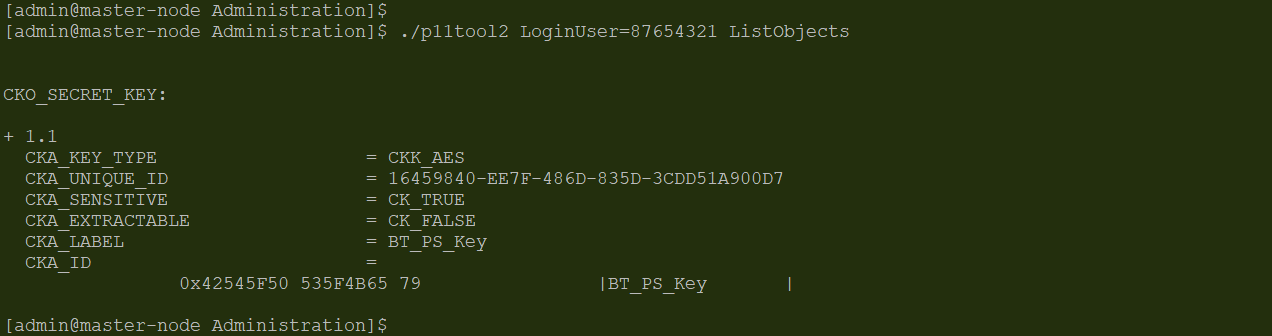
Key Generated in HSM