

Configure Vault to run with Utimaco HSM
-
Create a
/etc/vault/config.hclfile and add the contents as shown below:
# vi /etc/vault/config.hcl
seal "pkcs11" {
  lib            = "/opt/utimaco/lib/libcs_pkcs11_R3.so"
  slot           = "0"
  pin            = "12345678"
  key_label      = "hsm_demo"
  hmac_key_label = "demo"
  generate_key   = "true"
}

storage "file" {
  path = "/opt/vault/data"
}

listener "tcp" {
  address     = "0.0.0.0:8200"
  tls_disable = true
}

#Enable Vault UI
ui = true

license_path = "/etc/vault/license.hclic"

disable_mlock = true
Update the slot number and slot PIN according to your setup.
-
Create a vault file
/etc/sysconfig/vaultand copy the contents from/etc/profile.d/vault.sh.
# cp /etc/profile.d/vault.sh /etc/sysconfig/vault
-
Create a
/etc/systemd/system/vault.servicefile and add the following information to the file.
# vi /etc/systemd/system/vault.service
[Unit]
Description=HashiCorp Vault
Requires=network-online.target
After=network-online.target
ConditionFileNotEmpty=/etc/vault/config.hcl

[Service]
User=vault
Group=vault
EnvironmentFile=/etc/sysconfig/vault
ExecStart=/usr/local/bin/vault server -config=/etc/vault/config.hcl
StandardOutput=/opt/vault/logs/output.log
StandardError=/opt/vault/logs/error.log
ExecReload=/bin/kill --signal HUP $MAINPID
KillMode=process
Restart=on-failure
RestartSec=5
TimeoutStopSec=30
StartLimitInterval=60
StartLimitBurst=3

AmbientCapabilities=CAP_IPC_LOCK
LimitNOFILE=65536
LimitMEMLOCK=infinity

[Install]
WantedBy=multi-user.target
If deploying on a server with more than two CPUs, you may increase the value of Environment=GOMAXPROCS accordingly.
-
If you are setting paths other than the default, you must also edit the following lines in the configuration file.
ConditionFileNotEmpty=/etc/vault/config.hcl EnvironmentFile=-/etc/sysconfig/vault
ExecStart=/opt/vault/bin/vault server -config=/etc/vault/config.hcl StandardO
Enable the Vault
-
Set the following environment variable to allow Vault to be accessed from a web browser through a web user interface. Append the following line to the
/etc/profile.d/vault.shfile and log in again with a new session.
export VAULT_ADDR=http://127.0.0.1:8200
-
Enable the Vault.
# systemctl enable vault.service
-
Start the Vault service.
# systemctl start vault.service
-
Check that the Vault service is running.
# systemctl status vault
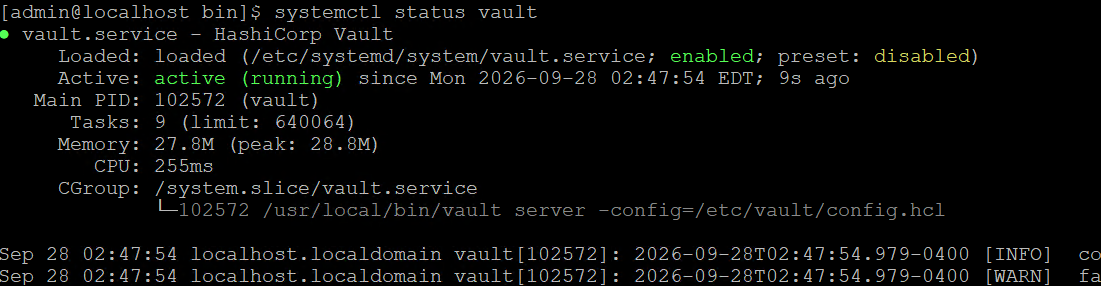
Vault service status
-
Check the Vault status.
# vault status
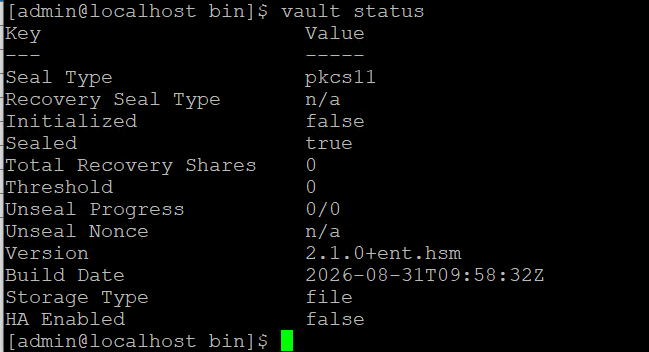
Vault status
-
Initialize the Vault to use the HSM and note the initial root token value.
# vault operator init
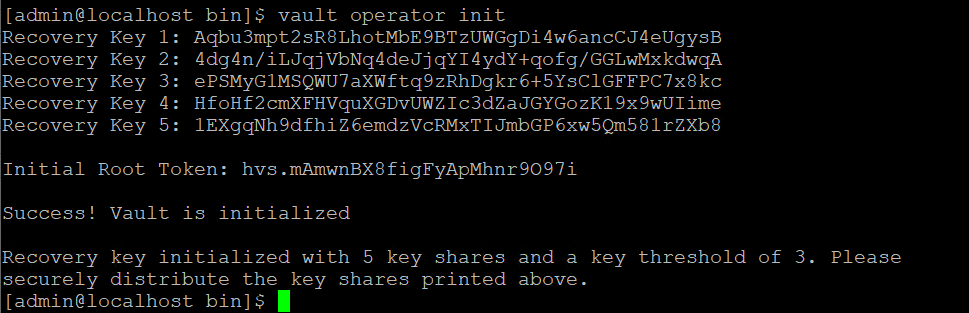
Vault initialization
-
Verify that the keys got generated on the HSM.
# p11tool2 slot=<slot_no.> LoginUser=<slot_PIN> listobjects
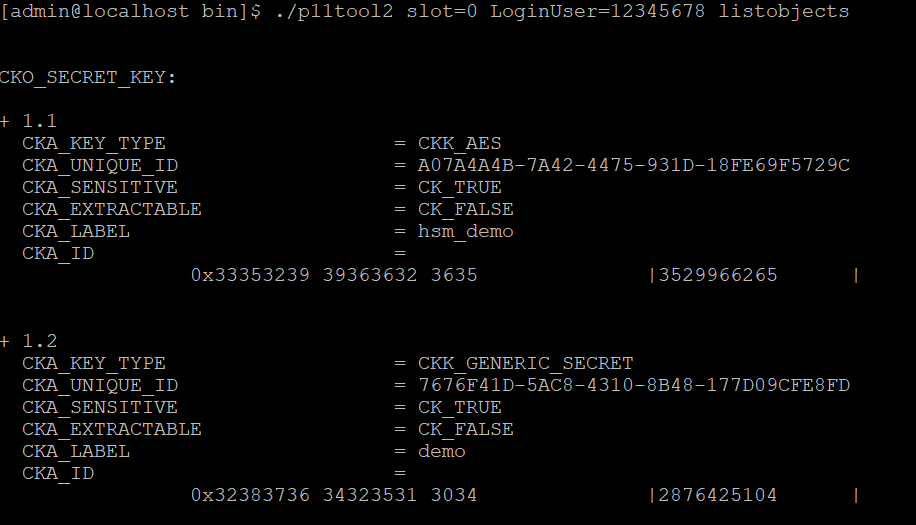
List keys
-
Check the Vault status again and verify that it is initialized and unsealed.
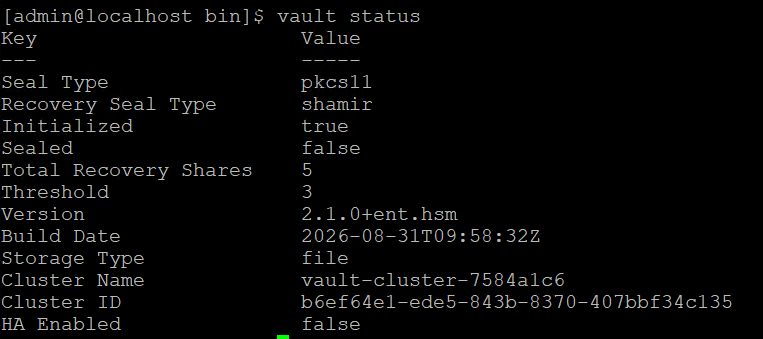
Vault unsealed and initialised
Log in to Vault
-
Log in to Vault using the Initial Root Token you saved.
# vault login <initial_root_token_value>
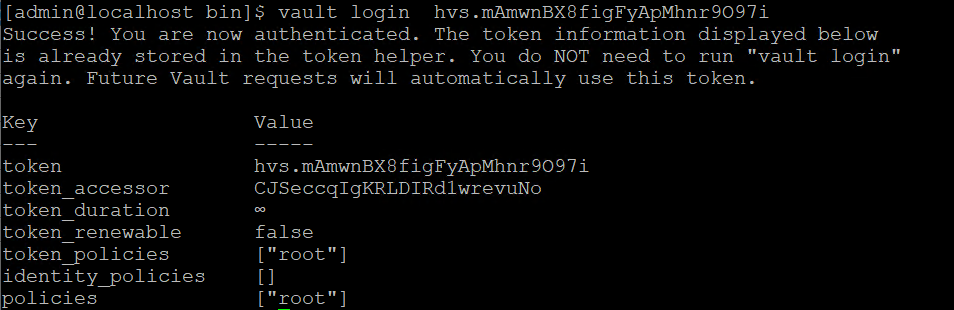
Vault login
-
If you want to read the license status information, run the command below.
# vault read sys/license/status
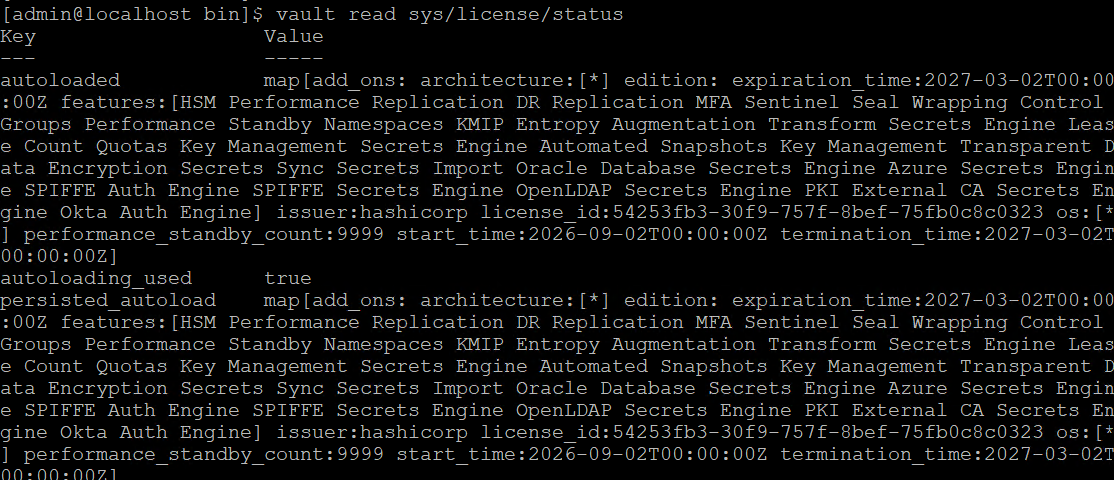
Vault license
Log in from the Web UI
-
Open a browser and enter the URL http://:8200/ui/vault/auth. The Vault sign in page loads.
-
In the Token field, enter the Initial Root Token you saved after you started Vault and click on the Sign In button.
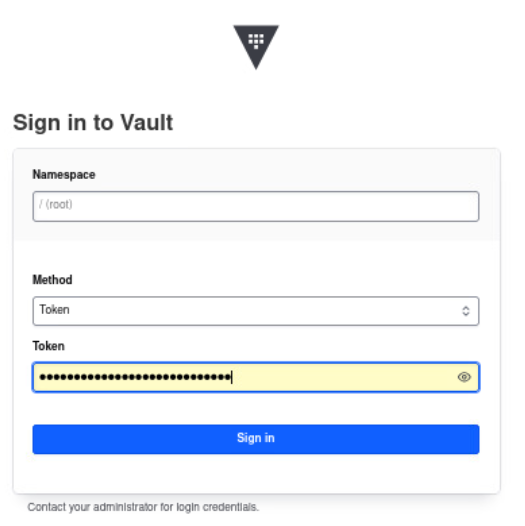
Sign in to Vault
-
The login should succeed and the Vault dashboard is displayed.
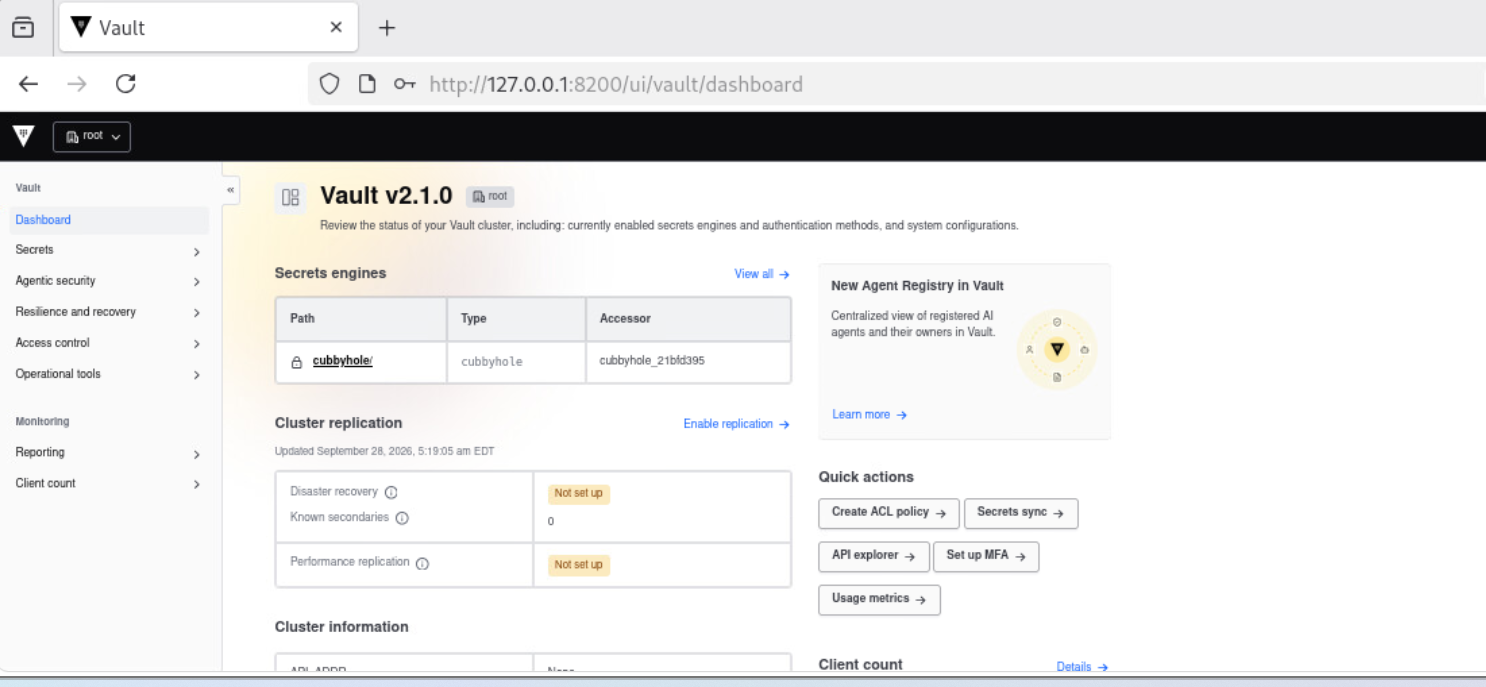
Vault dashboard
Anytime the Vault is sealed, you can restart the Vault service to auto-unseal it.