

Enable Entropy Augmentation
Entropy augmentation allows Vault Enterprise to supplement its system entropy with entropy from an external cryptography module. It is designed to operate in environments where alignment with cryptographic regulations like NIST SP800-90B is required or when augmented entropy from external sources, such as hardware true random number generators (TRNGs), replaces system entropy when performing random number operations on critical security parameters (CSPs).
-
Add the following to the
/etc/vault/config.hclfile.
# Configure Seal with Utimaco SecurityServer
seal "pkcs11" {
 lib = "/opt/utimaco/lib/libcs_pkcs11_R3.so"
 slot = "<slot_no.>"
 pin = "<slot_PIN>"
 key_label = "hsm_demo"
 hmac_key_label = "demo"
 generate_key = "true"

# Vault configuration to use Utimaco PKCS#11 for entropy augmentation
entropy "seal" {
mode = "augmentation"
}
-
Restart the Vault service.
# systemctl restart vault.service
-
Log in to Vault using the Initial Root Token saved earlier.
# vault login <initial_root_token_value>
-
Execute the following command to enable the transit secrets engine with an external entropy source using the
-external-entropy-accessflag.
# vault secrets enable -external-entropy-access transit

Enable entropy augmentation
-
List the enabled secrets engine with the
-detailedflag.
# vault secrets list -detailed
Note that the External Entropy Access is set to true for transit/.
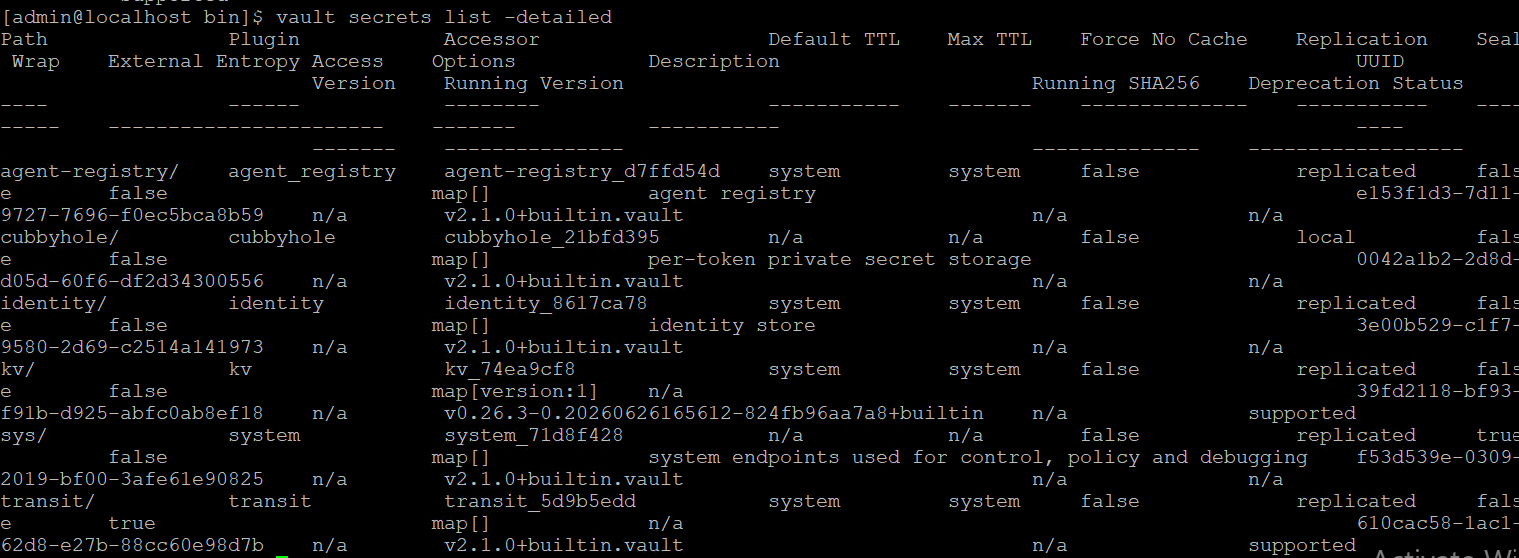
List enable secret engine
-
You can start using the transit secrets engine to encrypt your sensitive data. This engine leverages the HSM as its external entropy source. Now, create a new encryption key named "orders."
# vault write -f transit/keys/orders
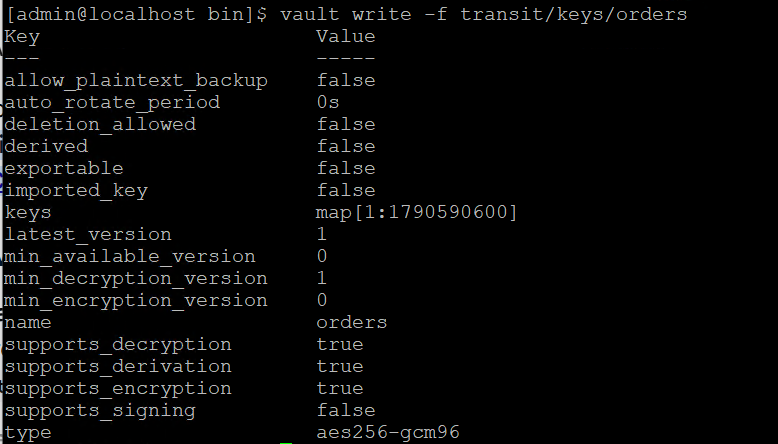
New encryption
-
Send a base64-encoded string to be encrypted by Vault.
# vault write transit/encrypt/orders plaintext=$(base64 <<< "4111 1111
1111 1111")

Base64-encoded string
-
Now, verify that you can decrypt.
# vault write transit/decrypt/orders ciphertext=vault:v1:<Ciphertext>

Test decrypt operation
-
Decode to get the original data.
# base64 --decode <<< <plaintext>

Decode original data
Rotate Keys stored in the Utimaco HSM
-
Stop HashiCorp Vault service and check the status of the service.
# systemctl stop vault.service
# systemctl status vault.service
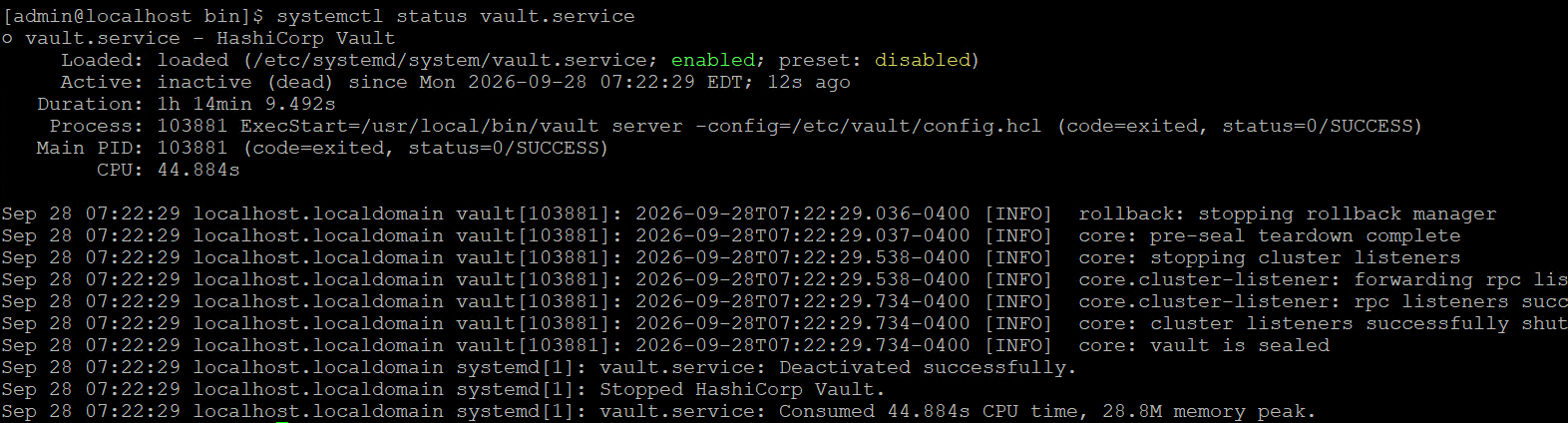
Stop vault service
-
For rotating the keys, update the configuration file
/etc/vault/config. hclwith a new key label and the old key label of the root key and hmac key in the seal “pkcs11” section, as shown below.
# vi /etc/vault/config.hcl
# PKCS#11 Seal, Utimaco HSM Integration
seal "pkcs11" {
lib = "/opt/utimaco/lib/libcs_pkcs11_R3.so"
slot = "<slot_no>"
pin = "<slot_PIN>"
default_key_label="hsm_demo"
key_label = "hsm_demo1"
default_hmac_key_label="demo"
hmac_key_label = "demo1"
generate_key = true
}
Do not delete the old keys from the HSM as the old keys will still be used to decrypt the old data. Here, default_key_label and default_hmac_key_label are old key labels. New keys will have the label values from key_label and hmac_key_label.
-
Restart the Vault service.
# systemctl restart vault.service
# systemctl status vault.service
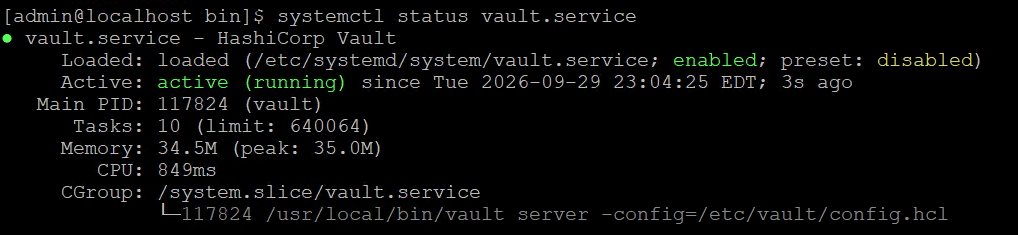
Start vault service
-
Verify that the keys got generated on the HSM.
# p11tool2 slot=<slot_no.> LoginUser=<slot_PIN> ListObjects
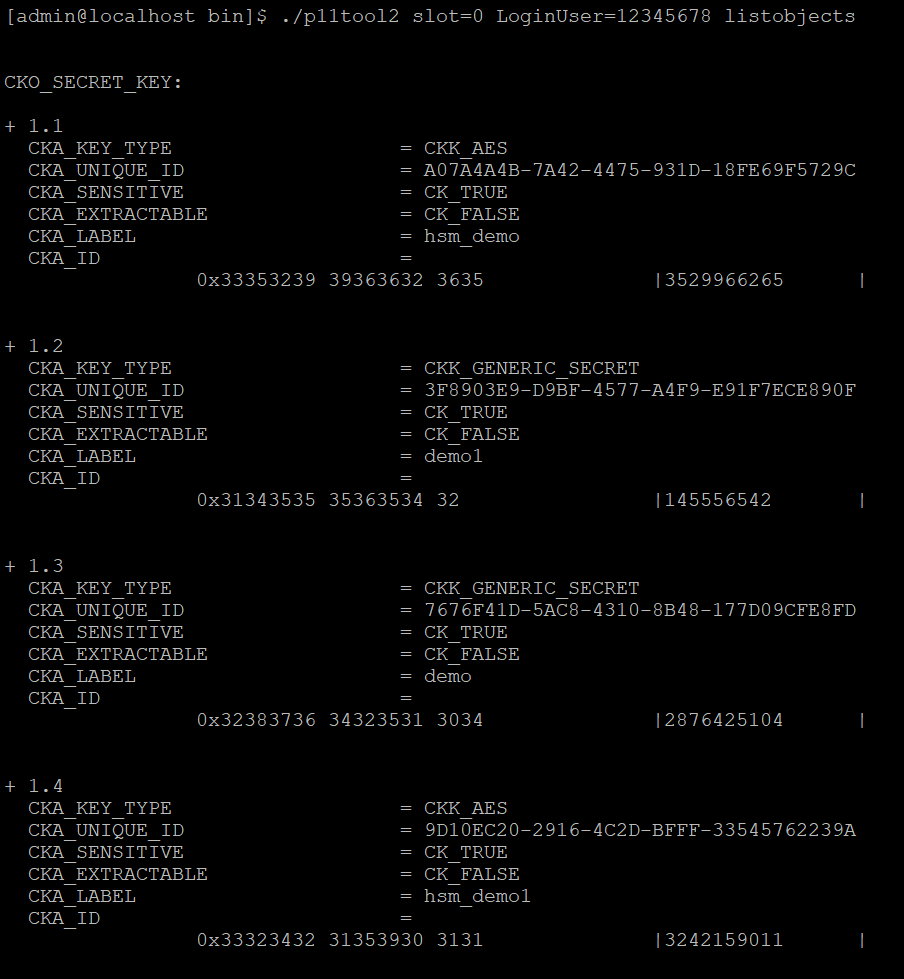
List keys
-
Log in to Vault using the Initial Root Token saved earlier.
# vault login <initial_root_token_value>
-
Verify that you can list the secrets.
# vault secrets list -detailed
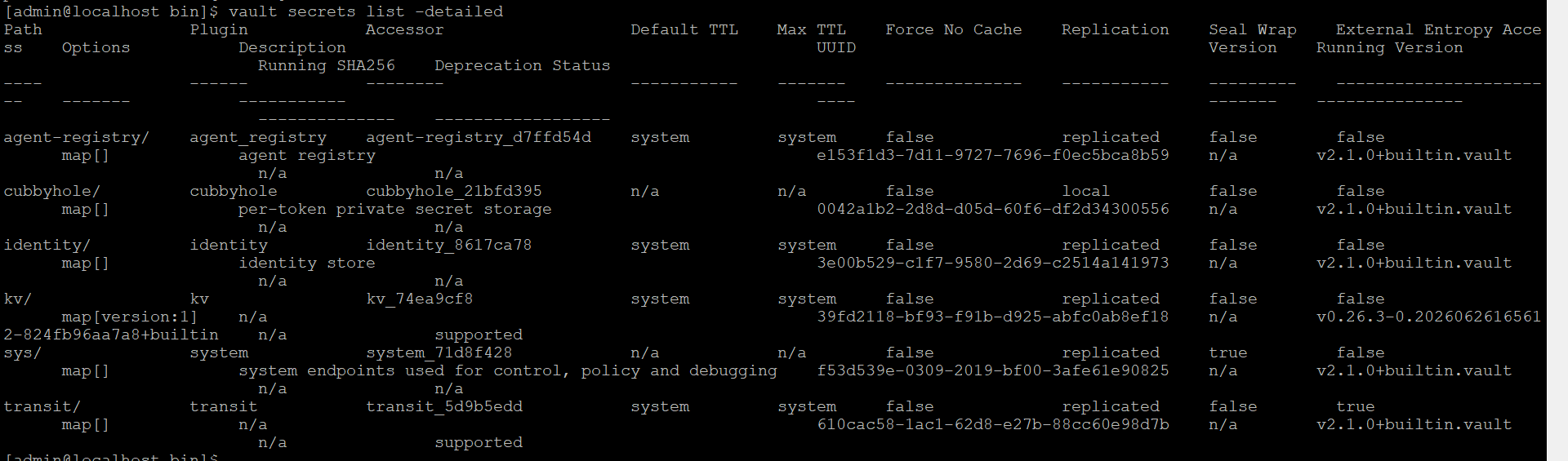
List the secret keys
-
Verify that you can retrieve the secret data.
# vault kv get kv/opt/vault/secret

Retrieve secret data
Migrate from Shamir Seal to Utimaco PKCS11 Seal
You can migrate the existing Vault encrypted with the Shamir seal (the default software-based seal) to the Utimaco PKCS11 seal. For demonstration purposes, the end-to-end steps have been shown below, starting with initializing the Vault with a Shamir seal and then migrating it to the Utimaco PKCS11 seal.
Before verifying the migration from the Shamir seal to the Utimaco PKCS#11 seal, ensure that any existing Vault deployment, storage data, and previously created Vault PKCS#11 seal objects in the HSM are removed. This migration procedure assumes a clean environment with Vault initialized using the default Shamir seal. Reusing existing Vault seal objects may lead to unexpected results during migration verification.
sudo systemctl stop vault
sudo rm -rf /opt/vault/data/*
Also ensure that any previously created Vault seal objects (for example, hsm_demo, demo, hsm_demo1, or demo1) are removed from the HSM before starting the migration procedure.
-
Add the contents shown below to
/etc/vault/config.hcl. This config file will initialize the Vault with the Shamir seal.
# Configure the storage backend for Vault
storage "file" {
 path = "/opt/vault/data"
}
# Addresses and ports on which Vault will respond to requests
listener "tcp" {
 address = "0.0.0.0:8200"
 tls_disable = true
}
ui = true
license_path = "/etc/vault/license.hclic"
disable_mlock = true
-
Initialize the Vault to use the Shamir seal and note the unseal keys and Initial Root Token value.
# systemctl restart vault.service
# systemctl status vault.service
# vault operator init
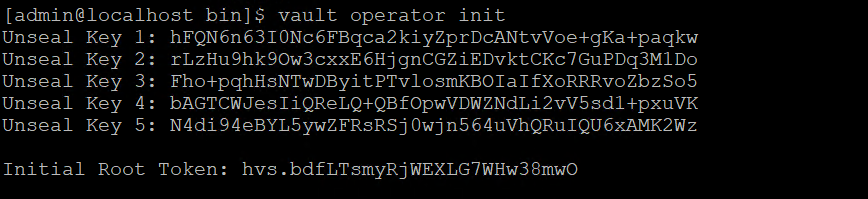
Vault initialization
-
Check the Vault status.
# vault status
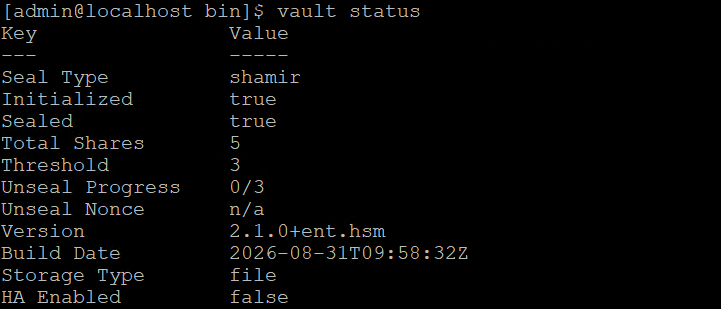
Vault status
-
Execute the following command a number of threshold times (in this case, 3 times) to unseal the vault and provide a unique unseal key when prompted.
# vault operator unseal
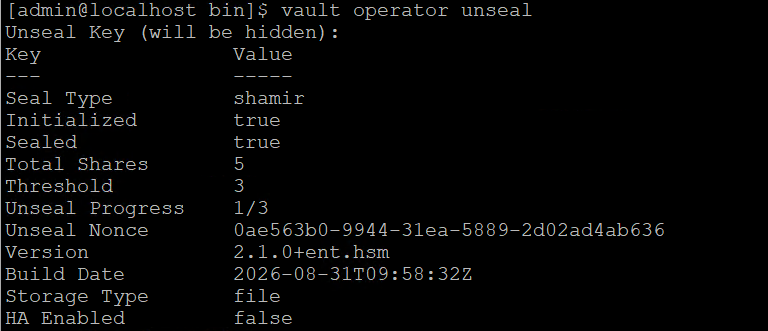
Vault operator unseal progress 1/3
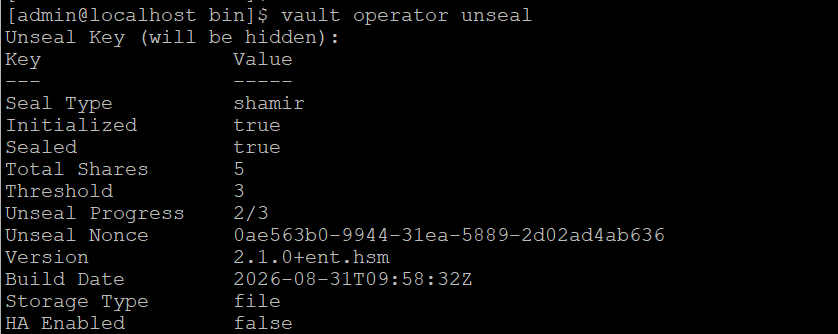
Vault operator unseal progress 2/3
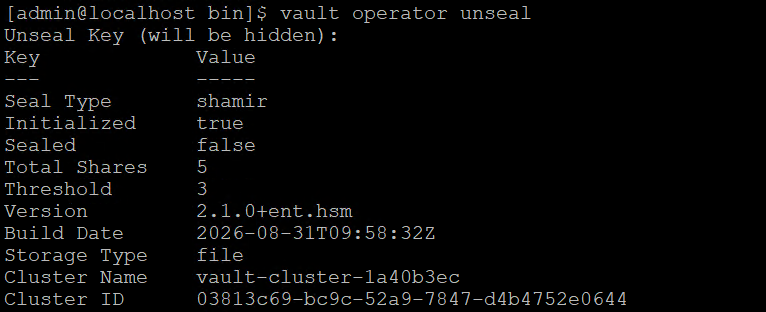
Vault operator unseal completed
-
Check the Vault status again and verify that the Vault is unsealed now.
# vault status
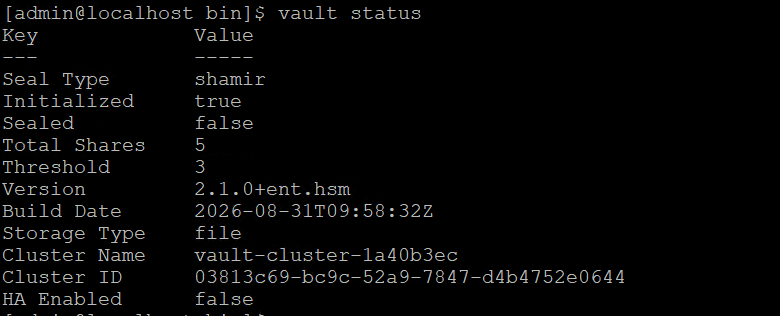
Vault unsealed
-
Log in to Vault using the Initial Root Token saved above.
# vault login <initial_root_token_value>
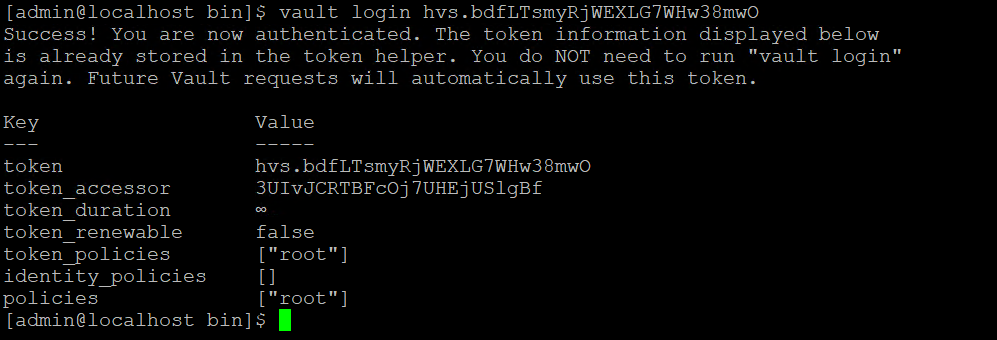
Vault login
-
Enable the KV secret engine.
# vault secrets enable -version=1 kv

Enable kv engine
-
List the enabled Secrets Engines with details.
# vault secrets list -detailed
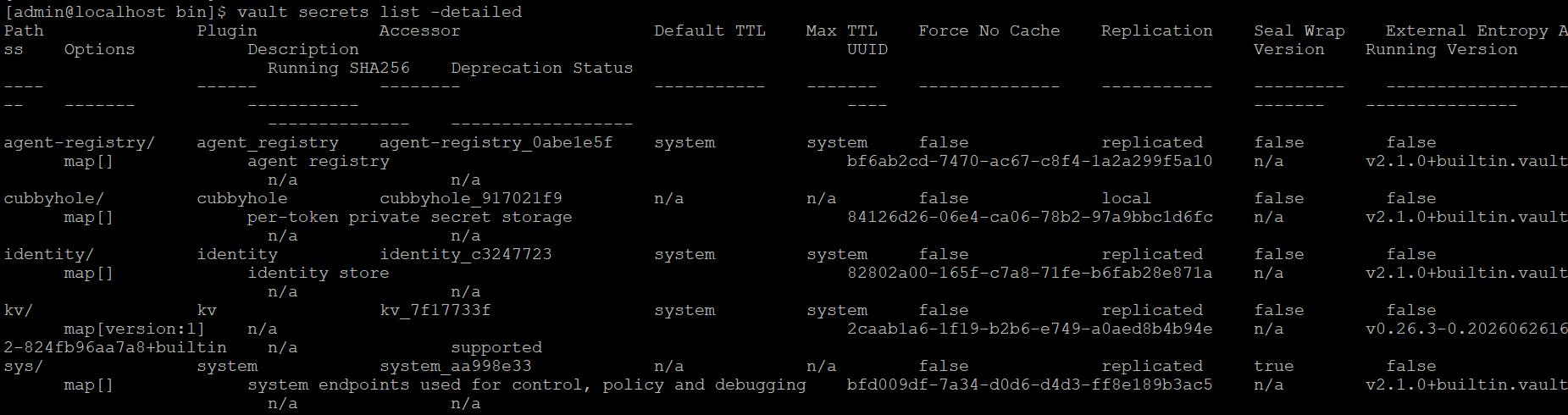
Vault secret list detailed
-
To test the seal wrap feature, write some secret data. Add data to the key/value storage area of Vault.
# vault kv put kv/opt/vault/secret key=test_secret

Vault seal wrap
-
Retrieve the secret data.
# vault kv get kv/opt/vault/secret

Retrieve data
-
Stop the Vault service and verify its status.
# systemctl stop vault
# systemctl status vault
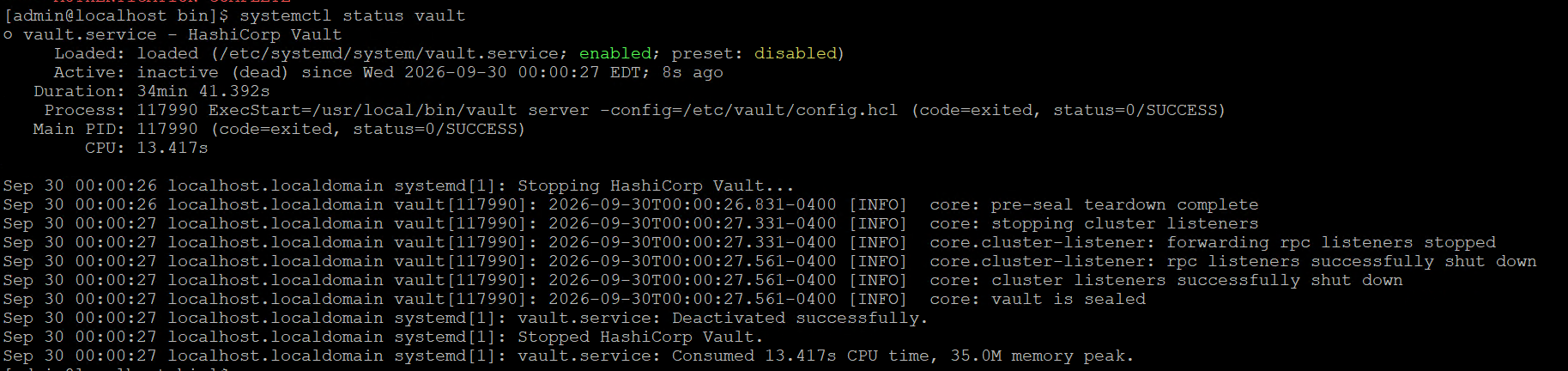
Vault service status
-
Now edit
/etc/vault/config.hcland add theseal PKCS11section as shown below with the Utimaco HSM information.
seal "pkcs11" {
 lib = "/opt/utimaco/lib/libcs_pkcs11_R3.so"
 slot = "<slot_no>"
 pin = "<slot_PIN>"
 key_label = "hsm_demo1"
 hmac_key_label = "demo1"
 generate_key = "true"
}
# Configure the storage backend for Vault
storage "file" {
 path = "/opt/vault/data"
}
# Addresses and ports on which Vault will respond to requests
listener "tcp" {
 address = "0.0.0.0:8200"
 tls_disable = true
}
ui = true
license_path = "/etc/vault/license.hclic"
disable_mlock = true
-
Start the Vault service.
# systemctl start vault
# systemctl status vault

Vault service status
-
To migrate from the Shamir seal to the Utimaco PKCS11 seal, run the command below for the number of threshold times (in this case, 3 times). When prompted, provide the unseal key.
# vault operator unseal -migrate
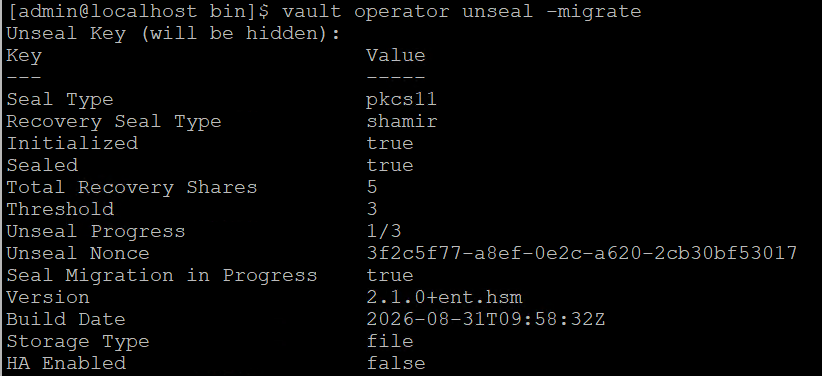
Vault seal migration progress 1/3
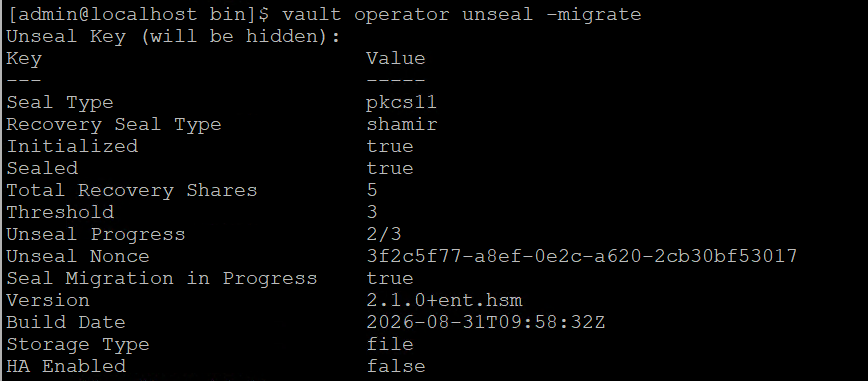
Vault seal migration progress 2/3
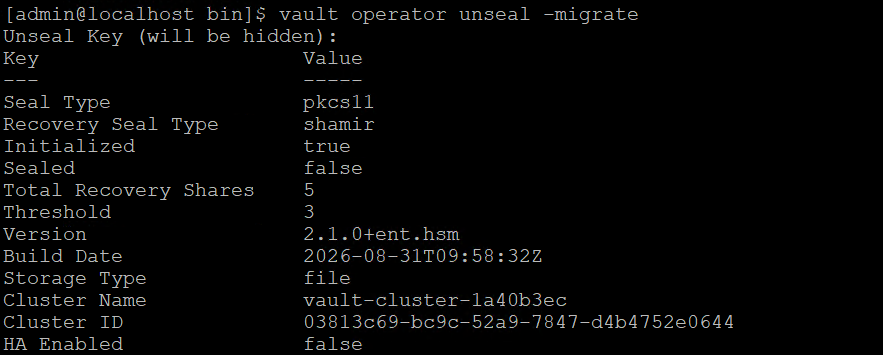
Vault seal migration completed
Once the required threshold of unseal keys is entered, unseal keys will be migrated to recovery keys.
-
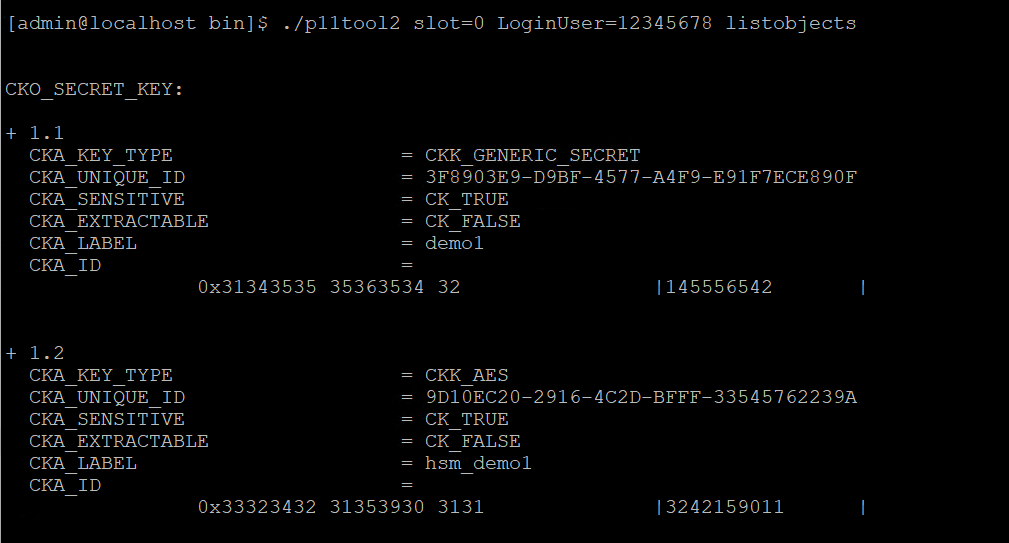
Verify that the keys were generated in the HSM.
# p11tool2 slot=<slot_no.> LoginUser=<slot_PIN> ListObjects
-
Monitor the log and wait until the migration process is completed. To verify that it has, look for a seal re-wrap completed message in the Vault status.
# systemctl status vault
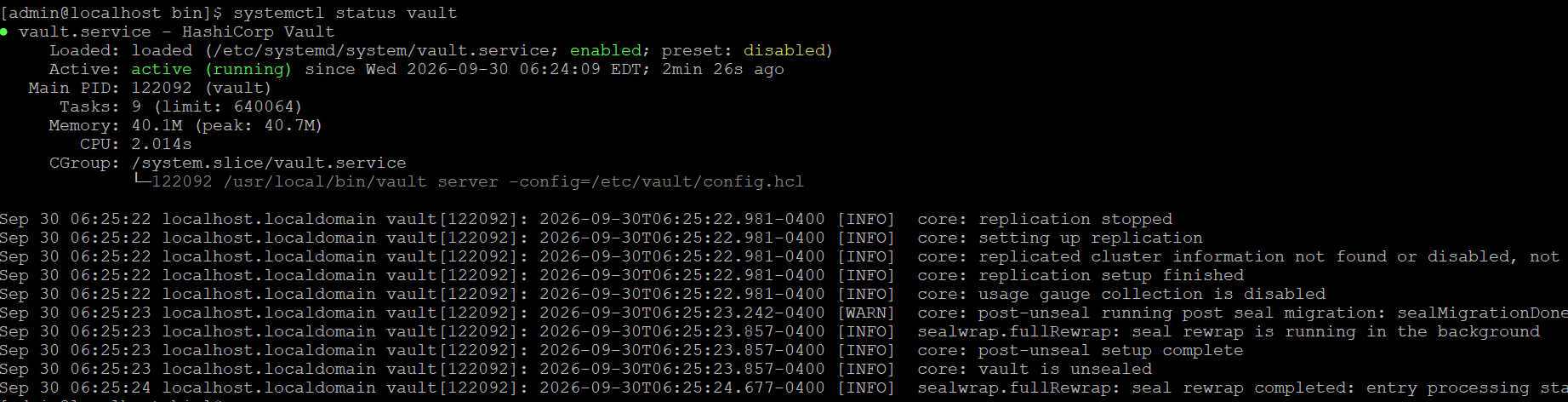
Vault service seal rewrap status
-
Now you can retrieve the earlier secret data.
# vault kv get kv/opt/vault/secret

Retrieve data
Verify PKI Secrets Engine with HSM-Backed Managed Key
-
Edit the vault server configuration at
/etc/vault/config.hclto add Utimaco HSM PKCS#11 library for creating Utimaco HSM-Backed Managed Key.
# vi /etc/vault/config.hcl
kms_library "pkcs11" { name="utimaco" library = "/opt/utimaco/lib/libcs_pkcs11_R3.so" }
-
Restart the vault service.
# systemctl restart vault
# systemctl status vault
-
Log in to vault.
# vault login <initial_root_token_value>
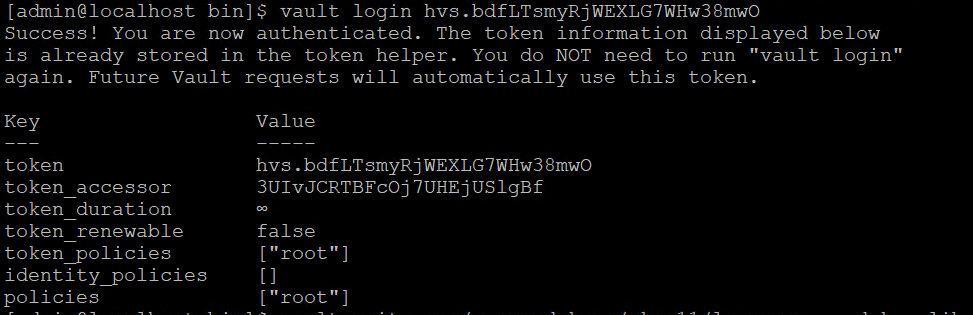
Vault login
-
Each managed key requires the slot for key and a PIN to access and create the key on the HSM. Configure the managed key.
# vault write sys/managed-keys/pkcs11/learn-managed-key library=utimaco slot=<SLOT_NUMBER> pin=<USER_PIN> key_label=pki-key allow_store_key=true allow_generate_key=true mechanism=0x0001 key_bits=4096 any_mount=false

Configure the managed key
-
Read the key back.
# vault read /sys/managed-keys/pkcs11/learn-managed-key
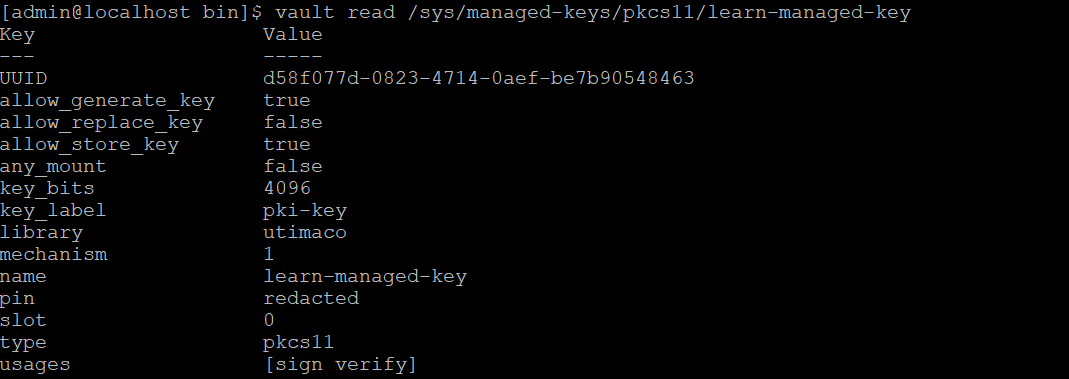
Key read
-
Test endpoint to validate that we can access the managed key.
# vault write -force /sys/managed-keys/pkcs11/learn-managed-key/test/sign
The key has been generated in the HSM and used to sign and verify a dummy value.

Sign managed key
-
Enable the PKI secrets engine at the PKI path.
# vault secrets enable pki

PKI enable
-
Tune the secrets engine to use managed keys.
# vault secrets tune -allowed-managed-keys=learn-managed-key pki
You configured the managed key with any_mount=false in the previous step. This command grants access to the learn-managed-key to the PKI secrets engine's mount.

Vault secrets tune
-
Generate the root certificate.
# vault write -field=certificate pki/root/generate/kms managed_key_name=learn-managed-key common_name=root.myco.com ttl=8760h
-
Configure the CA and CRL URLs.
# vault write pki/config/urls issuing_certificates="$VAULT_ADDR/v1/pki/ca" crl_distribution_points="$VAULT_ADDR/v1/pki/crl"

Configure CA & CRL
-
Test that you can issue a certificate with your managed key backed root CA by configuring and using a role.
# vault write pki/roles/example-dot-com allowed_domains="example.com" allow_subdomains=true max_ttl="720h"
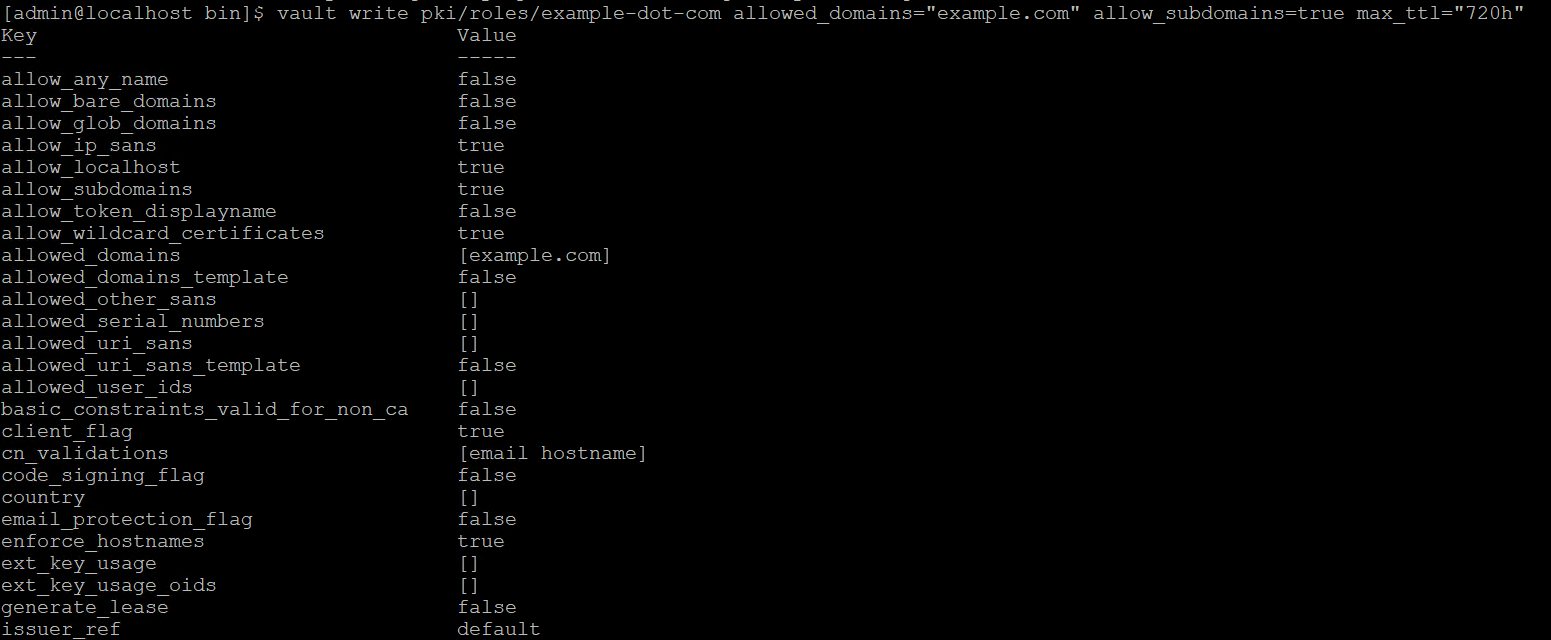
Issue certificate with managed key 1
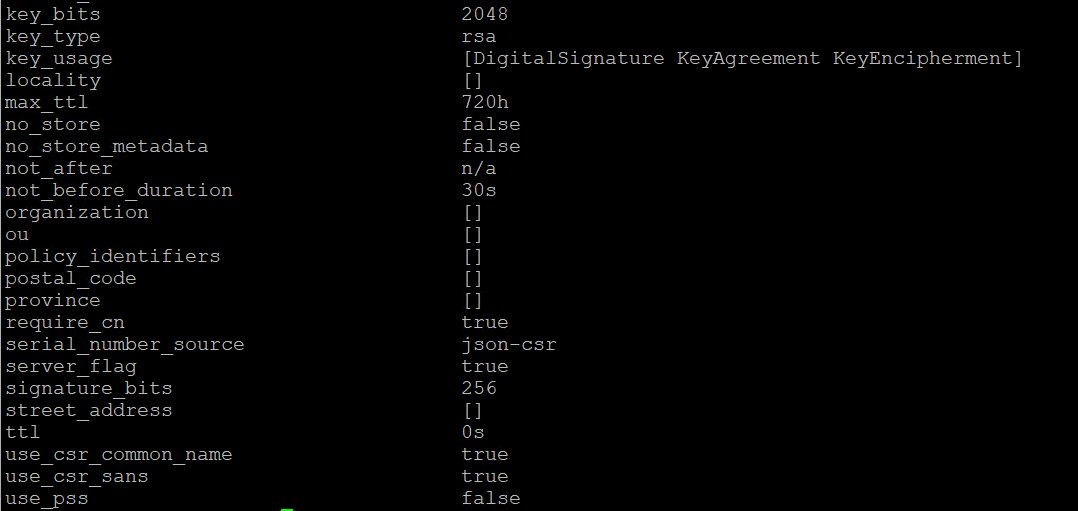
Issue certificate with managed key 2
-
Request a new certificate for the test.example.com domain based on the exampledot-com role.
# vault write -format=json pki/issue/example-dot-com common_name="test.example.com" ttl="24h"
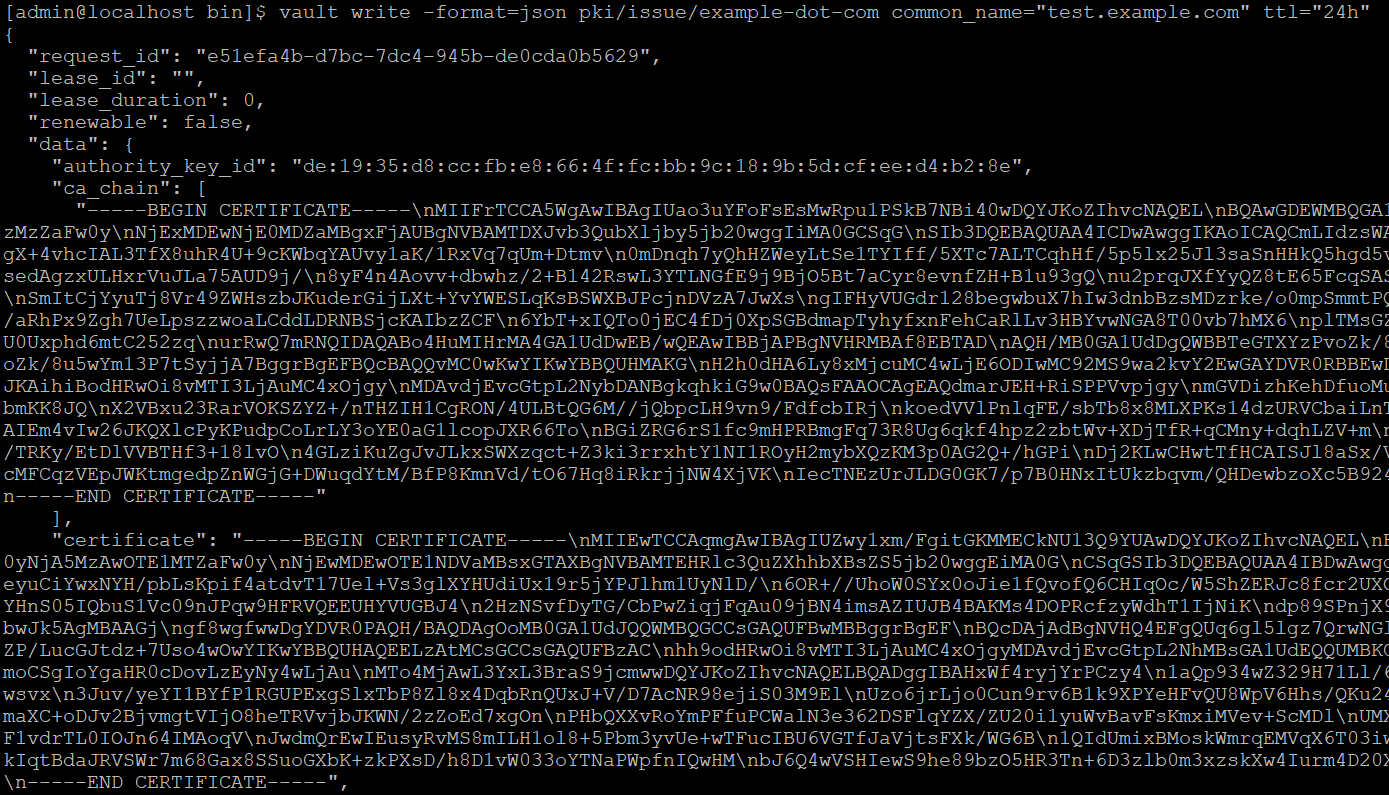
Generate a new certificate
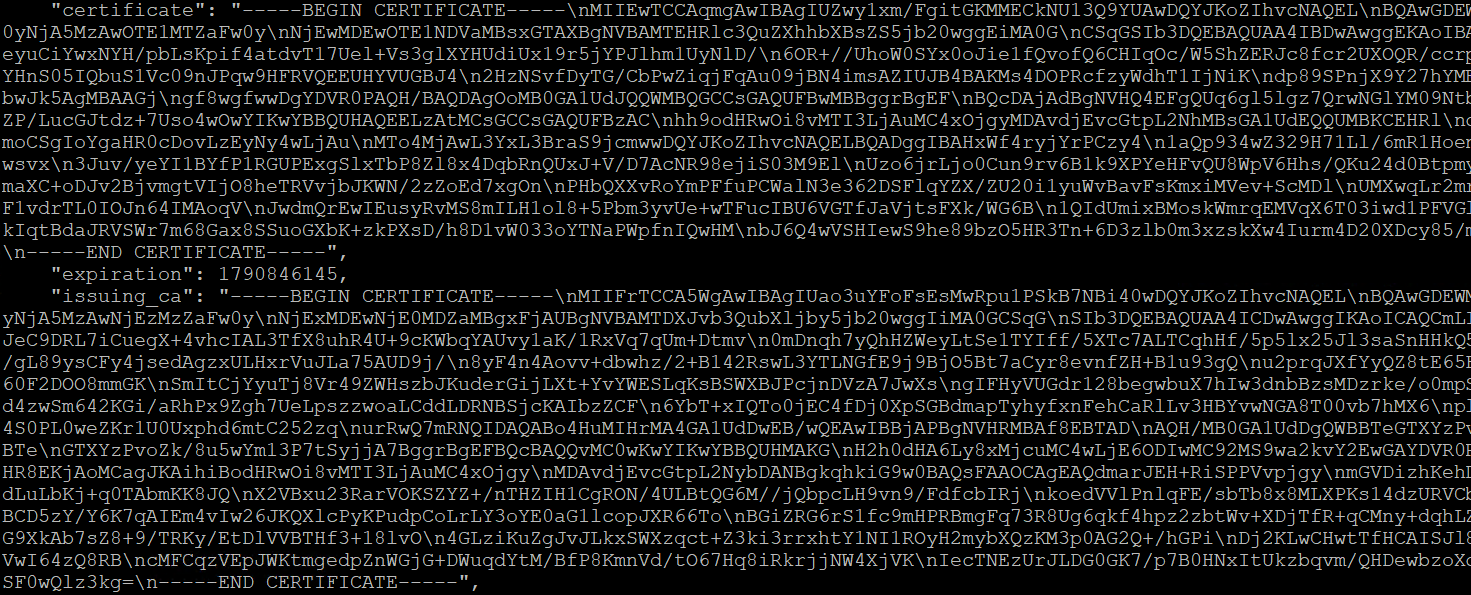
Generate a new certificate
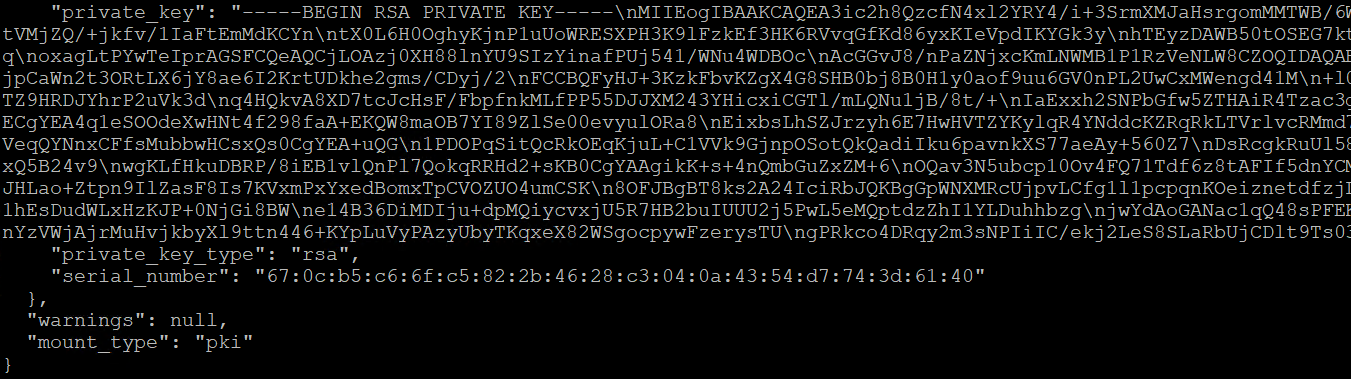
Generate a new certificate
In a similar way you can issue more certificates signed by CA according to your requirement.
This completes the integration of HashiCorp Vault with Utimaco u.trust GP HSM.