

To create the cluster, perform the following steps on one of the ESKM servers to be clustered:
-
From the ESKM Management Console, click the Device tab.
-
In the Device Configuration menu, click Cluster.
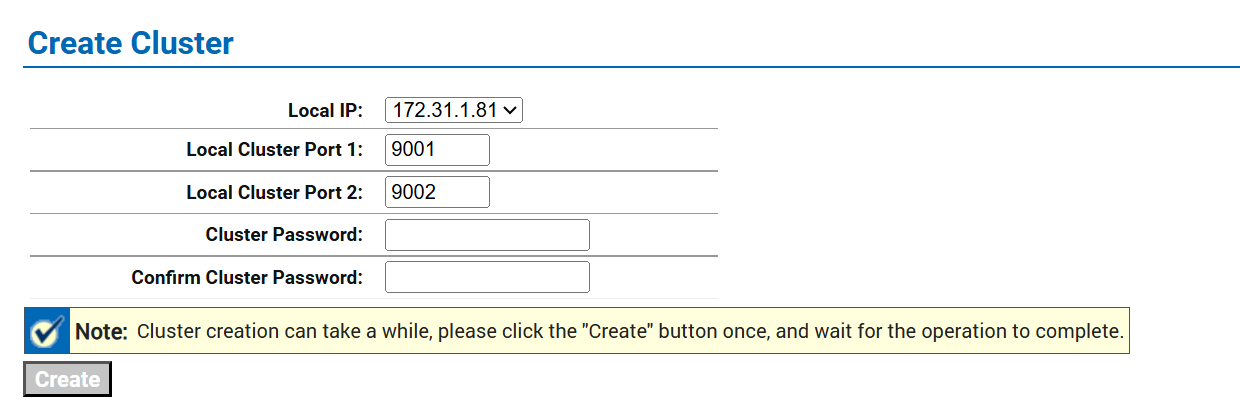
Create Cluster
-
If required, change the Local IP value. If you have enabled Ethernet#2, you can use its IP address for clustering.
All ESKM servers in a cluster must use an IPv4 address for the cluster.
-
If required, change the Local Cluster Port 1 value and Local Cluster Port 2 value. These values default to 9001 and 9002, respectively.
Local Cluster Port 1 defines the port on which the ESKM appliance "listens" for cluster administration requests, Local Cluster Port 2 defines the port on which the ESKM appliance "listens" for "database" based cluster administration requests.
-
Choose a cluster password and enter it into the Cluster Password field. Enter the password a second time into the Confirm Cluster Password field.
-
Click the Create button.
-
In the Cluster Settings section of the window, click Download Cluster Key and save the key to a convenient location, such as your computer’s desktop.
The cluster key is a text file and is only required temporarily. It may be deleted from your computer’s desktop after all ESKM servers have been added to the cluster.