

To complete the integration, you must configure the auto-enrollment as a group policy.
-
On the domain controller, select Start then click on Administrative Tools then click on Group Policy Management
-
Select Forest, then select your Domain and expand it
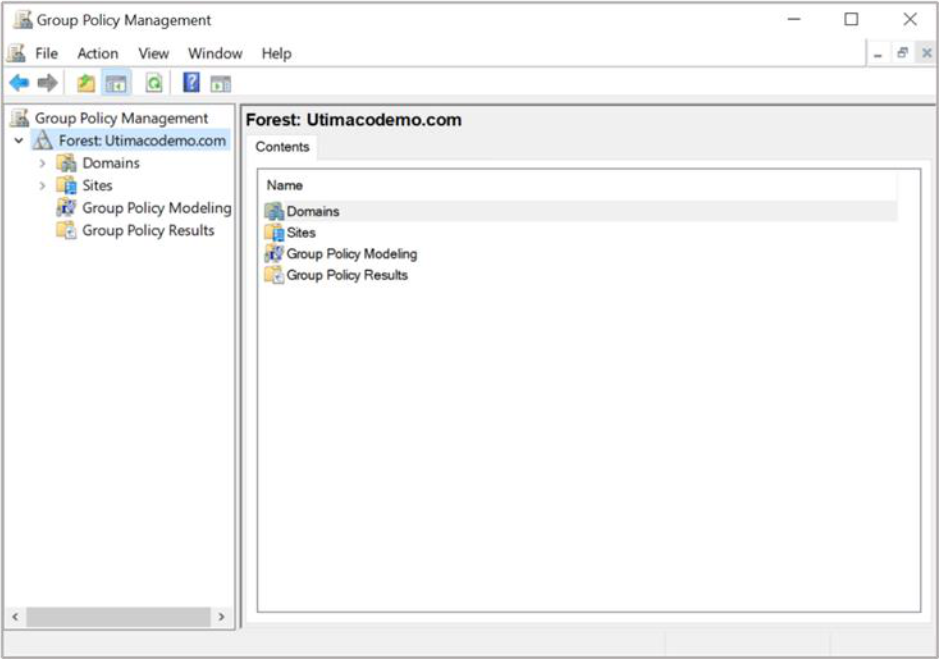
Figure 27: Group Policy Management window
-
Double-click Group Policy Objects in the forest
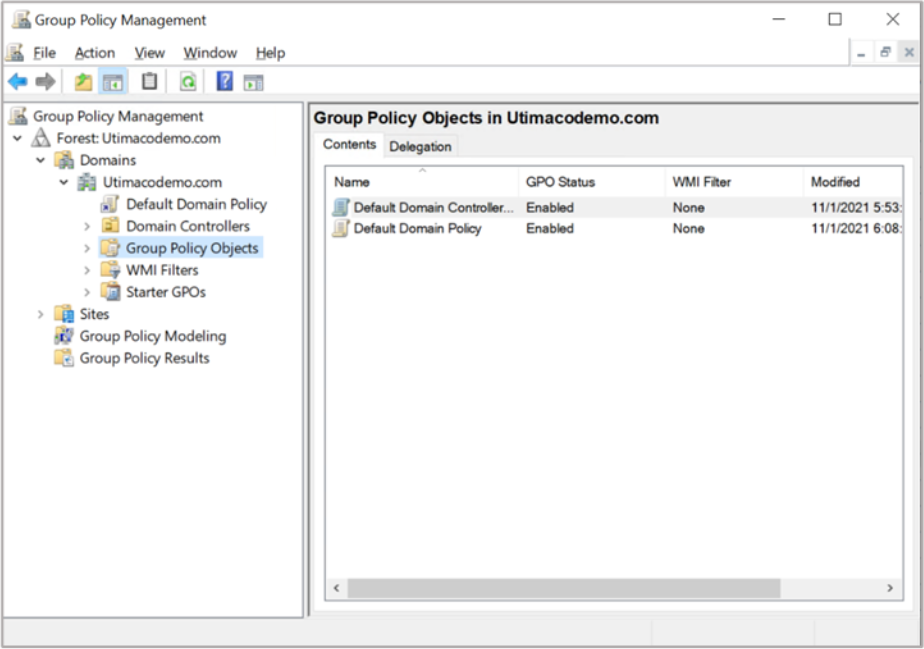
Figure 28: Group Policy Management window
-
Right-click the Default Domain Policy, then select Edit
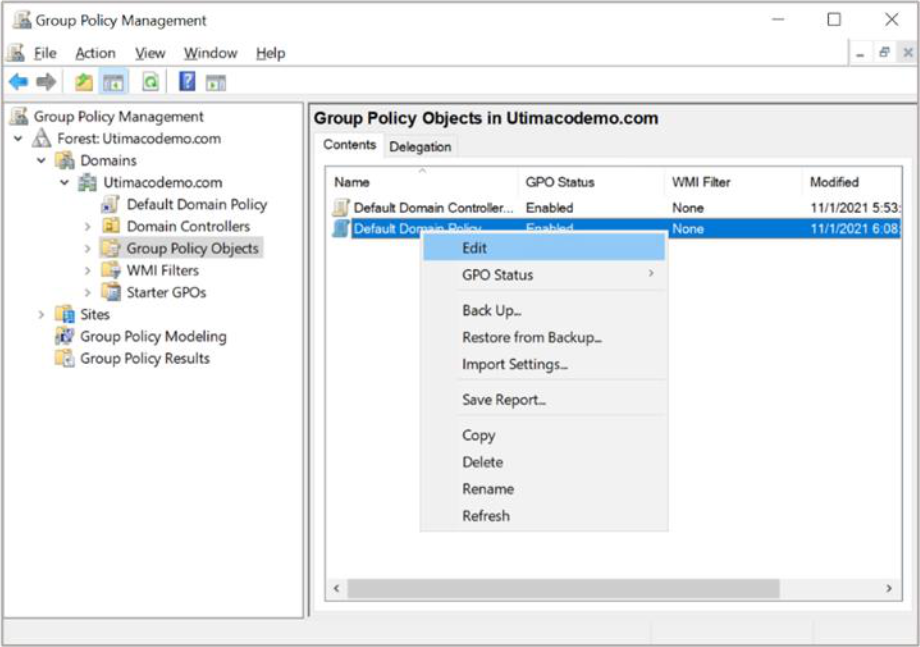
Figure 29: Group Policy Management window
-
In the Group Policy Management Editor, select Computer Configuration click on Policies
then click on Windows Settings click on Security Settings and then click on Public Key
Policies
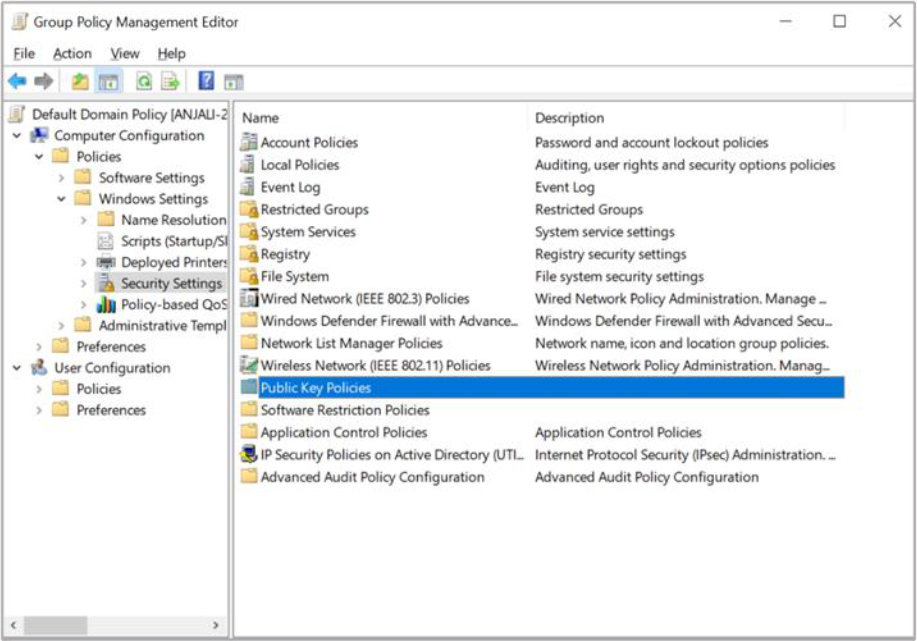
Figure 30: Group Policy Management Editor window
-
Double-click Certificate Services Client click on Auto-Enrollment
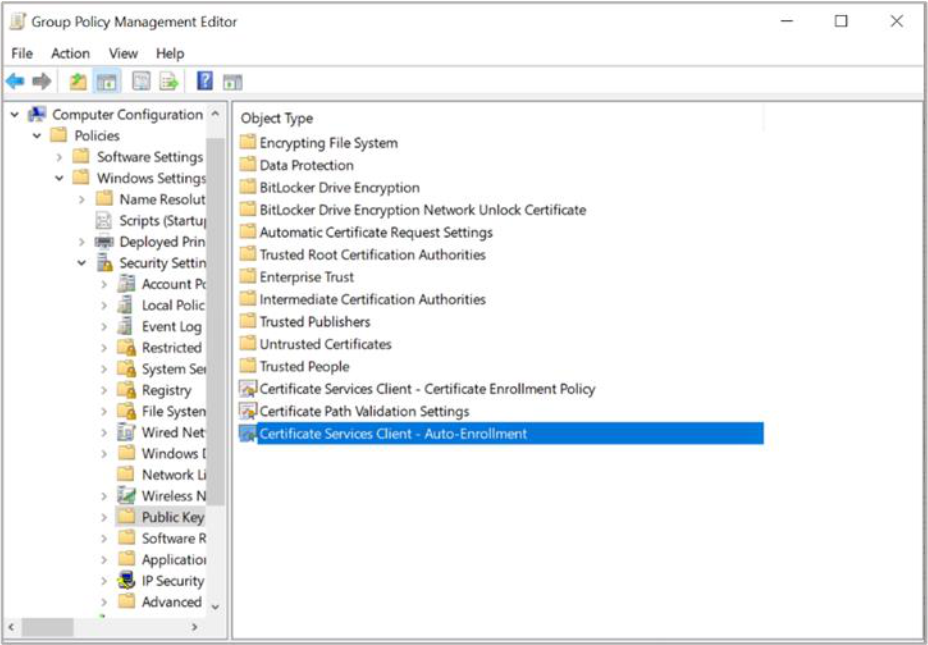
Figure 31: Group Policy Management Editor window
-
In Configuration Model, select Enabled to enable auto-enrollment. Select the following options:
-
Renew expired certificates, update pending certificates, remove and revoke certificates
-
Update certificates that use certificate template
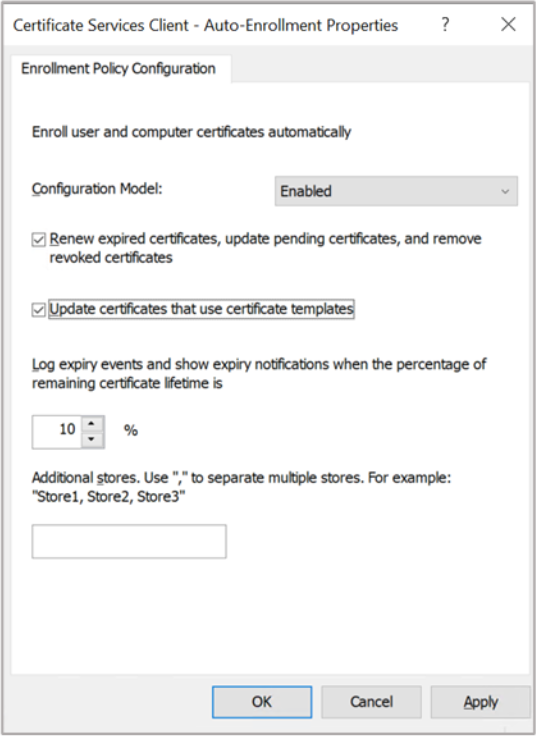
Figure 32: Enrollment Policy Configuration window
-
Select Apply and OK to accept your changes and close the Editor