

To use OCSP you must create a new revocation configuration.
-
Open the Administrative tool and select Online Responder Management.
-
Launch the Online Responder Management console.
-
Select Revocation Configuration and then click on Action, and then Add Revocation Configuration.
-
On the Add revocation wizard, click Next, then enter a Name for your configuration.
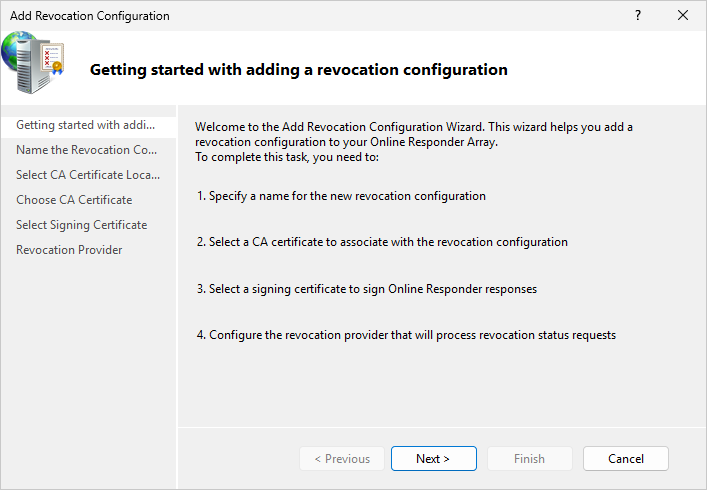
"Add Revocation Configuration" Window
-
Specify the location of your CA certificate relative to your environment.
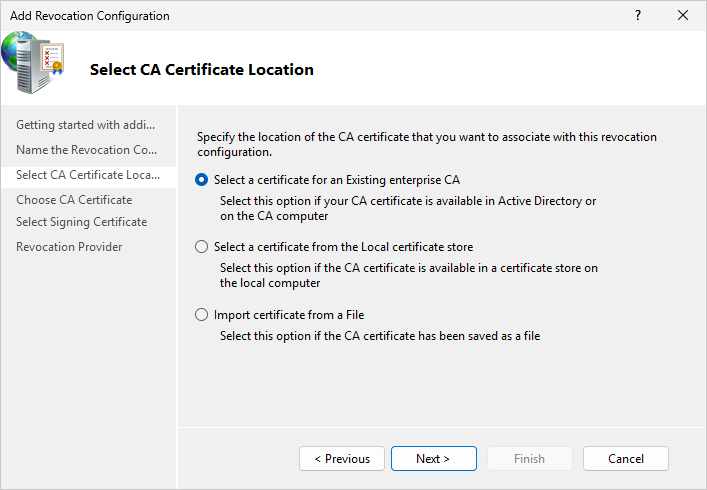
"Select CA Certificate Location" Window
-
Select the OCSP certificate template created earlier and click Browse.
-
Click Next on the Select signing certificate wizard, click Next.
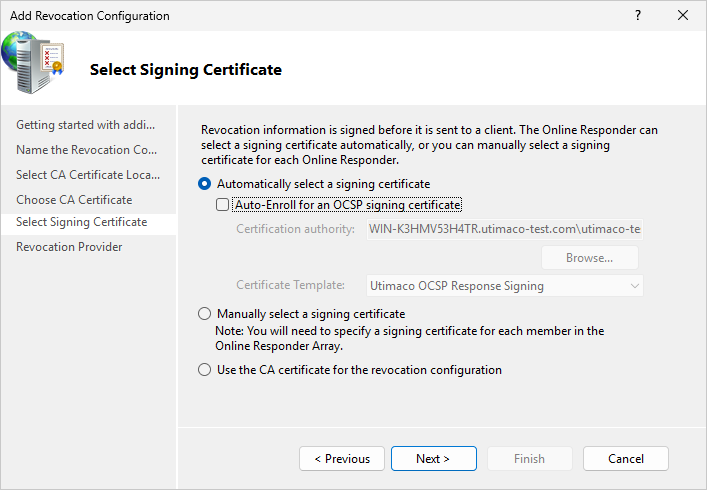
"Select Signing Certificate" Window
-
To finish, configure the revocation provider. It is the location where the CRLs or Delta CRLs are stored. The configuration automatically retrieves this information in the CDP extension of the certificate.
-
Once you have set up the Revocation Configuration, the Revocation Configuration Status Box displays the Online Responder status. The status should display Bad Signing on the Array Controller.
-
To fix this, click on Revocation Configuration in the left-hand pane. Right-click on the certificate and select Edit Properties.
-
Click on the Signing tab. Deselect the Do not prompt for credentials for cryptographic operations checkbox. Click OK.
-
Go back to the Online Responder Management tool. Open Actions and click Refresh. Its status would be working now.
-
You can check if the key to this certificate is really created and stored by the Utimaco CNG provider. To do this, open a PowerShell and enter
cngtool ListKeys. If there is a key, then you can be assured that your Online Responder Service uses the Utimaco CryptoServer HSM correctly.
|
›_ Console |
|
If you are using smartcard authentication, the prompt will appear on the PIN Pad device to insert the smartcard and enter the PIN. Then, press the OK button on the PIN Pad.