

Cloud Integration Web Console can be accessed using the following methods:
-
Log in to the ESKM Management Console as an administrator and navigate to Security > Cloud Integration to access the Cloud Integration Web Console.
-
The Cloud Integration Web Console opens in a new tab and automatically logs you into the cloud ESKM.
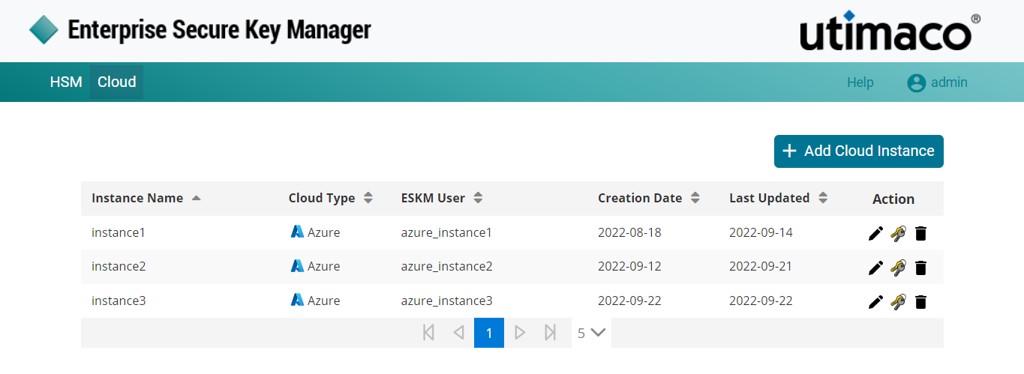
Cloud Integration Dashboard
-
Directly access through a web browser: using IP and port; for example, https://<ESKM IP>:8443/cloud/dashboard.
The following screen appears.

Cloud Integration login
Click Login at the top right corner of the page.
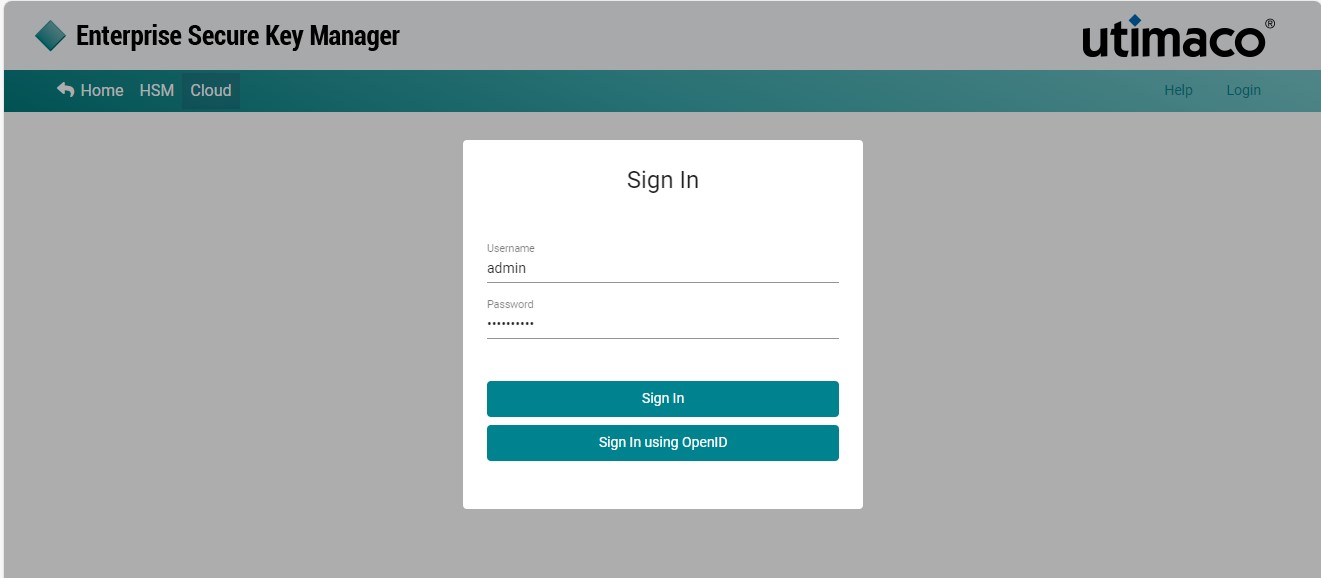
Cloud Integration Sign In
Enter the Administrator Username and Password, and then click Sign In.
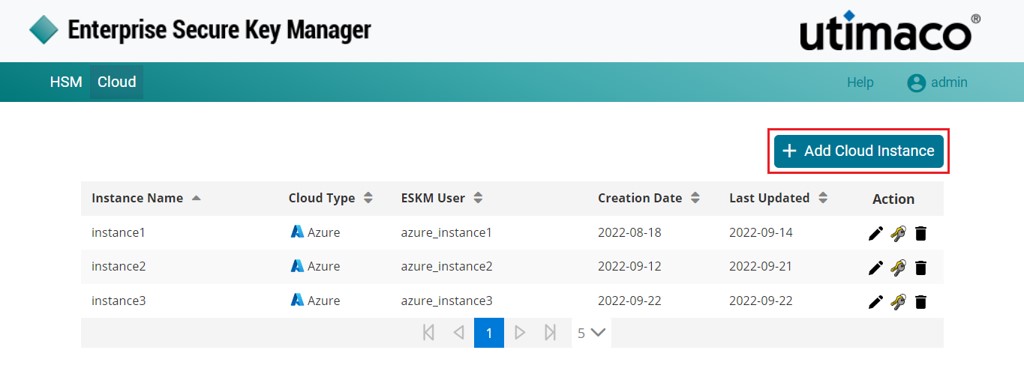
Cloud ESKM-Logged In page
Cloud integration dashboard enables the user to add cloud instance and view information about the existing instances.
Sign In using OpenID
To log in to the cloud integration dashboard as OpenID administrator, you must configure the OpenID server in ESKM and create OpenID administrator accounts in ESKM. OpenID administrators are users managed by an OpenID provider.
For more information on the OpenID configuration, please refer to the ESKM_User_Guide_8.54.0.
To sign in using OpenID
Click Sign In using OpenID without user credentials.
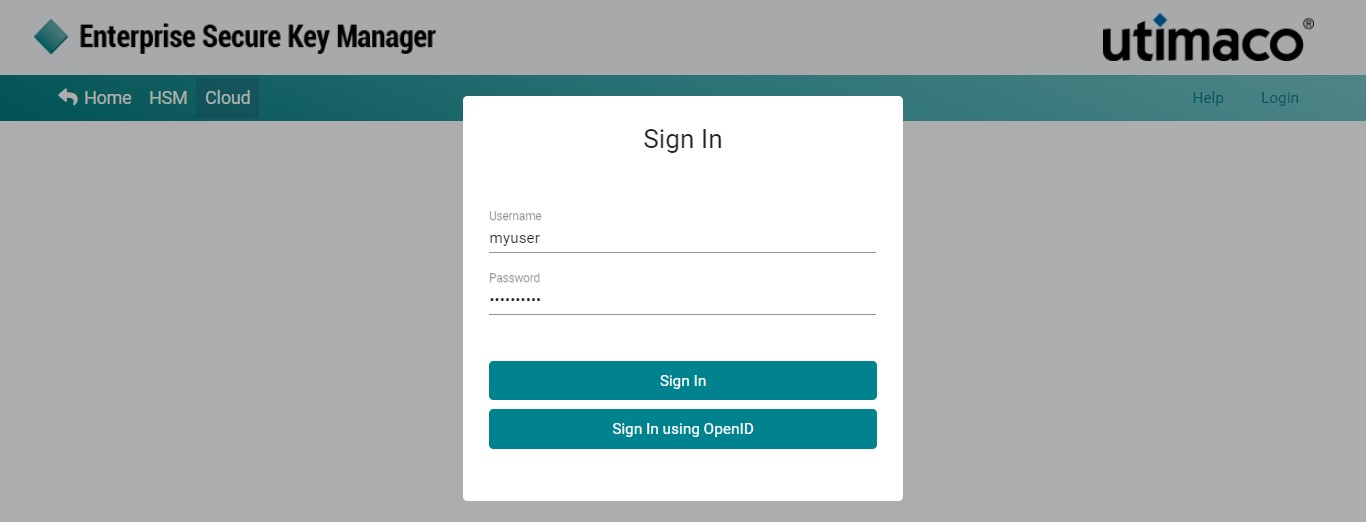
Sign In Using OpenID
-
You will be navigated to the Open ID Provider. Enter Username and Password. Click Sign In.
-
The Cloud Integration Dashboard is displayed.
You can log out of the Cloud Integration Web Console at any time using the Logout option under Admin menu in the upper right corner.
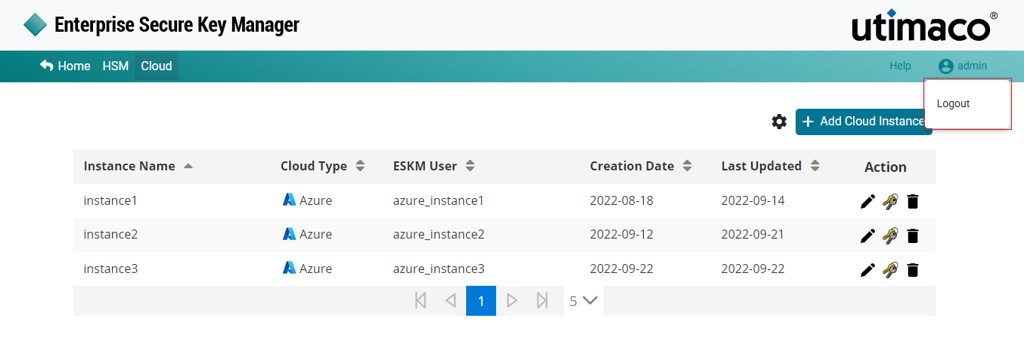
Logout
When you Signed In with Open ID Cloud Integration Web Console, the Logout pop-up window is displayed. Click Logout.
In the Cloud Integration dashboard, click Left arrow at the left upper corner of the page to navigate to the ESKM application.
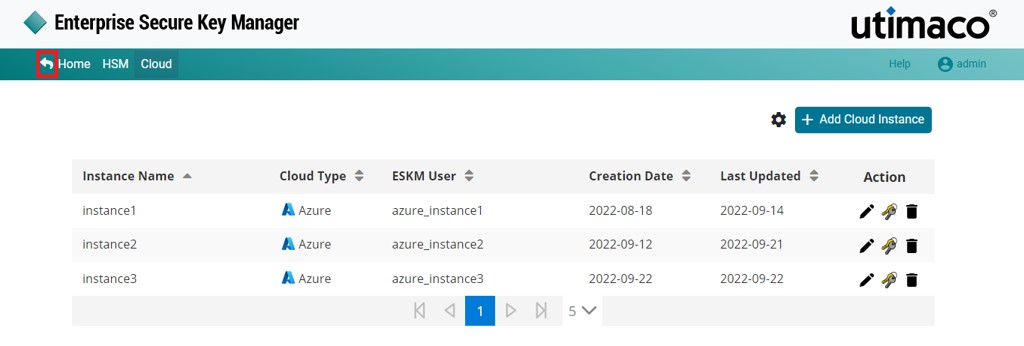
Cloud Integration Dashboard