

-
Login to client machine with user to whom access has been provided while creating the key in Microsoft DKE instance. Refer “Microsoft Azure DKE_IntegrationGuide_ESKM > Creating a key on Microsoft DKE".
Make sure before creating any file delete the cache folder data from both client machine on this location: C:\Users\testuser4\AppData\Local\Microsoft\MSIP and MSIPC.
-
Create a word document and assign sensitivity label. (e.g., DKE).
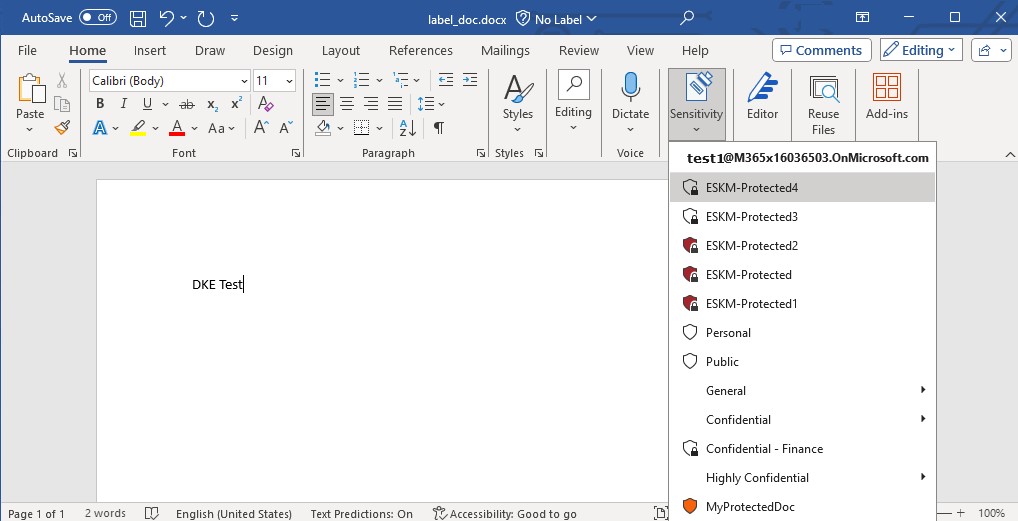
Word Document
-
Save this file on any location.
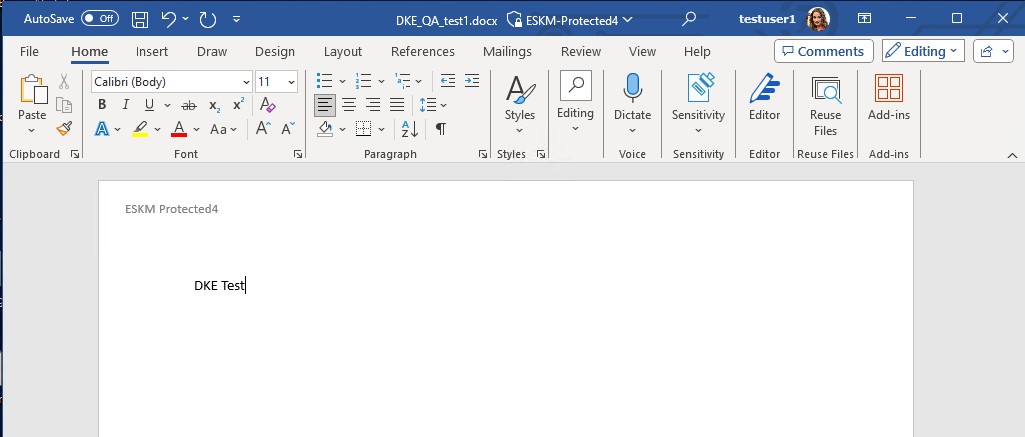
Encrypted Word Document
-
Copy this file to another client machine and user with allowed access to this sensitivity label and DKE.
-
Open the file and verify that this authorized user is able to open the document.
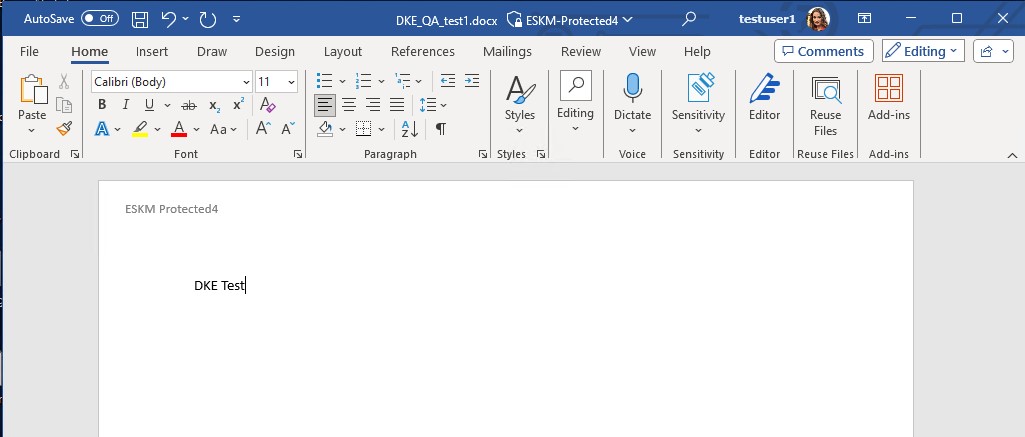
Encrypted Word Document
-
Now copy the same file to another client machine with user who is not authorized to this sensitivity label and DKE.
-
Try to open the document. You will get error with below permission message.
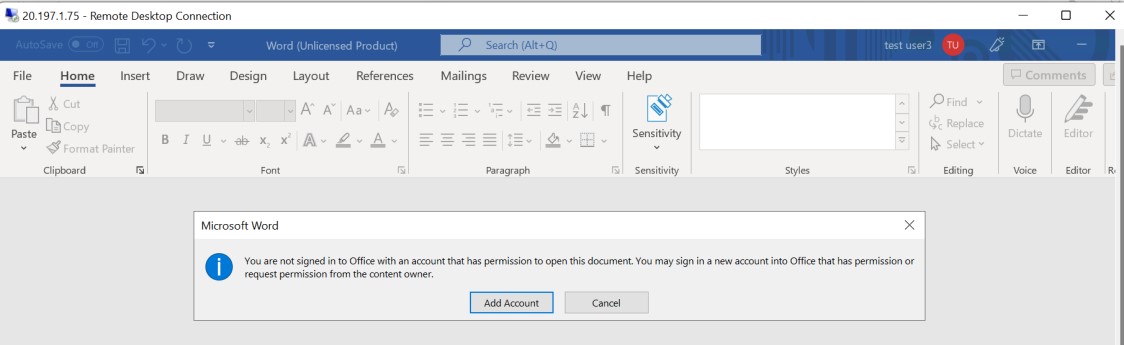
Access Denied Message