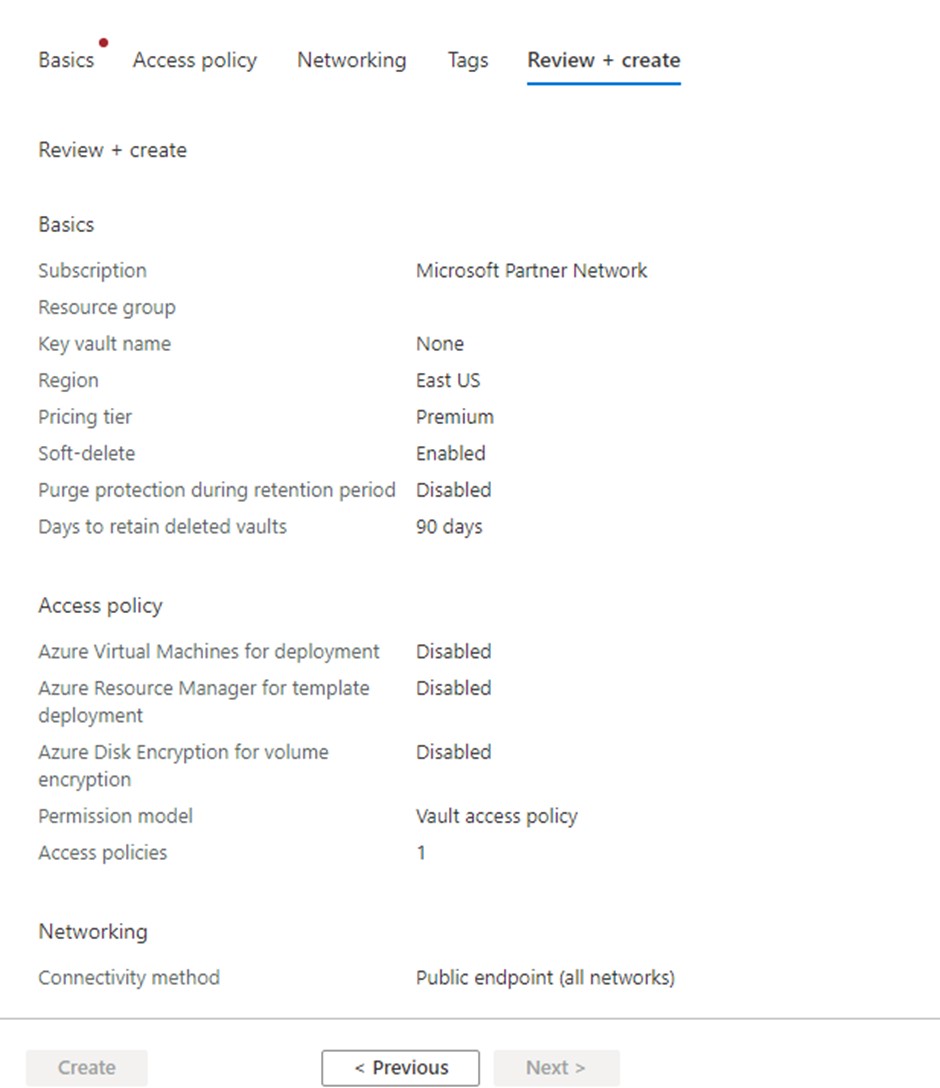
It is also possible to create an Azure Key vault in the Azure Web Portal. To do so, follow the next steps.
-
Navigate to http://portal.azure.com and login to your Azure Account.
-
Locate the Key vaults Azure service, click on it to get redirected to your Key vaults.

-
Click on + Add to start the process of adding a Key vault.

-
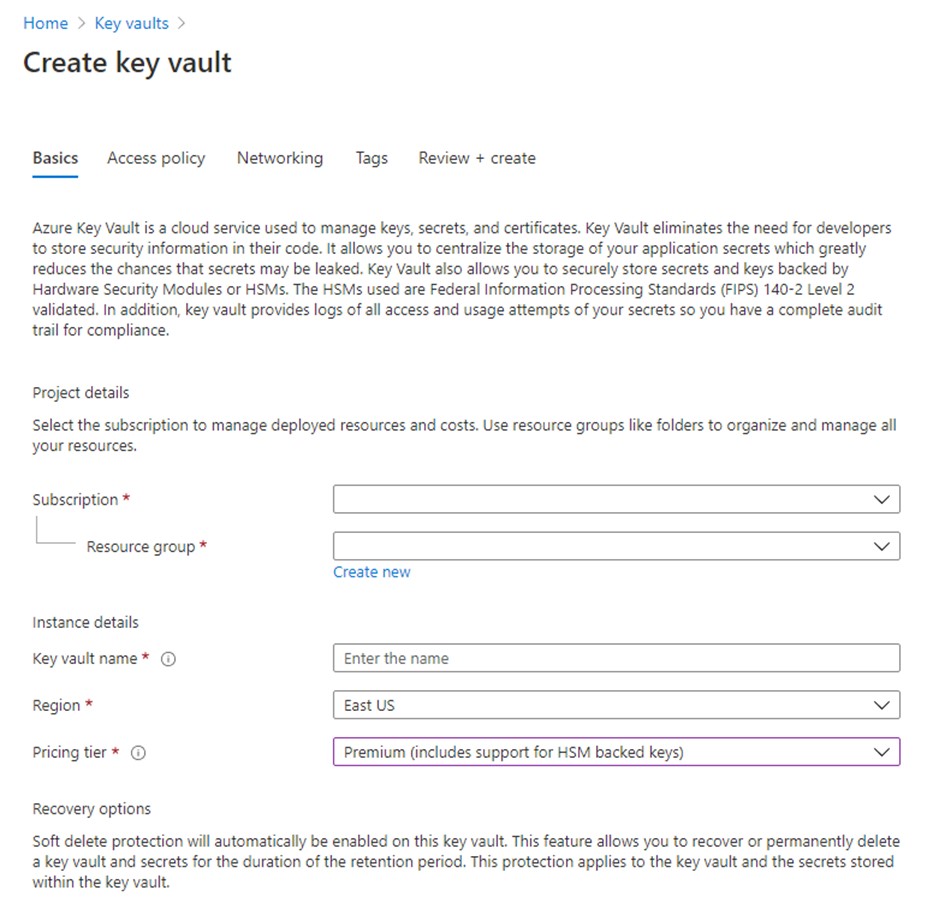
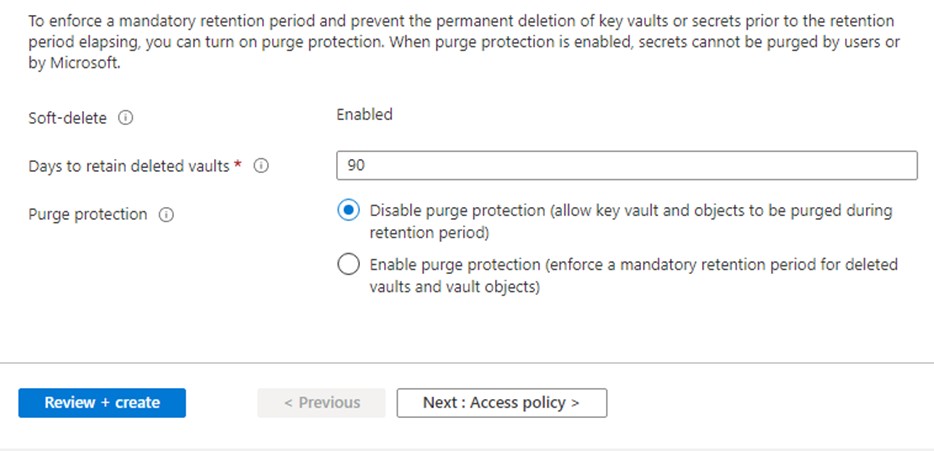
Select your subscription and the resource group. Enter the name of the Key vault you will be using, as well as the Region. Make sure to select the Premium pricing tier to include support for the HSM backed keys. Set the Recovery Options according to your company policies.
-
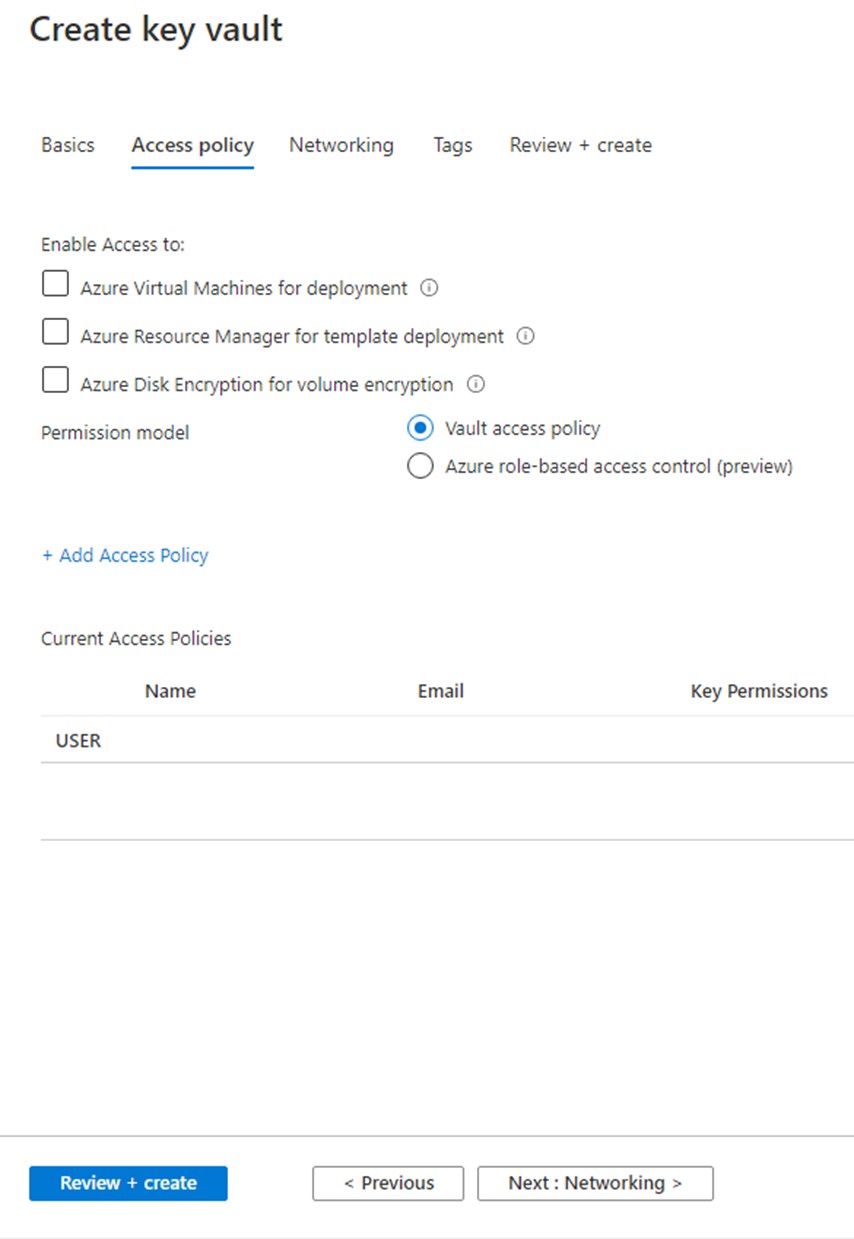
Enable access to your selected users and administer the policy, which is the most suitable for your company.
-
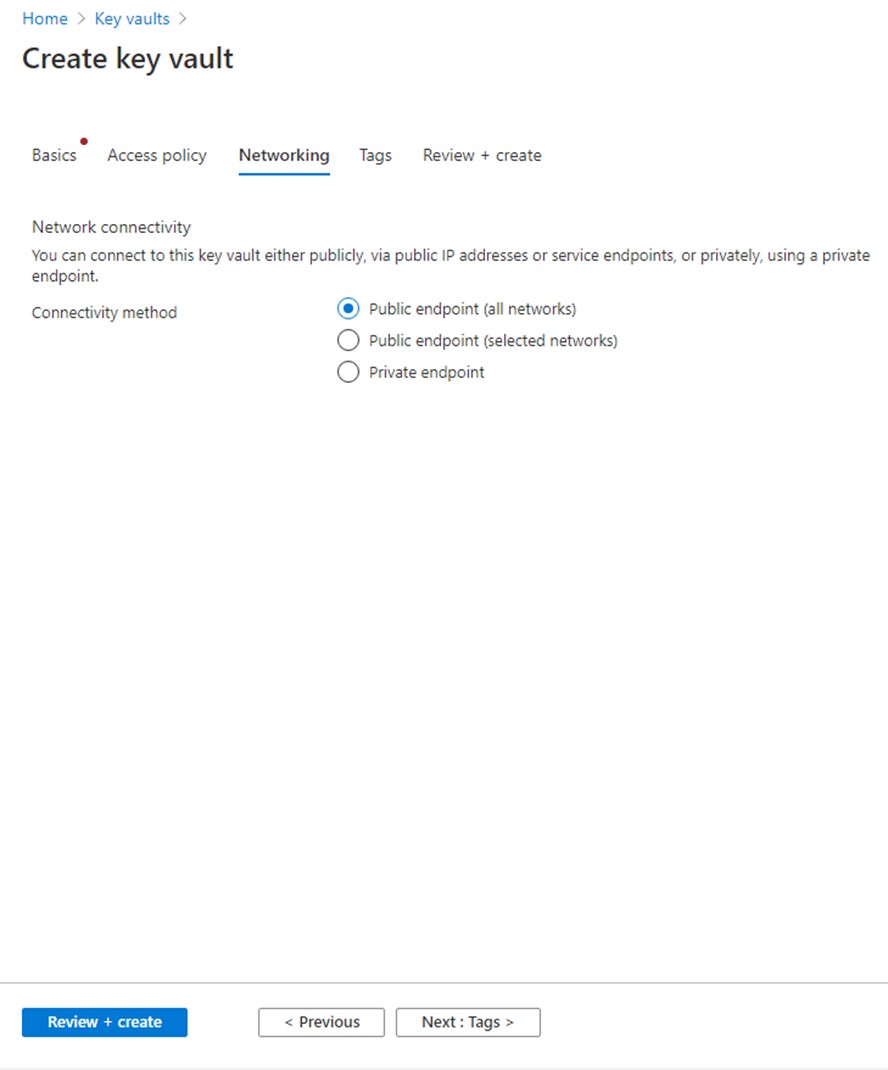
Select your connectivity method.
-
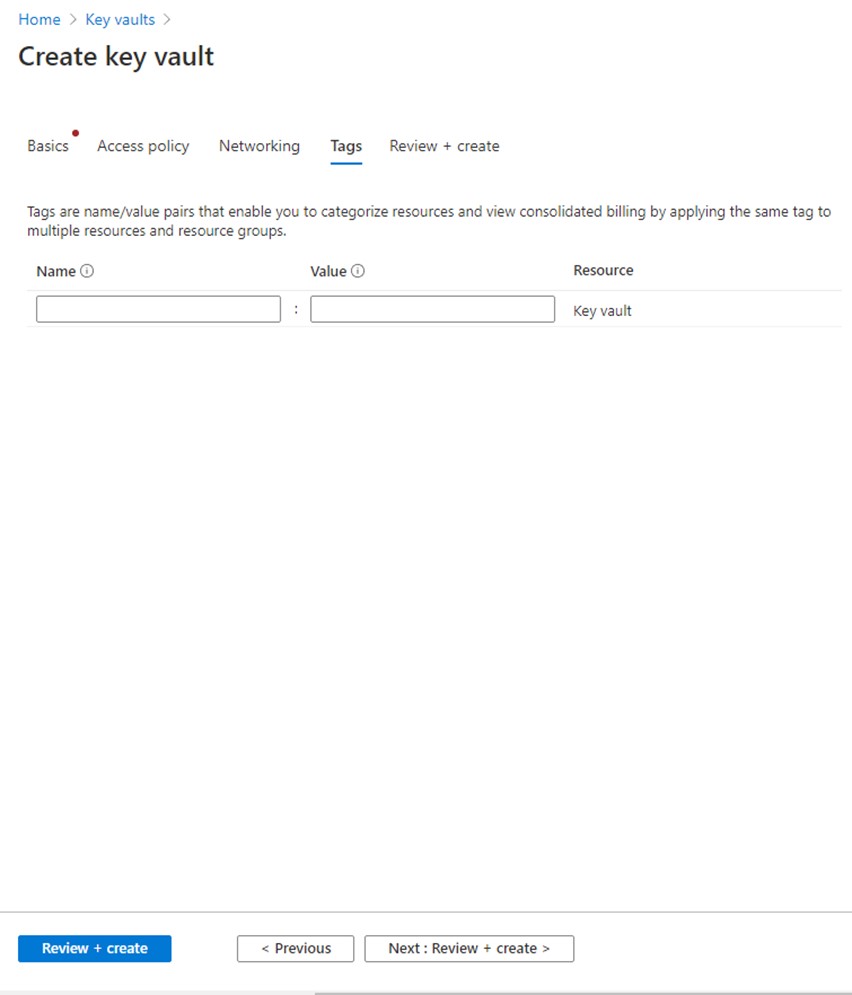
If needed add tags to categorize resources and view consolidated billing.
-
Review and creation of the Key vault. After the reviewing click on Create to finish the creation of the Key vault.