

1. Open the Microsoft SQL Server Management Studio and then create a utimacoDB database.
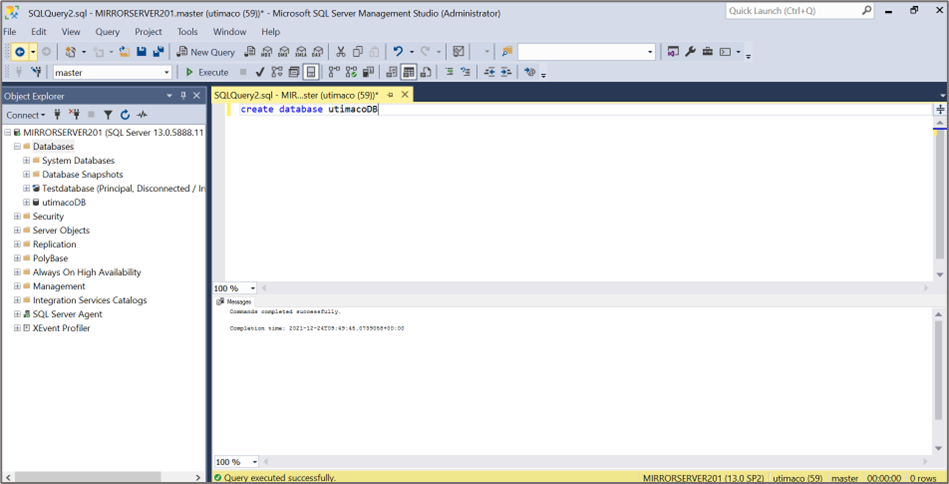
Creating database window
-
Create a table name as
Vehicle.
|
SQL Statement |
|---|
|
-
Insert values of respective columns.
|
SQL Statement |
|---|
|
-
To List the database table content, use the below query.
|
SQL Statement |
|---|
|
-
Create a new key using the
cngtoolcommand, as below.
|
›_ Console |
|---|
|
-
The user will get this output after executing the above command.
|
›_ Console |
|---|
|
-
Using Object Explorer, select the Security directory under the desired Database (in the example below this can be seen as “utimacoDB”). Click to expand “Always Encrypted Keys”.
Select: <Your_database> > Security > Always Encrypted Keys > Column Master Keys. Right-click on “Column Master Keys” and Select > New Column Master Key… . The “New Column Master Key” dialogue box will open.
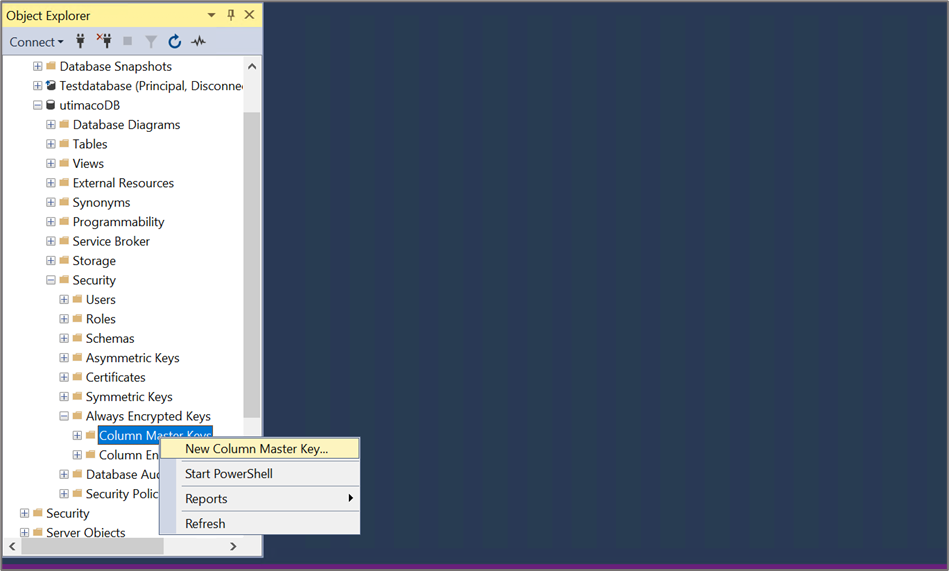
Creating New Column Master Key window
-
Enter the name of the Master Key, e.g., Utimaco-CMK.
-
Select Key store as Key Storage Provider CNG, in this case for the current user or local machine. Select a provider as "Utimaco CryptoServer Key Storage Provider", then click OK.
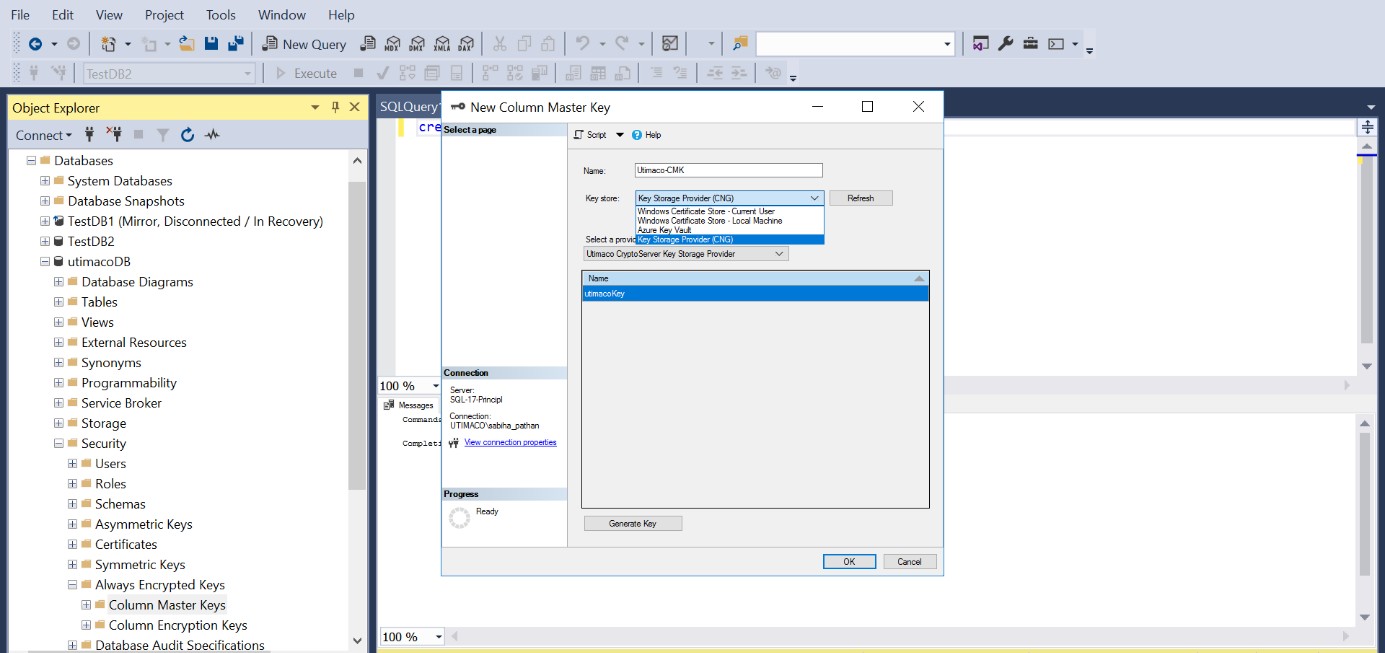
Creating New Column Master Key window
-
To view the new Column Master Key, use the SQL Object Explorer. Navigate to the relevant database and expand by clicking the + sign. Expand the Security folder and then expand the Always Encrypted Keys folder. You will find two folders; one for the Column Master Key(s) and one for the Column Encryption Key(s).
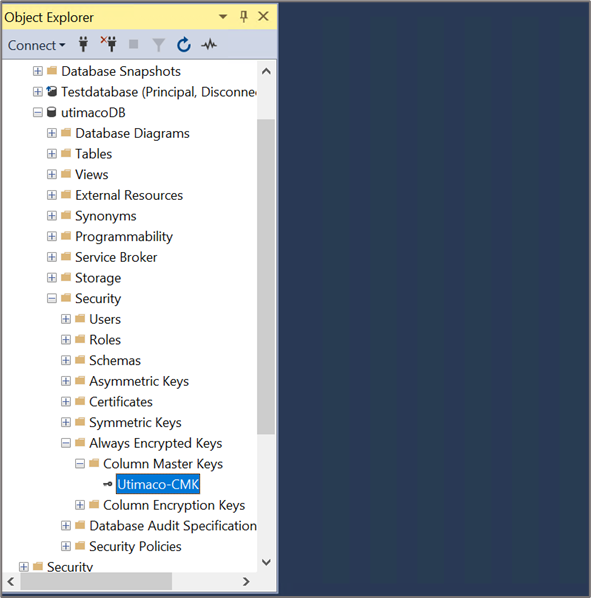
New Column Master Key