

If you want to remove the protection provided by Always Encrypted column encryption, this can be done using the SQL Server Management Studio Object Explorer.
-
To remove Column Encryption from one or multiple data column(s), right-click on the required database and in the Tasks menu select Encrypt Columns.
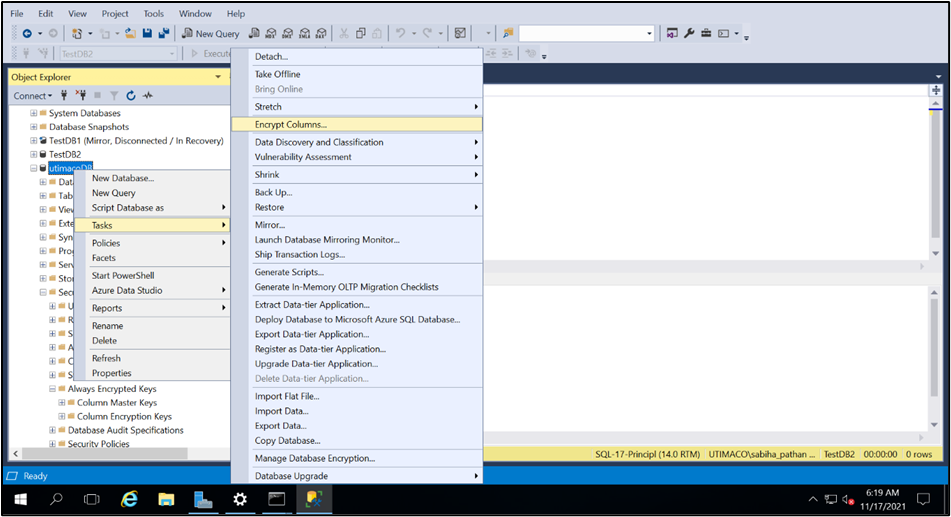
Removing Always Encryption window
-
From the Introduction screen, select Next to get to the Column Selection page. Click on the field Encryption Type to enter your preferred option for this value.
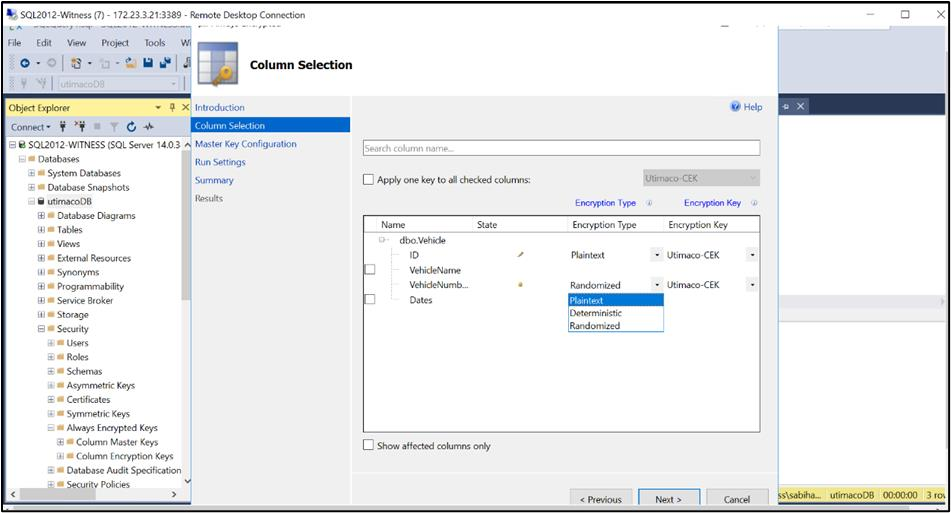
Encryption Type Selection window
-
From the drop-down list, select Plaintext and click Next. As there is no key to configure this time click Next to proceed straight to the Run Settings page. If the database is live at this point, you should first take it offline before proceeding to remove the column encryption.
-
Select Proceed to finish now and click Next.
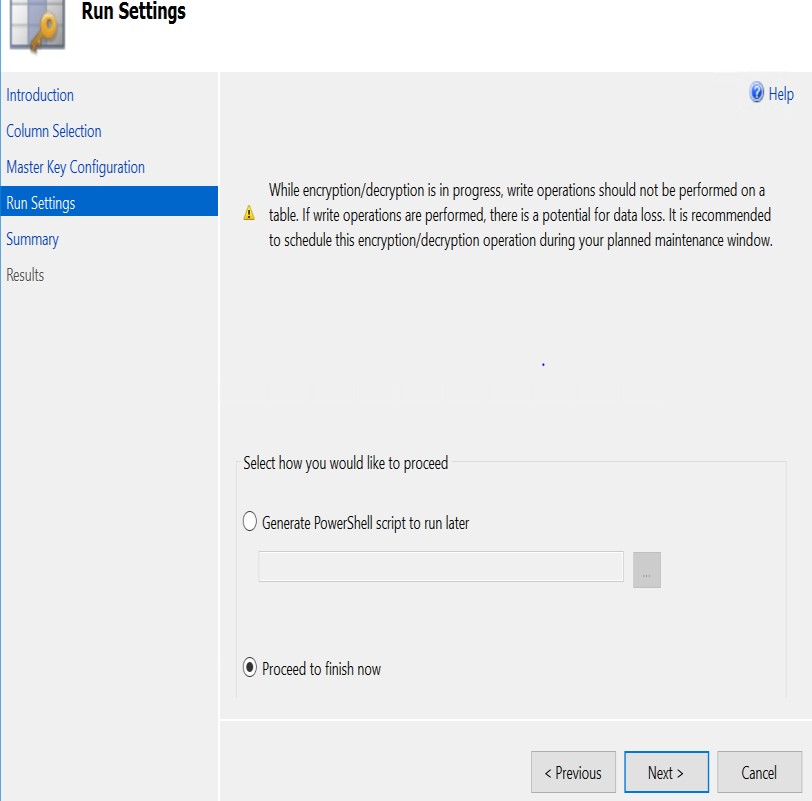
Run Setting window
-
The following page will provide a review summary for the requested operations.
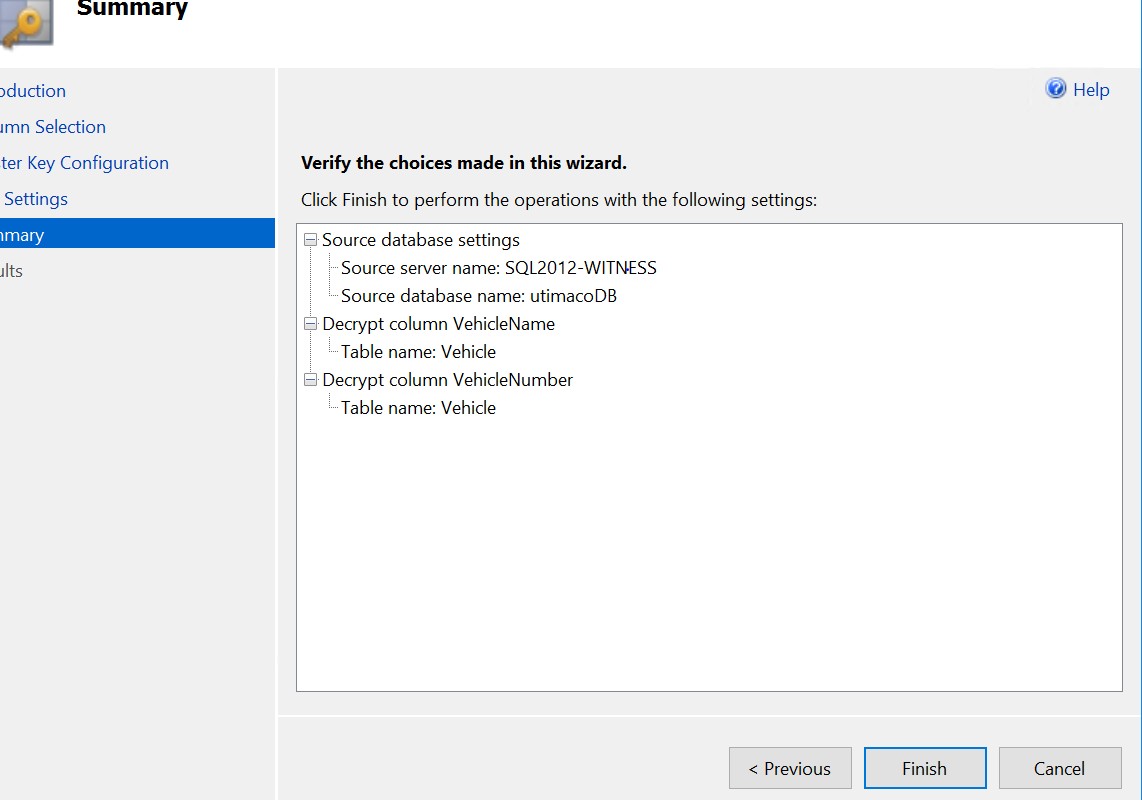
Summary window
-
Check to ensure that the correct Decrypt column(s) are listed and click Finish. The Performing encryption operations should show as Passed.
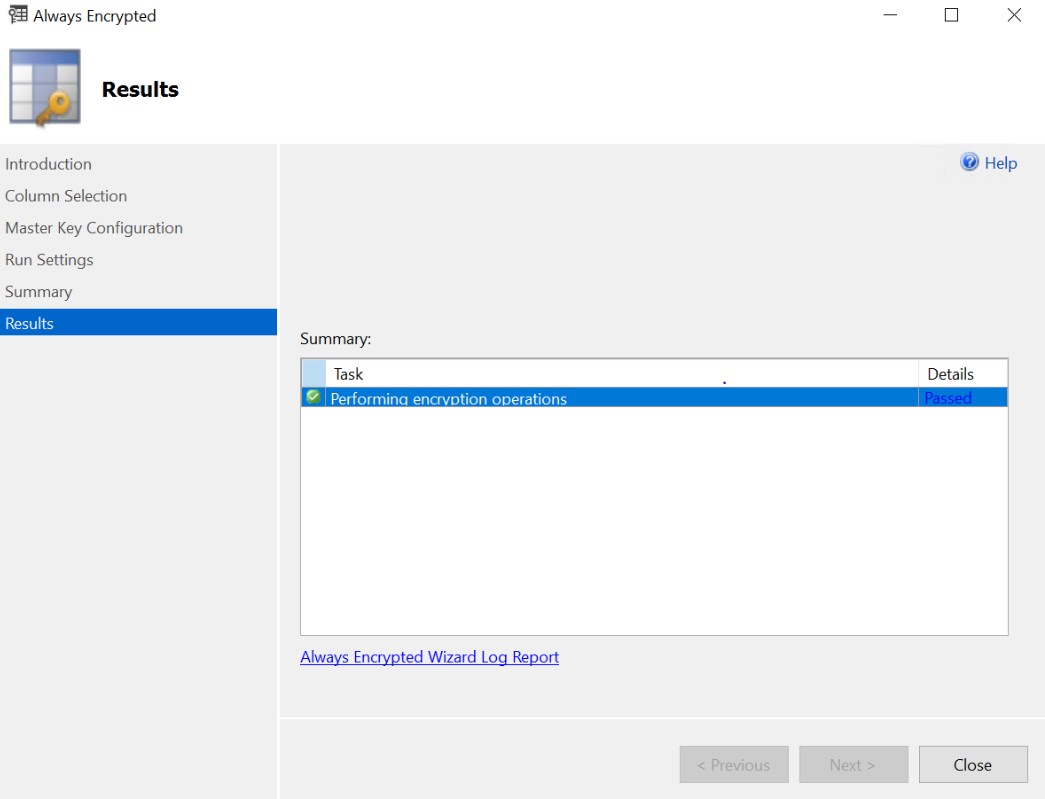
Results window
-
You have successfully removed the Always Encrypted column encryption from your database. When you next log into the database, you can remove the Column Encryption Setting = enabled string from the “Additional Connection Parameters” field of the database login screen. When you now view your database table via “Select Top 1000 Rows”, you should see all columns in plaintext (i.e., an unencrypted state).
This completes the Integration for Microsoft SQL Always Encrypted with Utimaco SecurityServer.