

Local Sync has to be enabled for each Teams channel that you want to use encryption for.
To activate encryption for a specific channel, take the following steps in your Teams app:
-
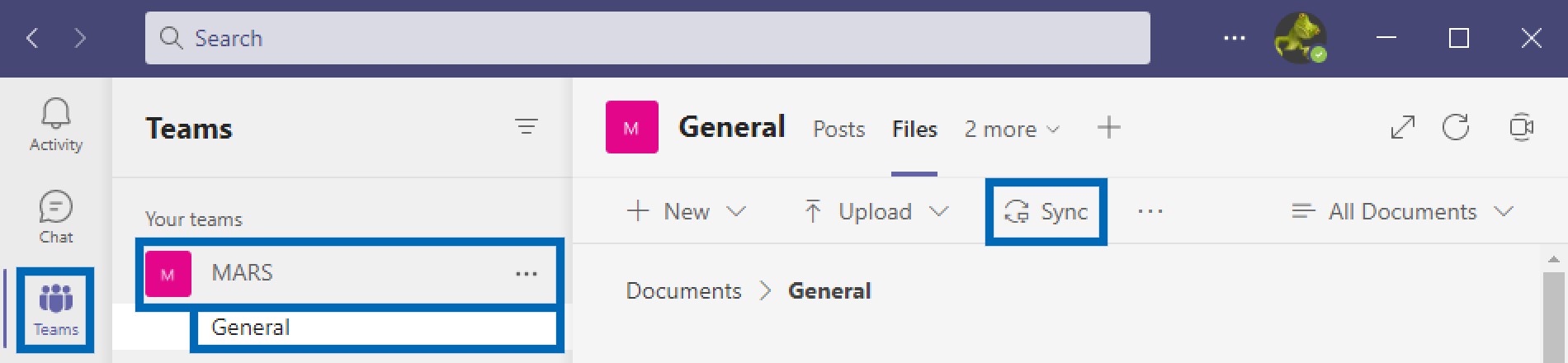
Navigate to the Navigation Bar
-
Select the “Teams” space
-
Navigate to the Site and select the Channel you want to encrypt (in our example below, we want to enable encryption for the ‘General’ channel of the ‘MARS’ team)
-
Press the “Sync” button to start synchronization to your local machine for this channel
Sync
Please repeat this step for every channel you want to have encrypted.
Important:
Your site has to be set up to sync with the OneDrive sync app. If you're the IT admin for your organization, see
“Let users sync SharePoint files with the new OneDrive sync app”.
If you're not the IT admin, and your screens don't look like the ones in this article, see
“Sync SharePoint files with the OneDrive sync app (Groove.exe)”, or else contact your IT department. For further details please check the Microsoft documentation
“Sync SharePoint and Teams files with your computer” (microsoft.com)