

To validate the integration between VMware Cloud Director, VMware vCenter Server, and ESKM, perform the following steps:
-
Deploy a virtual machine as described in Deploying an Encrypted VM .
-
In VMware vCenter Server, navigate to the cluster associated with the Organization VDC and locate the deployed virtual machine.
-
Verify that the virtual machine is marked as Encrypted, that the encryption is provided by the configured ESKM Key Provider, and that it is compliant with the assigned VM storage policy.
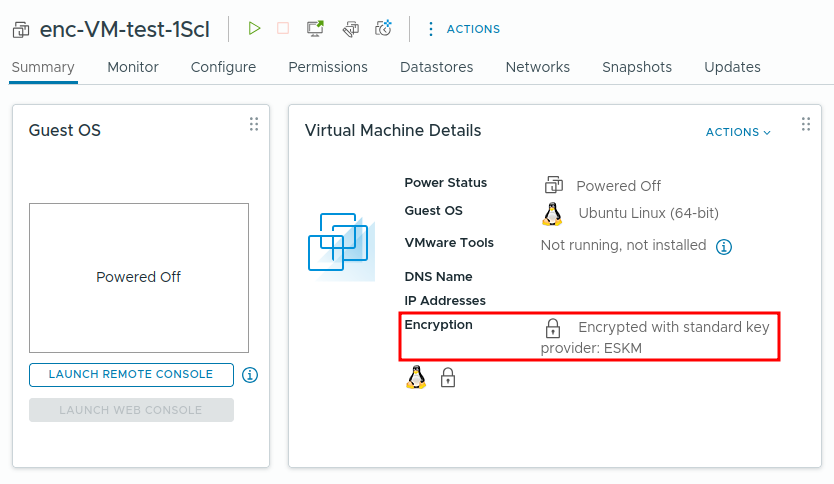
VMware Cloud Director VM Encrypted
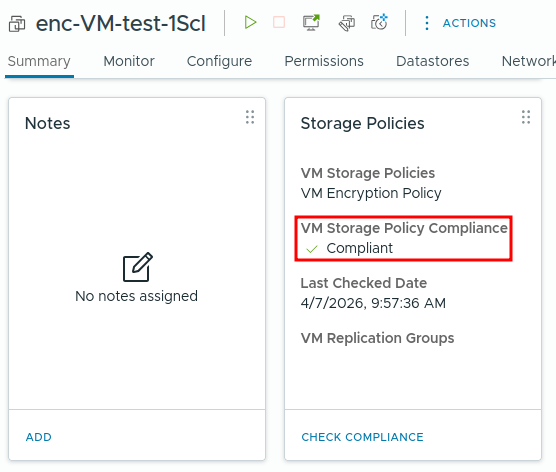
VMware Cloud Director VM Policy Compliant
To validate the integration between VMware vCenter and ESKM, perform the following steps to encrypt a virtual machine:
-
Log in to the vCenter Server.
-
Navigate to Menu → VMs and Templates.
-
Select an existing virtual machine.
-
Right-click the virtual machine and select VM Policies → Edit VM Storage Policies
-
In the VM Storage Policy section:
-
Select a policy that includes VM Encryption.
-
Ensure the policy is associated with the configured key provider (ESKM).
-
It can be configured for the whole VM or per disk.
-
-
Click OK to apply the policy.
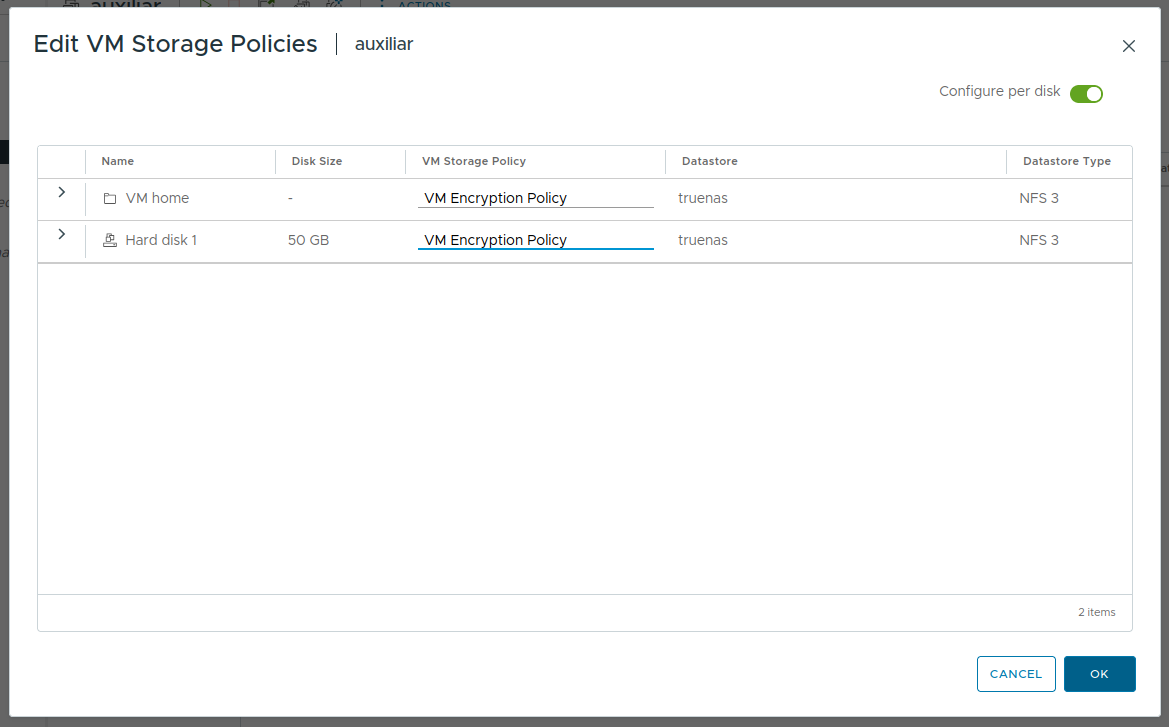
Edit VM Storage Policies
-
Monitor the task progress in the Recent Tasks panel until completion.
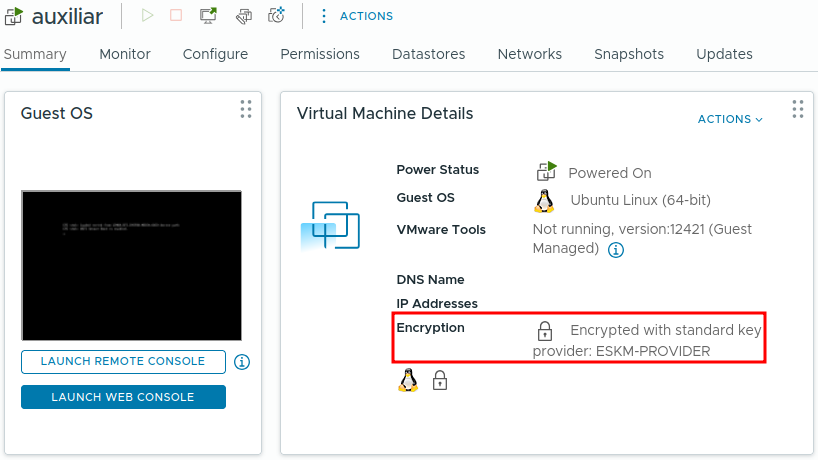
Encrypted VM
The virtual machine should display as Encrypted in its summary.
-
In ESKM, navigate to Security → KMIP Objects
-
Verify that a new Symmetric Key (AES-256) has been created.

KMIP Objects created
-
Navigate to Device → Log Viewer → KMIP to verify the logs
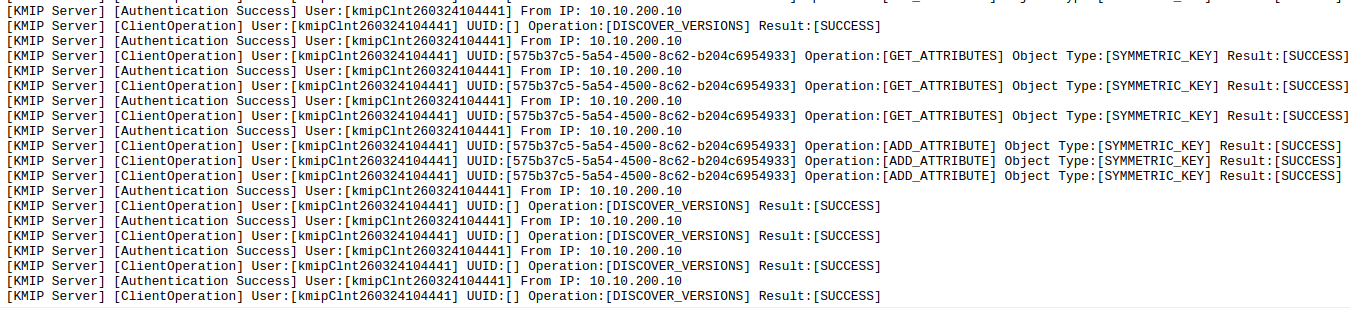
Successful Key Retrieval