

-
Requires minimum VMWare ESXi version 6.5, or later.
-
Requires minimum vCenter version 6.5, or later.
-
Enterprise Secure Key Manager v5.2, or later.
For more information about VMware’s documentation, refer to www.vmware.com/support/pubs.
Configure ESKM for Integration
The steps below illustrate the configurations using a VMware vSphere Web Client.
-
Open a web browser and enter the vSphere Web Client URL.
-
Go to Configure > Key Management Servers.
The screenshots used in the following sections, are captured from vSphere version 6.7.
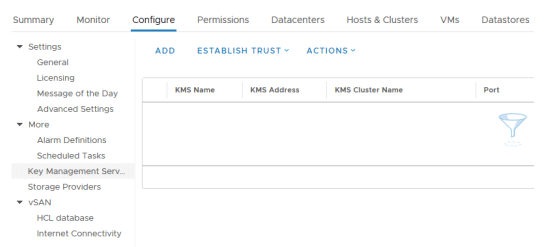
Configure
-
Click on ADD.
-
Enter the following details to add a new Key Management Server (ESKM).
|
Filed Name |
Details |
|
KMS cluster |
Select the <Create new cluster> from the drop down. |
|
Cluster name |
Enter the key server cluster name. |
|
Server alias |
Enter the key server name. |
|
Server address |
Enter the IP address of the configured ESKM. |
|
Server port |
KMIP port number 5696. |
|
Proxy address |
Do not enter anything. |
|
Proxy port |
|
|
User name |
|
|
Password |
New ESKM
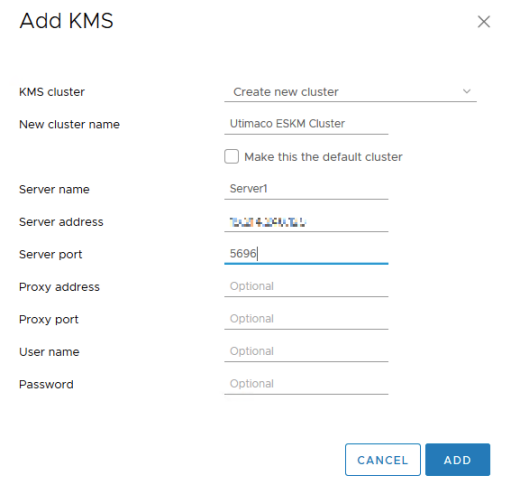
Add KMS
-
Review the input information and click ADD.