

Generate a certificate signing request (CSR) that can then be submitted to a third-party trusted certificate authority (CA). 1. Log in to the Configuration utility
2. In the Main tab, select System > Certificate Management > Traffic Certificate Management. The user will see the Traffic Certificate Management screen
3. Click on the Create button. The New SSL Certificate window appears
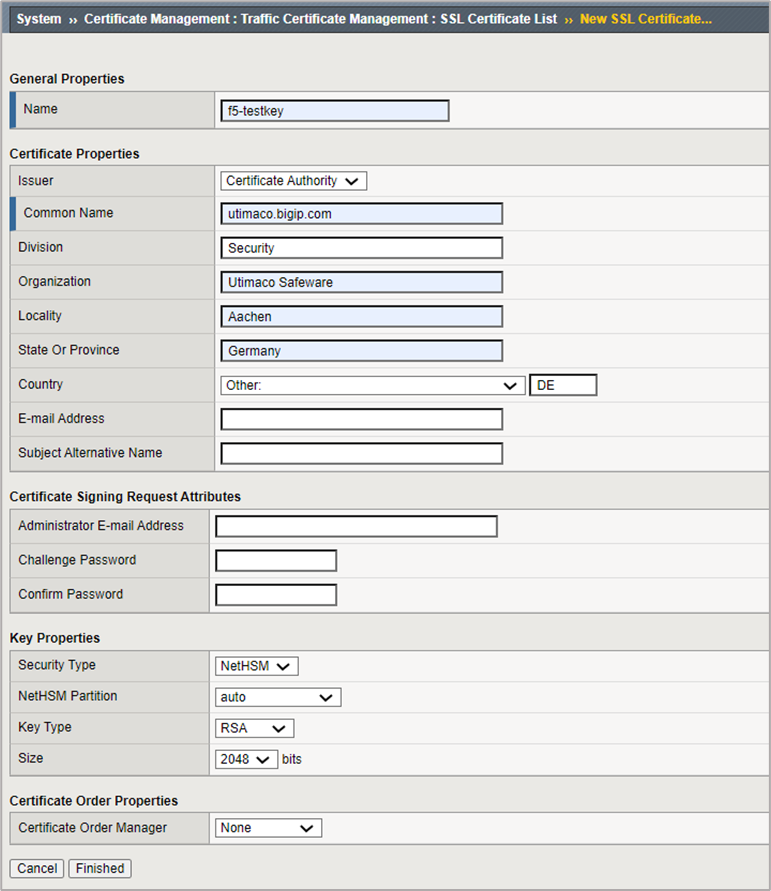
Figure 3: Request a certificate from a Certificate Authority Window
-
Enter a name for the SSL certificate, and select Certificate Authority from the Issuer List
-
Enter the other details from Certificate Properties section as required
-
Enter the Certificate Signing Request Attributes as required
-
In Key Properties, select NetHSM from the Security Type drop-down
-
Select auto from the NetHSM partition drop-down
-
Select the Algorithm from Key Type drop-down
-
Select a key size from the Size drop-down
-
Click on the Finished button
-
The Certificate Signing Request screen displays
-
Perform any one of the following to download the request into a file on your system
-
Copy the certificate, in the Request text field
-
Select the download button, for Request File
-
-
Submit the request to the certificate authority to be signed
-
Click on the Finished button
-
The user will see an option displayed to import the signed certificate