

-
Generate a key using the PKCS#11 tool.
#./p11tool2 slot=0 LoginUser=12345678 PubKeyAttr=CKA_LABEL="F5-BIGIPImport1",CKA_ID=0x525341 PrvKeyAttr=CKA_LABEL="F5-BIGIPImport1",CKA_ID=RSA GenerateKeyPair=RSA
-
Verify that the key was generated.
# ./p11tool2 LoginUser=12345678 ListObjects
+ 1.2
  CKA_KEY_TYPE                   = CKK_RSA
  CKA_UNIQUE_ID                  = 99A6F928-E14B-4A22-9B1F-C7261D587076
  CKA_LABEL                      = F5-BIGIPImport1
  CKA_ID                         = 0x525341 (RSA)
+ 2.1
  CKA_KEY_TYPE                   = CKK_RSA
  CKA_UNIQUE_ID                  = 44A64C8C-FA89-4676-9CF2-46F92A9B90D9
  CKA_SENSITIVE                  = CK_TRUE
  CKA_EXTRACTABLE                = CK_FALSE
  CKA_LABEL                      = F5-BIGIPImport1
  CKA_ID                         = 0x525341 (RSA)
-
Open the BIG-IP configuration utility.
-
In the Main tab, select System > Certificate Management >Traffic Certificate Management > SSL Certificate list > Import. The SSL Certificate/Key Source page opens.
-
Select Key from the Import Type drop-down.
-
Enter the Key Name in the Key Name text box (use the same key label as generated using p11tool2).
-
Select the New radio button from Key Name.
-
Select From NetHSM within Key Source.
-
Select auto from the NetHSM Partition drop-down.
-
Click on the Import button to import the key.
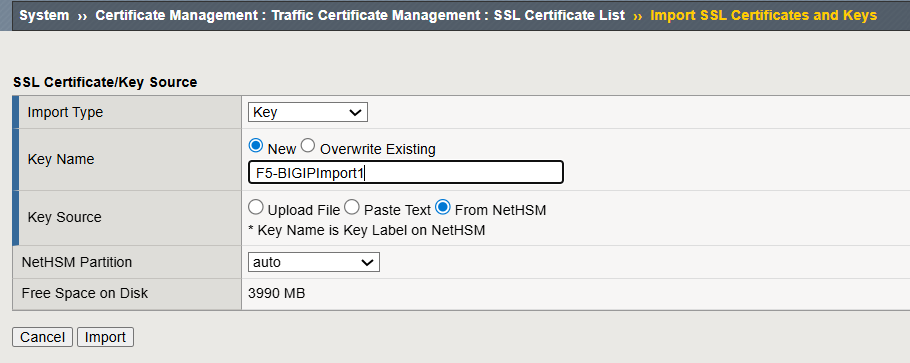
Import SSL Certificates and Keys Window
-
Go to the SSL Certificate List screen and check that the imported key is available in the table.

Imported Key displayed in table
-
Click on the Key name and click on the Key tab to check the Key ID.
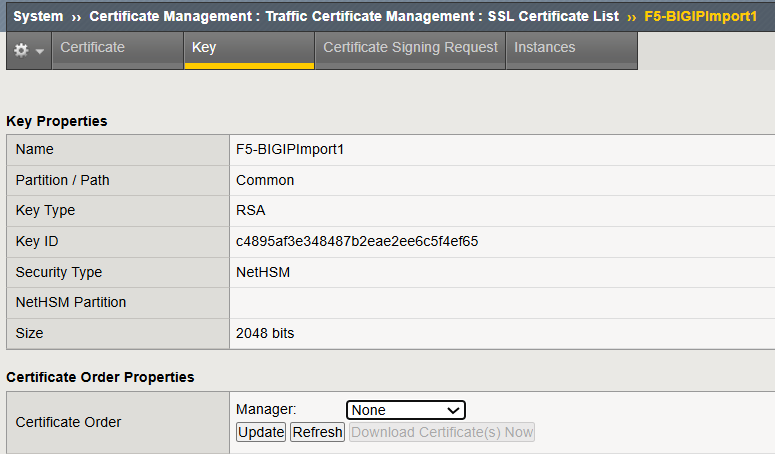
Imported Key Details