

-
Go inside the running container using the command below.
|
›_ Console |
|---|
|

Docker container
Here the value 8dc5d676844b is the container ID from section 4.3.3 Verifying the Status of the Container.
|
›_ Console |
|---|
|
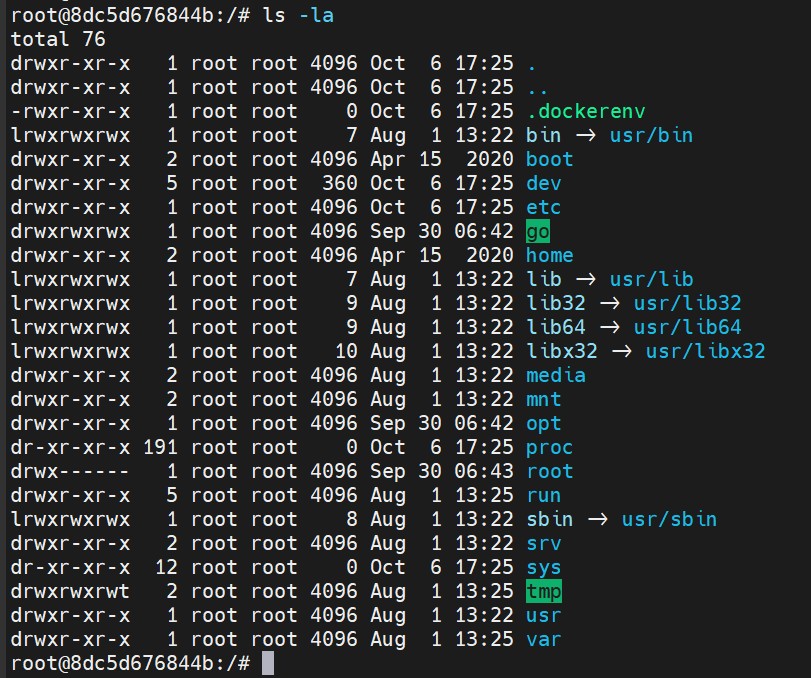
Container/Directory
-
Copy the newly generated binaries
fabric-ca-serverandfabric-ca-clientfrom host machine's/root/go/src/github.com/hyperledger/fabric-ca/bindirectory to container's/go/bindirectory.
|
›_ Console |
|---|
|

Copy binary files
-
Verify the above binary files are copied at
/go/bininside the container.
|
›_ Console |
|---|
|
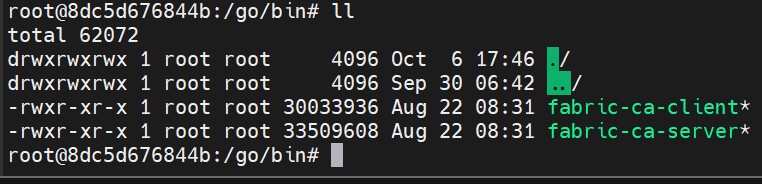
Verified binary files
-
Install vim editor with
apt-getcommands inside the container as shown below.
|
›_ Console |
|---|
|
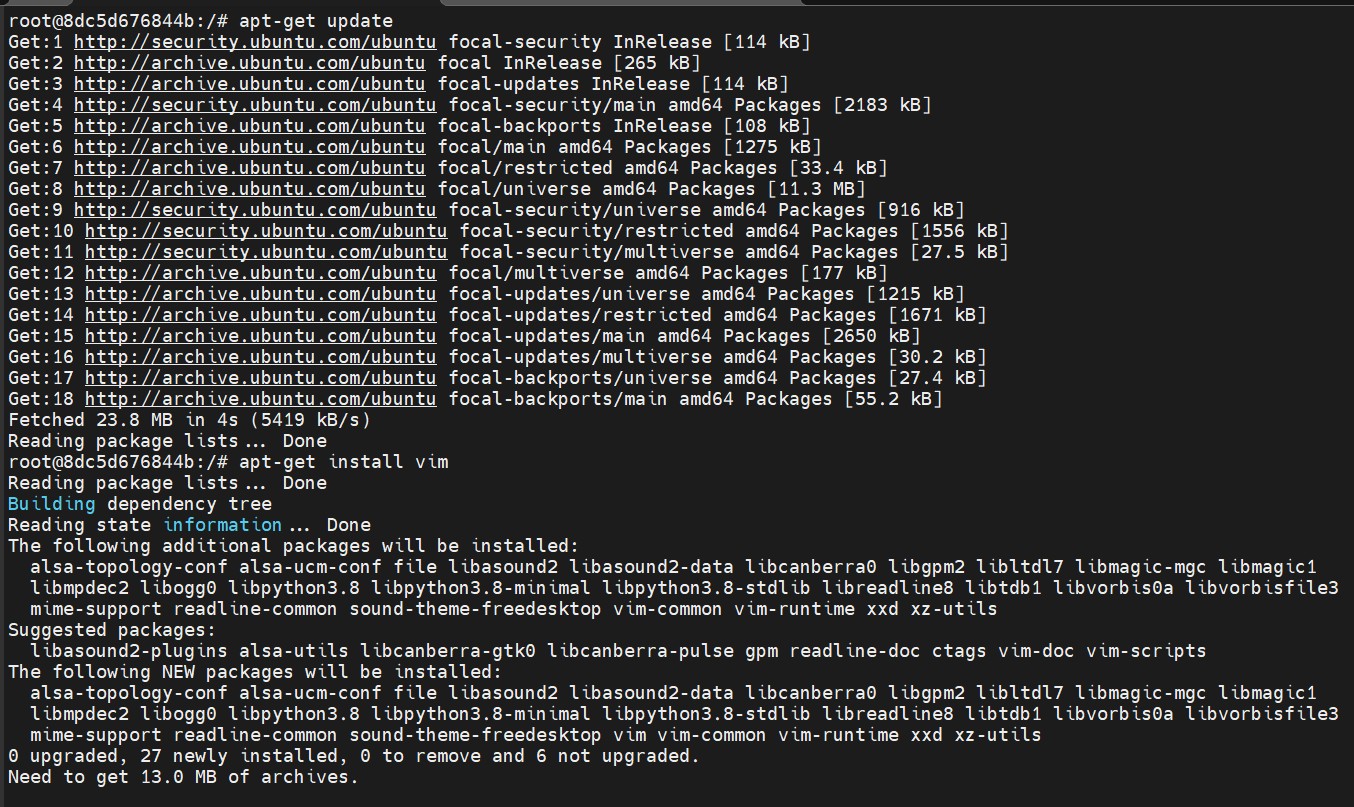
Updating container
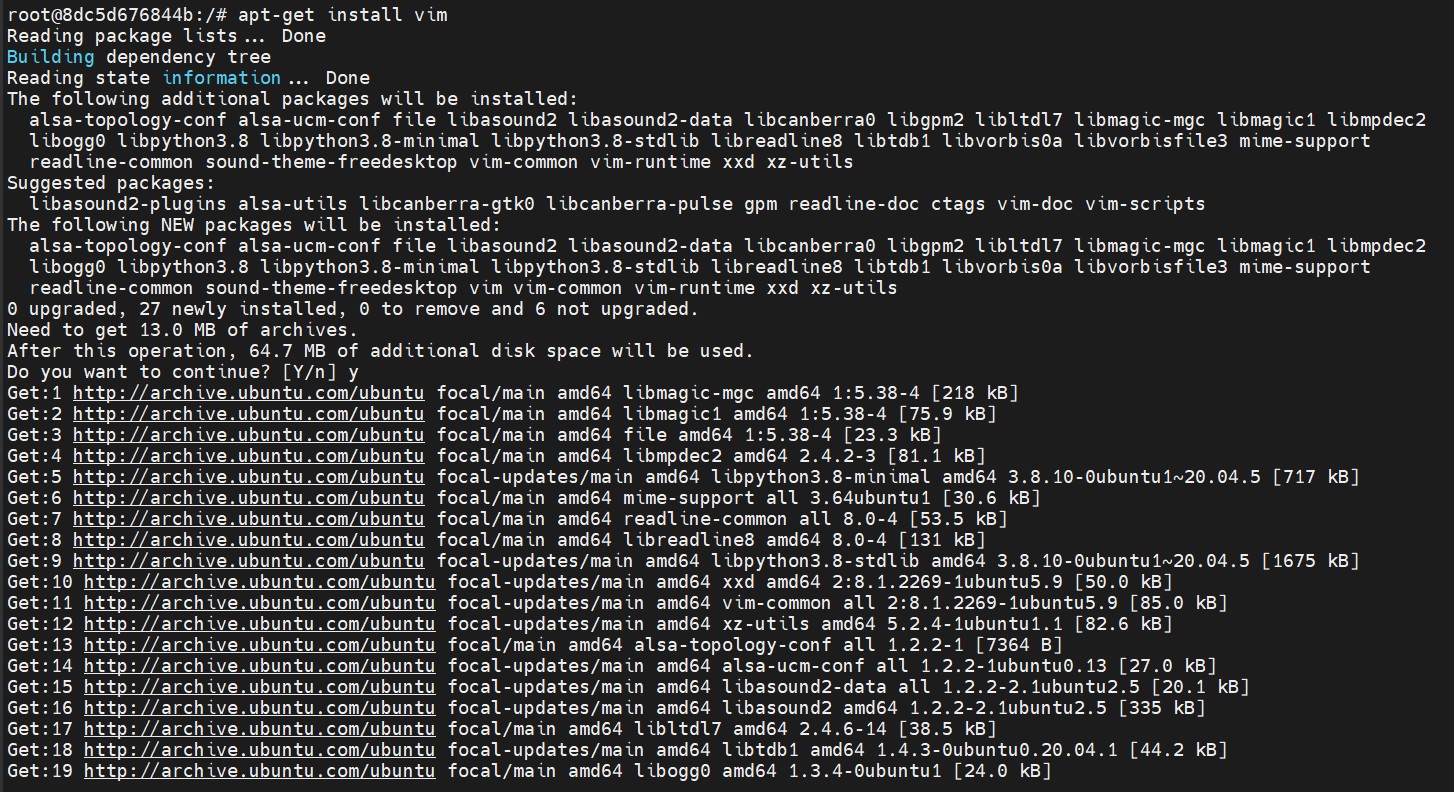
Installing vim editor
-
Open the
cs_pkcs11_R3.cfgfile inside the container with vim editor and make the following changes.
|
›_ Console |
|---|
|
|
cs_pkcs11_R3.cfg |
|---|
|
For more information regarding the commands and command parameters please check the Utimaco CryptoServer documentation. The device may be a CryptoServer (PCIe or LAN) device. The device line will follow one of these patterns, based on the HSM form-factor:
Device = 288@<HSM IP address> Hardware (LAN) HSM
OR Device = /dev/cs2.0 Hardware (PCIe) HSM
To make your testing easier, it would be good to enable the PKCS#11 log file. That can be enabled by editing the Logging Loglevel. Set the LogPath and Logging Loglevel to 1. For testing you may want to increase it to 4.
The added LogPath points to a writable directory, not to a file.
If you encounter problems, check the log file named cs_pkcs11_R3.log in the LogPath defined directory. When you are done testing, you should change Logging to 1 or 2. This will limit the logging to only critical and important messages.