

To set up a sample signer by using an HSM crypto token, do the following:
-
Click on Add below the workers' list (See Figure 3).
-
Click on From Template, select pdfsigner.properties in the list menu, and click on Next.
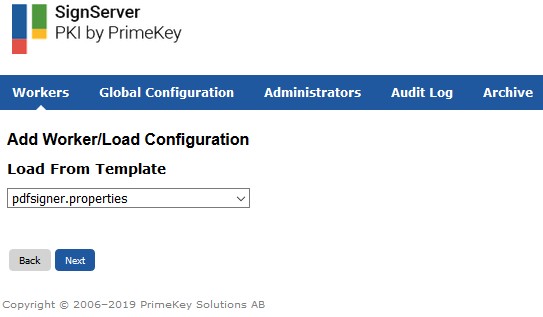
PdfSigner Template example
-
Edit the signer settings in the configuration text area and change the
WORKERGENID1.CRYPTOTOKENsetting to use the commented-out sample by using the PKCS#11 crypto token,CryptoTokenP11, to match the crypto token set up. -
Click on Apply.
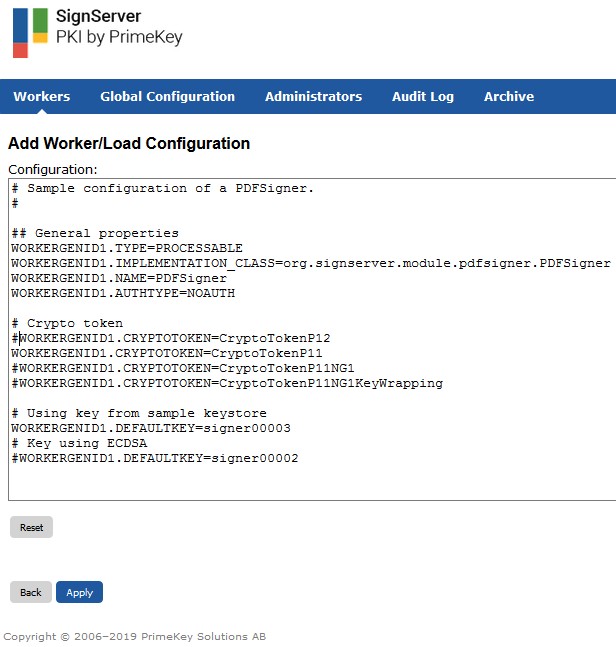
Signserver PdfSigner Configuration example
-
Set the
DEFAULTKEYworker property by clicking on the new signer, click on Configuration and then click the Edit link in the table row for theDEFAULTKEYproperty.
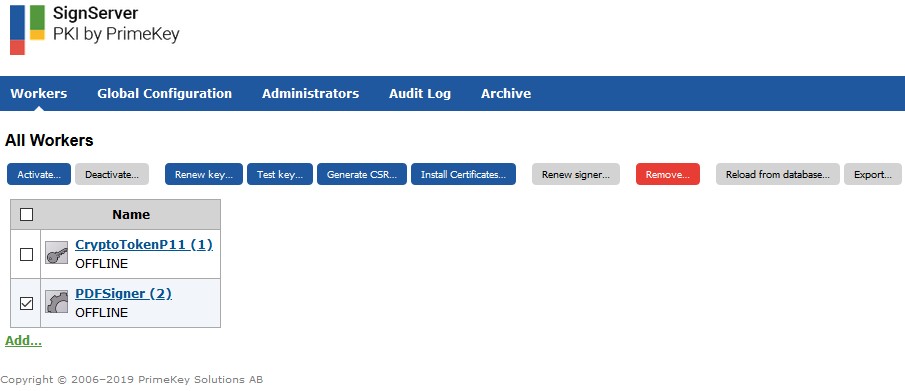
Signserver select PdfSigner
-
Enter the key alias for the newly generated key in the HSM into the Value text area and click on Submit.
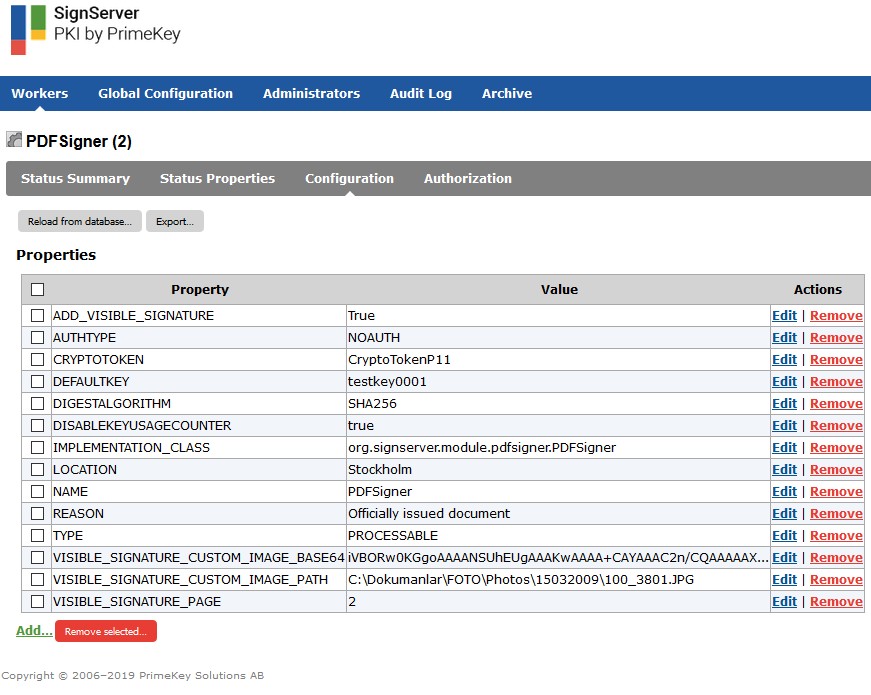
PdfSigner configuration example
-
Install the signer certificate chain as issued by your CA:
-
Click the link to your PKCS#11 crypto worker in the workers' list and click on Install certificates.
-
-
Click the > button to select your key generated previously.
-
Click on Browse and select your issued certificate chain.
-
Select Install in token and click on Install.
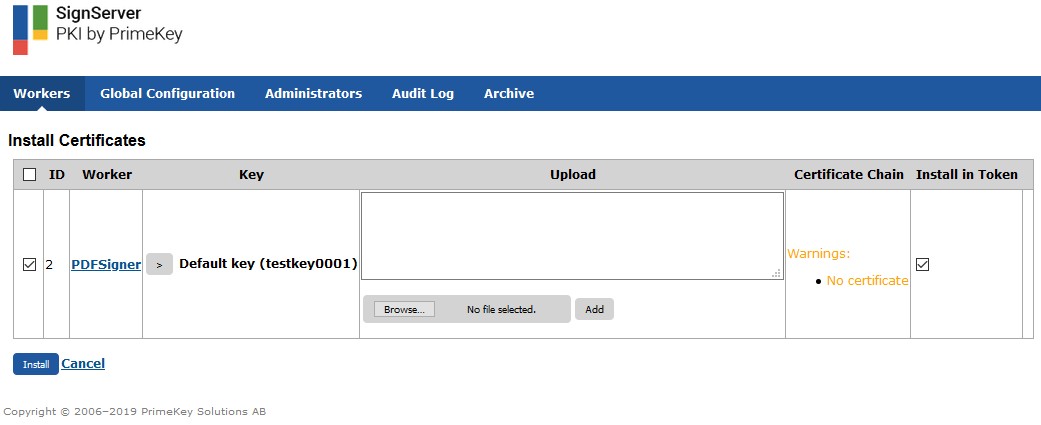
Signserver PdfSigner certificate install
-
To activate the new signer, select the link to the new signer in the workers list, and click on Activate.
-
Enter the HSM slot PIN and click on Activate.