

This procedure outlines the steps to safely rotate the encryption key used by the KMS plugin. Key rotation is a critical security practice that ensures secrets are regularly re-encrypted with a new key.
-
Create a secret.
-
Create a secret using kubectl command.
-
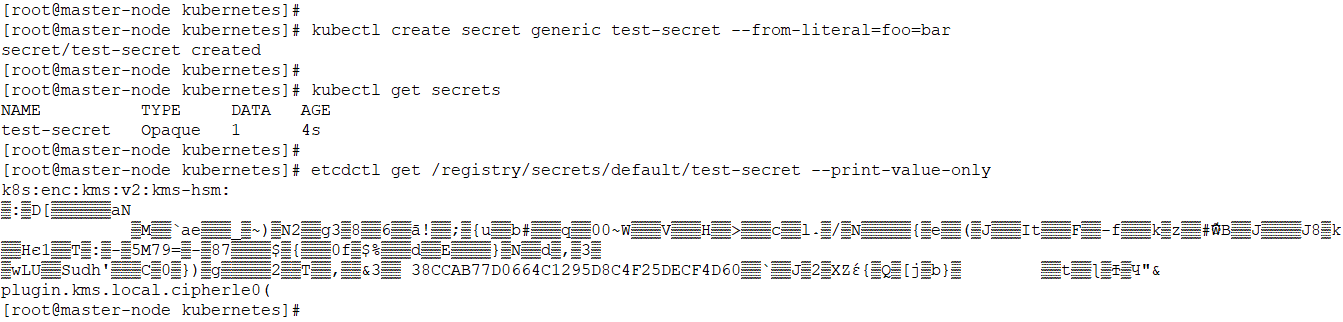
Step for secret creation
The key UUID is available in the encrypted payload of the secret in the etcd.
Verify the KMS plugin log for identifying the key UUID. The KMS plugin pod logs can be accessed using the following command.
kubectl logs kms-plugin-v2-master-node -n kube-system
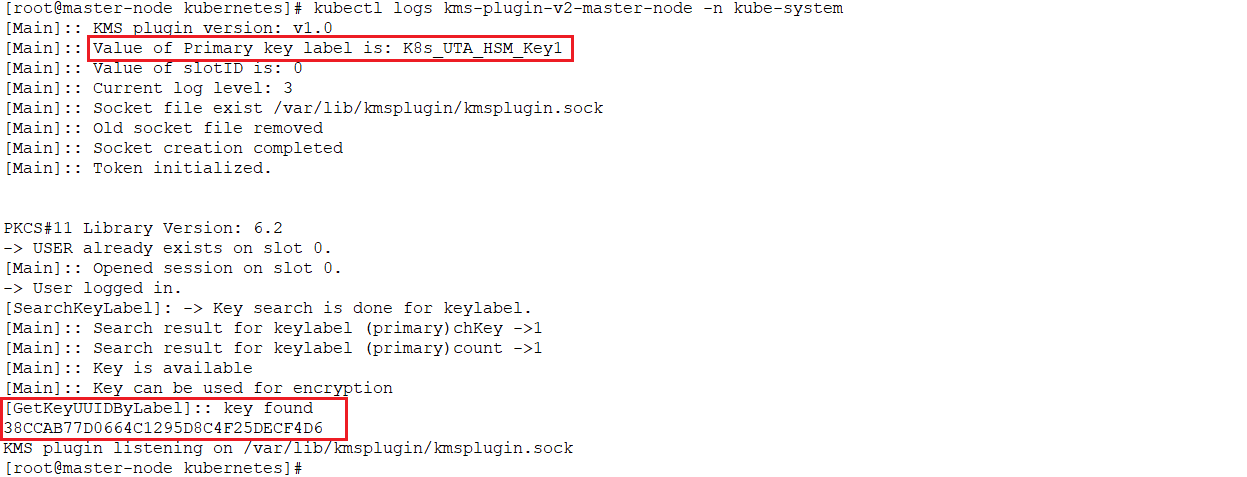
KMS plugin pod log
-
Update the KMS plugin config file.
-
Set the ‘Secondary_key’ attribute with the value of 'Primary_key'.
-
Set the 'Primary_key' attribute with a new key label.
-
A sample config file changes are shown in the figure below, where ‘cs_pkcs11_R3.cfg' is the current config file and 'keyrotation/cs_pkcs11_R3.cfg’ is the modified config file for key rotation.
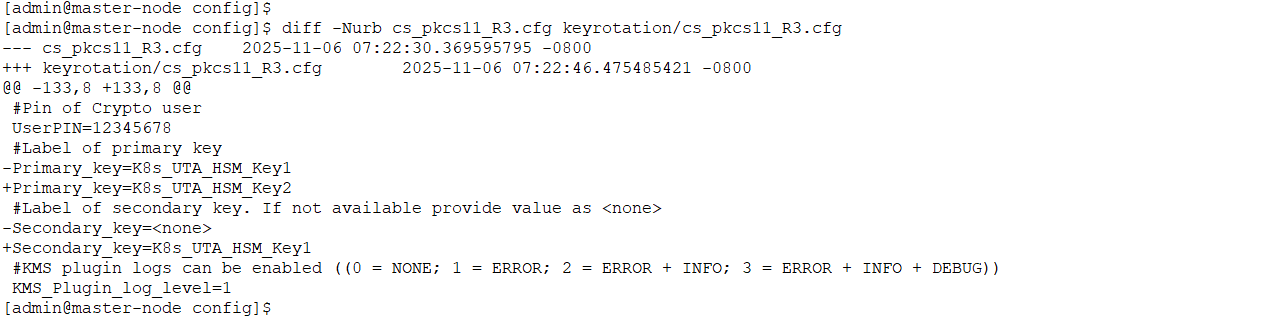
Sample config file 'cs_pkcs11_R3.cfg' changes for key rotation
Do not delete the old key from the HSM, as the old key will still be used to decrypt the old data.
-
Restart the KMS plugin pod.

Sample step to restart the KMS plugin pod
-
Re-encrypt existing secrets with the new key.
-
This step relies on the kube-apiserver's ability to decrypt secrets with the old key and then re-encrypt them with the new one. The following command retrieves all secrets and forces the kube-apiserver to replace them, triggering re-encryption with the new primary key.
-
The following command can be used for re-encrypting the existing secrets with the new key.
kubectl get secrets --all-namespaces -o json | kubectl replace --force -f -

Step for replacing existing secrets
This command re-encrypts all secrets, including system secrets. It is recommended to perform this in a controlled maintenance window.
-
Verify the secrets.
Verify the replaced encrypted secret in etcd. Use etcdctl to directly inspect the secret's value in the etcd database. The associated new key UUID will be embedded in the payload.
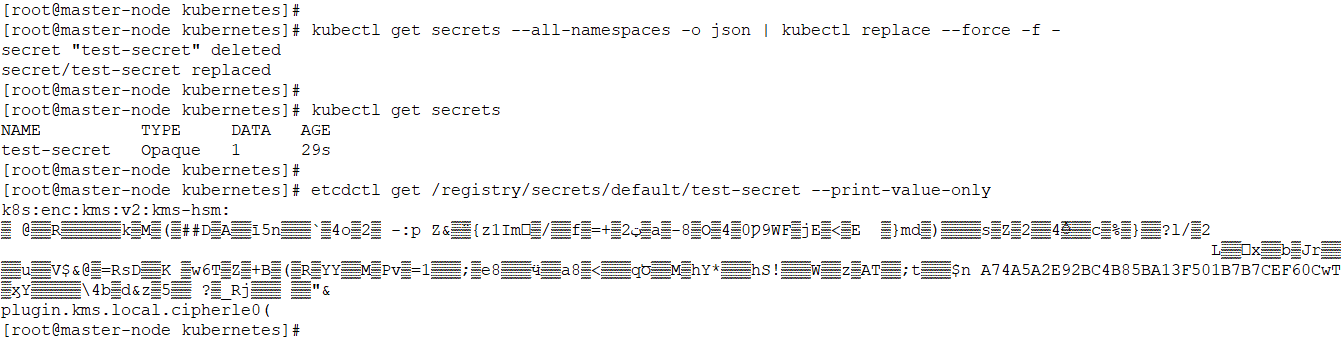
Verify the secrets
Check the KMS plugin log for identifying the new key UUID. The KMS plugin pod logs can be accessed using the following command.
kubectl logs kms-plugin-v2-master-node -n kube-system
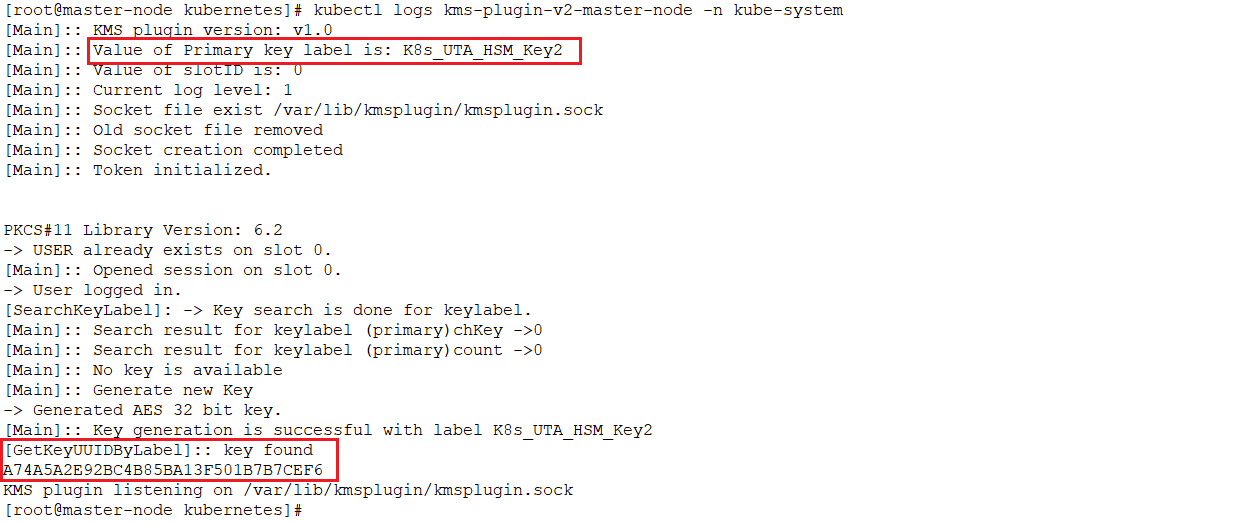
KMS plugin pod log
Verify the KMS plugin log and the secret for the new key UUID to confirm that the new key is used for re-encrypting the existing secret.