

To complete the integration, you must configure the auto-enrollment as a group policy.
-
On the domain controller, select Start, then click on Administrative Tools, then click on Group Policy Management.
-
Select Forest, then select your Domain and expand it.
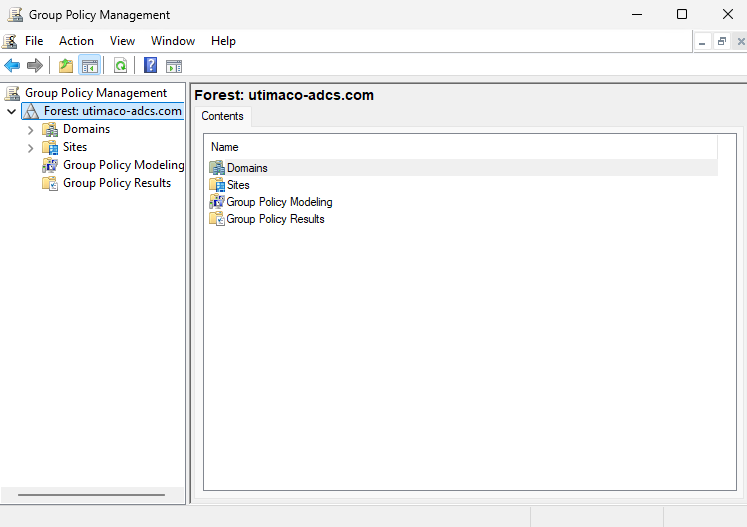
"Group Policy Management" Window
-
Double-click Group Policy Objects in the Forest.
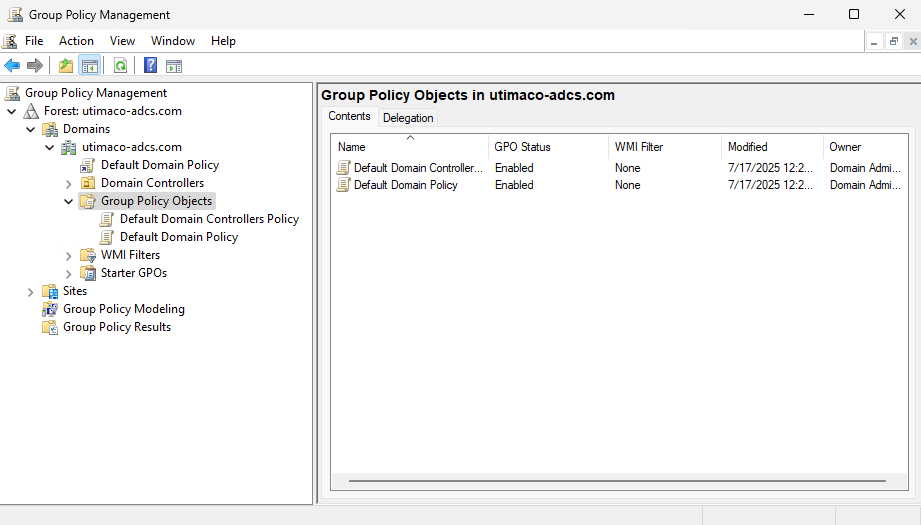
"Group Policy Management" Window
-
Right-click the Default Domain Policy, then select Edit.
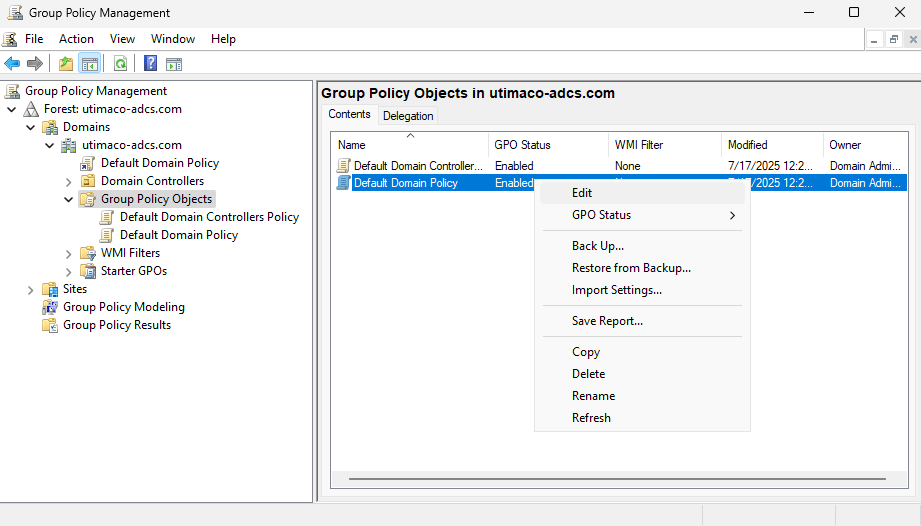
"Group Policy Management" Window
-
In the Group Policy Management Editor, select Computer Configuration, then click on Policies. Next, click on Windows Settings, followed by Security Settings, and then click on Public Key Policies.
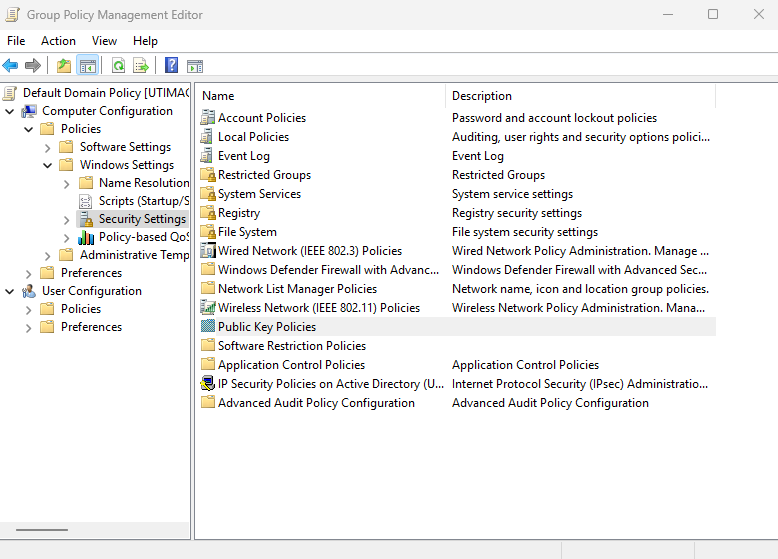
"Group Policy Management Editor" Window
-
Double-click Certificate Services Client, then click on Auto-Enrollment.
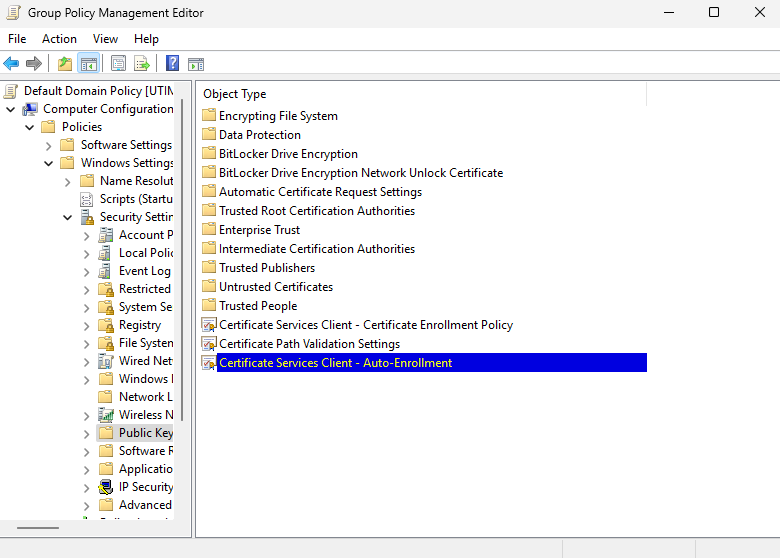
"Group Policy Management Editor" Window
-
In Configuration Model, select Enabled to enable auto-enrollment. Select the following options:
-
Renew expired certificates, update pending certificates, and remove and revoke certificates.
-
Update certificates that use the certificate template.
-
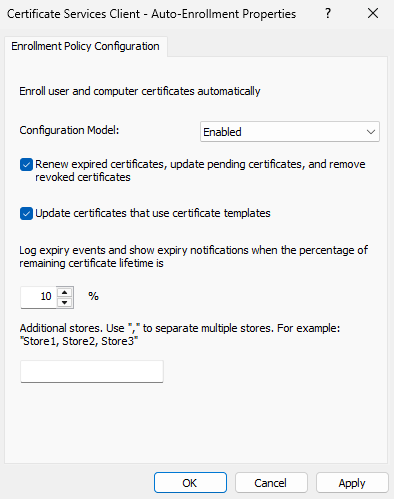
"Enrollment Policy Configuration" Window
-
Select Apply and OK to accept your changes and close the Editor.