

Enterprise Secure Key Manager (ESKM) can be used as an external key manager for
Microsoft Double Key Encryption (DKE) to provide enhanced data protection and key control.
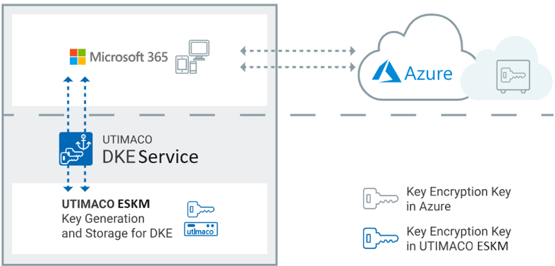
In this setup, Microsoft manages one encryption key, and the second key is securely stored
and managed in ESKM by the organization.
When a user opens DKE-protected content in Microsoft 365, the DKE service connects to
ESKM to request access to organization’s key. ESKM authorizes the request and allows
decryption only if the organization approves it. This ensures that Microsoft cannot access
the protected data without the organizations consent.
Azure DKE
Using ESKM as the external key manager allows organizations to:
-
Maintain full control over encryption keys.
-
Enforce internal security and access policies.
-
Meet compliance and data requirements.
About this Guide
This guide outlines the following features:
-
Accessing the Cloud Integration Web Console
-
Cloud Settings
-
Microsoft DKE Integration
-
Microsoft Azure DKE API Commands
-
Configurations on Azure and Microsoft Purview
-
Verification of encryption and decryption with DKE
Target Audience
This guide is intended for administrators of Microsoft DKE and Utimaco ESKM.
Purpose of this Integration
The purpose of this integration is to integrate Microsoft Double Key Encryption (DKE) with Utimaco ESKM to provide an additional layer of protection for sensitive Microsoft 365 data while maintaining control of the encryption key within Utimaco ESKM.
Abbreviations
|
Abbreviation |
Meaning |
|---|---|
|
ESKM |
Enterprise Secure Key Manager |
|
DKE |
Double Key Encryption |
|
API |
Application Programming Interface |
|
CA |
Certificate Authority |
|
UI |
User Interface |
|
URL |
Uniform Resource Locator |
|
RSA |
Rivest, Shamir, Adleman |
|
GUI |
Graphical User Interface |
|
SSL |
Secure Sockets Layer |
|
CN |
Common Name |
|
IP |
Internet Protocol |
|
FQDN |
Fully Qualified Domain Name |
List of Abbreviations
Document Conventions
The following conventions are used in this guide:
|
Convention |
Use |
Example |
|---|---|---|
|
Bold |
Items of the Graphical User Interface (GUI), e.g., menu options |
Select Details and click on Properties button |
|
|
Code that is given for explanation or as an example, file paths |
|
|
Italic |
References and important terms |
Operating system listed in Tested Versions |
Document Conventions
We use special icons to highlight the most important notes and information.
Here you will find important safety information that should be followed.
Here you will find additional notes or supplementary information.
This message marks the result expected after the successful execution of an instruction.