

Adding a Microsoft DKE Cloud Instance
This section describes the procedure to add a new cloud instance for Microsoft DKE.
To add new Microsoft DKE Cloud Instance:
-
Click on the “+ Add Cloud Instance” icon at the top right corner of the page.
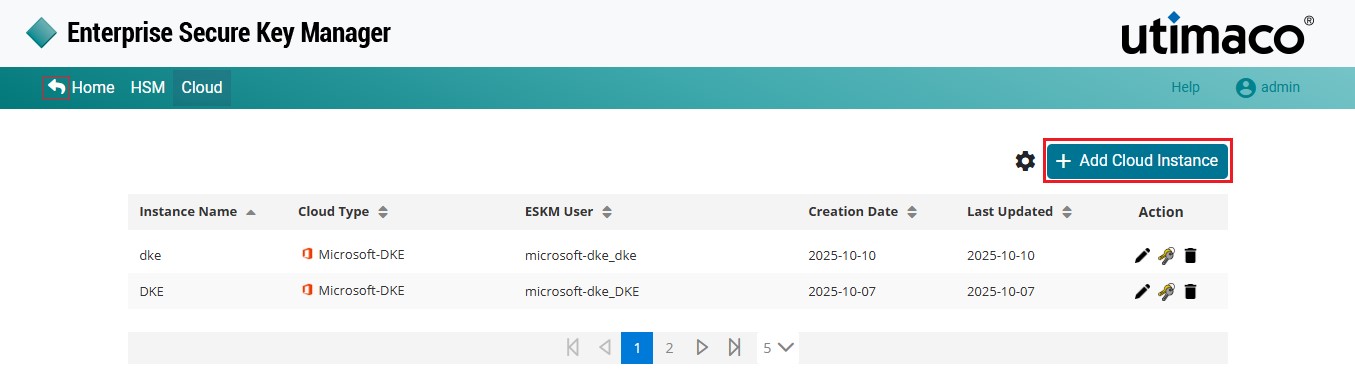
Microsoft DKE Cloud Instance
-
The Add Cloud Instance pop-up window will appear.
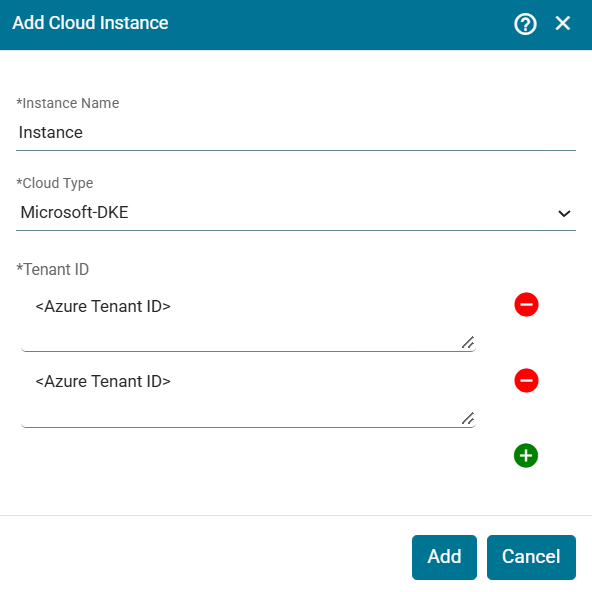
Add Cloud Instance
-
Enter the Instance Name, select Microsoft DKE as the Cloud Type, and then enter the Tenant ID created in Microsoft DKE.
Cloud Instance [Instance Name] Microsoft DKE created successfully.
|
Parameters |
Description |
|---|---|
|
Instance Name |
Name of the Instance |
|
Cloud Type |
The cloud provider with which ESKM is integrated. Here select cloud type as a Microsoft DKE. |
|
Tenant ID |
Tenant ID for the Azure cloud account being used for DKE integration. Search for Tenant Properties in the azure portal to get the tenant ID. You can add multiple tenant IDs to a single Instance. |
Add Microsoft DKE Cloud Instance - parameters
Editing a Microsoft DKE Cloud Instance
This section describes the procedure to edit Microsoft DKE Cloud Instance.
-
Under the Action column, click the Edit icon to edit the existing Microsoft DKE cloud instances.
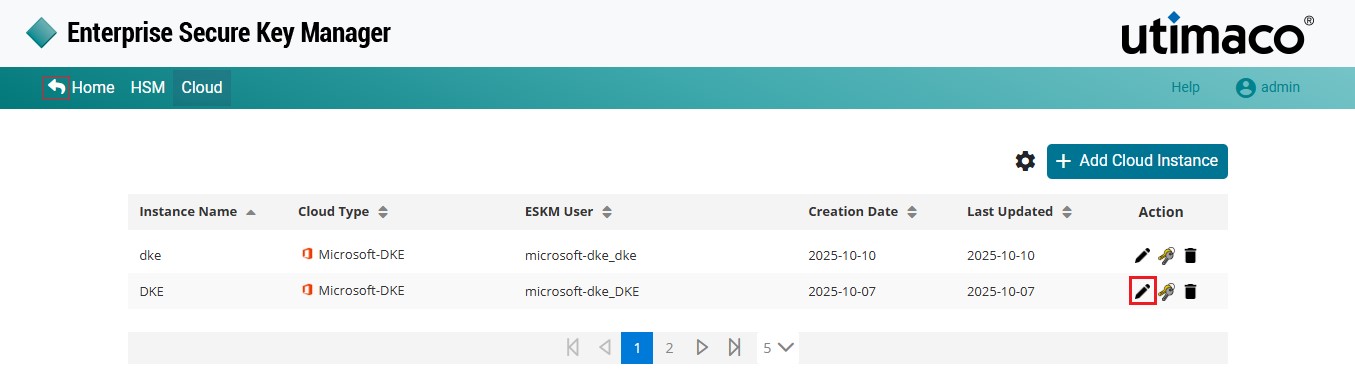
Edit Key
-
The Edit Cloud Instance pop-up window appears.
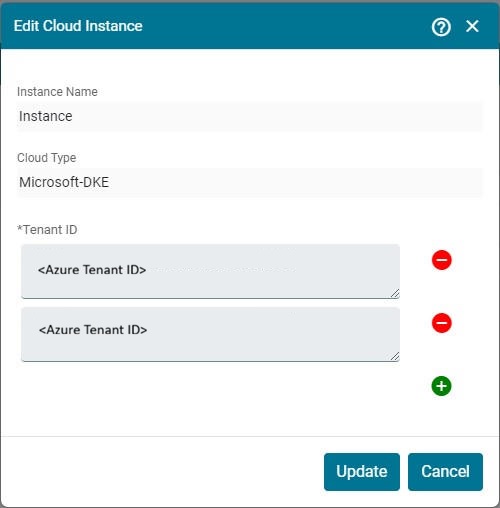
Edit Cloud Instance
-
Make the necessary changes and click Update.
Cloud Instance Name [Microsoft-DKE] updated successfully.
Deleting a Microsoft DKE Cloud Instance
This section describes the procedure to delete the Microsoft DKE cloud instance.
To delete a Microsoft DKE cloud instance:
-
Under the Action column, click the Delete icon to delete the existing Microsoft DKE cloud instance.
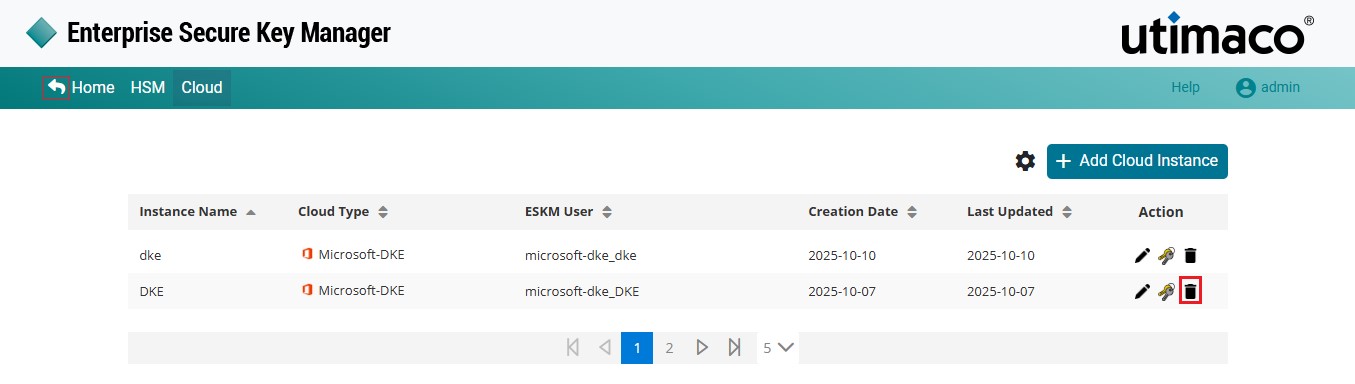
Delete Cloud Instance
-
The Delete Cloud Instance pop-up window will be displayed with a message reading "Are you sure you want to delete instance <instance name>?". Click Delete.
The Cloud Instance name [Microsoft DKE] was deleted successfully.
Creating a Key on Microsoft DKE
This section describes the procedure to create a new key to the Microsoft DKE Cloud.
To create a new key
-
Click the Manage Keys icon to view the keys list available in the cloud instance.
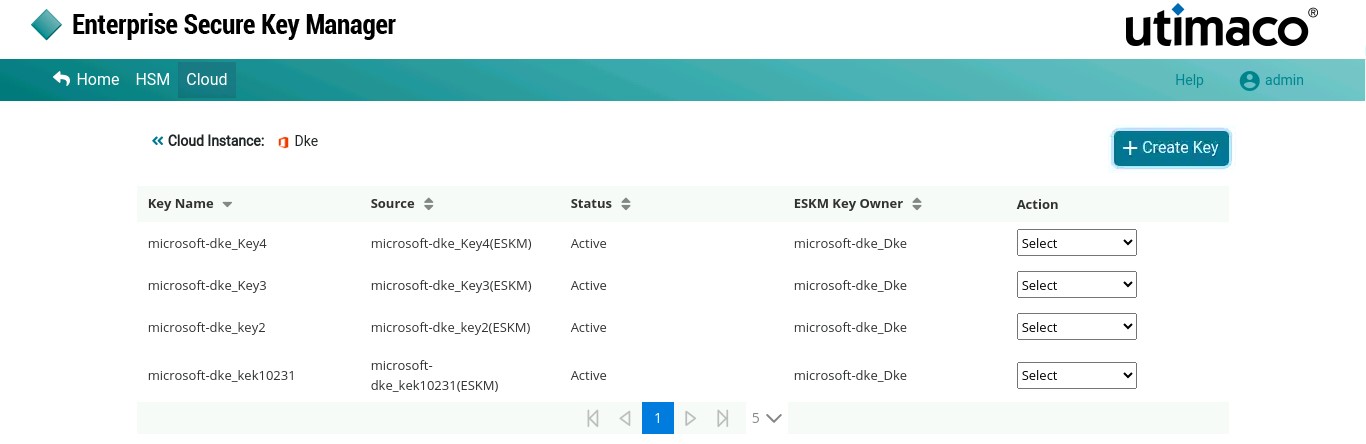
Keys List
-
Click +Create Key button at the top right corner of the page.
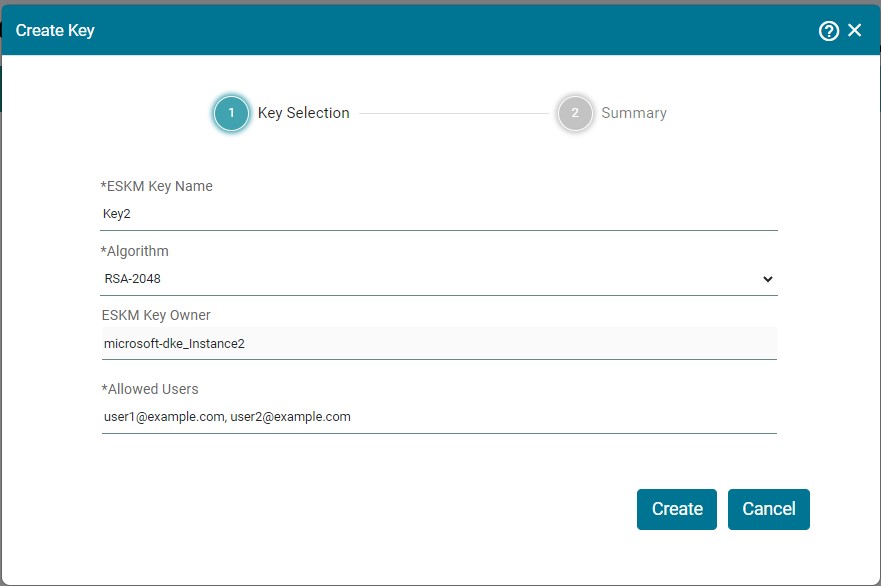
Create Key
-
Fill out the necessary details and then click Create.
-
Now you will be navigated to the Summary section. Review Summary and click Close.
|
Parameters |
Description |
|---|---|
|
ESKM Key Name |
Name of the key |
|
Algorithm |
Algorithm used to create the key. Only RSA-2048 is supported currently. |
|
ESKM Key Owner |
Microsoft DKE instance name is the key owner. |
|
Allowed Users |
Users who are allowed to use this key for DKE. |
Create Key - Parameters
Editing a Microsoft DKE key
This section describes the procedure to edit key information on the Microsoft DKE cloud instance.
To edit key
-
Under the Action column, select Edit from the drop-down to modify key information.
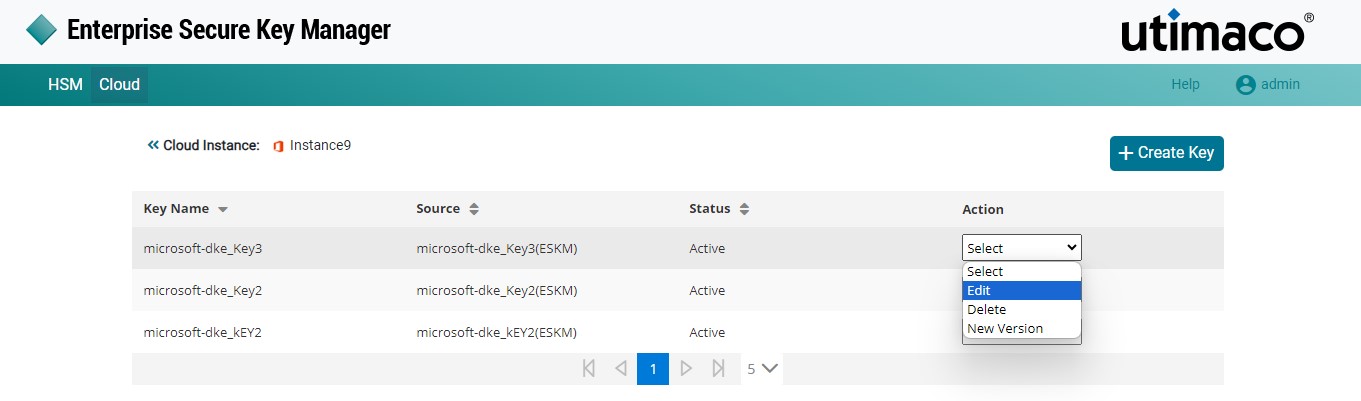
Edit Key
-
The Edit key on the Microsoft DKE pop-up window appears.
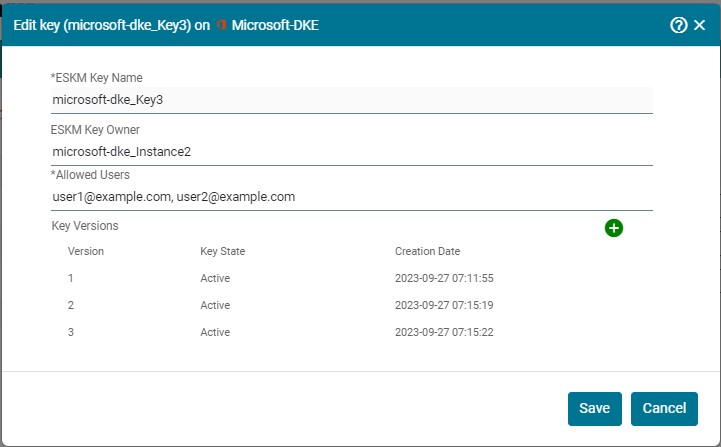
Edit Key
-
Make the necessary changes and click + icon to create a new key version.
-
Click Save.
Deleting a Microsoft DKE Key
This section describes the procedure to delete a key in Microsoft DKE cloud instance.
To delete a key
-
Under the Action column, select Delete from the drop down to delete the existing Microsoft DKE key.
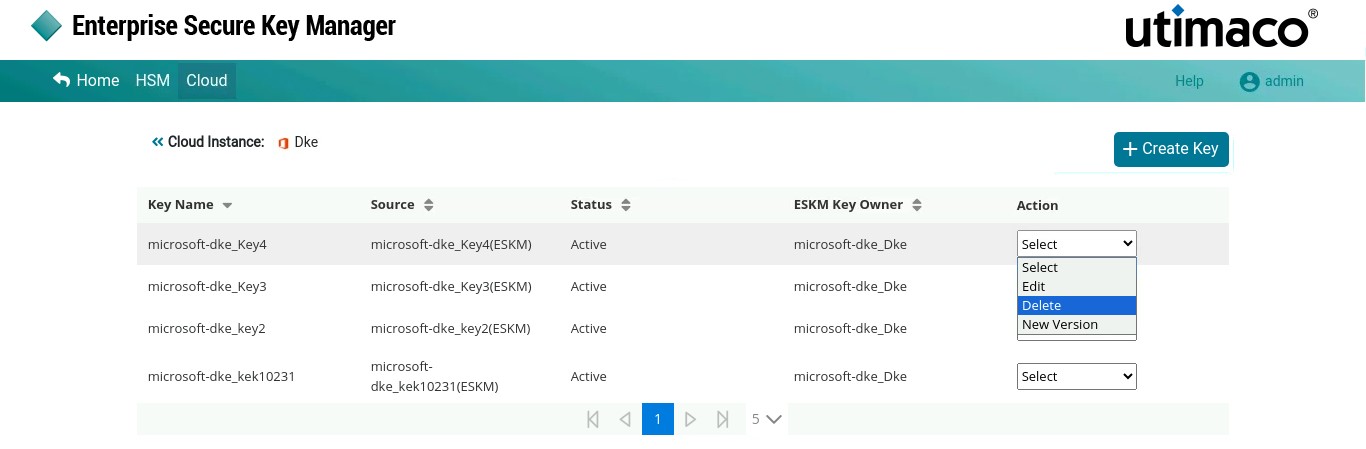
Delete Key
-
The pop-up window will be displayed with a message reading "Are you sure you want to delete key (microsoft-dke_Key3) from ESKM?” Click Yes.
The Cloud Instance key [microsoft-dke_Key3] was removed successfully from ESKM.
Create New Version
This section describes the procedure to create a new version of a key which is already created.
To create a new version of the key
-
Under the Action column, select New Version from the drop down to create a new version of the key.
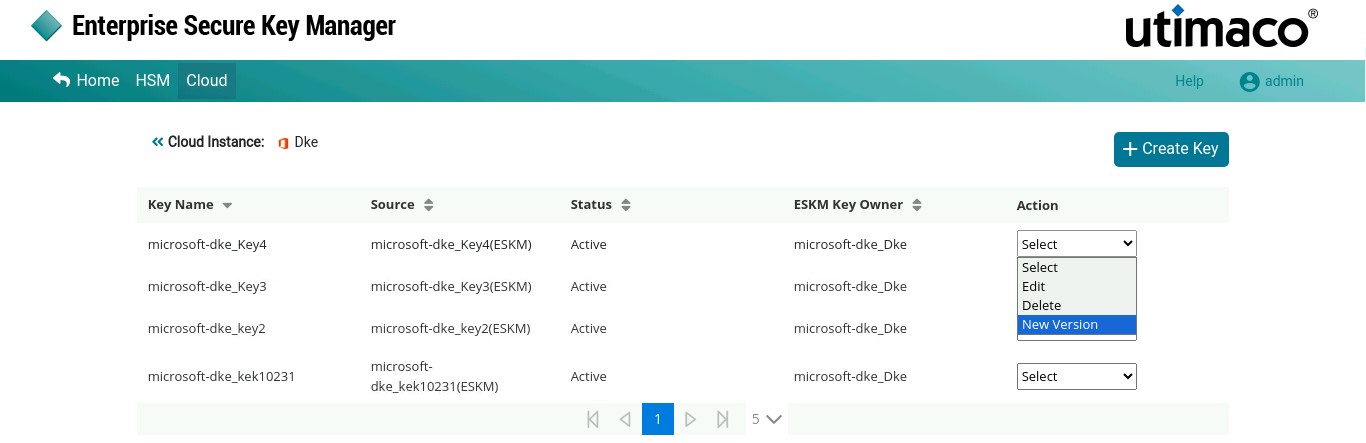
Create New Version
-
The Alert pop-up appears.
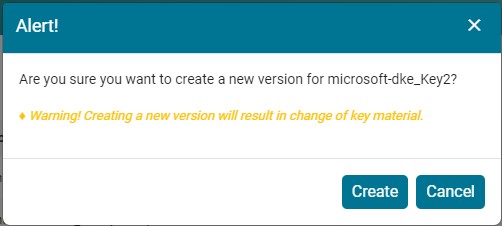
Alert
-
Click Create.
New version 2 for ESKM key [microsoft-dke_Key2] added successfully.
Viewing Microsoft DKE Key Information
This section describes the procedure to view the key’s information in the Microsoft DKE cloud instance.
To view key information
-
Click the Manage Keys icon to view the keys list in the Microsoft DKE cloud instance.
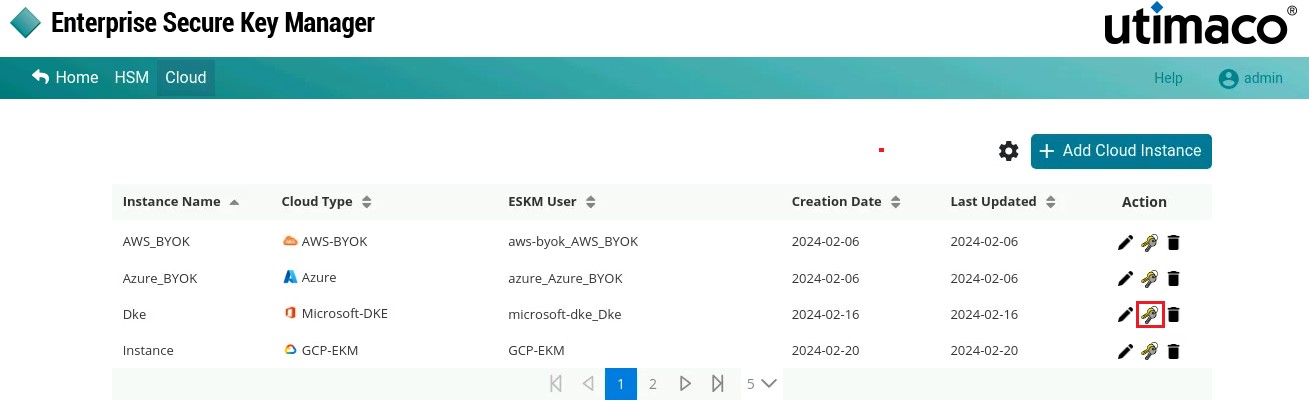
Manage Keys
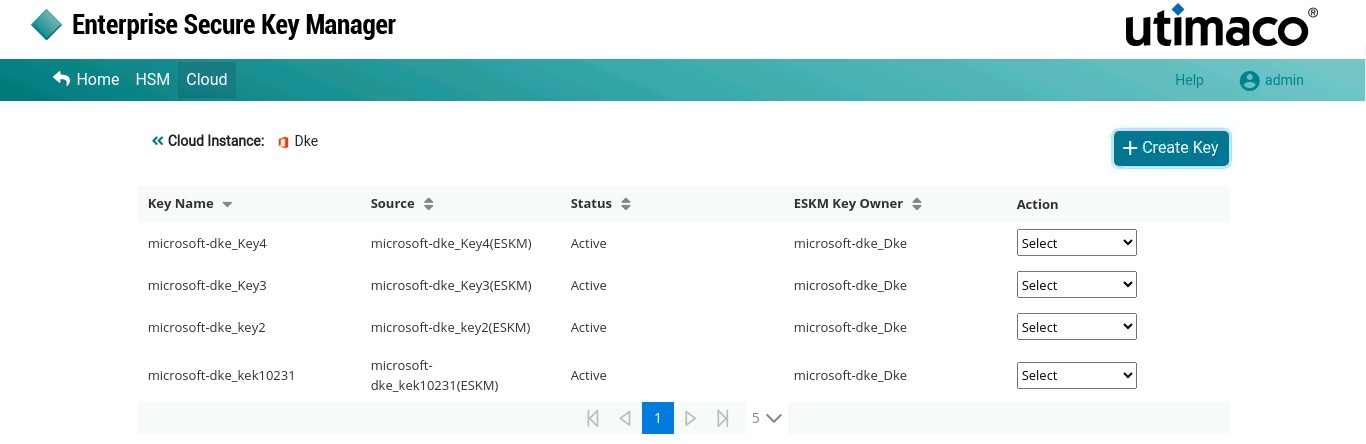
Keys List
-
Select the key from the keys list to view key’s detailed information.
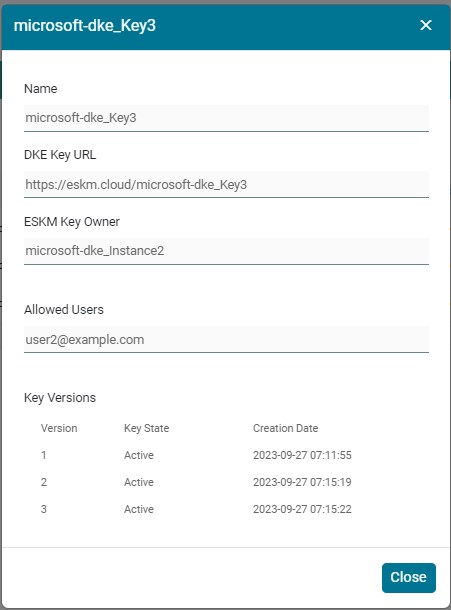
Key Information
|
Parameters |
Description |
|---|---|
|
Key Name |
Name of the Key created in Microsoft DKE |
|
DKE Key URL |
DKE Key URL in the ESKM Cloud |
|
ESKM Key Owner |
Microsoft DKE Instance Name is the ESKM Key Owner |
|
Allowed users |
Users who are allowed to use this key for Microsoft DKE |
|
Key Versions |
It displays number of versions created for a specific key. User can create multiple key versions based on the Number of Active Versions Allowed for a Key in ESKM Management Console (Security > Keys > Key Options). |
Microsoft DKE - Key details