

After completing the configuration, validate the integration by authenticating to ESKM using Microsoft Entra ID credentials.
Logging in to ESKM Using OIDC Authentication
-
Launch a web browser and navigate to the ESKM Management UI using port 8443. Example: https://<ESKM_HOSTNAME>:8443
-
Click on Login.
-
On the ESKM login page, click Sign In using OpenID.
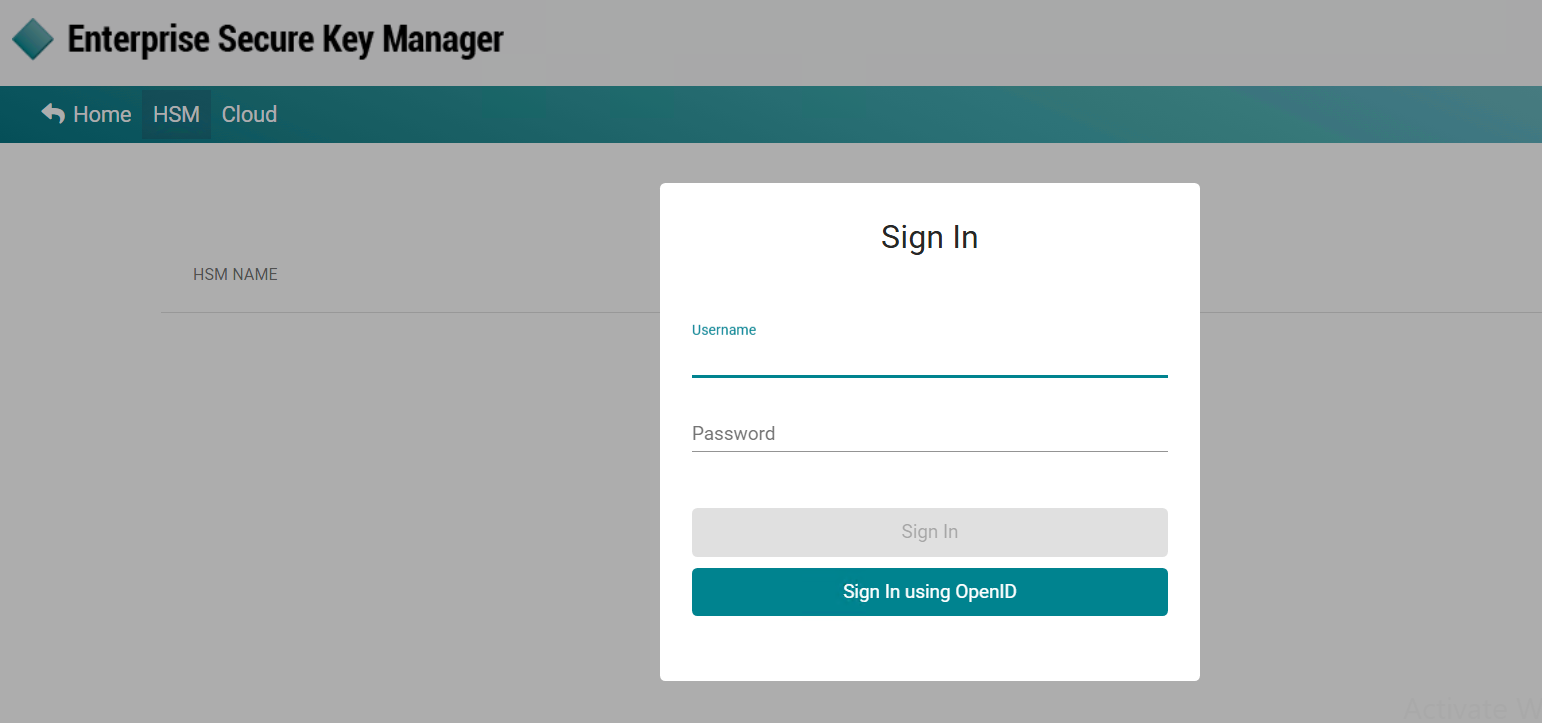
ESKM OIDC login page
-
The browser is redirected to the Microsoft Entra ID sign-in page.
-
Enter the credentials of the Microsoft Entra ID user that was configured as an OpenID administrator in ESKM.
-
Complete any Multi-Factor Authentication (MFA) verification steps, if applicable.
-
After successful authentication, Microsoft Entra ID redirects the user back to ESKM.
-
Verify that the user is successfully logged in to the ESKM Management UI.
Verifying Successful Authentication
Perform the following validation checks:
-
Verify that the user is successfully authenticated through Microsoft Entra ID and redirected to the ESKM Management UI.
-
Verify that the authenticated user is granted the expected administrative privileges configured in ESKM.
-
Verify that the user can successfully perform ESKM administrative operations according to the assigned permissions.
-
Verify successful Single Sign-On (SSO) behavior:
-
Click Home in the ESKM Management UI and verify that ESKM redirects the user to the Home page on port 9443.
-
Confirm that the user remains authenticated and is not prompted to log in again after the redirection.
-
Logs and Validation Steps
The integration can be validated by reviewing authentication events in Microsoft Entra ID and ESKM.
Reviewing Authentication Logs in Microsoft Entra ID
Microsoft Entra ID records authentication attempts performed through OIDC.
-
Sign in to the Azure Portal.
-
Navigate to Microsoft Entra ID → Monitoring → Sign-in logs.
-
Locate the authentication event corresponding to the ESKM login attempt.
-
Verify that the sign-in status is reported as successful.
-
Review additional details such as:
-
User
-
Application
-
Status
-
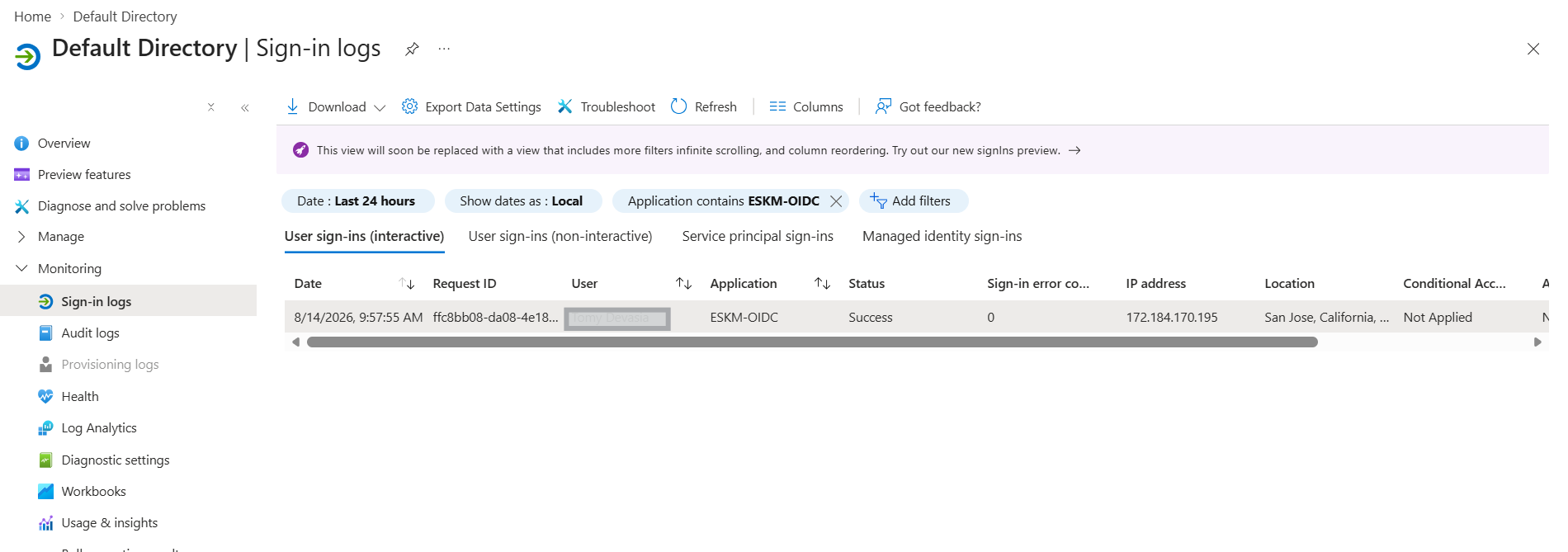
Sign-in logs
Reviewing Authentication Logs in ESKM
ESKM records OIDC authentication events and administrator login activities.
-
Log in to the ESKM Administration Console.
-
Navigate to Device → Log Viewer → Audit.
-
Select the desired log file.
-
Click Display Log and verify that an entry similar to the following is present.
[abc@xyz.com] [Login] Logged in from <IP Address> via web