

-
Go to Start > Internet Information Service Manager
-
Select the hostname, then double-click Server Certificates and verify the certificate you accepted in the previous step is listed
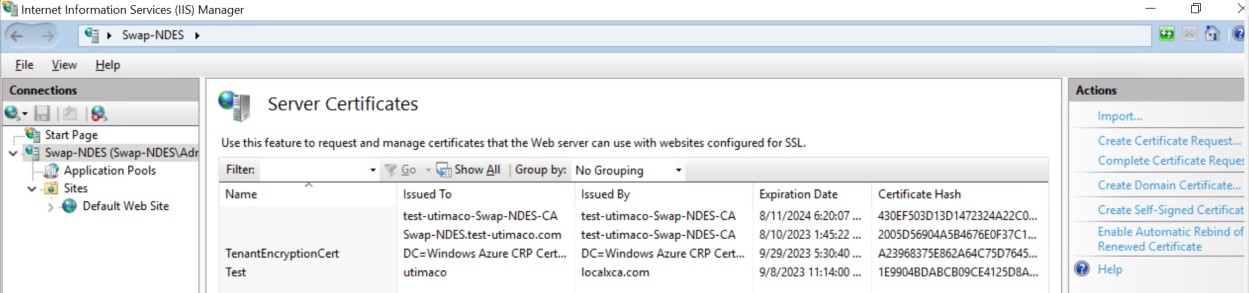
Figure 19: IIS Manager Dashboard
-
Click Default website under Sites on the left-hand side of the IIS Manager screen
-
Select Bindings link on the right-hand side of the IIS Manager
-
On the Site Bindings screen, select Add
-
Select the protocol as HTTPS and select the certificate from the SSL Certificate drop- down list
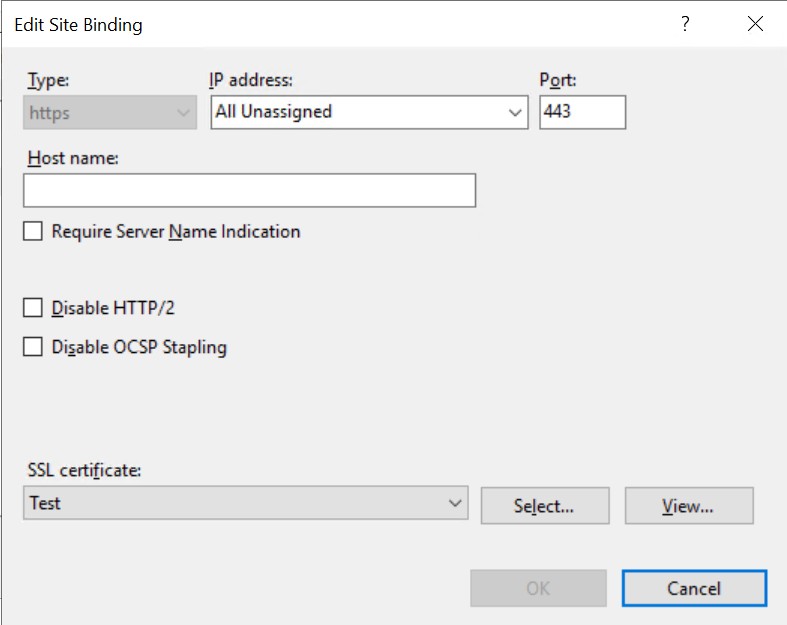
Figure 20: Site Binding wizard
-
Select OK to complete the certificate binding for SSL connection
-
Select Close on the Site Bindings screen
-
Restart the IIS server
-
Open https://<IIS_Server_IP>:443 in any of the browser
-
Verify that the page is accessible over https
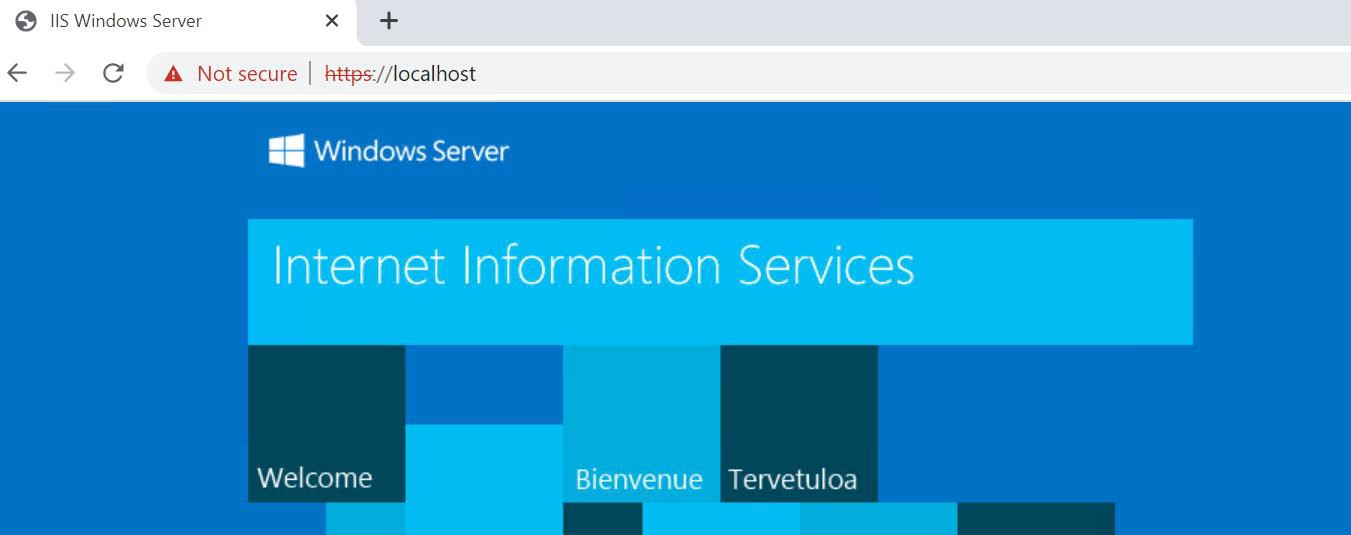
Figure 21: Site Binding wizard
This completes the integration of MS IIS with Utimaco HSM.