

-
Open Server Manager by clicking on Start button and selecting Server Manager
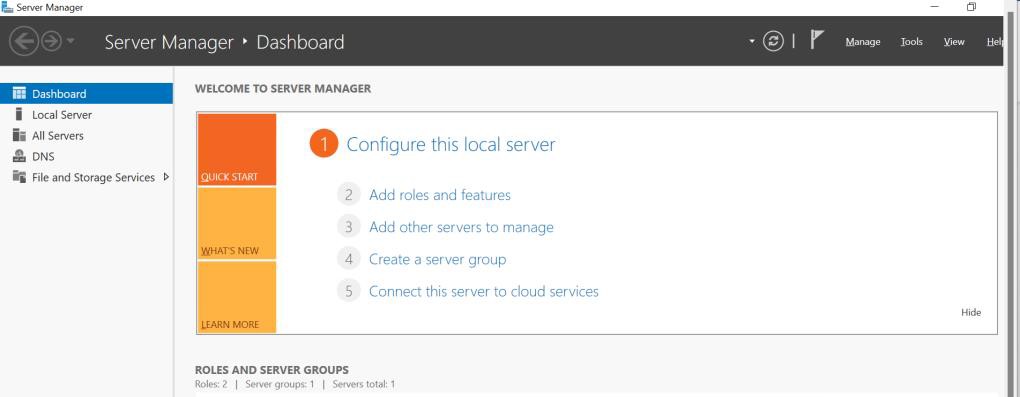
Figure 3: Server Manager Dashboard
-
Click on Manage and then click on Add Roles and Features..
-
On Before you begin screen, click on Next
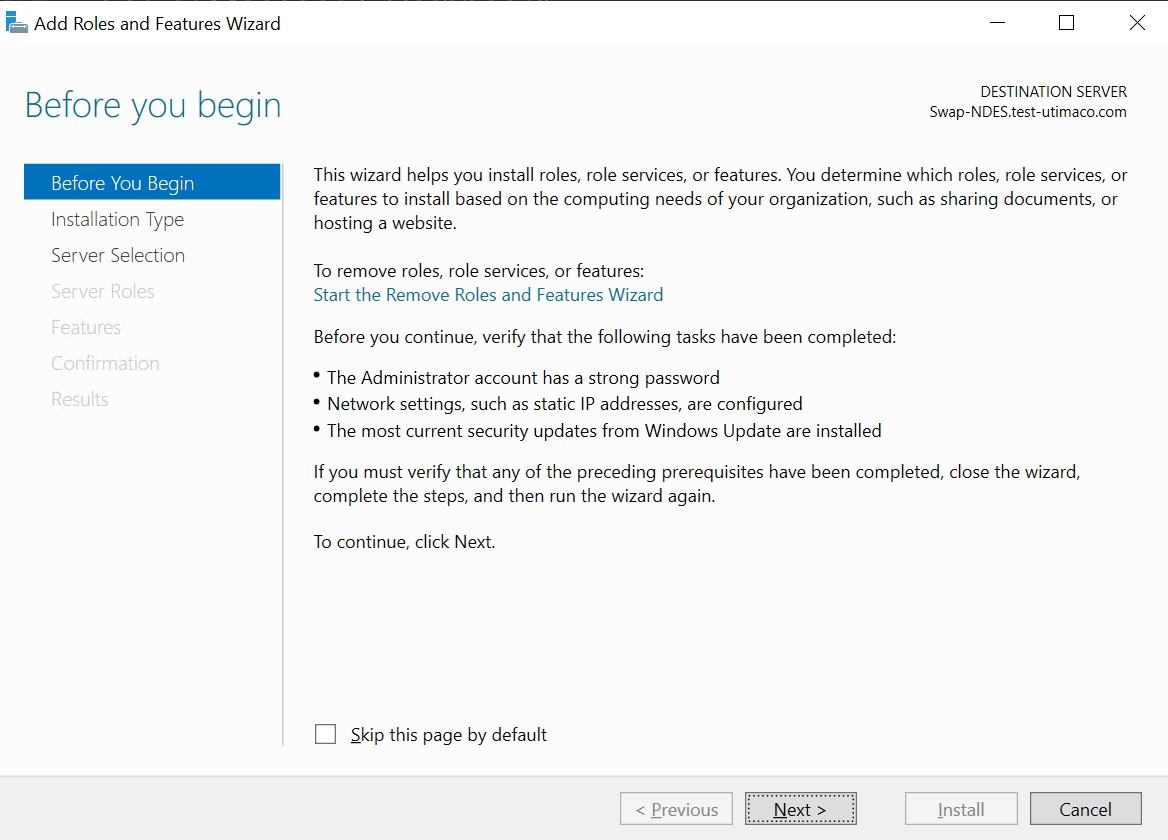
Figure 4: Add Roles and Features Wizard
-
On the Select installation type screen, ensure the default selection of Role or Feature Based Installation is selected and select Next
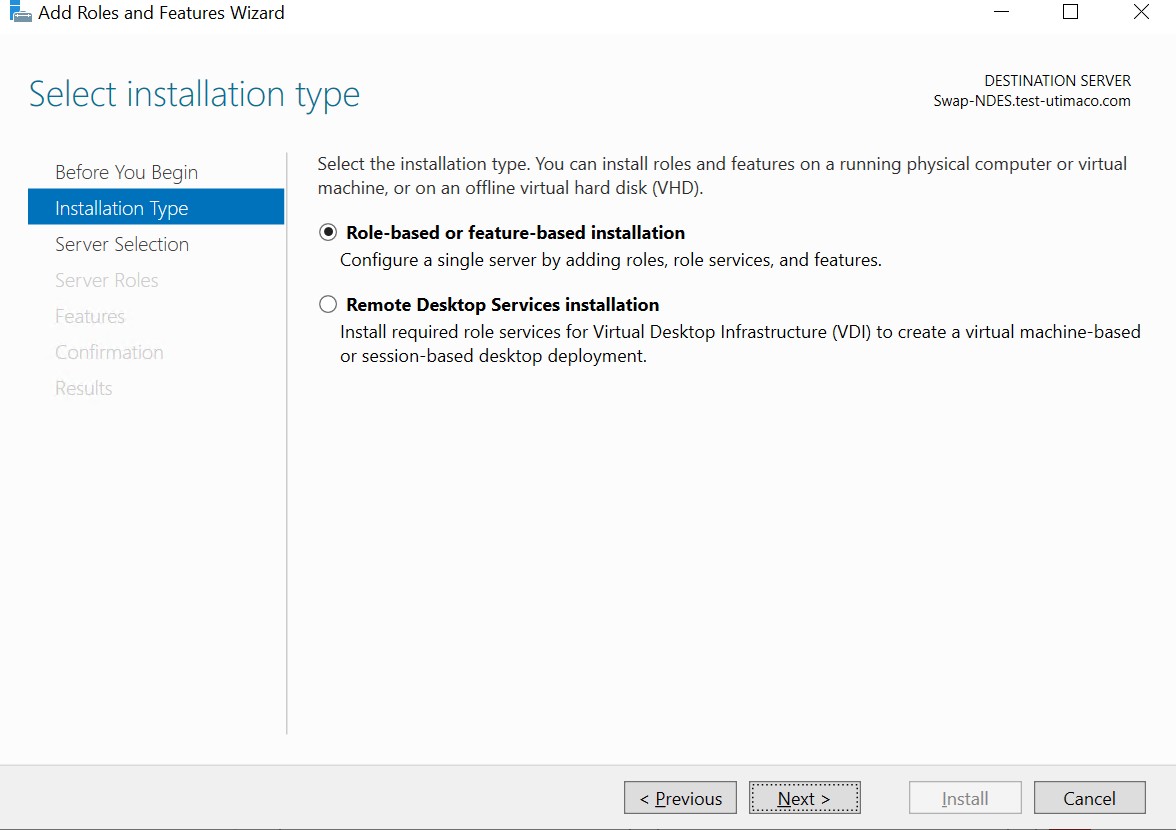
Figure 5: Installation Type Window
-
On the Server Selection screen, select a server from the server pool and select Next
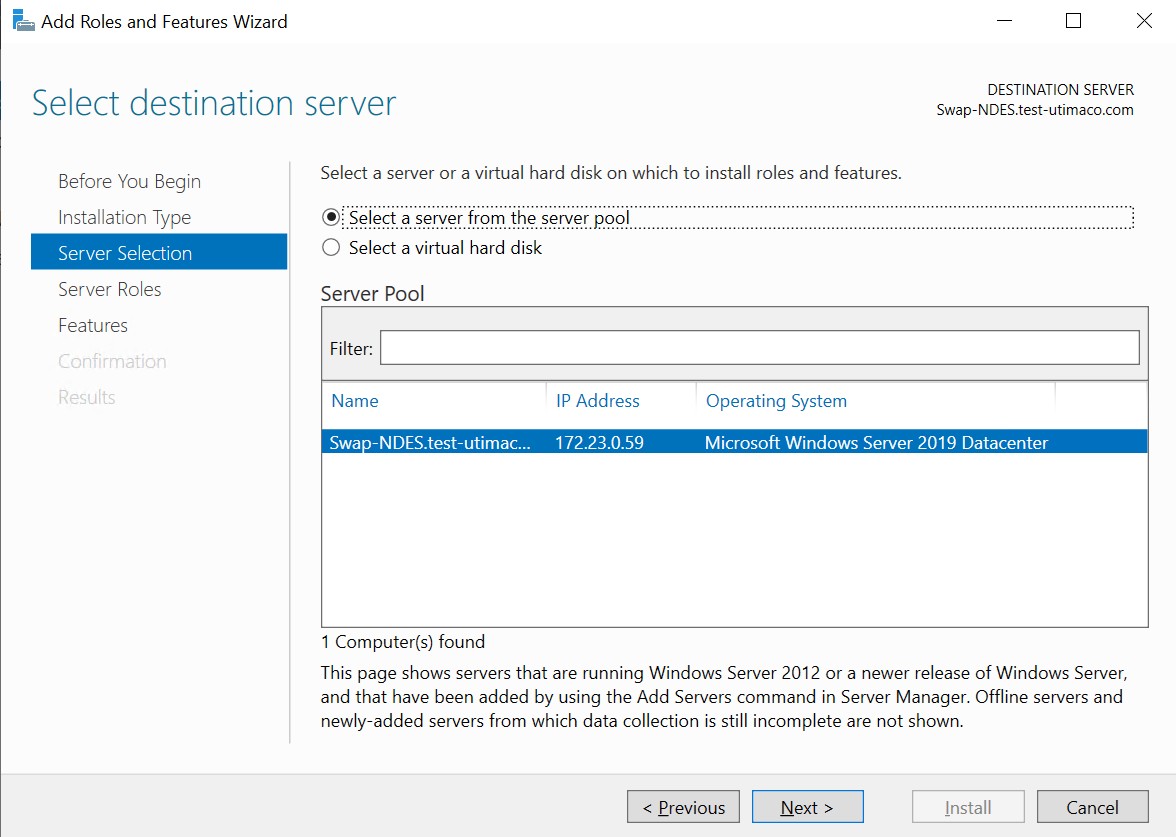
Figure 6: Destination Server Wizard
-
On the Select server roles screen, select the Web Server (IIS) Role, and select Next
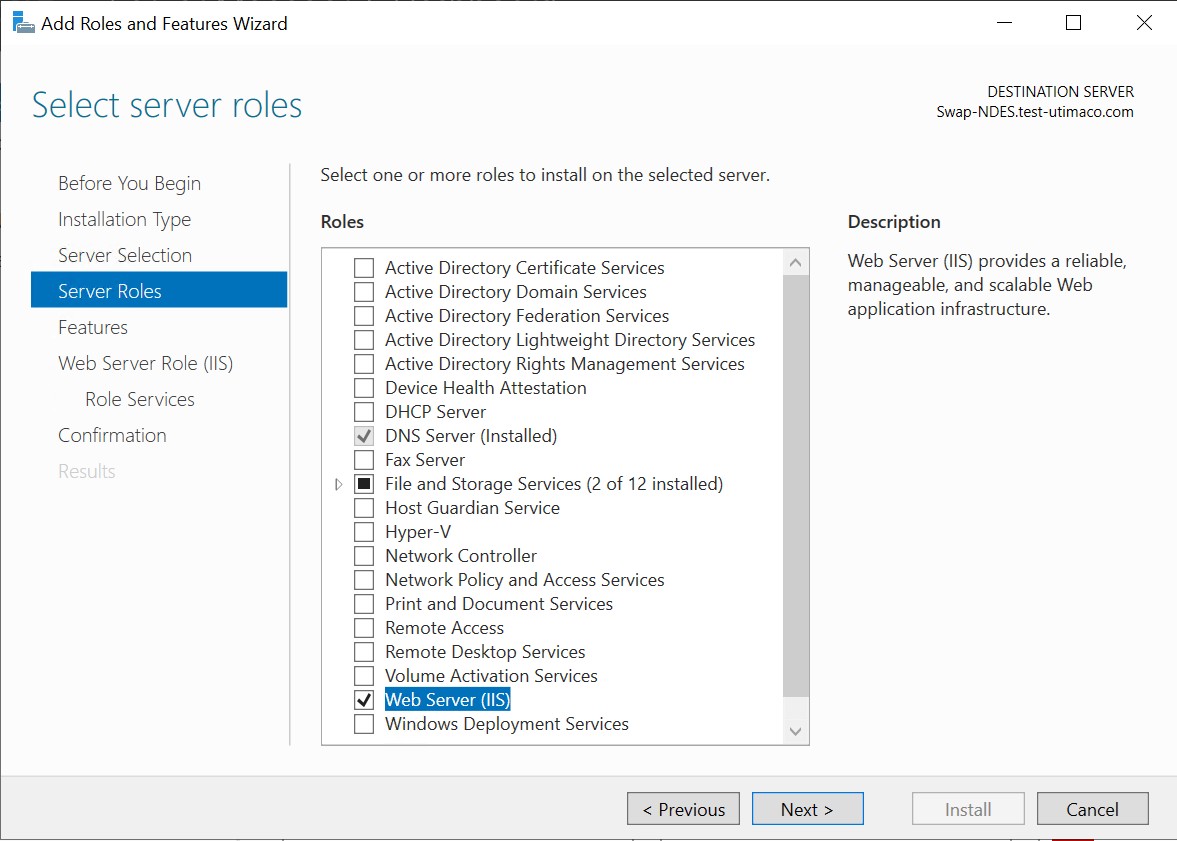
Figure 7: Select Server Roles
-
When prompted to install Remote Server Administration Tools, select Add Features, and select Next
-
On the Select features screen, keep the default selection, and select Next
-
On the Web Server Role (IIS) screen, select Next
-
On the Select Role Service screen, select Next
-
On the confirmation screen, select Install
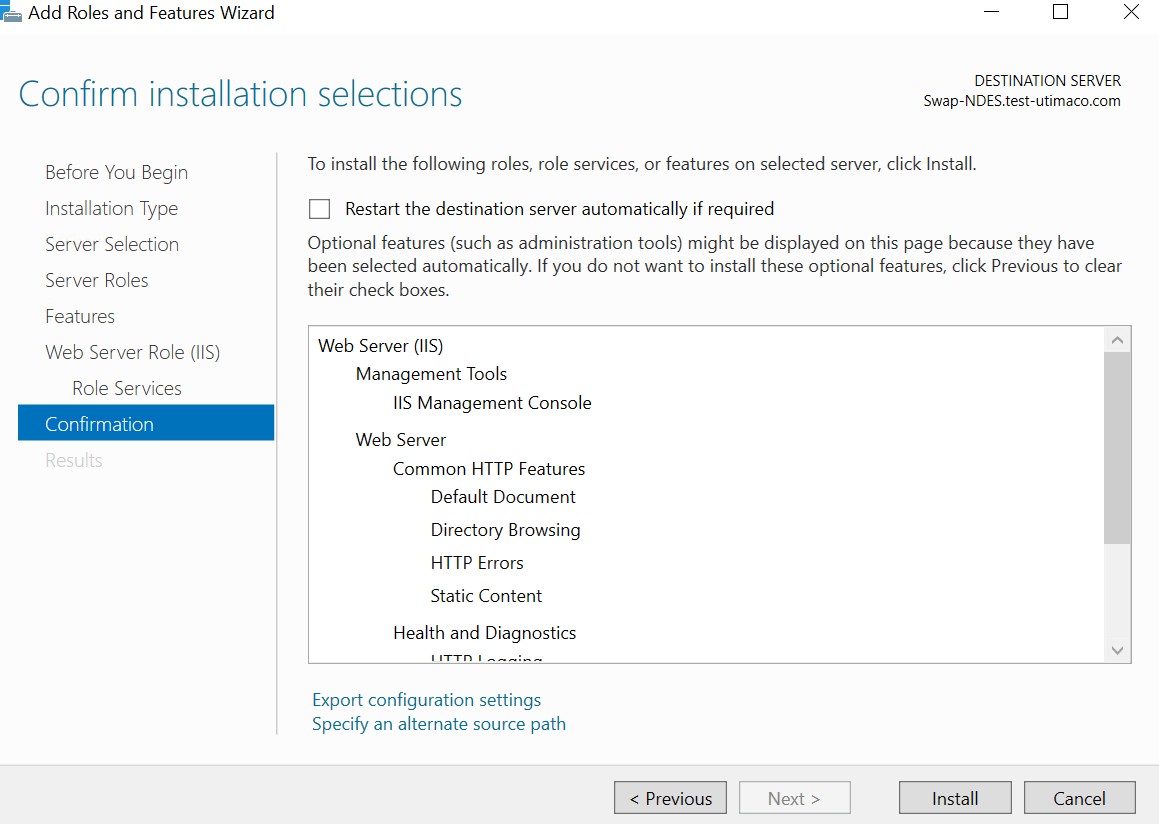
Figure 8: Confirm Installation Selections Wizard
-
Once the installation completes, Select Close