

-
On the open Window from previous step select the Configure Active Directory Certificate Services on the destination server link instead.
-
Change the Credentials to <domain_name>\NDESAdmin on the Credentials windows. Select Change, enter new credential, then select Next.
-
Check Network Device Enrollment Service on the Credential window, then select Next.
-
Select the Specify service account on the Service Account window, then click Select.
-
Enter the credential for the NDESService account and then select OK and Next.
If you are using Smartcard Authentication, the prompt will go on the PIN Pad device to insert Smartcard and enter the pin. Then press OK button on the PIN Pad.
-
Select CA name on the CA for NDES windows, then click Select.
-
Choose the CA server that you already have on the Select Certificate Authority window, then select OK and Next.
-
Note the specified Registration Authority (RA Name) on the RA Information window. Complete any of the optional information as required. Then click Next.
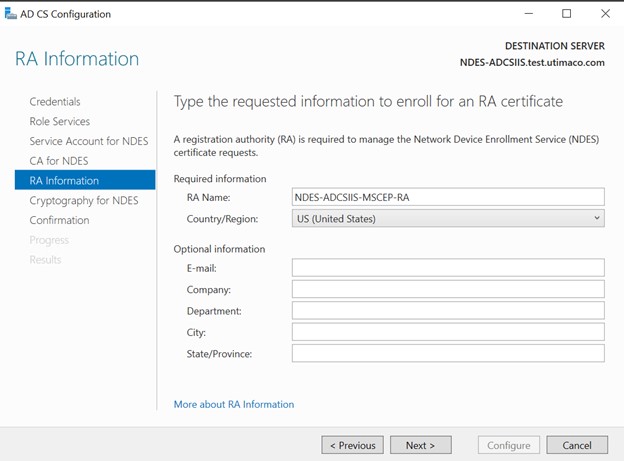
AD CS Configuration Window
-
Choose the Uitmaco CryptoServer CSP on the Cryptography for NDES window. A key size of 2048 or larger is recommended.
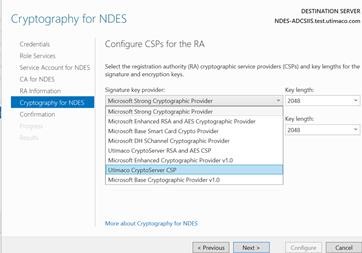
Cryptography for NDES
-
Click Next and then click Configure.
If you are using Smartcard Authentication, the prompt will go on the PIN Pad device to insert Smartcard and enter the pin. Then press OK button on the PIN Pad.
-
Go back to the NDES server. Notice the Configuration succeeded message on the Results window. Then select Close.
-
Open any the browser and go to the following address: http://<NDES-server-address>/ CertSrv/msecp_admin. Log in as <domain-name>\NDESService.
-
Notice the hash value of the CA certificate and the challenge password. Refreshing the browser generates a new enrollment challenge password.
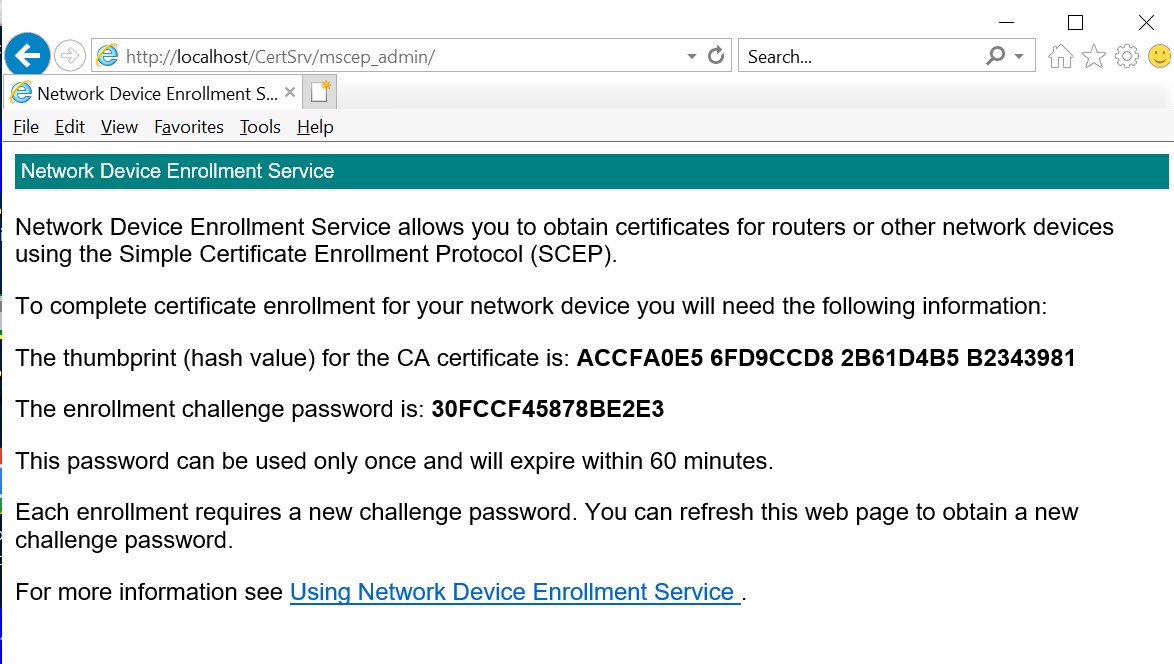
Network Device Enrollment Service Window
If you are using Smartcard Authentication, the prompt will go on the PIN Pad device to insert Smartcard and enter the pin. Then press OK button on the PIN Pad.