

1. Open the Microsoft SQL Server Management Studio and then create a utimacoDB database.
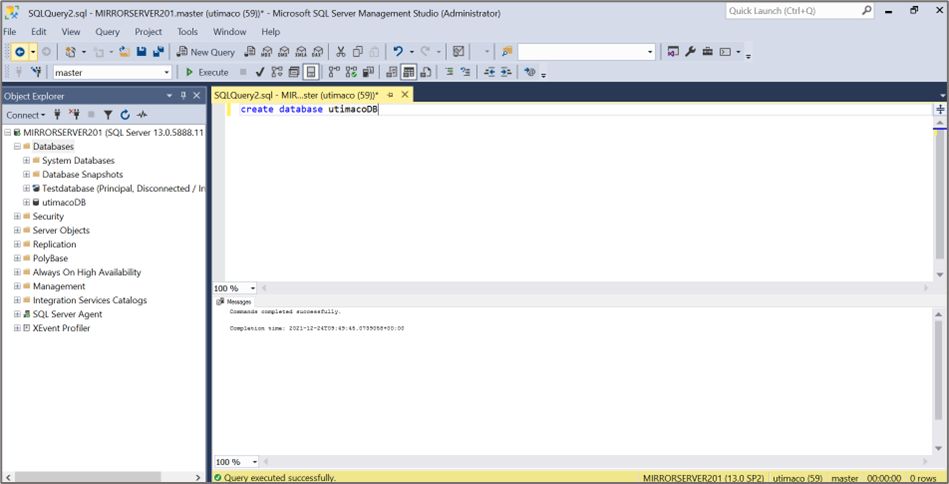
Creating Database window
-
Create a table name as
Vehicle.
|
SQL Statement |
|
-
Insert values of respective columns.
|
SQL Statement |
|
-
To List the database table content use below query.
|
SQL Statement |
|
-
Create a new key using cngtool command as below.
|
›_ Console |
|
-
The user will get this output after executing the above command.
|
›_ Console |
|
-
Using Object Explorer, select the Security directory under the desired Database (in the example below this can be seen as “utimacoDB”). Click to expand “Always Encrypted Keys”. Select: <Your_database> > Security > Always Encrypted Keys > Column Master Keys. Right click on “Column Master Keys” and select > New Column Master Key… the “New Column Master Key” dialogue box will open.
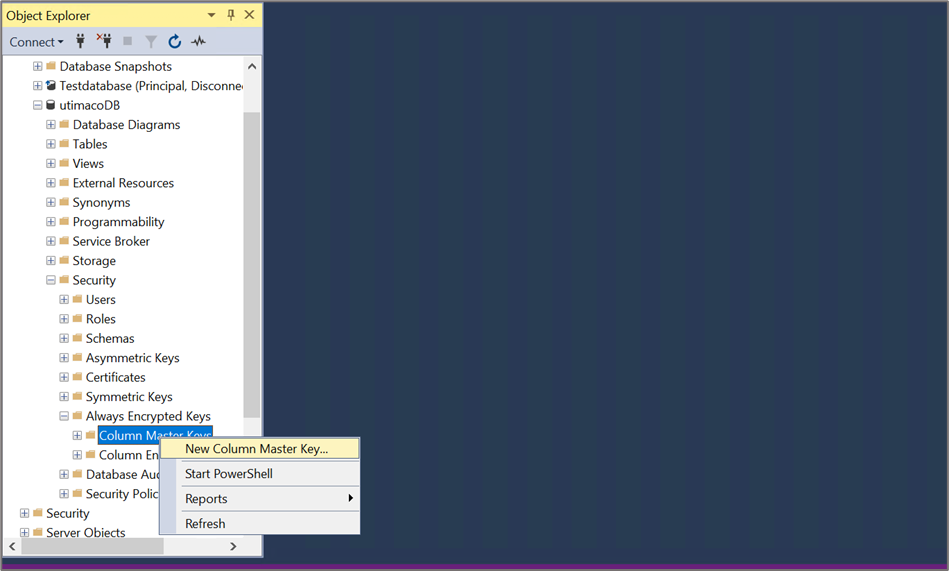
New Column Master Key
-
Enter the name of the Master Key, e.g., Utimaco-CMK.
-
Select Key store as Key Storage Provider CNG, in this case for the current user or local machine. Select a provider as "Utimaco CryptoServer Key Storage Provider" then click OK.
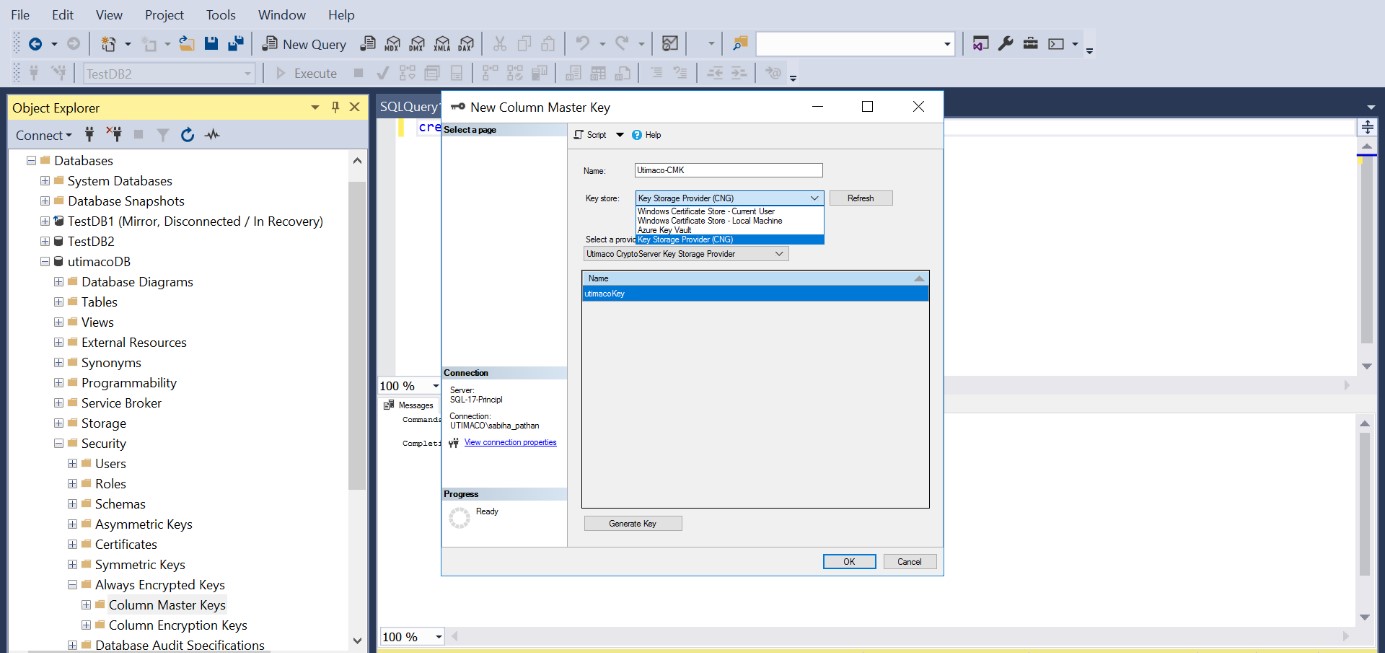
Creating New Column Master Key window
-
To view the new Column Master Key, use the SQL Object Explorer. Navigate to the relevant database and expand by clicking the + sign. Expand the “Security” folder and then expand the “Always Encrypted Keys” Folder. You will find two folders, one for the Column Master Key(s) and one for the Column Encryption Key(s).
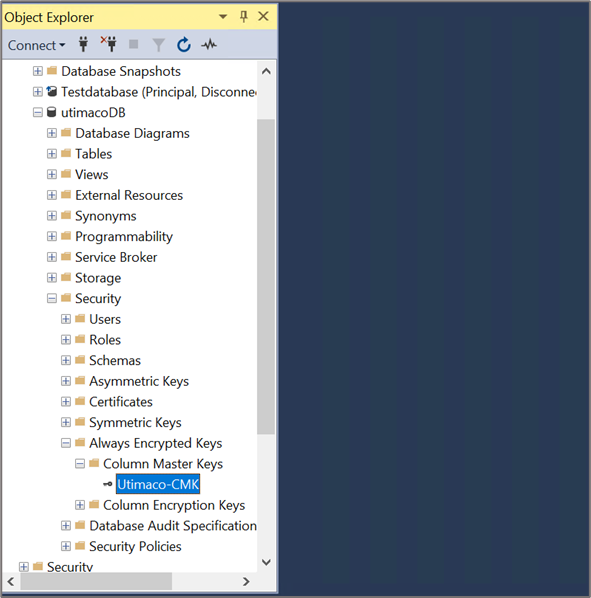
New Column Master Key