

-
To Enable Always Encrypted and generate a Column Encryption Key, right-click on the Database Name in Object Explorer Menu and select TASK.
-
Select Encrypt Column... This will open the Always Encrypted wizard.
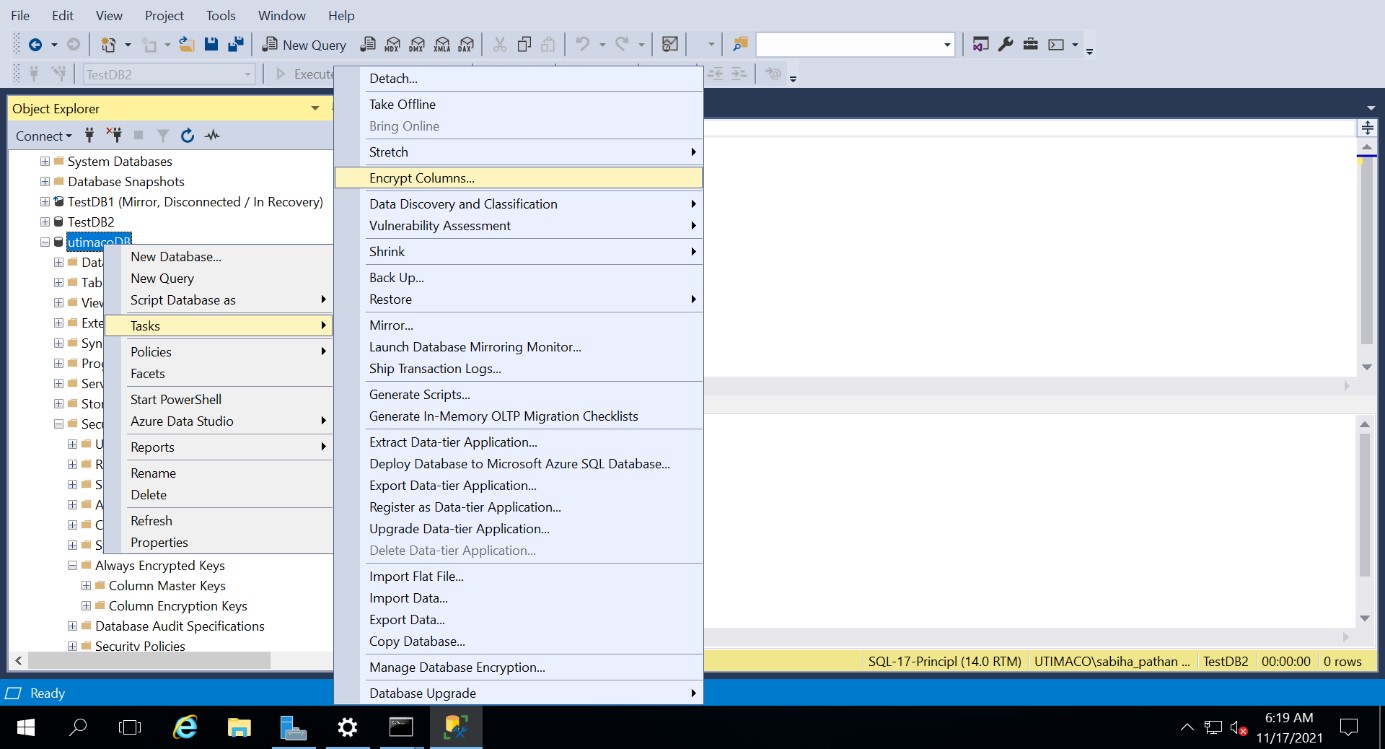
Apply Always Encrypted window
-
The Column Selection screen allows you to choose the type of Column Encryption Key and specify the columns you want to encrypt.
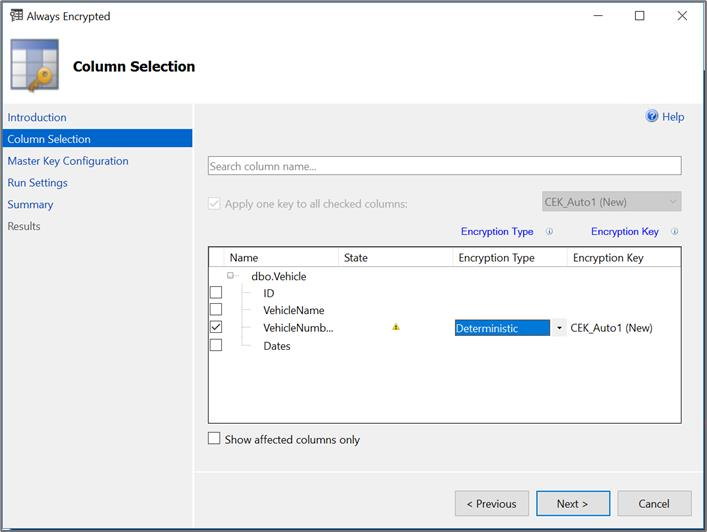
Column Selection window
The “Apply one key to all checked columns” is shaded out until you have two or more CEKs available. You will then also have the option to select the CEK for any given column via the drop-down list beneath the “Encryption Key” option.
Under “Encryption Type” click to select the column(s) to encrypt by checking the appropriate box to the left of the column name, you can then select the encryption method from the drop-down box beneath “Choose Type”. Encryption is either:
-
Deterministic
-
Randomized
-
Plaintext (only available to revert encrypted columns to an unencrypted state)
-
Click Next.
-
On the Master Key Configuration page, make sure that you select the CMK that was generated using the Utimaco Key Storage Provider and protected by the HSM and click Next.
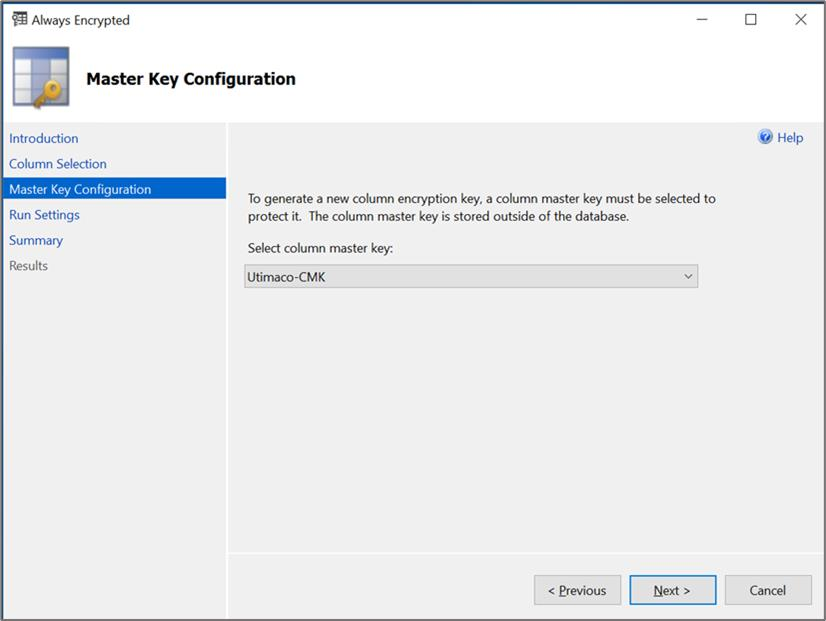
Column Selection window
-
The process of encrypting your database records can take a considerable amount of time, depending on the size / quantity of data. To mitigate the possibility of data corruption occurring as records are encrypted whilst being updated, it is advisable to back up the database and to only perform this activity when the database is off-line.
-
In this case we will continue and run the encryption straight away. Select the option “Proceed to finish now” this will begin the process of creating the CEK and using it to encrypt the specified column in the database. Click “Next” to view the Summary page.
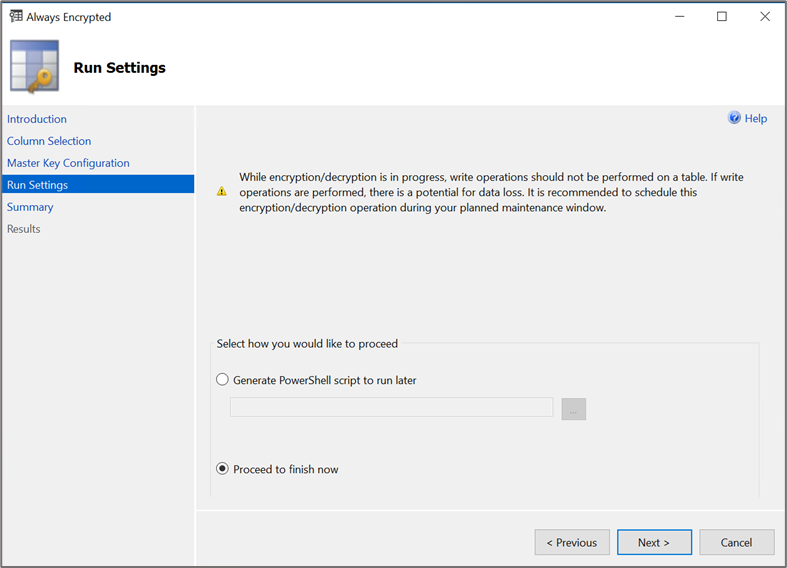
Run Settings window
-
Verify the summary of settings and click Finish.
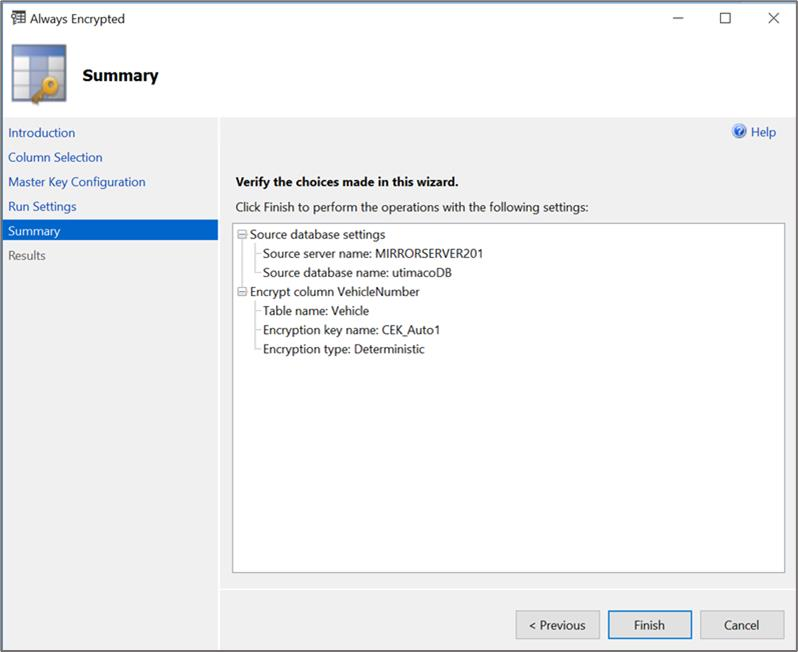
Summary window
-
The Results page will report the requested / specified columns are now encrypted. The user can now click “Close” to exit the Always Encrypted Column Encryption Key wizard.
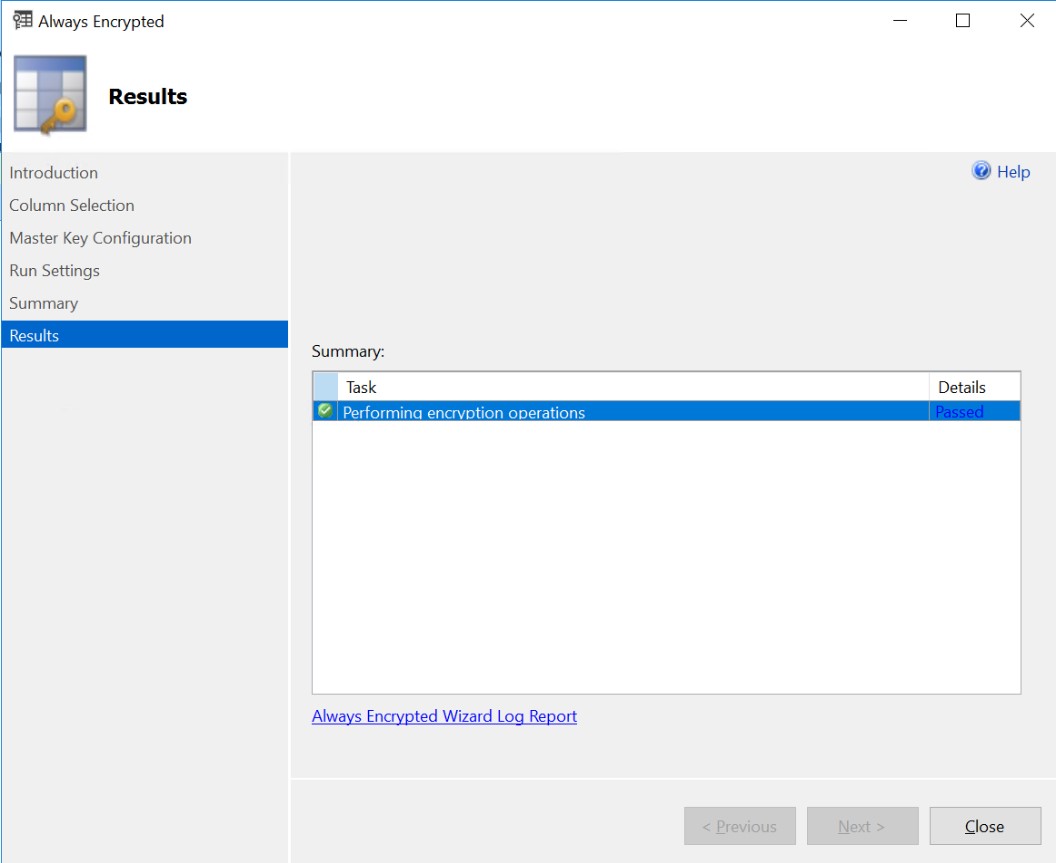
Results window
-
Query the table using select query and view the encrypted column. Expected output should be the encrypted column values will be visible in encrypted format.
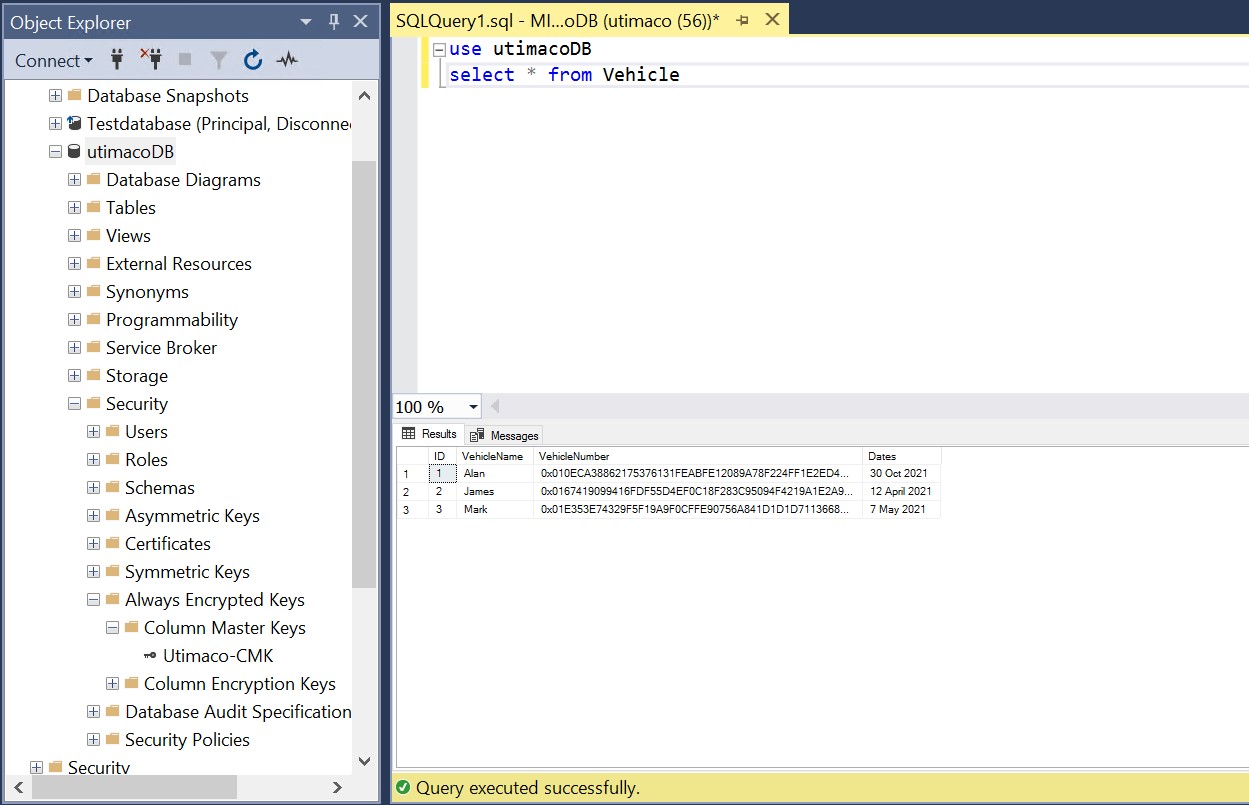
Always Encrypted Output window
To show the encrypted columns in plaintext (i.e., decrypted), you should disconnect from the database and reconnect with the given additional connection parameter. This is entered from the “Connect to Database Engine” logon screen. Select the required server name and click on “Options>>”. Go to “additional Connection Parameters” and add the connection string “Column Encryption Setting = enabled” (without parenthesis “”) and then click “Connect”.
When you now run the query on the table you will now see the original values decrypted by the Column Encryption Key.