

This section describes how to initialize and configure an external KeyStore using an SQL Server database. The SecurityServer EKM provider can use the external KeyStore to store and retrieve cryptographic keys via an ODBC connection.
Before proceeding, ensure the following:
-
SQL Server is installed and accessible.
-
The ODBC Driver for SQL Server is installed (latest version recommended).
-
The
cxitoolutility is available as part of the SecurityServer software bundle. -
A SQL Server user with appropriate permissions exists, and the target database has been created or can be created.
ODBC Driver Download:
You can download the latest Microsoft ODBC Driver for SQL Server from:
https://learn.microsoft.com/en-us/sql/connect/odbc/download-odbc-driver-for-sql-server
To configure the external keystore, the following steps must be followed:
-
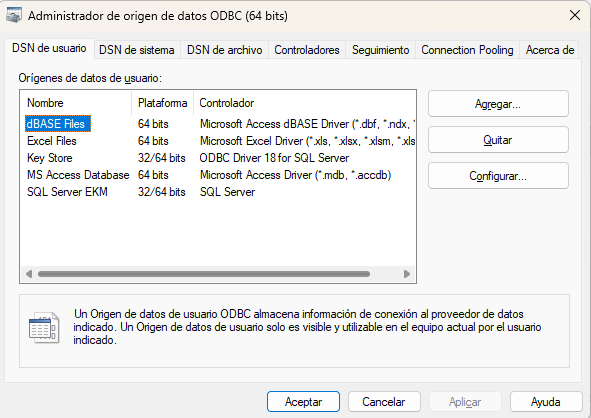
Configure the ODBC Data Source.
-
Open the ODBC Data Source Administrator from the Windows Start menu.
-
Select Add, then choose the ODBC Driver for SQL Server from the list.
-
Configure the Data Source Name (DSN), SQL Server hostname/IP, authentication details, and database name.
-
Test the connection to ensure successful communication with the SQL Server instance.
-
-
Initialize the KeyStore Database. Once the ODBC connection is configured, you can initialize the database schema for KeyStore storage using the following command.
cxitool dbConnString="DSN=<ODBC>;Uid=<Username>;Pwd=<Password>" CreateDBSchema=mssql
-
Update the EKM Provider Configuration. After initializing the KeyStore, you must update the EKM provider configuration file (
cssqlekm.cfg) to use the external KeyStore.
Ensure that the SQL Server service account has read/write access to the KeyStore database and that the configuration file is correctly referenced in the system path or EKMCONFIGPATH environment variable.